Page 215 of 260
Audio and Telematics
213
Partner-2-VU_en_Chap10a_SMEGplus_ed02-2016
Level 1Level 2 Level 3 Comments
Connected services
MirrorLink
TM
Access or return to the applications already
downloaded to your smartphone and adapted to
MirrorLink
TM technology.
Access to a menu list depending on the
application chosen.
"Back": abandon the current operation, go up one
level.
"Home": access or return to the "Car mode" page.
Access to the "Connected services" primary
page.
TECHNOLOGY on BOARD
10
Page 216 of 260
Audio and Telematics
214
Partner-2-VU_en_Chap10a_SMEGplus_ed02-2016
CarPlay®
Page 217 of 260
Audio and Telematics
215
Partner-2-VU_en_Chap10a_SMEGplus_ed02-2016
As a safety measure and because it
requires sustained attention by the
driver, using a smartphone when
driving is prohibited.
All operations must be done with the
vehicle stationary.
As a safety measure, applications
can only be viewed with the vehicle
stationary; display is interrupted once
the vehicle is moving. The synchronisation of a
smartphone allows applications on a
smartphone that are adapted to the
CarPlay
® technology to be displayed on
t
he vehicle's screen.
As the principles and standards are
constantly evolving, it is recommended
that you update the operating system of
your smartphone.
For the list of eligible smartphones,
connect to the brand's internet website
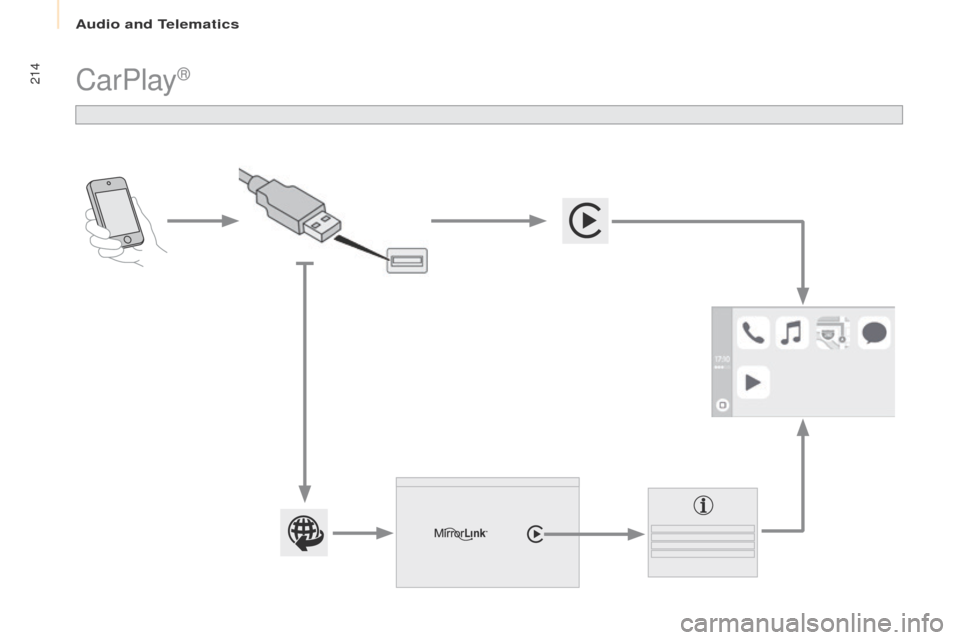
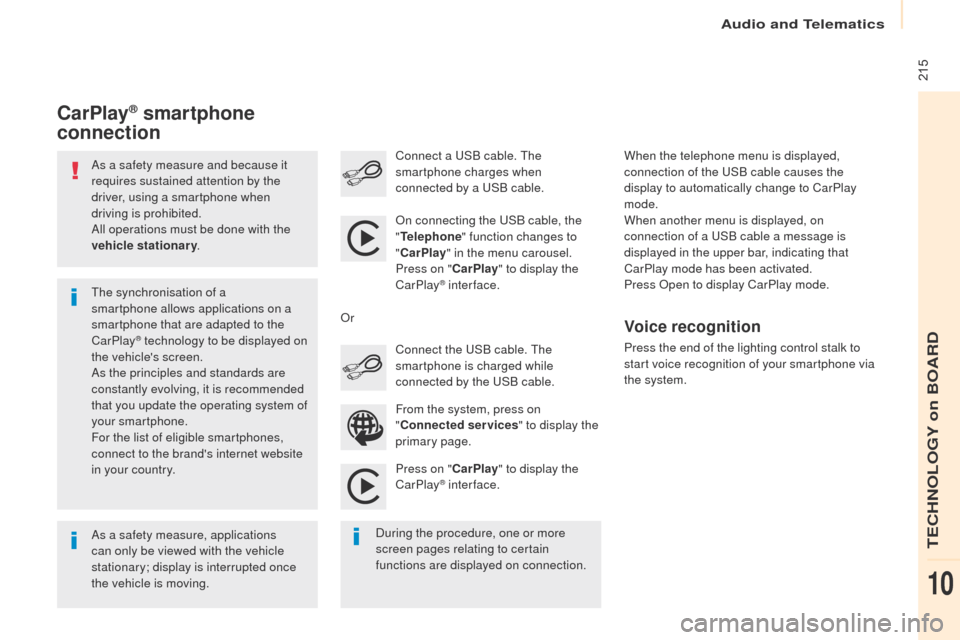
in your country. On connecting the USB cable, the
"
Telephone " function changes to
" CarPlay " in the menu carousel.
Press on " CarPlay" to display the
CarPlay
® inter face.
Press on " CarPlay" to display the
CarPlay
® inter face.
Connect a USB cable. The
smartphone charges when
connected by a USB cable.
Press the end of the lighting control stalk to
start voice recognition of your smartphone via
the system.
CarPlay® smartphone
connection
During the procedure, one or more
screen pages relating to certain
functions are displayed on connection. From the system, press on
"
Connected services " to display the
primary page. Connect the USB cable. The
smartphone is charged while
connected by the USB cable.
Or
Voice recognition
When the telephone menu is displayed,
connection of the USB cable causes the
display to automatically change to CarPlay
mode.
When another menu is displayed, on
connection of a USB cable a message is
displayed in the upper bar, indicating that
CarPlay
mode has been activated.
Press Open to display CarPlay mode.
TECHNOLOGY on BOARD
10
Page 218 of 260
Audio and Telematics
216
Partner-2-VU_en_Chap10a_SMEGplus_ed02-2016
Level 1
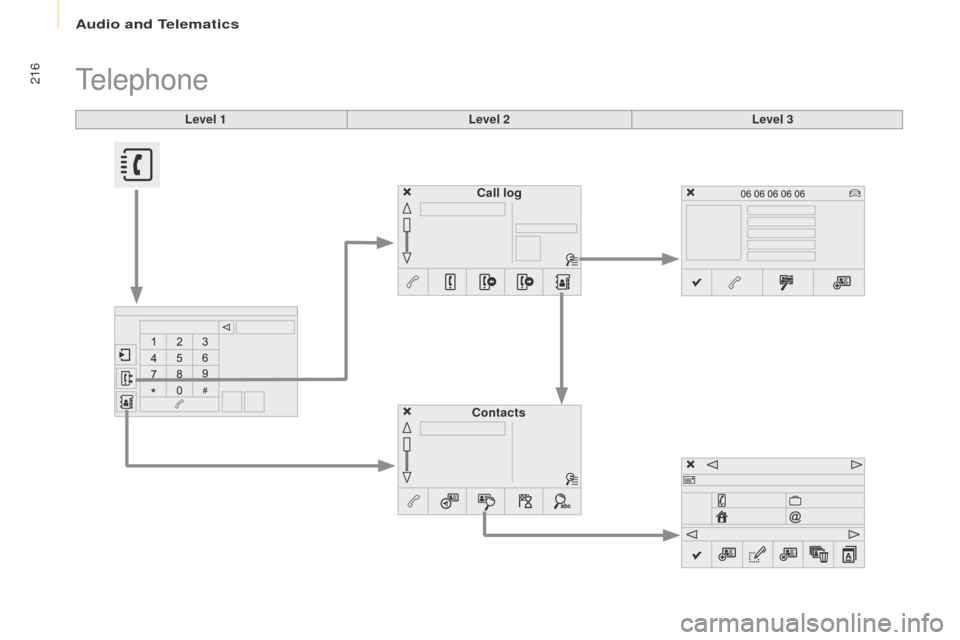
Telephone
Level 2Level 3
Contacts Call log
Page 219 of 260
Audio and Telematics
217
Partner-2-VU_en_Chap10a_SMEGplus_ed02-2016
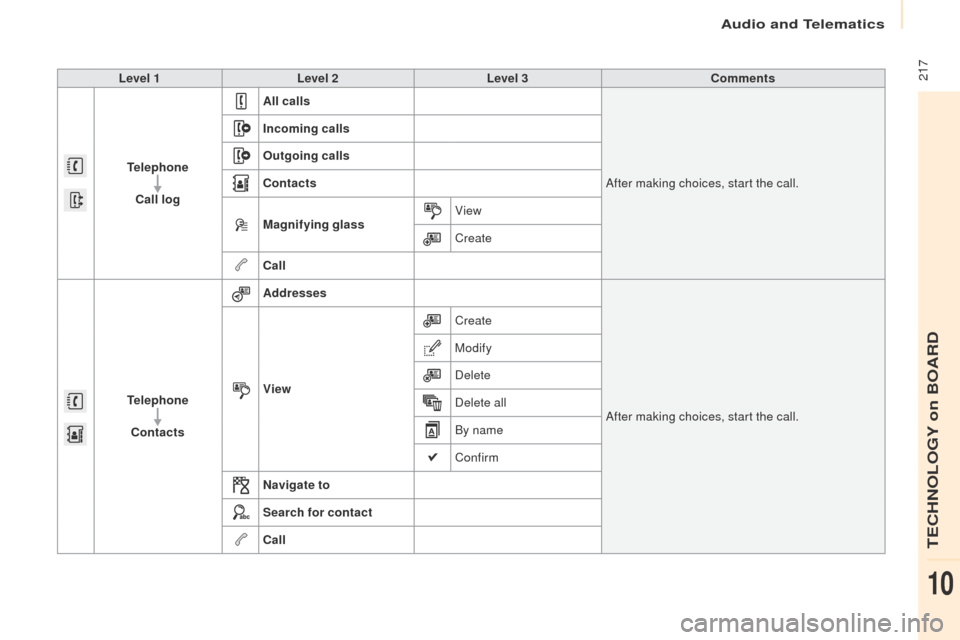
Level 1Level 2 Level 3 Comments
Telephone Call log All calls
After making choices, start the call.
Incoming calls
Outgoing calls
Contacts
Magnifying glass
View
Create
Call
Telephone Contacts Addresses
After making choices, start the call.
View Create
Modify
Delete
Delete all
By name
Confirm
Navigate to
Search for contact
Call
TECHNOLOGY on BOARD
10
Page 220 of 260
Audio and Telematics
218
Partner-2-VU_en_Chap10a_SMEGplus_ed02-2016
Bluetooth (devices)
Telephone Options Devices detected
Telephone
connection
Level 1
Level 2Level 3
Page 221 of 260

Audio and Telematics
219
Partner-2-VU_en_Chap10a_SMEGplus_ed02-2016
Level 1Level 2 Level 3 Comments
Telephone
connection
Secondary page Bluetooth
connection Search
Start the search for another peripheral device to
connect.
Connect / Disconnect Start or stop the Bluetooth
® connection to the
selected peripheral device.
Update Import the contacts from the selected telephone
to store them in the audio system.
Delete Delete the selected telephone.
Confirm Save the settings.
Telephone
conn ection
Secondary page Search for devices Devices detected
Telephone
Start the search for peripheral devices.
Audio streaming
Internet
Telephone
connection
Secondary page
Telephone Options Put on hold
Cut the microphone temporarily so that the
contact cannot hear your conversation with a
passenger.
Update Import the contacts from the selected telephone
to save then in the audio system.
Ringtones Choose the telephone ringtone and volume.
Memory info. Contact records used and free, percentage of
storage space used by internal contacts and
Bluetooth
® contacts.
Confirm Save the settings.
TECHNOLOGY on BOARD
10
Page 222 of 260
Audio and Telematics
220
Partner-2-VU_en_Chap10a_SMEGplus_ed02-2016
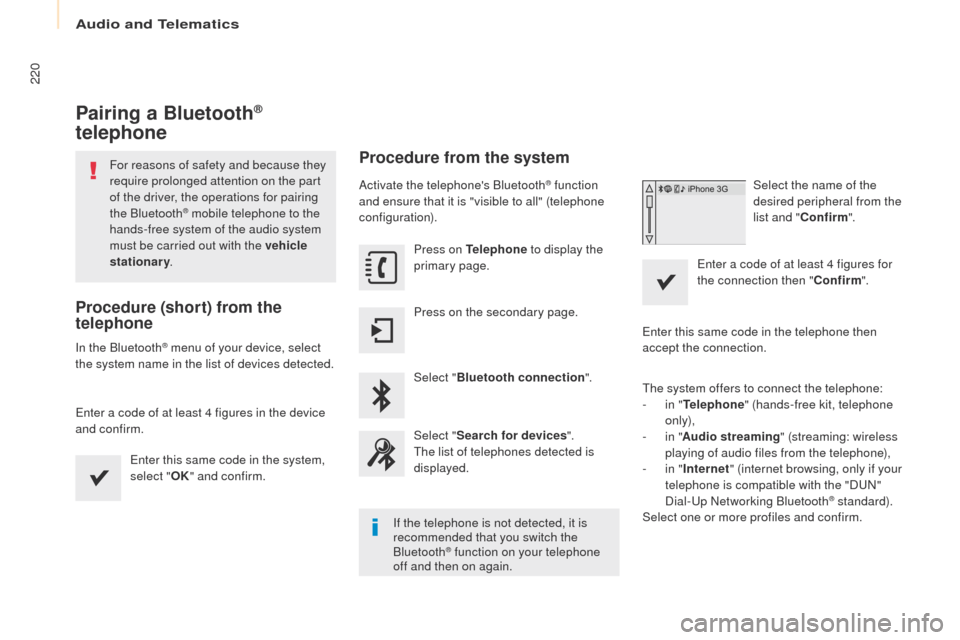
Pairing a Bluetooth®
telephone
For reasons of safety and because they
require prolonged attention on the part
of the driver, the operations for pairing
the Bluetooth
® mobile telephone to the
hands-free system of the audio system
must be carried out with the vehicle
stationary .
Procedure (short) from the
telephone
In the Bluetooth® menu of your device, select
the system name in the list of devices detected.
Enter a code of at least 4 figures in the device
and confirm.
Enter this same code in the system,
select "OK" and confirm.
Procedure from the system
Activate the telephone's Bluetooth® function
and ensure that it is "visible to all" (telephone
configuration).
Press on Telephone to display the
primary page.
Press on the secondary page.
Select " Bluetooth connection ".
Select " Search for devices ".
The list of telephones detected is
displayed.
If the telephone is not detected, it is
recommended that you switch the
Bluetooth
® function on your telephone
off and then on again. Select the name of the
desired peripheral from the
list and "
Confirm ".
Enter a code of at least 4 figures for
the connection then " Confirm".
Enter this same code in the telephone then
accept the connection.
The system offers to connect the telephone:
-
i
n "
Telephone " (hands-free kit, telephone
only),
-
i
n "
Audio streaming " (streaming: wireless
playing of audio files from the telephone),
-
i
n "
Internet " (internet browsing, only if your
telephone is compatible with the "DUN"
Dial-Up Networking Bluetooth
® standard).
Select one or more profiles and confirm.