Page 328 of 368
05
326
4008_en_Chap10d_Mitsu4_ed01-2016
MUSIC MEDIA PLAYERS
this can play audio CDs (CD-DA, CD-text, CD-R/R W)
or MP3 CDs. Ejecting a disc
CD player
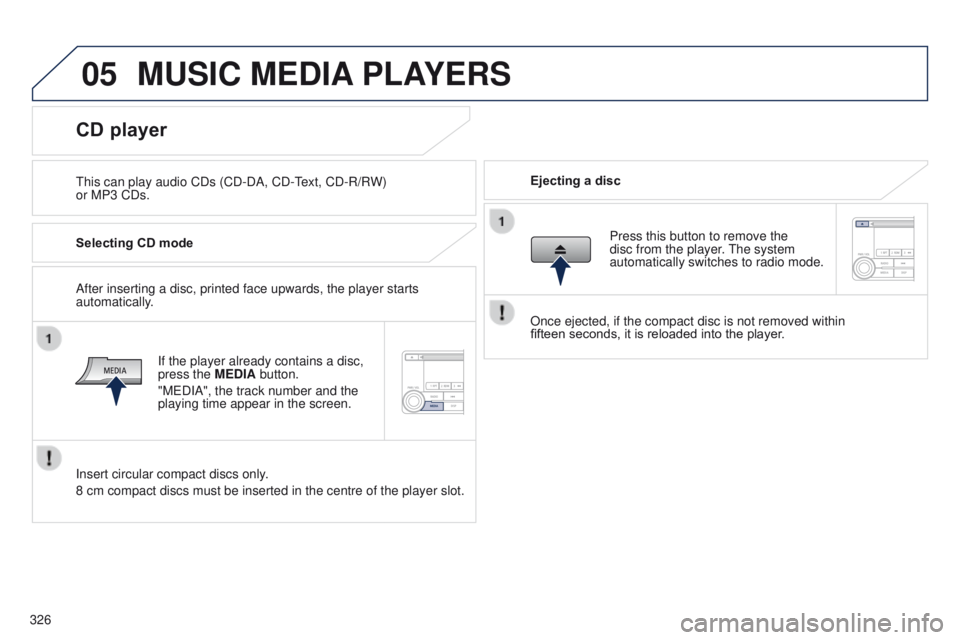
Selecting CD mode
If the player already contains a disc,
press the MEDIA button.
"M
e DIA", the track number and the
playing time appear in the screen.
Insert circular compact discs only.
8 cm compact discs must be inserted in the centre of the player slot. After inserting a disc, printed face upwards, the player starts
automatically. Press this button to remove the
disc from the player. t
he system
automatically switches to radio mode.
Once ejected, if the compact disc is not removed within
fifteen
seconds, it is reloaded into the player.
Page 329 of 368
05
327
4008_en_Chap10d_Mitsu4_ed01-2016
MUSIC MEDIA PLAYERS
Random playing of a disc
Press the RDM button to start random
play of the tracks on the disc. "RDM"
appears in the screen.
to exit this mode, press this button
again.
Audio CD
Press and hold the " 7
" or "8" button
to carry out a rewind or fast forward
search respectively.
Play begins when the button is
released.
Fast search
Press the "9" or ":" button to select
the previous or next track respectively.
Selecting a track
Press the RPT button to repeat
the play of the current track. "RP
t
"
appears in the screen.
to exit this mode, press this button
again.
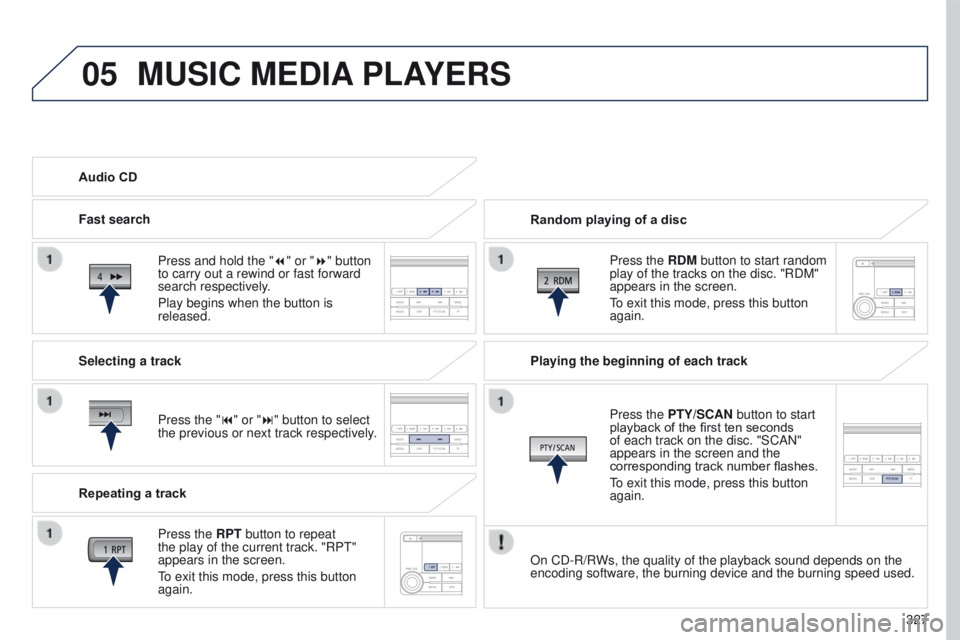
Repeating a track Playing the beginning of each track
Press the
PTY/SCAN button to start
playback of the first ten seconds
of each track on the disc. "SCAN"
appears in the screen and the
corresponding track number flashes.
to exit this mode, press this button
again.
On CD-R/R
Ws, the quality of the playback sound depends on the
encoding software, the burning device and the burning speed used.
Page 331 of 368
05
329
4008_en_Chap10d_Mitsu4_ed01-2016
MUSIC MEDIA PLAYERS
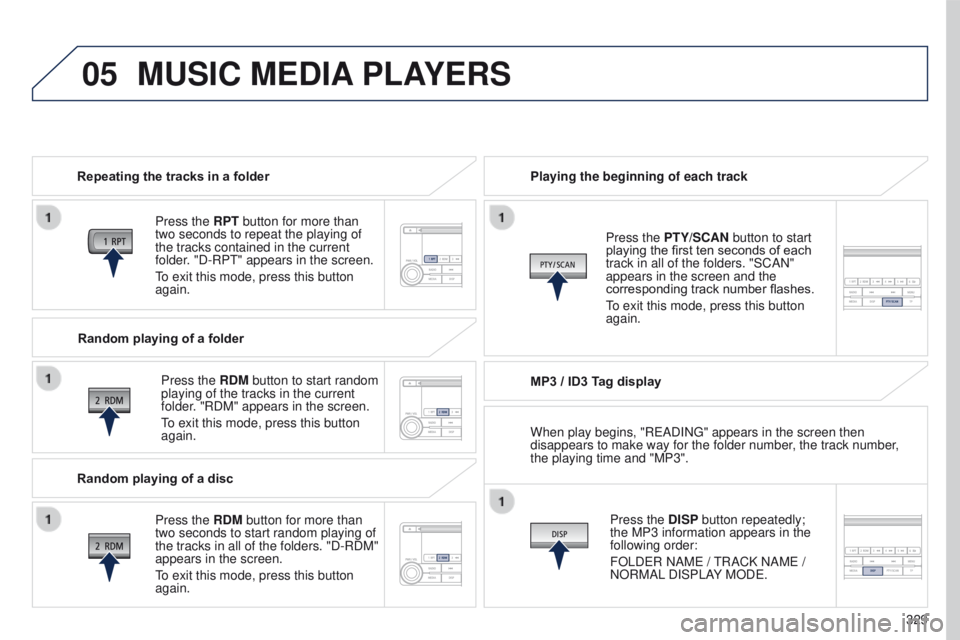
Repeating the tracks in a folder
Press the RPT button for more than
two seconds to repeat the playing of
the tracks contained in the current
folder. "D-RP
t " appears in the screen.
to exit this mode, press this button
again.
Press the
RDM button to start random
playing of the tracks in the current
folder. "RDM" appears in the screen.
to exit this mode, press this button
again. Playing the beginning of each track
MP3 / ID3 T
ag displayPress the DISP button repeatedly;
the MP3 information appears in the
following order:
FOLD
e R NAM e /
t
RACK NAM e /
NORMAL DISPLAY MOD
e .
Press the PTY/SCAN button to start
playing the first ten seconds of each
track in all of the folders. "SCAN"
appears in the screen and the
corresponding track number flashes.
to exit this mode, press this button
again.
Random playing of a folder
Random playing of a disc Press the
RDM button for more than
two seconds to start random playing of
the tracks in all of the folders. "D-RDM"
appears in the screen.
to exit this mode, press this button
again. When play begins, "R
e ADIN g " appears in the screen then
disappears to make way for the folder number, the track number,
the playing time and "MP3".
Page 332 of 368
05
330
4008_en_Chap10d_Mitsu4_ed01-2016
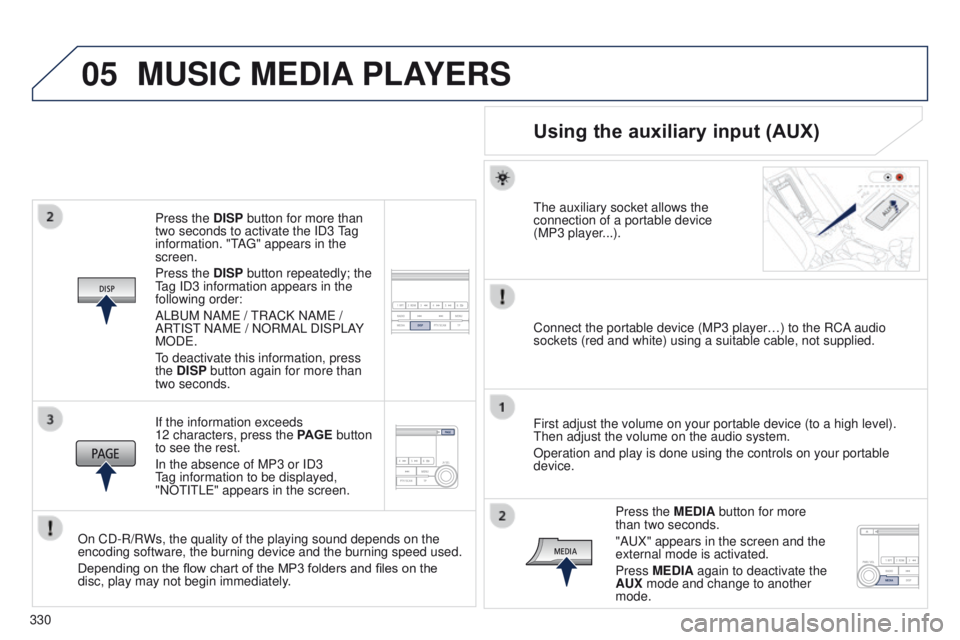
Press the DISP button for more than
two seconds to activate the ID3 tag
information. "
t
A
g " appears in the
screen.
Press the DISP button repeatedly; the
tag ID3 information appears in the
following order:
ALB
u M NAM e /
t
RACK NAM e /
AR
t
IS t
NAM
e / NORMAL DISPLAY
MOD
e .
to deactivate this information, press
the
DISP button again for more than
two seconds.
If the information exceeds
12 characters, press the PAGE button
to see the rest.
In the absence of MP3 or ID3
tag information to be displayed,
"NO
t I t L e " appears in the screen.
On CD-R/RWs, the quality of the playing sound depends on the
encoding software, the burning device and the burning speed used.
Depending on the flow chart of the MP3 folders and files on the
disc, play may not begin immediately.
MUSIC MEDIA PLAYERS
Using the auxiliary input (AUX)
the auxiliary socket allows the
connection of a portable device
(MP3 player
...).
Connect the portable device (MP3 player…) to the RCA audio
sockets (red and white) using a suitable cable, not supplied.
First adjust the volume on your portable device (to a high level).
t
hen adjust the volume on the audio system.
Operation and play is done using the controls on your portable
device.
Press the MEDIA button for more
than two seconds.
"A
u X" appears in the screen and the
external mode is activated.
Press MEDIA again to deactivate the
AUX mode and change to another
mode.
Page 334 of 368
06
332
4008_en_Chap10d_Mitsu4_ed01-2016
Once the portable player / iPod® is
connected, make several successive
presses on the MEDIA button and
select
u
SB, the source selected is
displayed.
Once the player is selected, play
starts.
Play
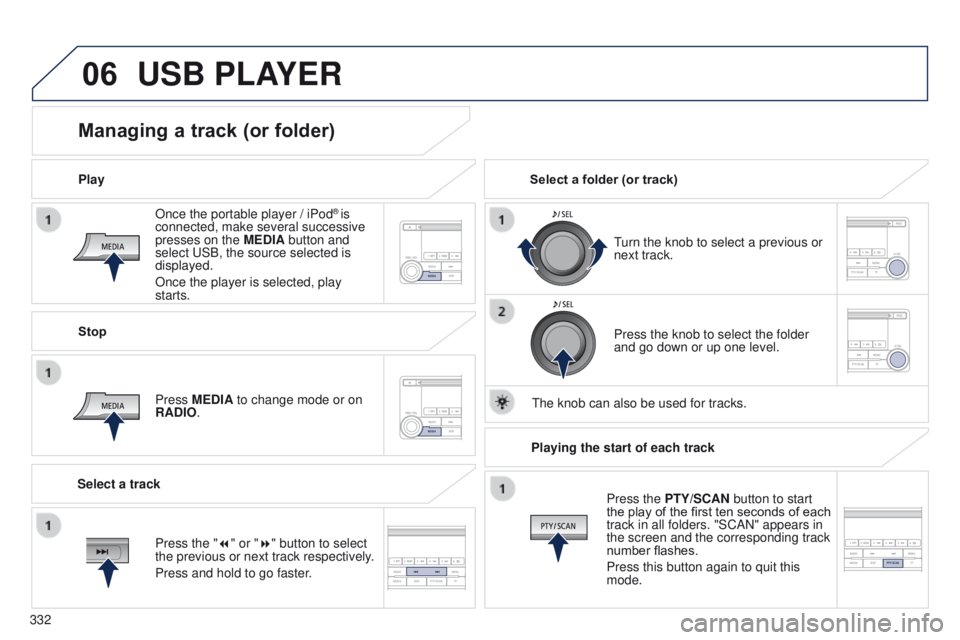
Managing a track (or folder)
Stop
Press MEDIA to change mode or on
RADIO.
turn the knob to select a previous or
next track.
Select a folder (or track)
Select a track Press the knob to select the folder
and go down or up one level.
t
he knob can also be used for tracks.
USB PLAYER
Press the "7" or "8" button to select
the previous or next track respectively.
Press and hold to go faster.Playing the start of each track
Press the PTY/SCAN button to start
the play of the first ten seconds of each
track in all folders. "SCAN" appears in
the screen and the corresponding track
number flashes.
Press this button again to quit this
mode.
Page 336 of 368
07
334
4008_en_Chap10d_Mitsu4_ed01-2016
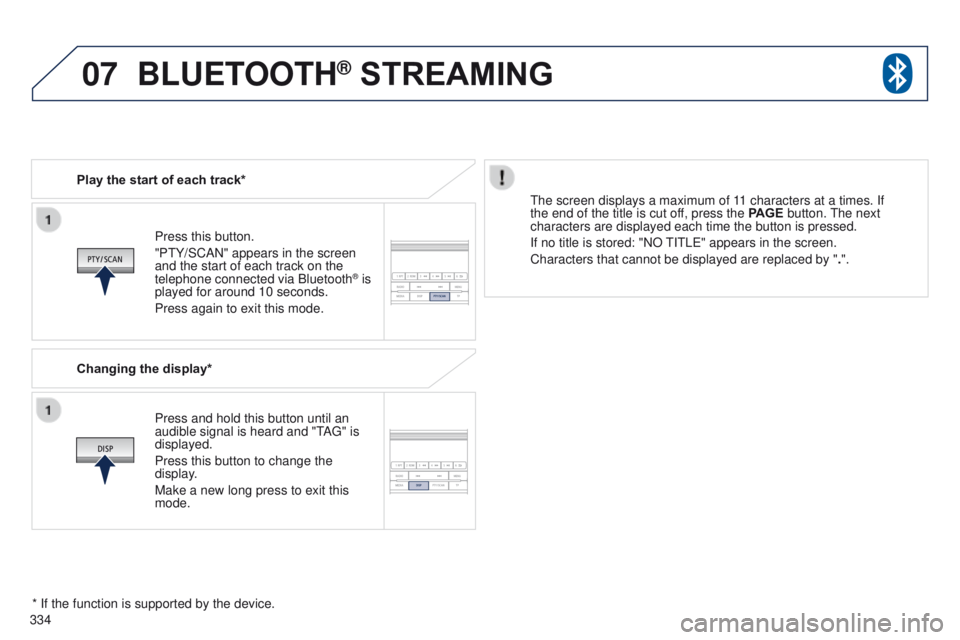
Press this button.
"Pt Y/SCAN" appears in the screen
and the start of each track on the
telephone connected via Bluetooth
® is
played for around 10 seconds.
Press again to exit this mode.
Play the start of each track*
Changing the display*
Press and hold this button until an
audible signal is heard and "
t
A
g
" is
displayed.
Press this button to change the
display.
Make a new long press to exit this
mode.
t
he screen displays a maximum of 11 characters at a times. If
the end of the title is cut off, press the PAGE button.
t
he next
characters are displayed each time the button is pressed.
If no title is stored: "NO
t
I t L e " appears in the screen.
Characters that cannot be displayed are replaced by " .".
* If the function is supported by the device.
BLUETOOTH® STREAMING