Page 283 of 520
4-94Monitor, heater, air conditioner, audio, phone and voice recognition systems
CM Skip (DVD-VIDEO) (Type A):
Select the “CM Skip” key. Choose the setting
time from 15, 30 or 60 seconds by selecting the
“+” side or “í” side.
DRC (DVD-VIDEO, DVD-VR):
DRC (Dynamic Range Compression) automati-
cally adjusts the soundtrack volume level to
maintain a more even sound to the speakers.
DVD Language (DVD-VIDEO, VIDEO-CD):
Select the “DVD Language” key to open the
number entry screen. Input the number corre-
sponding to the preferred language and select
the “OK” key. The DVD top menu language will
be changed to the one specified.
Display:
To adjust the image quality of the screen, select
the preferred adjustment items.
Audio:
Select the preferred language for audio.
Subtitle (DVD-VIDEO, DVD-VR):
Select the preferred language for subtitles.
Display Mode (DVD-VIDEO, VIDEO-CD,
DVD-VR):
Select from the “Full”, “Wide”, “Normal” or
“Cinema” modes.Title List (DVD-VR):
Select the preferred title from the list.
Play Mode:
Select the preferred play mode.
PG/PL Mode (DVD-VR):
Select the “PG” or “PL” mode.
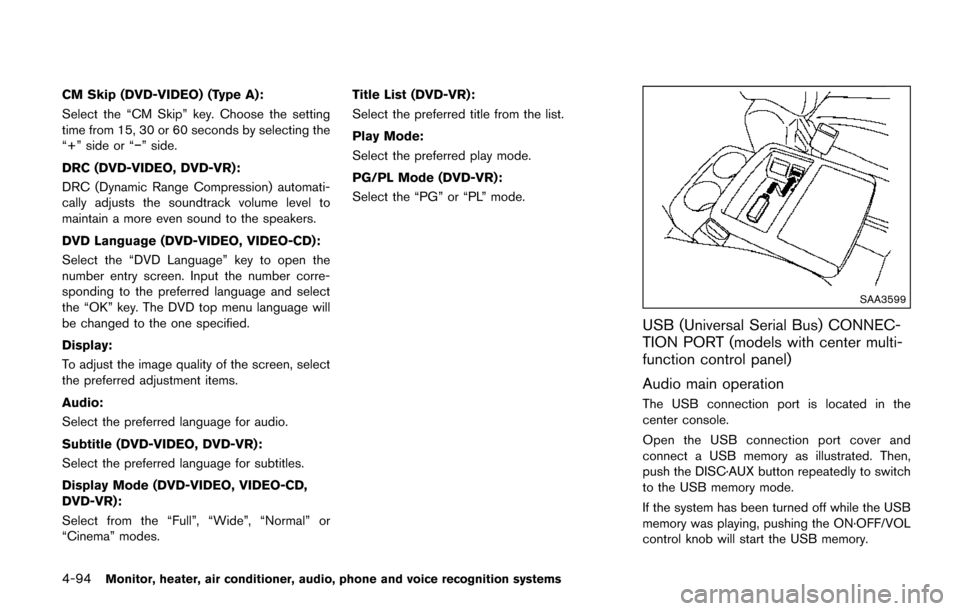
SAA3599
USB (Universal Serial Bus) CONNEC-
TION PORT (models with center multi-
function control panel)
Audio main operation
The USB connection port is located in the
center console.
Open the USB connection port cover and
connect a USB memory as illustrated. Then,
push the DISC·AUX button repeatedly to switch
to the USB memory mode.
If the system has been turned off while the USB
memory was playing, pushing the ON·OFF/VOL
control knob will start the USB memory.
Page 288 of 520
the “OK” key.
The specified folder/file will be played.
. Display
To adjust the image quality of the screen,
select the preferred adjustment items.
. DRC
DRC (Dynamic Range Compression) auto-
matically adjusts the soundtrack volume
level to maintain a more even sound to the
speakers.
. Audio
Select the preferred language for audio.
. Subtitle
Select the preferred language for subtitle.
. Display Mode
Select the “Normal”, “Wide”, “Cinema” or
“Full” mode.
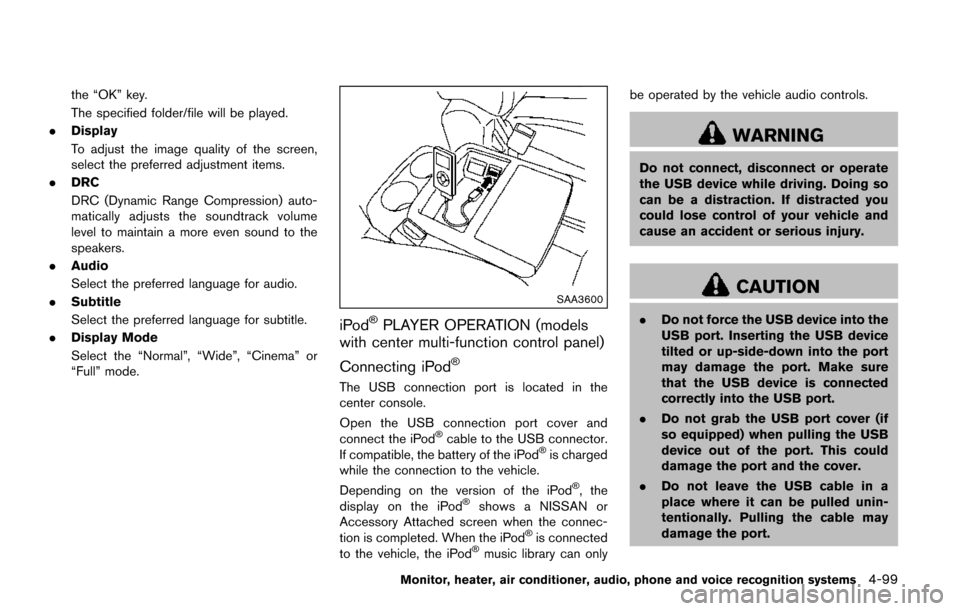
SAA3600
iPodŠPLAYER OPERATION (models
with center multi-function control panel)
Connecting iPod
Š
The USB connection port is located in the
center console.
Open the USB connection port cover and
connect the iPod
Šcable to the USB connector.
If compatible, the battery of the iPodŠis charged
while the connection to the vehicle.
Depending on the version of the iPod
Š, the
display on the iPodŠshows a NISSAN or
Accessory Attached screen when the connec-
tion is completed. When the iPod
Šis connected
to the vehicle, the iPodŠmusic library can only be operated by the vehicle audio controls.
WARNING
Do not connect, disconnect or operate
the USB device while driving. Doing so
can be a distraction. If distracted you
could lose control of your vehicle and
cause an accident or serious injury.
CAUTION
.
Do not force the USB device into the
USB port. Inserting the USB device
tilted or up-side-down into the port
may damage the port. Make sure
that the USB device is connected
correctly into the USB port.
. Do not grab the USB port cover (if
so equipped) when pulling the USB
device out of the port. This could
damage the port and the cover.
. Do not leave the USB cable in a
place where it can be pulled unin-
tentionally. Pulling the cable may
damage the port.
Monitor, heater, air conditioner, audio, phone and voice recognition systems4-99
Page 295 of 520
4-106Monitor, heater, air conditioner, audio, phone and voice recognition systems
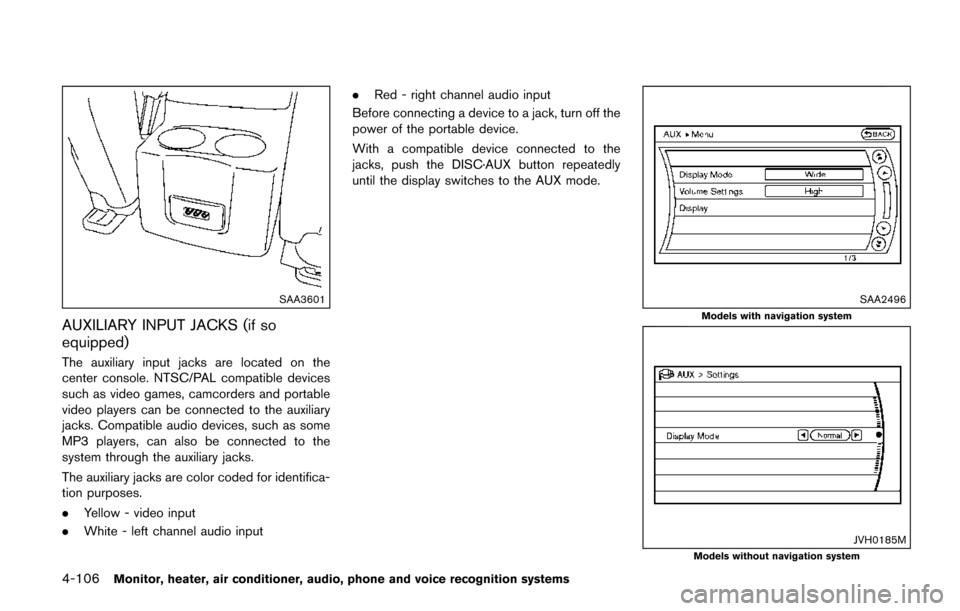
SAA3601
AUXILIARY INPUT JACKS (if so
equipped)
The auxiliary input jacks are located on the
center console. NTSC/PAL compatible devices
such as video games, camcorders and portable
video players can be connected to the auxiliary
jacks. Compatible audio devices, such as some
MP3 players, can also be connected to the
system through the auxiliary jacks.
The auxiliary jacks are color coded for identifica-
tion purposes.
.Yellow - video input
. White - left channel audio input .
Red - right channel audio input
Before connecting a device to a jack, turn off the
power of the portable device.
With a compatible device connected to the
jacks, push the DISC·AUX button repeatedly
until the display switches to the AUX mode.
SAA2496
Models with navigation system
JVH0185MModels without navigation system
Page 411 of 520
6-6In case of emergency
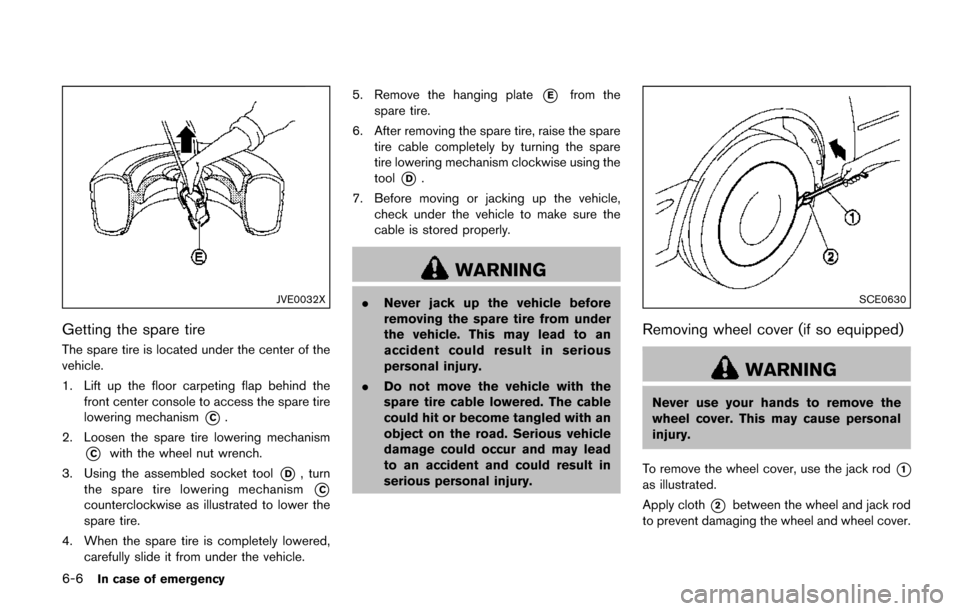
JVE0032X
Getting the spare tire
The spare tire is located under the center of the
vehicle.
1. Lift up the floor carpeting flap behind thefront center console to access the spare tire
lowering mechanism
*C.
2. Loosen the spare tire lowering mechanism
*Cwith the wheel nut wrench.
3. Using the assembled socket tool
*D, turn
the spare tire lowering mechanism
*C
counterclockwise as illustrated to lower the
spare tire.
4. When the spare tire is completely lowered, carefully slide it from under the vehicle. 5. Remove the hanging plate
*Efrom the
spare tire.
6. After removing the spare tire, raise the spare tire cable completely by turning the spare
tire lowering mechanism clockwise using the
tool
*D.
7. Before moving or jacking up the vehicle, check under the vehicle to make sure the
cable is stored properly.
WARNING
.Never jack up the vehicle before
removing the spare tire from under
the vehicle. This may lead to an
accident could result in serious
personal injury.
. Do not move the vehicle with the
spare tire cable lowered. The cable
could hit or become tangled with an
object on the road. Serious vehicle
damage could occur and may lead
to an accident and could result in
serious personal injury.SCE0630
Removing wheel cover (if so equipped)
WARNING
Never use your hands to remove the
wheel cover. This may cause personal
injury.
To remove the wheel cover, use the jack rod
*1
as illustrated.
Apply cloth
*2between the wheel and jack rod
to prevent damaging the wheel and wheel cover.