2017 NISSAN MURANO radio
[x] Cancel search: radioPage 211 of 243
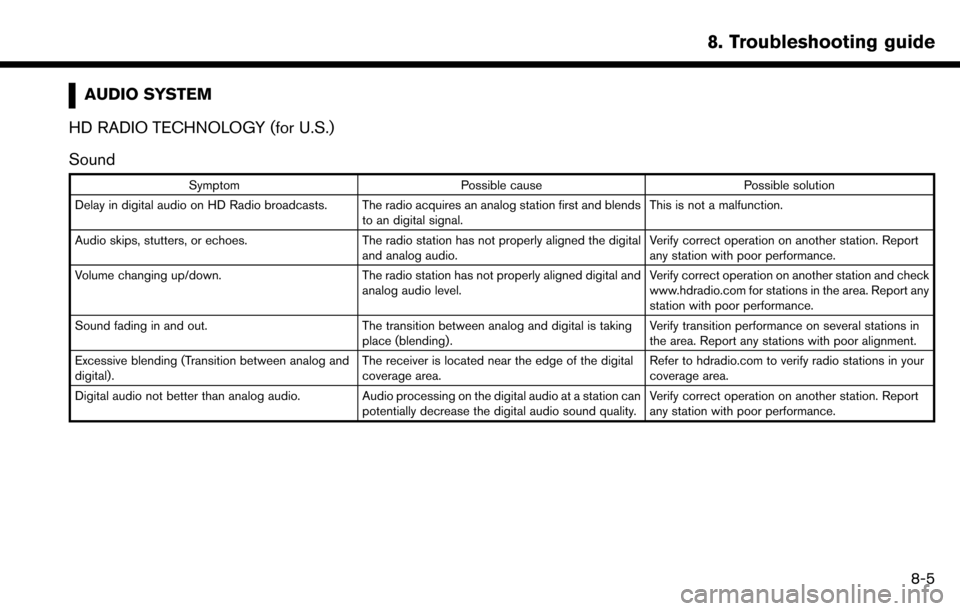
AUDIO SYSTEM
HD RADIO TECHNOLOGY (for U.S.)
Sound
Symptom Possible cause Possible solution
Delay in digital audio on HD Radio broadcasts. The radio acquires an analog station first and blends to an digital signal.This is not a malfunction.
Audio skips, stutters, or echoes. The radio station has not properly aligned the digital
and analog audio. Verify correct operation on another station. Report
any station with poor performance.
Volume changing up/down. The radio station has not properly aligned digital and
analog audio level. Verify correct operation on another station and check
www.hdradio.com for stations in the area. Report any
station with poor performance.
Sound fading in and out. The transition between analog and digital is taking
place (blending). Verify transition performance on several stations in
the area. Report any stations with poor alignment.
Excessive blending (Transition between analog and
digital). The receiver is located near the edge of the digital
coverage area.Refer to hdradio.com to verify radio stations in your
coverage area.
Digital audio not better than analog audio. Audio processing on the digital audio at a station can potentially decrease the digital audio sound quality.Verify correct operation on another station. Report
any station with poor performance.
8. Troubleshooting guide
8-5
Page 222 of 243
8. Troubleshooting guide
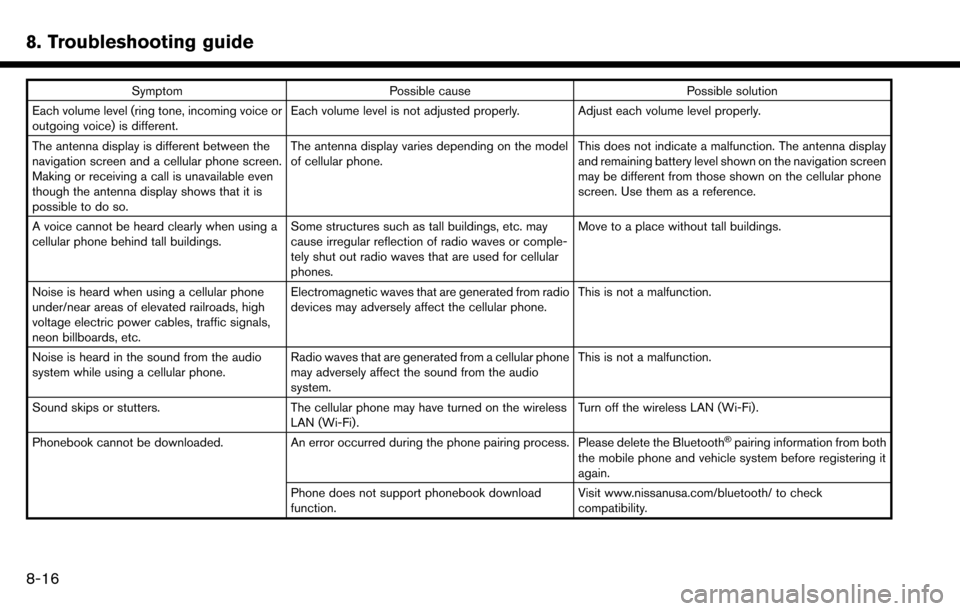
SymptomPossible cause Possible solution
Each volume level (ring tone, incoming voice or
outgoing voice) is different. Each volume level is not adjusted properly. Adjust each volume level properly.
The antenna display is different between the
navigation screen and a cellular phone screen.
Making or receiving a call is unavailable even
though the antenna display shows that it is
possible to do so. The antenna display varies depending on the model
of cellular phone.
This does not indicate a malfunction. The antenna display
and remaining battery level shown on the navigation screen
may be different from those shown on the cellular phone
screen. Use them as a reference.
A voice cannot be heard clearly when using a
cellular phone behind tall buildings. Some structures such as tall buildings, etc. may
cause irregular reflection of radio waves or comple-
tely shut out radio waves that are used for cellular
phones. Move to a place without tall buildings.
Noise is heard when using a cellular phone
under/near areas of elevated railroads, high
voltage electric power cables, traffic signals,
neon billboards, etc. Electromagnetic waves that are generated from radio
devices may adversely affect the cellular phone.
This is not a malfunction.
Noise is heard in the sound from the audio
system while using a cellular phone. Radio waves that are generated from a cellular phone
may adversely affect the sound from the audio
system. This is not a malfunction.
Sound skips or stutters. The cellular phone may have turned on the wireless
LAN (Wi-Fi). Turn off the wireless LAN (Wi-Fi).
Phonebook cannot be downloaded. An error occurred during the phone pairing process. Please delete the Bluetooth
Špairing information from both
the mobile phone and vehicle system before registering it
again.
Phone does not support phonebook download
function. Visit www.nissanusa.com/bluetooth/ to check
compatibility.
8-16
Page 223 of 243
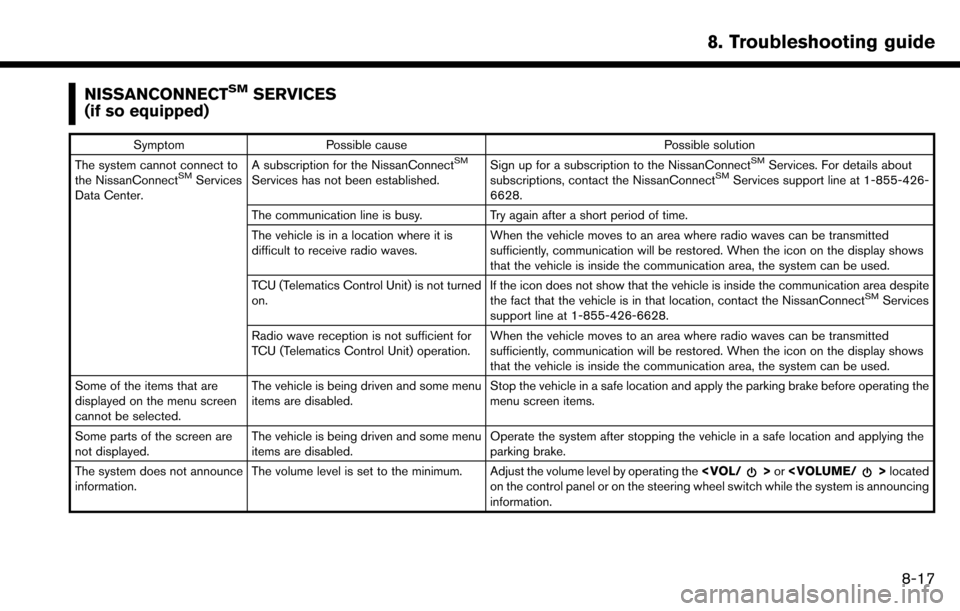
NISSANCONNECTSMSERVICES
(if so equipped)
Symptom Possible cause Possible solution
The system cannot connect to
the NissanConnect
SMServices
Data Center. A subscription for the NissanConnect
SM
Services has not been established.
Sign up for a subscription to the NissanConnect
SMServices. For details about
subscriptions, contact the NissanConnectSMServices support line at 1-855-426-
6628.
The communication line is busy. Try again after a short period of time.
The vehicle is in a location where it is
difficult to receive radio waves. When the vehicle moves to an area where radio waves can be transmitted
sufficiently, communication will be restored. When the icon on the display shows
that the vehicle is inside the communication area, the system can be used.
TCU (Telematics Control Unit) is not turned
on. If the icon does not show that the vehicle is inside the communication area despite
the fact that the vehicle is in that location, contact the NissanConnect
SMServices
support line at 1-855-426-6628.
Radio wave reception is not sufficient for
TCU (Telematics Control Unit) operation. When the vehicle moves to an area where radio waves can be transmitted
sufficiently, communication will be restored. When the icon on the display shows
that the vehicle is inside the communication area, the system can be used.
Some of the items that are
displayed on the menu screen
cannot be selected. The vehicle is being driven and some menu
items are disabled.
Stop the vehicle in a safe location and apply the parking brake before operating the
menu screen items.
Some parts of the screen are
not displayed. The vehicle is being driven and some menu
items are disabled. Operate the system after stopping the vehicle in a safe location and applying the
parking brake.
The system does not announce
information. The volume level is set to the minimum. Adjust the volume level by operating the
on the control panel or on the steering wheel switch while the system is announcing
information.
8. Troubleshooting guide
8-17
Page 236 of 243
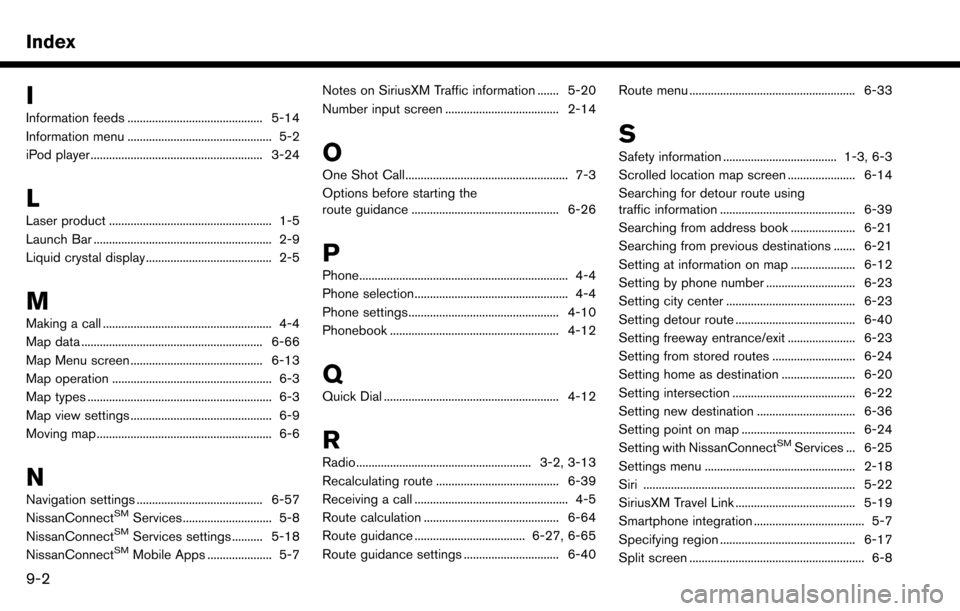
Index
I
Information feeds ............................................ 5-14
Information menu ............................................... 5-2
iPod player ........................................................ 3-24
L
Laser product ..................................................... 1-5
Launch Bar .......................................................... 2-9
Liquid crystal display......................................... 2-5
M
Making a call ....................................................... 4-4
Map data ........................................................... 6-66
Map Menu screen ........................................... 6-13
Map operation .................................................... 6-3
Map types ............................................................ 6-3
Map view settings .............................................. 6-9
Moving map ......................................................... 6-6
N
Navigation settings ......................................... 6-57
NissanConnectSMServices ............................. 5-8
NissanConnectSMServices settings .......... 5-18
NissanConnectSMMobile Apps ..................... 5-7 Notes on SiriusXM Traffic information ....... 5-20
Number input screen ..................................... 2-14
O
One Shot Call..................................................... 7-3
Options before starting the
route guidance ................................................ 6-26
P
Phone.................................................................... 4-4
Phone selection.................................................. 4-4
Phone settings................................................. 4-10
Phonebook ....................................................... 4-12
Q
Quick Dial ......................................................... 4-12
R
Radio......................................................... 3-2, 3-13
Recalculating route ........................................ 6-39
Receiving a call .................................................. 4-5
Route calculation ............................................ 6-64
Route guidance .................................... 6-27, 6-65
Route guidance settings ............................... 6-40
Route menu ...................................................... 6-33
S
Safety information ..................................... 1-3, 6-3
Scrolled location map screen ...................... 6-14
Searching for detour route using
traffic information ............................................ 6-39
Searching from address book ..................... 6-21
Searching from previous destinations ....... 6-21
Setting at information on map ..................... 6-12
Setting by phone number ............................. 6-23
Setting city center .......................................... 6-23
Setting detour route ....................................... 6-40
Setting freeway entrance/exit ...................... 6-23
Setting from stored routes ........................... 6-24
Setting home as destination ........................ 6-20
Setting intersection ........................................ 6-22
Setting new destination ................................ 6-36
Setting point on map ..................................... 6-24
Setting with NissanConnect
SMServices ... 6-25
Settings menu ................................................. 2-18
Siri ..................................................................... 5-22
SiriusXM Travel Link ....................................... 5-19
Smartphone integration .................................... 5-7
Specifying region ............................................ 6-17
Split screen ......................................................... 6-8
9-2