2017 NISSAN FRONTIER ECO mode
[x] Cancel search: ECO modePage 200 of 478
Touch-screen maintenance
If you clean the display screen, use a dry, soft
cloth. If additional cleaning is necessary, use a
small amount of neutral detergent with a soft
cloth. Never spray the screen with water or de-
tergent. Dampen the cloth first and then wipe the
screen.
HOW TO USE THE BACK BUTTON
Press the BACK button to return to the previous
screen.
HOW TO USE THEBUTTON
For additional information, refer to the separate
Navigation System Owner’s Manual regarding
the “SiriusXM Travel Link” and “SiriusXM Traffic”
features.
For additional information, refer to “NissanCon-
nect
SMMobile Apps” in this section.
For additional information, refer to “NISSAN
Voice Recognition System” in this section. To select and/or adjust several functions, fea-
tures and modes that are available for your ve-
hicle:
1. Press the [
] button.
2. Touch the “Settings” key.
3. Touch the desired item.
LHA2773LHA3748
Monitor, climate, audio, phone and voice recognition systems4-7
Page 201 of 478
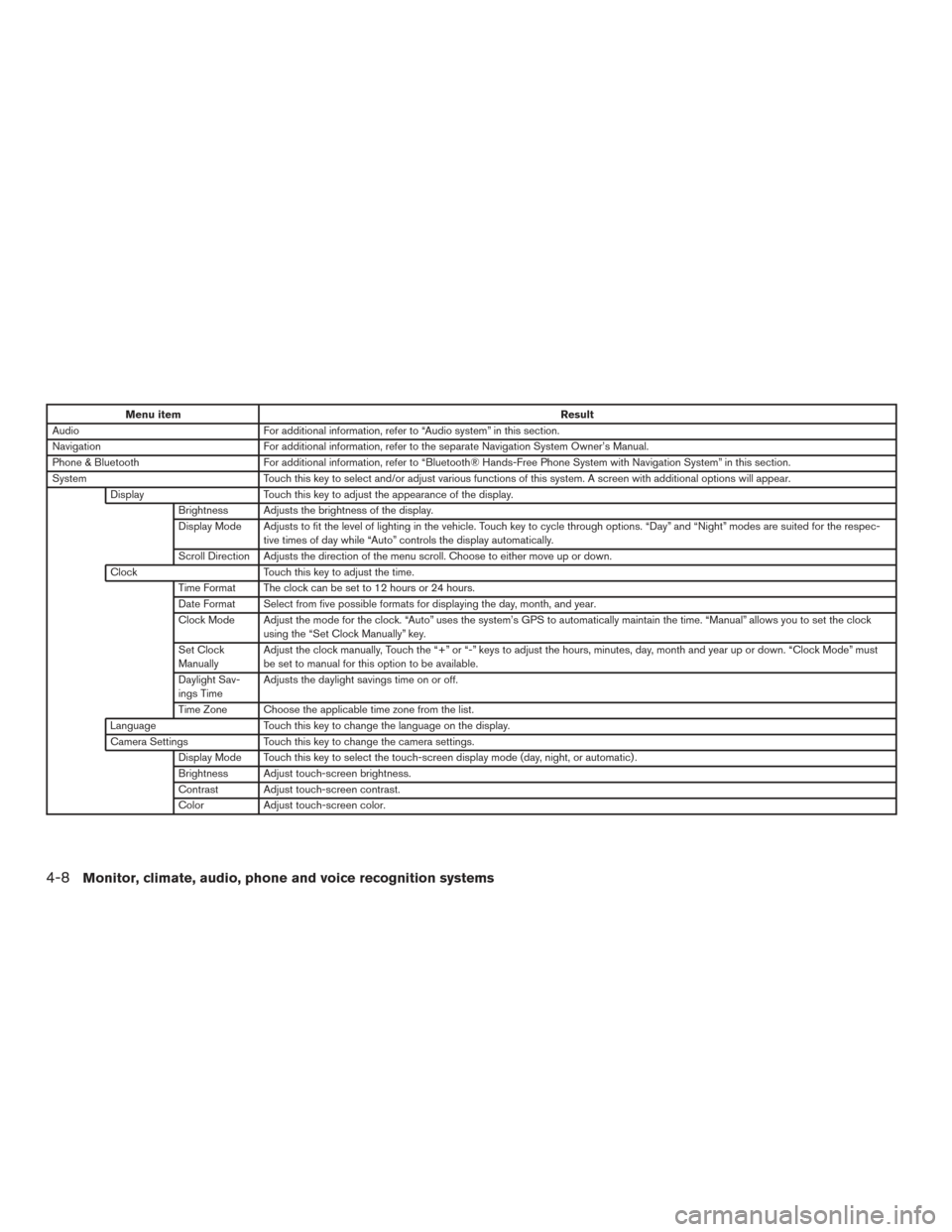
Menu itemResult
Audio For additional information, refer to “Audio system” in this section.
Navigation For additional information, refer to the separate Navigation System Owner’s Manual.
Phone & Bluetooth For additional information, refer to “Bluetooth® Hands-Free Phone System with Navigation System” in this section.
System Touch this key to select and/or adjust various functions of this system. A screen with additional options will appear.
Display Touch this key to adjust the appearance of the display.
Brightness Adjusts the brightness of the display.
Display Mode Adjusts to fit the level of lighting in the vehicle. Touch key to cycle through options. “Day” and “Night” modes are suited for the respec- tive times of day while “Auto” controls the display automatically.
Scroll Direction Adjusts the direction of the menu scroll. Choose to either move up or down.
Clock Touch this key to adjust the time.
Time Format The clock can be set to 12 hours or 24 hours.
Date Format Select from five possible formats for displaying the day, month, and year.
Clock Mode Adjust the mode for the clock. “Auto” uses the system’s GPS to automatically maintain the time. “Manual” allows you to set the clock using the “Set Clock Manually” key.
Set Clock
Manually Adjust the clock manually, Touch the “+” or “-” keys to adjust the hours, minutes, day, month and year up or down. “Clock Mode” must
be set to manual for this option to be available.
Daylight Sav-
ings Time Adjusts the daylight savings time on or off.
Time Zone Choose the applicable time zone from the list.
Language Touch this key to change the language on the display.
Camera Settings Touch this key to change the camera settings.
Display Mode Touch this key to select the touch-screen display mode (day, night, or automatic) .
Brightness Adjust touch-screen brightness.
Contrast Adjust touch-screen contrast.
Color Adjust touch-screen color.
4-8Monitor, climate, audio, phone and voice recognition systems
Page 202 of 478
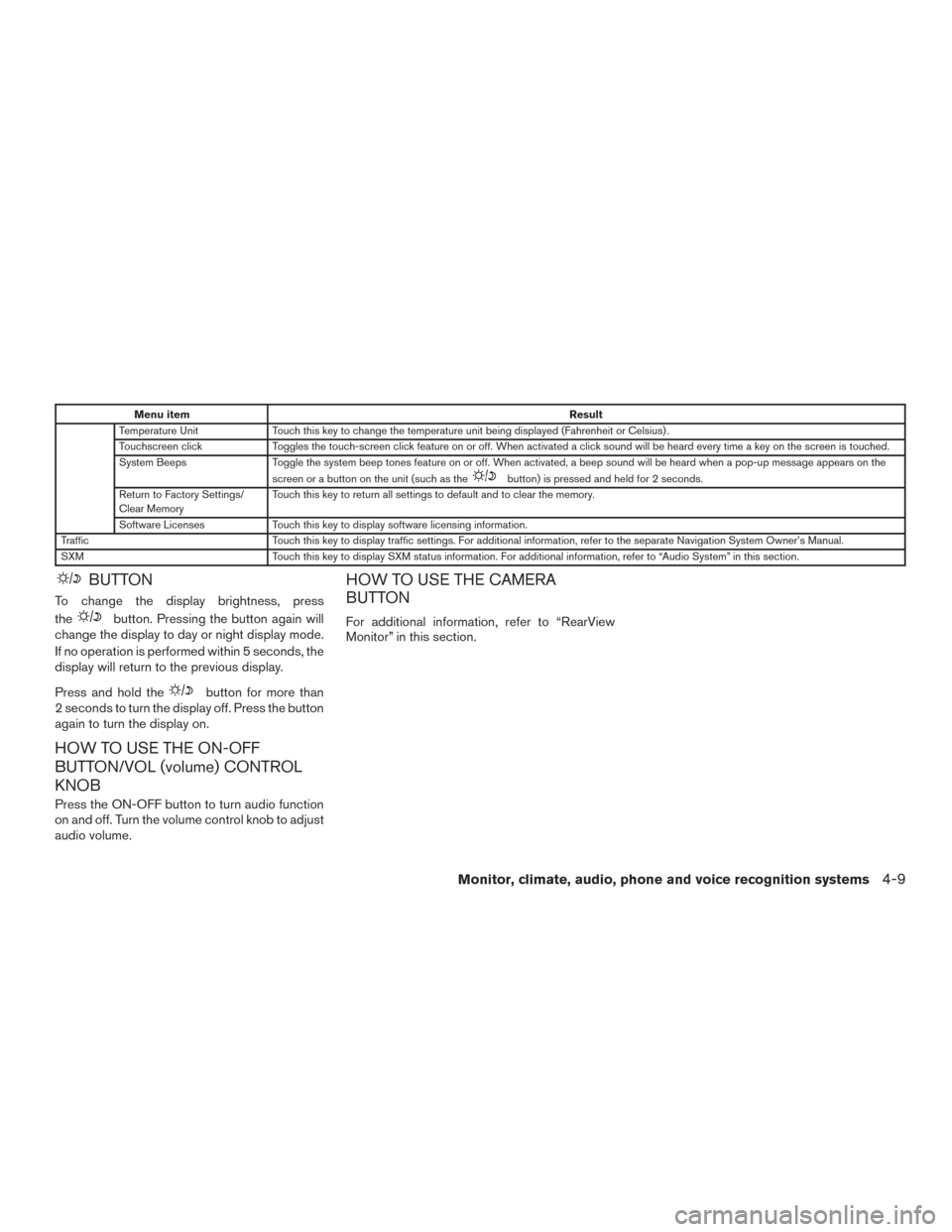
Menu itemResult
Temperature Unit Touch this key to change the temperature unit being displayed (Fahrenheit or Celsius) .
Touchscreen click Toggles the touch-screen click feature on or off. When activated a click sound will be heard every time a key on the screen is touched.
System Beeps Toggle the system beep tones feature on or off. When activated, a beep sound will be heard when a pop-up message appears on the
screen or a button on the unit (such as the
button) is pressed and held for 2 seconds.
Return to Factory Settings/
Clear Memory Touch this key to return all settings to default and to clear the memory.
Software Licenses Touch this key to display software licensing information.
Traffic Touch this key to display traffic settings. For additional information, refer to the separate Navigation System Owner’s Manual.
SXM Touch this key to display SXM status information. For additional information, refer to “Audio System” in this section.
BUTTON
To change the display brightness, press
the
button. Pressing the button again will
change the display to day or night display mode.
If no operation is performed within 5 seconds, the
display will return to the previous display.
Press and hold the
button for more than
2 seconds to turn the display off. Press the button
again to turn the display on.
HOW TO USE THE ON-OFF
BUTTON/VOL (volume) CONTROL
KNOB
Press the ON-OFF button to turn audio function
on and off. Turn the volume control knob to adjust
audio volume.
HOW TO USE THE CAMERA
BUTTON
For additional information, refer to “RearView
Monitor” in this section.
Monitor, climate, audio, phone and voice recognition systems4-9
Page 203 of 478
1. ENTER/SETTING button (models withoutnavigation)
2. CAMERA button (models with navigation)WARNING
● Failure to follow the warnings and in-
structions for proper use of the Rear-
View Monitor system could result in se-
rious injury or death. ●
RearView Monitor is a convenience fea-
ture and is not a substitute for proper
backing. Always turn and look out the
windows and check mirrors to be sure
that it is safe to move before operating
the vehicle. Always back up slowly.
LHA3670
REARVIEW MONITOR (if so
equipped)
4-10Monitor, climate, audio, phone and voice recognition systems
Page 207 of 478
ADJUSTING THE SCREEN
The procedure for adjusting the display settings
of the screen differs depending on the type of
screen present on the vehicle.
For vehicles without Navigation System1. Firmly apply the brake and place the shift lever in R (reverse)
2. Press the ENTER/SETTING button.
3. The screen will display the Brightness set- tings. 4. Turn the TUNE/FOLDER or TUNE/SCROLL
knob to adjust the setting up or down.
5. Press the ENTER/SETTING button again to display the Contrast settings.
6. Turn the TUNE/FOLDER or TUNE/SCROLL knob to adjust the setting up or down.
7. Press the ENTER/SETTING button to com- plete the adjustment.
● Do not adjust the display settings of the
RearView Monitor while the vehicle is mov-
ing. For vehicles with Navigation System
1. Firmly apply the brake and place the shift lever in R (reverse)
2. Press the
button on the control panel.
3. The screen will display the Night settings.
4. Turn the TUNE knob to adjust the setting up or down.
5. Press the
button again to access the
Auto settings.
6. Turn the TUNE knob to adjust the setting up or down.
● Do not adjust the display settings of the
RearView Monitor while the vehicle is mov-
ing.
REARVIEW MONITOR SYSTEM
LIMITATIONS
WARNING
Listed below are the system limitations for
RearView Monitor. Failure to operate the
vehicle in accordance with these system
limitations could result in serious injury or
death.
Models without navigation
LHA3639
Models with navigation
LHA3679
4-14Monitor, climate, audio, phone and voice recognition systems
Page 210 of 478
WARNING
●The air conditioner cooling function op-
erates only when the engine is running.
● Do not leave children or adults who
would normally require the assistance
of others alone in your vehicle. Pets
should also not be left alone. They
could accidentally injure themselves or
others through inadvertent operation of
the vehicle. Also, on hot, sunny days,
temperatures in a closed vehicle could
quickly become high enough to cause
severe or possibly fatal injuries to
people or animals.
● Do not use the recirculation mode for
long periods as it may cause the interior
air to become stale and the windows to
fog up.
NOTE: ● Odors from inside and outside the vehicle
can build up in the air conditioner unit. Odor
can enter the passenger compartment
through the vents.
● When parking, set the heater controls to turn
off air recirculation to allow fresh air into the
passenger compartment. This should help
reduce odors inside the vehicle.
CONTROLS
1.Fan control dial
2. Temperature control dial
3. Air flow control dial
4.
Air recirculation button
Fan control dial
Thefan control dial turns the fan on and off,
and controls fan speed.
Air flow control dial
The air flow control dial allows you to select the
air flow outlets.
— Air flows from center and side
vents.
— Air flows from center and sidevents and foot outlets.
— Air flows mainly from foot outlets.
— Air flows from defroster outlets andfoot outlets.
— Air flows mainly from defrosteroutlets.
LHA3161
HEATER (manual) (if so equipped)
Monitor, climate, audio, phone and voice recognition systems4-17
Page 211 of 478
Temperature control dial
The temperature control dial allows you to adjust
the temperature of the outlet air. To lower the
temperature, turn the dial to the left. To increase
the temperature, turn the dial to the right.
Air recirculation button
ON position
Press the
button to recirculate air inside
the vehicle.
Press the
button to the ON position when:
● driving on a dusty road.
● to prevent traffic fumes from entering pas-
senger compartment
The air recirculation mode is only functional when
the air flow control mode is in the following
positions:
or.
OFF position
Press the
button again to turn air recircu-
lation off. Outside air is drawn into the passenger
compartment and distributed through the se-
lected outlet.
Use the OFF position for normal heater opera-
tion.
HEATER OPERATION
Heating
This mode is used to direct heated air to the foot
outlets. Some air also flows from the defog out-
lets and the side vent outlets.
1. Press the
button to the OFF position.
2. Turn the air flow control dial to the
position.
3. Turn the
fan control dial to the desired
position.
4. Turn the temperature control dial to the de- sired position between the middle and the
hot position.
Ventilation
This mode directs outside air to the side and
center vents.
1. Press the
button to the OFF position.
The indicator light on the
button will
go off.
2. Turn the air flow control dial to the
position.
3. Turn the
fan control dial to the desired
position. 4. Turn the temperature control dial to the de-
sired position.
Defrosting or defogging
This mode directs the air to the defog outlets to
defog the windows.
1. Press the
button to the OFF position.
The indicator light on the
button will
go off.
2. Turn the air flow control dial to the
position.
3. Turn the
fan control dial to the desired
position.
4. Turn the temperature control dial to the de- sired position between the middle and the
hot position.
● To quickly remove ice or fog from the win-
dows, turn the
fan control dial to the
right and the temperature control to the full
hot position.
4-18Monitor, climate, audio, phone and voice recognition systems
Page 212 of 478
Bi-level heating
The bi-level mode directs warmed air to the side
and center vents and to the front and rear floor
outlets.1. Push the
button to the OFF position.
The indicator light on the
button will
go off.
2. Turn the air flow control dial to the
position.
3. Turn the
fan control dial to the desired
position.
4. Turn the temperature control dial to the de- sired position.
Heating and defogging
This mode heats the interior and defogs the wind-
shield.
1. Turn the airflow control dial to the
position.
2. Turn the
fan control dial to the desired
position.
3. Turn the temperature control dial to the de- sired position between the middle and the
hot position. ●
If
is selected for more than 1 minute,
the system will continue to operate until
the
fan control dial is turned to OFF or
the vehicle is shut off. This dehumidifies the
air which helps defog the windshield.
The
mode automatically turns off, al-
lowing outside air to be drawn into the pas-
senger compartment to further improve the
defogging performance.
Operating tips
Clear snow and ice from the wiper blades
and air inlet in front of the windshield. This
improves heater operation.
AIR FLOW CHARTS
The following charts show the button and dial
positions for MAXIMUM AND QUICK heating
or defrosting. The air recirculation button
should always be in the OFF position for
heating and defrosting.
Monitor, climate, audio, phone and voice recognition systems4-19