2017 NISSAN FRONTIER climate settings
[x] Cancel search: climate settingsPage 249 of 478
![NISSAN FRONTIER 2017 D23 / 3.G Owners Manual SXM settings
To view the SXM settings:1. Press the [
] button.
2. Touch the “Settings” key.
3. Touch the “SXM” key.
The signal strength, activation status and other
information are displayed o](/manual-img/5/521/w960_521-248.png "NISSAN FRONTIER 2017 D23 / 3.G Owners Manual SXM settings
To view the SXM settings:1. Press the [
] button.
2. Touch the “Settings” key.
3. Touch the “SXM” key.
The signal strength, activation status and other
information are displayed o")
SXM settings
To view the SXM settings:1. Press the [
] button.
2. Touch the “Settings” key.
3. Touch the “SXM” key.
The signal strength, activation status and other
information are displayed on the screen.
FM/AM/SAT radio operation
FM·AM button
Press the FM·AM button to change the band as
follows:
AM →FM1 →FM2 →AM
If another audio source is playing when the
FM·AM button is pressed, the audio source play-
ing will automatically be turned off and the last
radio station played will begin playing.
The FM stereo indicator (STEREO) is shown on the
screen during FM stereo reception. When the ste-
reo broadcast signal is weak, the radio automati-
cally changes from stereo to monaural reception.
SXM band select
Pressing the SXM button will change the band as
follows:
SXM1* →SXM2* →SXM3* →SXM1* (satellite,
if so equipped) When the SXM button is pressed while the igni-
tion switch is in the ACC or ON position, the
radio will come on at the last station played.
The last station played will also come on when
the ON-OFF button is pressed to turn the radio
on.
*When the SXM button is pressed, the satellite
radio mode will be skipped unless an optional
satellite receiver and antenna are installed and a
SiriusXM® Satellite Radio service subscription is
active. Satellite radio is not available in Alaska,
Hawaii and Guam.
If a compact disc is playing when the SXM button
is pressed, the compact disc will automatically be
turned off and the last radio station played will
come on.
While the radio is in SXM mode, the operation
can be controlled through the touch-screen.
Touch the “Channels” key to display a list of
channels. Touch a channel displayed on the list to
change to that channel. Touch the “Categories”
key to display a list of categories. Touch a cat-
egory displayed on the list to display options
within that category.
Tuning with the touch-screen
When in AM or FM mode, the radio can be tuned
using the touch-screen. To bring up the visual
tuner, touch the “Tune” key on the lower rightcorner of the screen. A screen appears with a bar
running from low frequencies on the left to high
frequencies on the right. Touch the screen at the
location of the frequency you wish to tune and the
station will change to that frequency. To return to
the regular radio display screen, touch the “OK”
key.
Tuning with the TUNE knob
The radio can also be manually tuned using the
TUNE knob. When in FM or AM mode, turn the
TUNE knob to the left for lower frequencies or to
the right for higher frequencies. When in SXM
mode, turn the TUNE knob to change the chan-
nel.
SEEK tuning
When in FM or AM mode, press the
orseek buttons to tune from low to high or
high to low frequencies and to stop at the next
broadcasting station.
When in SXM mode, press the
orseek buttons to change the category.
4-56Monitor, climate, audio, phone and voice recognition systems
Page 263 of 478
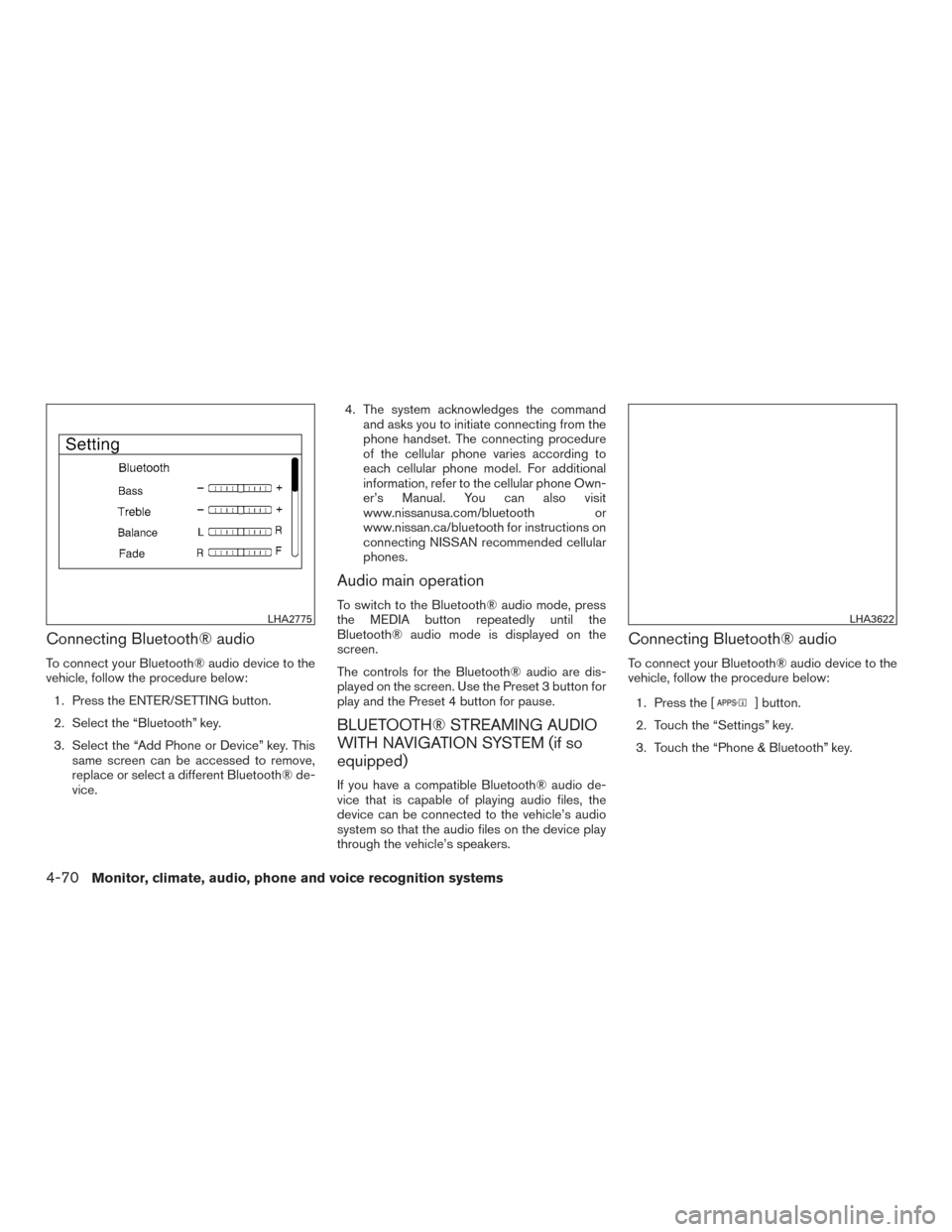
Connecting Bluetooth® audio
To connect your Bluetooth® audio device to the
vehicle, follow the procedure below:1. Press the ENTER/SETTING button.
2. Select the “Bluetooth” key.
3. Select the “Add Phone or Device” key. This same screen can be accessed to remove,
replace or select a different Bluetooth® de-
vice. 4. The system acknowledges the command
and asks you to initiate connecting from the
phone handset. The connecting procedure
of the cellular phone varies according to
each cellular phone model. For additional
information, refer to the cellular phone Own-
er’s Manual. You can also visit
www.nissanusa.com/bluetooth or
www.nissan.ca/bluetooth for instructions on
connecting NISSAN recommended cellular
phones.
Audio main operation
To switch to the Bluetooth® audio mode, press
the MEDIA button repeatedly until the
Bluetooth® audio mode is displayed on the
screen.
The controls for the Bluetooth® audio are dis-
played on the screen. Use the Preset 3 button for
play and the Preset 4 button for pause.
BLUETOOTH® STREAMING AUDIO
WITH NAVIGATION SYSTEM (if so
equipped)
If you have a compatible Bluetooth® audio de-
vice that is capable of playing audio files, the
device can be connected to the vehicle’s audio
system so that the audio files on the device play
through the vehicle’s speakers.
Connecting Bluetooth® audio
To connect your Bluetooth® audio device to the
vehicle, follow the procedure below:
1. Press the [
] button.
2. Touch the “Settings” key.
3. Touch the “Phone & Bluetooth” key.
LHA2775LHA3622
4-70Monitor, climate, audio, phone and voice recognition systems
Page 268 of 478
Apple Siri® Eyes Free personal assistant can be
accessed from the vehicle. Siri Eyes Free can be
accessed in Siri Eyes Free mode to reduce user
distraction. In this mode, Siri Eyes Free is avail-
able for interaction by voice control. After con-
necting a compatible Apple device by using
Bluetooth®, Siri Eyes Free can be activated from
the
TALK switch on the steering wheel.
Siri® is a trademark of Apple Inc., registered in
the U.S. and other countries.
● Some Siri Eyes Free functions, such as dis-
playing pictures or opening apps, may not
be available while driving.
● For getting best results, always update your
device to the latest software version.
● Keep the interior of the vehicle as quiet as
possible. Close the windows to eliminate the
surrounding noises (traffic noises, vibration
sounds, etc.) , which may prevent the system
from recognizing the voice commands cor-
rectly.
● For functions that can be used in Siri Eyes
Free, please refer to the Apple website.
REQUIREMENTS
Siri is only available on the iPhone® 4S or later.
Devices released before iPhone® 4S are not
supported by the Siri Eyes Free system. Visit
www.apple.com/ios/siri for details about device
compatibility.
Siri must be enabled on the phone. Please check
phone settings.
If the device has a lock screen, Siri must be
accessible from the lock screen. Please check
phone settings.
For best results, always update your device to the
latest software version.
SIRI® ACTIVATION
Siri® Eyes Free function can be activated by
pushing
TALK switch on the steering
wheel.
Models with navigation system
1. Connect an Siri Eyes Free enabled iPhone® to the vehicle. For additional information,
refer to “Connecting procedure” in this sec-
tion.
2. After the Bluetooth® connection is estab- lished, push and hold the
TALK
switch to activate the Siri Eyes Free function.
LHA2589
SIRI® EYES FREE (if so equipped)
Monitor, climate, audio, phone and voice recognition systems4-75
Page 269 of 478
Models without navigation system1. Connect a Siri Eyes Free enabled iPhone® to the vehicle. For additional information,
refer to “Initialization” in this section.
2. After the Bluetooth® connection is estab- lished, the switch operation select screen is
displayed.
3. Select “Short Press” or “Long Press” for Siri Eyes Free activation Switch action can also
be changed from the Bluetooth® settings
menu. For additional information, refer to
“Changing Siri® Eyes Free Settings (mod-
els without navigation system)” in this sec-
tion.
OPERATING SIRI® EYES FREE
1. Push or push and hold theTALK
switch.
2. Speak your command and then listen to the Siri Eyes Free reply.
After starting Siri Eyes Free, push the
TALK switch again within 5 seconds of the end of
the Siri Eyes Free announcement to extend the
session.
Example 1 – Playing music
1. Push or push and hold the
TALK
switch. 2. Say “Play (artist name, song name, etc.)”.
3. Your vehicle will automatically change to
Bluetooth® Audio or iPod® mode* when
the music starts playing. Mode selection is
determined by the phone.
* If the iPhone® is also connected with the USB
cable.
If the audio track does not start playing automati-
cally after Siri Eyes Free ends, try changing the
track or audio source to resume playback.
NOTE:
For best results, use the native music app.
Performance of music control function
while using Podcasts, Audiobook or other
3rd party music apps may vary and is con-
trolled by the iPhone®.
Example 2 – Replying to text messages 1. If a compatible iPhone® is connected and “Show Notifications” of the iPhone® set-
tings is enabled, the vehicle will display a
notification for new incoming text messages.
2. After reading the message, push or push and hold the
TALK switch to reply
using Siri Eyes Free. 3. After a beep sounds, say “Text message” or
a similar command to reply using Siri Eyes
Free.
CHANGING SIRI® EYES FREE
SETTINGS (models without navigation
system)
Settings for Siri® Eyes Free can be found in the
Bluetooth settings menu. For additional informa-
tion, refer to “Bluetooth® settings” in this section.
1. Press the ENTER/SETTING button.
2. Use the TUNE/FOLDER or TUNE/SCROLL knob to select “Bluetooth” and then press
the ENTER/SETTING button.
3. Use the TUNE/FOLDER or TUNE/SCROLL knob to select “Siri” and then press the
ENTER/SETTING button.
4. Select “Short Press” or “Long Press” using the TUNE/SCROLL knob and then press
the ENTER/SETTING button.
4-76Monitor, climate, audio, phone and voice recognition systems
Page 270 of 478
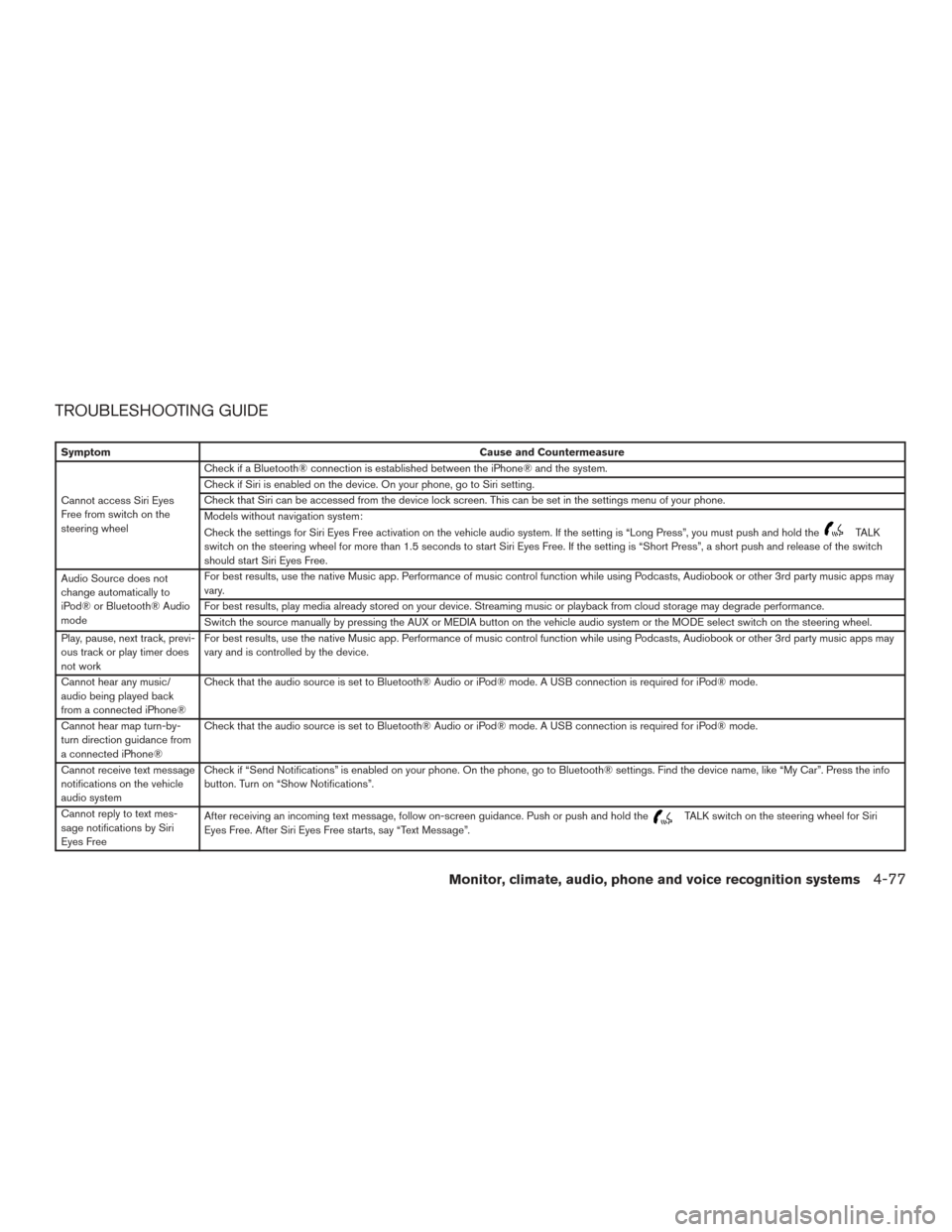
TROUBLESHOOTING GUIDE
SymptomCause and Countermeasure
Cannot access Siri Eyes
Free from switch on the
steering wheel Check if a Bluetooth® connection is established between the iPhone® and the system.
Check if Siri is enabled on the device. On your phone, go to Siri setting.
Check that Siri can be accessed from the device lock screen. This can be set in the settings menu of your phone.
Models without navigation system:
Check the settings for Siri Eyes Free activation on the vehicle audio system. If the setting is “Long Press”, you must push and hold the
TALK
switch on the steering wheel for more than 1.5 seconds to start Siri Eyes Free. If the setting is “Short Press”, a short push and release of the switch
should start Siri Eyes Free.
Audio Source does not
change automatically to
iPod® or Bluetooth® Audio
mode For best results, use the native Music app. Performance of music control function while using Podcasts, Audiobook or other 3rd party music apps may
vary.
For best results, play media already stored on your device. Streaming music or playback from cloud storage may degrade performance.
Switch the source manually by pressing the AUX or MEDIA button on the vehicle audio system or the MODE select switch on the steering wheel.
Play, pause, next track, previ-
ous track or play timer does
not work For best results, use the native Music app. Performance of music control function while using Podcasts, Audiobook or other 3rd party music apps may
vary and is controlled by the device.
Cannot hear any music/
audio being played back
from a connected iPhone® Check that the audio source is set to Bluetooth® Audio or iPod® mode. A USB connection is required for iPod® mode.
Cannot hear map turn-by-
turn direction guidance from
a connected iPhone® Check that the audio source is set to Bluetooth® Audio or iPod® mode. A USB connection is required for iPod® mode.
Cannot receive text message
notifications on the vehicle
audio system Check if “Send Notifications” is enabled on your phone. On the phone, go to Bluetooth® settings. Find the device name, like “My Car”. Press the info
button. Turn on “Show Notifications”.
Cannot reply to text mes-
sage notifications by Siri
Eyes Free After receiving an incoming text message, follow on-screen guidance. Push or push and hold the
TALK switch on the steering wheel for Siri
Eyes Free. After Siri Eyes Free starts, say “Text Message”.
Monitor, climate, audio, phone and voice recognition systems4-77
Page 275 of 478
CONTROL BUTTONS
The control buttons for the Bluetooth® Hands-
Free Phone System are located on the steering
wheel.
PHONE/SEND
Press the
button to initiate
a Voice Recognition session or
answer an incoming call. If the operation of “Siri” is set to
“Short Press” on the Bluetooth®
setting menu, pressing and hold-
ing the
button initiates a
Voice Recognition session for the
Hands-Free Phone operation. For
additional information, refer to
“Bluetooth® settings” in this
section.
You can also use the
button
to interrupt the system feedback
and give a command at once. For
additional information, refer to
“Voice Commands” and “During a
call” in this section.
PHONE/END
While the voice recognition sys-
tem is active, press and hold
the
button for 5 seconds to
quit the voice recognition system
at any time.
Tuning switch
While using the voice recognition
system, tilt the tuning switch up or
down to manually control the
phone system.
CONNECTING PROCEDURE
NOTE:
The connecting procedure must be per-
formed when the vehicle is stationary. If the
vehicle starts moving during the procedure,
the procedure will be canceled.
To connect a phone to the Bluetooth® Hands-
Free Phone System:
1. Press the ENTER/SETTING button.
2. Use the TUNE/FOLDER or TUNE/SCROLL knob to select “Bluetooth” and then press
the ENTER/SETTING button.
LHA2561
4-82Monitor, climate, audio, phone and voice recognition systems
Page 280 of 478
NOTE:
This feature is automatically disabled if the
connected device does not support the
Message Access Profile (MAP) . For addi-
tional information, refer to the phone’s
Owner’s Manual for details and instruc-
tions.
NOTE:
Many phones may require special permis-
sion to enable text messaging. Check the
phone’s screen during Bluetooth® pairing.
For some phones, you may need to enable
‘Notifications’ in the phone’s Bluetooth®
menu for text messages to appear on the
headunit. For additional information, refer
to your phone’s Owner’s manual. Text mes-
sage integration requires that the phone
support MAP (Message Access Profile) for
both receiving and sending text messages.
Some phones may not support all text mes-
saging features. For additional informa-
tion, please refer to
www.nissanusa.com/bluetooth or
www.nissan.ca/bluetooth for compatibility
information, as well as your device’s Own-
er’s manual.
The system allows for the sending and receiving
of text messages through the vehicle interface.Sending a text message:
1. Press the
button on the steering
wheel.
2. Say “Phone” after the tone.
3. Say “Send Text” after the tone.
4. The system will provide a list of available commands in order to determine the recipi-
ent of the text message. Choose from the
following:
● To (a name)
● Enter Number
● Missed Calls
● Incoming Calls
● Outgoing Calls
For additional information about these op-
tions, refer to “Voice commands” in this sec-
tion.
5. Once a recipient is chosen, the system prompts for which message to send. Nine
predefined messages are available as well
as three custom messages. To choose one
of the predefined messages, speak one of
the following after the tone:
● “Driving, can’t text” ●
“Call me”
● “On my way”
● “Running late”
● “Okay”
● “Yes”
● “No”
● “Where are you?”
● “When?”
● “Custom Messages”
To send one of the custom messages, say
“Custom Messages”. If more than one cus-
tom message is stored, the system will
prompt for the number of the desired cus-
tom message. For additional information on
setting and managing custom text mes-
sages, refer to “Bluetooth® settings” in this
section.
Reading a received text message:
1. Press the
button on the steering
wheel.
2. Say “Phone” after the tone.
3. Say “Read Text” after the tone.
Monitor, climate, audio, phone and voice recognition systems4-87
Page 281 of 478
The text message, sender and delivery time are
shown on the screen. Use the tuning switch to
scroll through all text messages if more than one
are available. Press the
button to exit the
text message screen. Press the
button to
access the following options for replying to the
text message:
● Call Back
Speak this command to call the sender of
the text message using the Bluetooth®
Hands-Free Phone System.
● Send Text
Speak this command to send a text message
response to the sender of the text message.
● Read Text
Speak this command to read the text mes-
sage again.
● Previous Text
Speak this command to move to the previ-
ous text message (if available) .
● Next Text
Speak this command to move to the next text
message (if available) .
Siri® Eyes Free (if so equipped)
If a connected phone is equipped with Siri®, it
can also be used to create custom messages that are sent through the phone. For additional
information, refer to “Siri® Eyes Free” in this
section.
NOTE:
Text messages are only displayed if the
vehicle speed is less than 5 mph (8 km/h).
NOTE:
For Apple iPhones®, text messages can
only be sent through Siri.
BLUETOOTH® SETTINGS
To access and adjust the settings for the
Bluetooth® Hands-Free Phone System:
1. Press the ENTER/SETTING button.
2. Use the TUNE/FOLDER or TUNE/SCROLL knob to select “Bluetooth” and then press
the ENTER/SETTING button:
● Bluetooth
Select “On” or “Off” to turn the vehicle’s
Bluetooth® system on or off.
● Add Phone or Device
For additional information, refer to “Con-
necting procedure” in this section. ●
Delete Phone or Device
Select to delete a phone from the displayed
list. The system will ask to confirm before
deleting the phone.
● Replace Phone
Select to replace a phone from the displayed
list. When a selection is made, the system
will ask to confirm before proceeding. The
recorded phonebook for the phone being
deleted will be saved as long as the new
phone’s phonebook is the same as the old
phone’s phonebook.
● Select Phone
Select to connect to a previously connected
phone from the displayed list.
● Show Incoming Calls
Incoming call information may be displayed
on the center display screen.
● Phonebook Download
Select to turn on or off the automatic down-
load of a connected phone’s phonebook.
● Text Message (if so equipped)
Select to turn on or off the vehicle’s text
messaging feature.
4-88Monitor, climate, audio, phone and voice recognition systems