Page 212 of 230

=Switches the display on/off
?Socket for headphones
Setting the display angle
XPress the CAR button on the remote control.
XPress the :button on the remote control.
XUsing the =Ì buttons on the remote
control, select Displayand confirm by press-
ing 9.
XSelect Tilt Display.
XSelectUpwardorDownward.
The display tilts upward or downward.
Remote control
Overview
:Selects main menus
;Selects the screen for the remote control
=Selector wheel for selecting menus, radio
stations, music tracks and chapters
?Buttons for selecting menus
ADeletes an entry
BSkip-back function, fast forward/rewind,
start/pause, menu selection, radio stations,
music tracks and chapters
CDirect selection of radio stations, music
tracks and chapters using the number key-
pad
DVolume, switches sound on/off (for corded
headphones)
EBack button
FConfirms a selection
GIndicator lamp
HSwitches the screen on/off
iTwo remote controls are supplied for the US
and Canadian markets.
Selecting the screen for the remote con-
trol
You can use the remote control to operate one
of the two rear screens at a time. To do so, you
must switch the remote control to the desired
screen.
XTo select the left-hand screen: turn thumb-
wheel :until " LREAR" appears in the win-
dow.
XTo select the right-hand screen: turn the
thumbwheel until "REAR R" appears in the
window.
XTo select the COMAND screen: turn thumb-
wheel :until "COMAND" appears in the win-
dow.
Please be aware that using the thumbwheel to
select screens may cause unwanted changes to
the screens of your occupants.
Up to four remote controls can be used in the
vehicle at the same time.
210Rear Seat Entertainment System overview
Rear Seat Entertainment System
Page 213 of 230
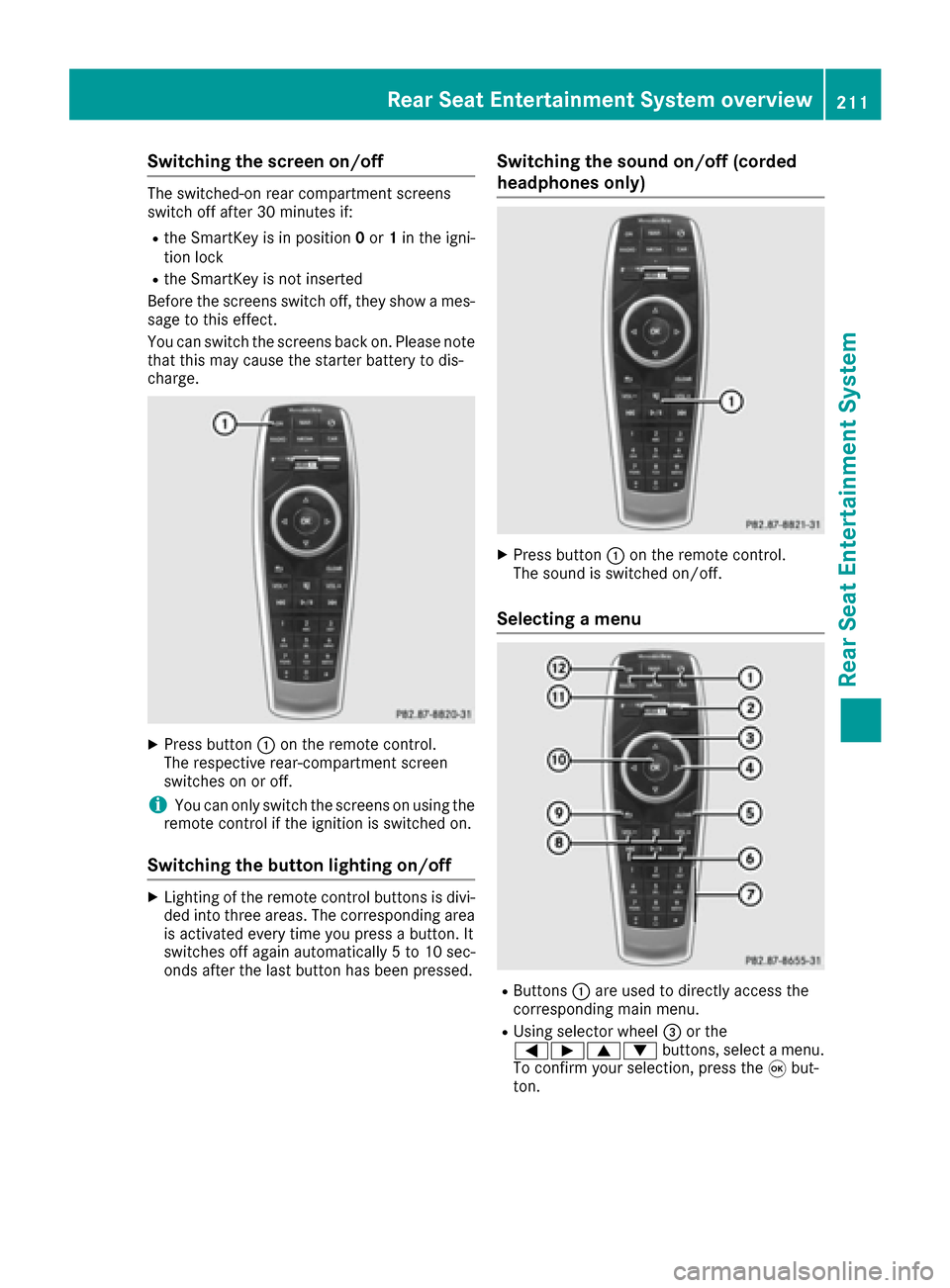
Switching the screen on/off
The switched-on rear compartment screens
switch off after 30 minutes if:
Rthe SmartKey is in position0or 1in the igni-
tion lock
Rthe SmartKey is not inserted
Before the screens switch off, they show a mes-
sage to this effect.
You can switch the screens back on. Please note
that this may cause the starter battery to dis-
charge.
XPress button :on the remote control.
The respective rear-compartment screen
switches on or off.
iYou can only switch the screens on using the
remote control if the ignition is switched on.
Switching the button lighting on/off
XLighting of the remote control buttons is divi-
ded into three areas. The corresponding area
is activated every time you press a button. It
switches off again automatically 5 to 10 sec-
onds after the last button has been pressed.
Switching the sound on/off (corded
headphones only)
XPress button :on the remote control.
The sound is switched on/off.
Selecting a menu
RButtons :are used to directly access the
corresponding main menu.
RUsing selector wheel =or the
=Ì9: buttons, select a menu.
To confirm your selection, press the 9but-
ton.
Rear Seat Entertainment System overview211
Rear Seat Entertainment System
Z
Page 219 of 230

Switching the display design
XSelectVehicleusing the
9:=; buttons on the remote
control and press the 9button to confirm.
XSelect System Settingsusing
the :=; buttons on the remote
control and press the 9button to confirm.
You see the System Settings
menu on the
selected rear screen.
XSelect Displayusing the 9: buttons
on the remote control and press the 9button
to confirm.
XSelect Day Mode,Night Modeor Automaticusing the 9: buttons and press the 9
button to confirm.
The dot indicates the current setting.
DesignExplanation
Day ModeThe display is set perma-
nently to day design.
Night ModeThe display is set perma-
nently to night design.
AutomaticThe display design
changes depending on
the vehicle instrument
cluster illumination.
Setting the brightness
XSelect Vehicleusing the
9:=; buttons on the remote
control and press the 9button to confirm.
XSelect System Settingsusing
the :=; buttons on the remote
control and press the 9button to confirm.
You see the System Settings
menu on the
selected rear screen.
XSelect Displayusing the :9 buttons
on the remote control and press the 9button
to confirm.
XSelect Brightnessusing the 9: but-
tons and press the 9button.
A scale appears.
XAdjust the brightness using the 9:
buttons and press the 9button to confirm.
The brightness bar moves up or down. The
picture becomes lighter or darker in accord-
ance with the scale.
Showing/hiding the picture
XSelect Vehicleusing the
9:=; buttons on the remote
control and press the 9button to confirm.
XPress button :on the remote control.
A menu appears.
XSelect Display Offusing the
9:=; buttons and press the
9 button to confirm.
XTo display the picture: press the9button.
Adjusting sound settings
You can select the sound settings in the radio,
audio CD/audio DVD/MP3, video DVD and AUX
modes.
XSelect a medium (e.g. CD mode)
(Ypage 221).
XTo show the menu: press the :button on
the remote control.
XSelect Soundusing the :=; but-
tons on the remote control and press the 9
button to confirm.
XSelect sound settings using
the :=; buttons on the remote
control and press the 9button.
XSelect the desired setting using the selector
wheel on the remote control.
XTo exit the menu: press the %button on
the remote control.
Picture settings
Overview
You can select the picture settings in video DVD and AUX mode.
System settings217
Rear Seat Entertainment System
Z
Page 222 of 230

Online and Internet functions
Setting up an Internet connection (Ypage 143).
Using Internet functions:
XPress button ®on the remote control.
A menu appears.
XSelect the online/Internet function required.
Calling up the Internet functions menu:
XPress the %button on the remote control
while using the Internet function.
Exiting the Internet functions:
XPress the %button on the remote control.
A menu appears.
XSelect the Üsymbol in the menu and press
the 9button on the remote control to con-
firm.
or
XSelect another function (e.g. Media or Radio).
Radio mode
XTo switch on: press the$button on the
remote control.
Radio mode starts.
Further information on radio mode
(
Ypage 154).
Media mode
Activating media mode
There are several ways to activate media sour-
ces using the multimedia system.
The relevant sections of the Operator's Manual
describe the simplest way to activate a media
source.
This section describes all options for activating
media sources.
Starting media playback using the
button
XPress the Õbutton on the remote control.
The last media source you have set is dis-
played. If playable music files are found, they will be
played by the multimedia system.
XTo show the menu: press the
Õbutton on
the remote control.
XTo select the media source: turn the selector
wheel on the remote control.
or
XPress the =; buttons on the remote
control.
The menu appears with the available media
sources.
XPress the 9button on the remote control.
If the disc contains music or video files, these
will be played. The corresponding basic menu
will be shown.
Starting media playback using the
main function bar
XTo show the menu: press the 9button on
the remote control.
XSelect Mediausing the =; buttons on
the remote control and press the 9button.
XTo select the media source: turn the selector
wheel on the remote control.
or
XPress the =; buttons on the remote
control.
The menu appears with the available media
sources.
XPress the 9button on the remote control.
If the disc contains music or video files, these
will be played. The corresponding basic menu
will be shown.
Starting media using the device list
220Media mode
Rear Seat Entertainment System
Page:
< prev 1-8 9-16 17-24