2017 MERCEDES-BENZ S-Class COUPE center console
[x] Cancel search: center consolePage 39 of 338
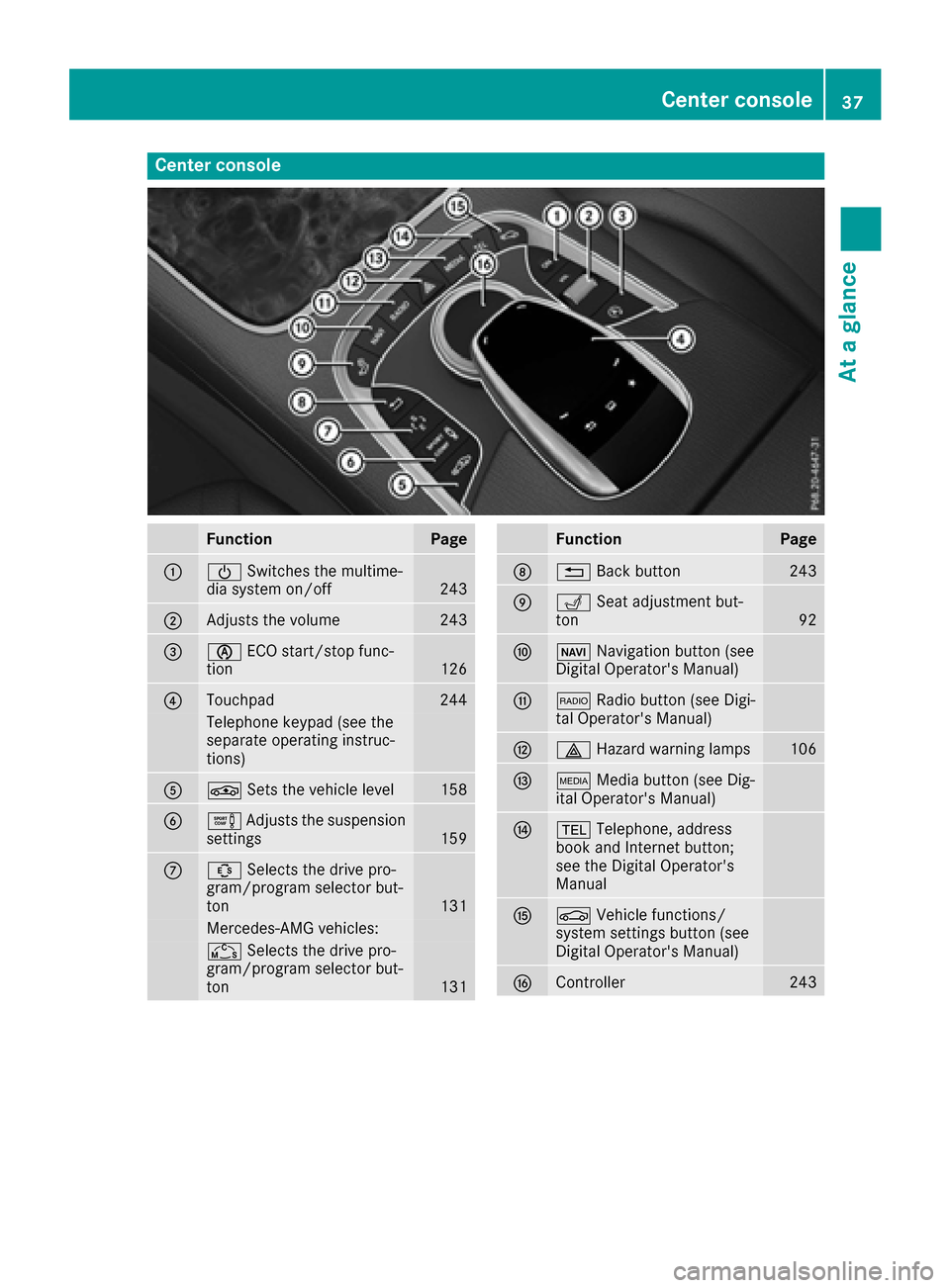
Center console
FunctionPage
004300D0Switches the multime-
dia system on/off243
0044Adjusts the volume243
008700D6 ECO start/stop func-
tion126
0085Touchpad244
Telephone keypad (see the
separate operating instruc-
tions)
008300CC Sets the vehicle level158
00840091Adjusts the suspension
settings159
006B00C9 Selects the drive pro-
gram/program selector but-
ton
131
Mercedes-AMG vehicles:
00CD Selects the drive pro-
gram/program selector but-
ton
131
FunctionPage
006C0038 Back button243
006D0050Seat adjustment but-
ton92
006E00BE Navigation button (see
Digital Operator's Manual)
006F002A Radio button (see Digi-
tal Operator's Manual)
0070002F Hazard warning lamps106
007100FDMedia button (see Dig-
ital Operator's Manual)
0072002B Telephone, address
book and Internet button;
see the Digital Operator's
Manual
007300D4 Vehicle functions/
system settings button (see
Digital Operator's Manual)
0074Controller243
Center console37
At a glance
Page 42 of 338
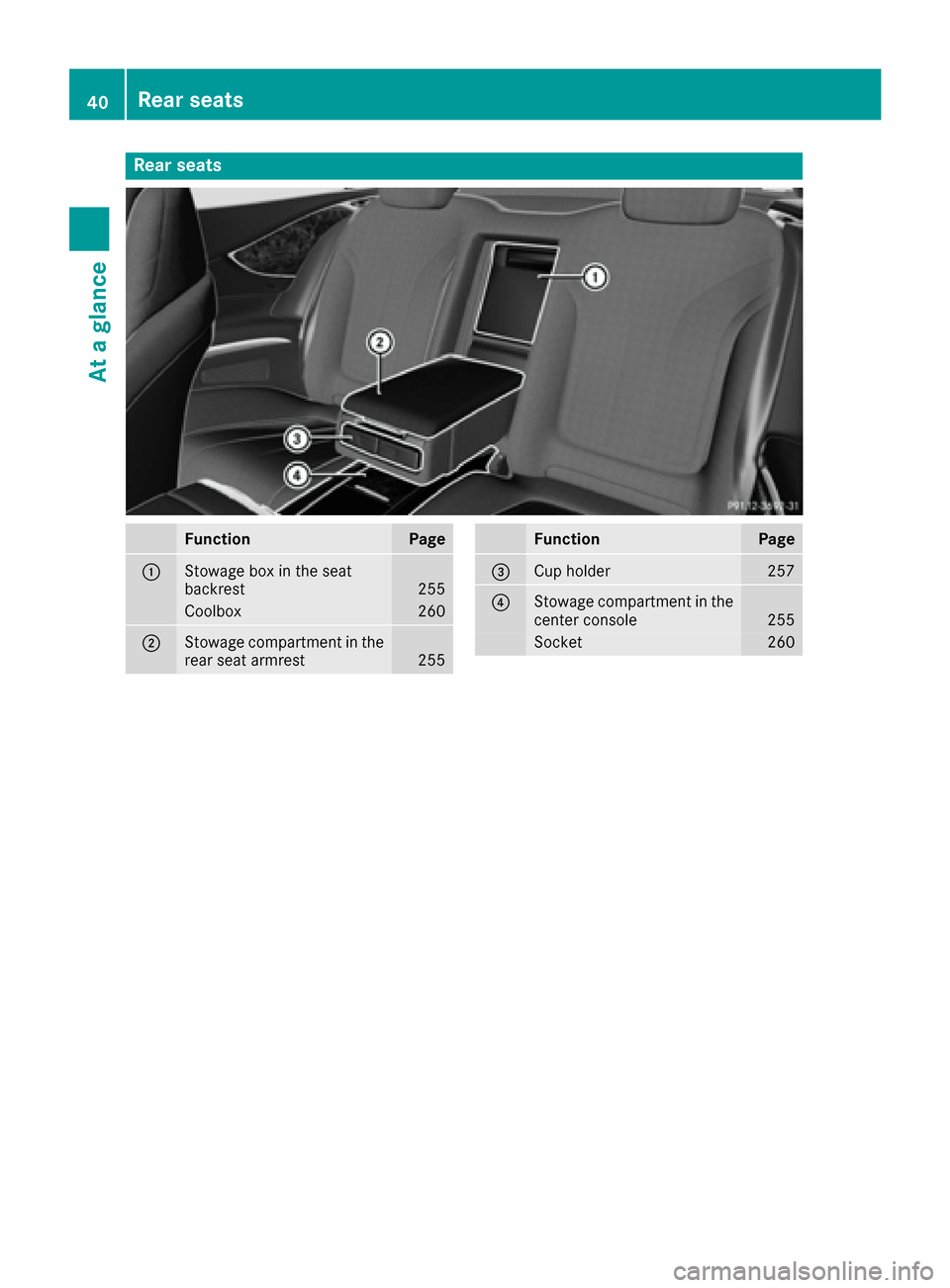
Rear seats
FunctionPage
0043Stowage box in the seat
backrest255
Coolbox260
0044Stowage compartment in the
rear seat armrest255
FunctionPage
0087Cup holder257
0085Stowage compartment in the
center console255
Socket260
40Rear seats
At a glance
Page 98 of 338
Switching the seat heating on/off
Switching on/off
GWARNING
Repeatedly switching on the seat heating can
cause the seat cushion and backrest pads to
become very hot. The health of persons with
limited temperature sensitivity or a limited
ability to react to excessively high tempera-
tures may be affected or they may even suffer
burn-like injuries. There is a risk of injury.
Therefore, do not switch the seat heating on
repeatedly.
For vehicles equipped with the Warmth Comfort
package: the armrest in the door and the center
console can also be heated when you switch on
the seat heating of one of the front seats. You
can set this via the multimedia system; see the
Digital Operator's Manual.
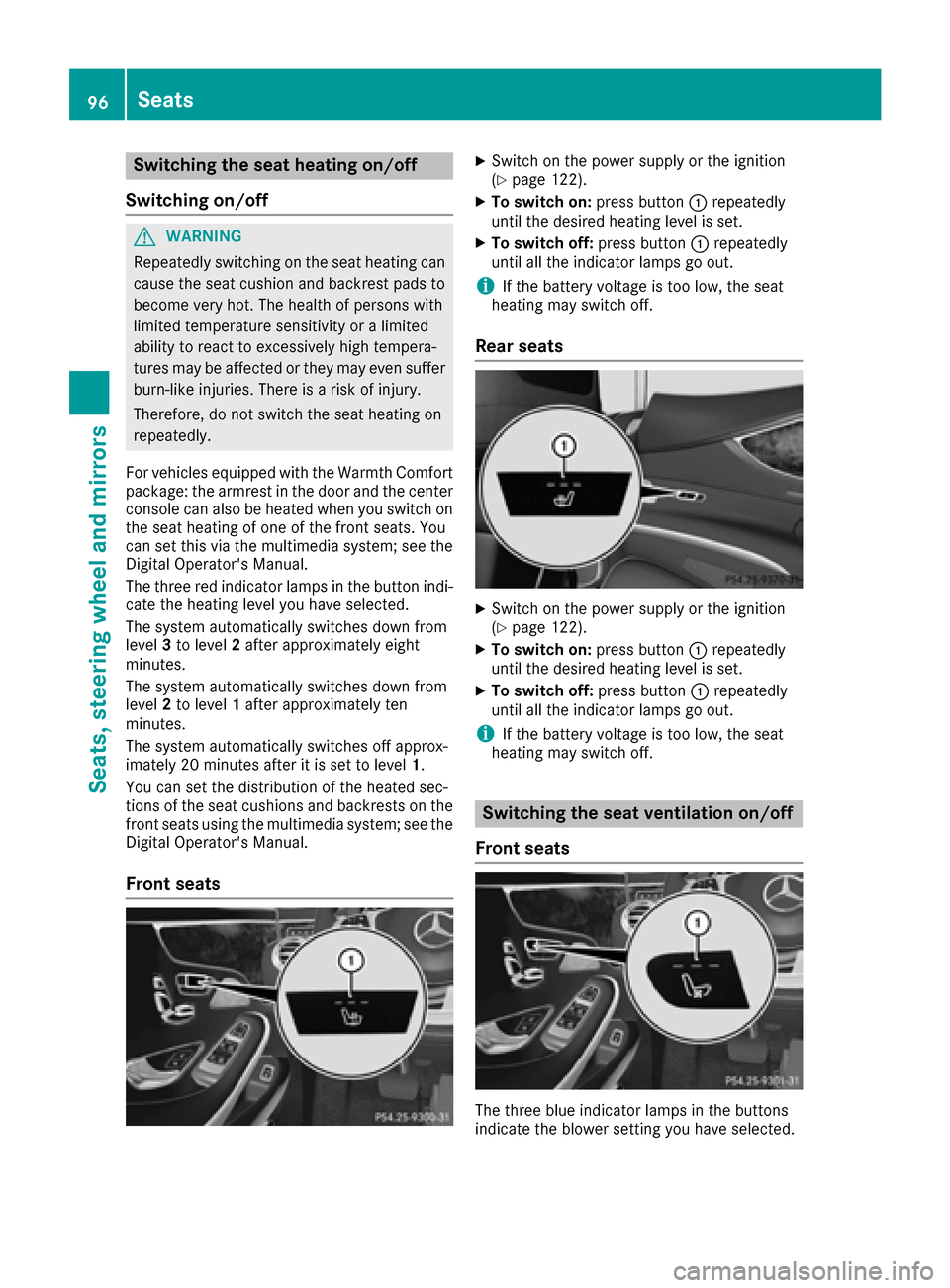
The three red indicator lamps in the button indi-
cate the heating level you have selected.
The system automatically switches down from
level 3to level 2after approximately eight
minutes.
The system automatically switches down from
level 2to level 1after approximately ten
minutes.
The system automatically switches off approx-
imately 20 minutes after it is set to level 1.
You can set the distribution of the heated sec-
tions of the seat cushions and backrests on the
front seats using the multimedia system; see the
Digital Operator's Manual.
Front seats
XSwitch on the power supply or the ignition
(Ypage 122).
XTo switch on: press button0043repeatedly
until the desired heating level is set.
XTo switch off: press button0043repeatedly
until all the indicator lamps go out.
iIf the battery voltage is too low, the seat
heating may switch off.
Rear seats
XSwitch on the power supply or the ignition
(Ypage 122).
XTo switch on: press button0043repeatedly
until the desired heating level is set.
XTo switch off: press button0043repeatedly
until all the indicator lamps go out.
iIf the battery voltage is too low, the seat
heating may switch off.
Switching the seat ventilation on/off
Front seats
The three blue indicator lamps in the buttons
indicate the blower setting you have selected.
96Seats
Seats, steering wheel and mirrors
Page 121 of 338
In order to ensure the direct flow of fresh air
through the air vents into the vehicle interior,
please observe the following notes:
Rkeep the air inlet between the windshield and
the hood free of blockages, such as ice, snow
or leaves.
Rnever cover the air vents or air intake grilles in
the vehicle interior.
Setting the air vents
Air vents are located:
Ron the left and right-hand side of the dash-
board
Rin the middle of the dashboard
Rin the front head restraints
Rin the glove box
Rin the rear-compartment center console
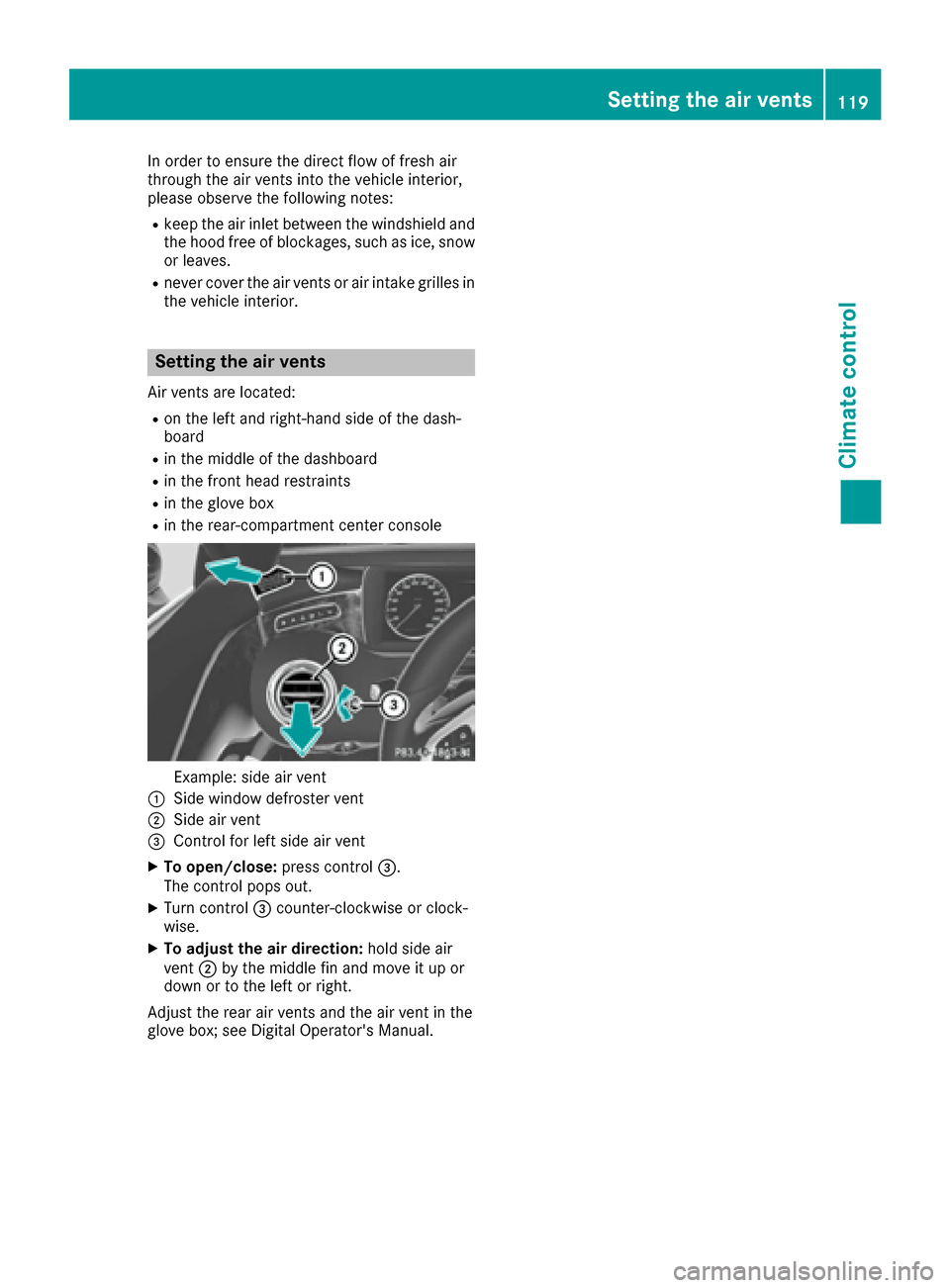
Example: side air vent
0043Side window defroster vent
0044Side air vent
0087Control for left side air vent
XTo open/close: press control0087.
The control pops out.
XTurn control 0087counter-clockwise or clock-
wise.
XTo adjust the air direction: hold side air
vent 0044by the middle fin and move it up or
down or to the left or right.
Adjust the rear air vents and the air vent in the
glove box; see Digital Operator's Manual.
Setting the air vents119
Climate control
Z
Page 174 of 338
Rif the camera lenses are dirty or covered.
Observe the notes on cleaning
(
Ypage 284)
Rif the vehicle components in which the cam-
eras are installed are damaged. In this event,
have the camera position and setting checked
at a qualified specialist workshop
Do not use the 360° camera in this case. You
can otherwise injure others or cause damage to
objects or the vehicle.
The guide lines on the multimedia system show
the distances to your vehicle. The distances only
apply to road level.
The camera in the rear area is protected from
raindrops and dust by means of a flap. This flap
opens when the 360° camera is activated.
The flap closes again when:
Ryou have finished the maneuvering process
Ryou switch off the engine
Ryou open the trunk
Observe the notes on cleaning (
Ypage 284).
For technical reasons, the flap may remain open
briefly after the 360° camera has been deacti-
vated.
The field of vision and other functions of the
camera system may be restricted due to addi-
tional attachments (e.g. license plate holder,
rear bicycle carrier).
On vehicles with height-adjustable chassis,
depending on technical conditions, leaving the
standard height can result in:
Rinaccuracies in the guide lines
Rinaccuracies in the display of generated
images (top view)
Activation conditions
The image from the 360° camera appears if:
Rthe multimedia system is switched on
Rthe 360° Camerafunction is switched on
If the 360° camera is activated at speeds above
approximately 19 mph (30 km/h), a warning
message appears.
The warning message disappears if:
Rthe vehicle's speed falls below approximately
19 mph (30 km/h). The 360° camera is then
activated.
Rthe message is confirmed with the 0038but-
ton.
Switching the 360° camera on/off with
the button
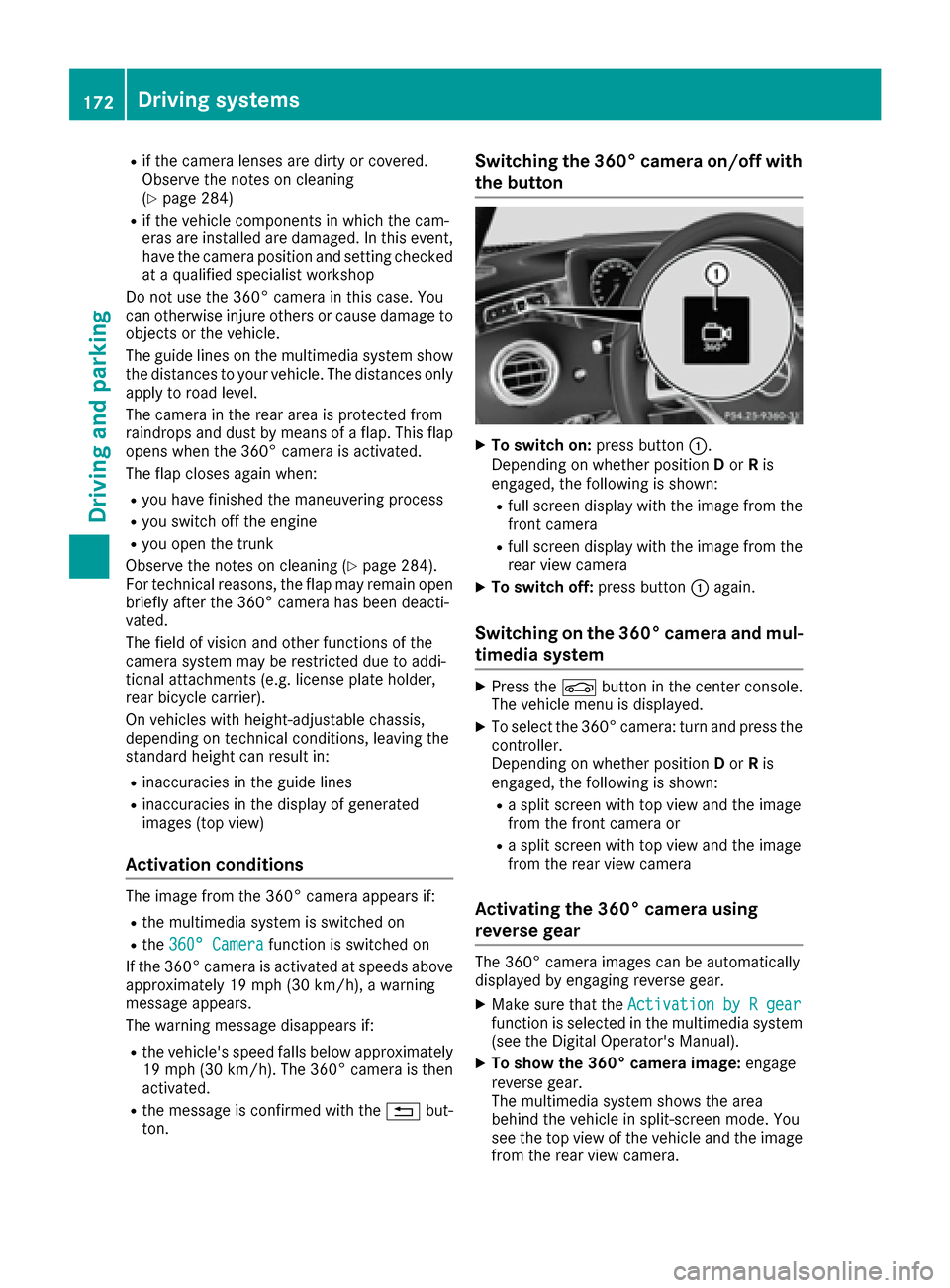
XTo switch on: press button0043.
Depending on whether position Dor Ris
engaged, the following is shown:
Rfull screen display with the image from the
front camera
Rfull screen display with the image from the
rear view camera
XTo switch off: press button0043again.
Switching on the 360° camera and mul-
timedia system
XPress the 00D4button in the center console.
The vehicle menu is displayed.
XTo select the 360° camera: turn and press the
controller.
Depending on whether position Dor Ris
engaged, the following is shown:
Ra split screen with top view and the image
from the front camera or
Ra split screen with top view and the image
from the rear view camera
Activating the 360° camera using
reverse gear
The 360° camera images can be automatically
displayed by engaging reverse gear.
XMake sure that the Activation by R gearfunction is selected in the multimedia system
(see the Digital Operator's Manual).
XTo show the 360° camera image: engage
reverse gear.
The multimedia system shows the area
behind the vehicle in split-screen mode. You
see the top view of the vehicle and the image
from the rear view camera.
172Driving systems
Driving and parking
Page 215 of 338
Display messagesPossible causes/consequences and0050Solutions
FrontPassengerAir‐bag Disabled SeeOperator' sManual
The front-passenger fron tair bag and front-passenger knee bag are
deactivated during th ejourney although:
Ran adult
or
Raperson of th ecorrespondin gstatur eis on th efront-passenger seat
If additional force sare applie dto th eseat ,th esystem may interpret
th eoccupant's weigh tas lower than it actually is.
GWARNIN G
The front-passenger air bag and front-passenger knee bag will no tbe
triggered in th eevent of an accident.
There is an increased ris kof injury.
XPull ove rand stop th evehicl esafely as soo nas possible, payin g
attention to roa dand traffic conditions.
XSecur eth evehicl eagainst rollin gaway (Ypage 137).
XSwitchth eignition off .
XHaveth eoccupant get out of th evehicle.
XKee pth eseat unoccupied ,close th efront-passenger door and
switch on th eignition .
XObserveth ePASSENGER AI RBA Gindicator lamp sin th ecenter
console and th emultifunction display and chec kth efollowing:
Seat unoccupied and ignition switched on :
Raself-diagnosis is carrie dout .The PASSENGER AI RBA GOF Fand
PASSENGER AI RBA GON indicator lamp smus tligh tup simulta-
neousl yfor approximately six seconds
Rth ePASSENGER AI RBA GO FF indicator lamp mus tthen ligh tup
and remain lit after th eself-diagnosis .If th eindicator lamp is on ,
th eOCS has disabled th efront-passenger fron tair bag and front-
passenger knee bag (
Ypage 49)
Rthedisplay message sFront Passenger Airbag Enable dSee Operator'sManualor Front Passenger Airbag Dis ‐abled See Operator'sManualmus tno tappear in th emulti-
function display
XWait for aperiod of at least 60 seconds until th enecessar ysystem
checks hav ebeen completed.
XMak esur ethat th edisplay message sdo no tappear in th emulti-
function display.
If these condition sare fulfilled ,th efront-passenger seat can be occu-
pied again .Whether th ePASSENGER AI RBA GOF Findicator lamp
remain slit or goe sout depend son how OCS classifies th eoccupant .
If th econdition sare no tfulfilled ,th esystem is no toperating correctly.
XVisit aqualified specialist workshop immediately.
Fo rfurther information about th eOccupant Classification System, see
(
Ypage 49).
Display messages21 3
On-board computer and displays
Z
Page 245 of 338
Operating system
Overview
General notes
Wearing polarized sunglasses may impair your
ability to read the display.
The display has an automatic temperature-con-
trolled switch-off feature. The brightness is
automatically reduced if the temperature is too
high. The display may temporarily switch off
completely.
Cleaning instructions
!Do not touch the display. The display has a
very sensitive high-gloss surface; there is a
risk of scratching. If you have to clean the
screen, however, use a mild cleaning agent
and a soft, lint-free cloth.
The display must be switched off and have
cooled down before you start cleaning. Do not
apply pressure to the display surface when
cleaning it, as this could cause irreversible dam-
age to the display.
Switching the multimedia system
on/off
XPress the 00D0button on the center console
to the right of the controller.
When you switch the multimedia system on, a
warning message will appear. The multimedia
system calls up the previously selected menu.
If you switch the multimedia system off, play- back of the current media source will also be
switched off.
Adjusting the volume
XTurn the thumbwheel to the right of the con-
troller.
or
XPress the 0081or0082 button on the multi-
function steering wheel.
The volume of the media source currently
selected changes.
The volume is adjusted:
Rfor the currently selected media source
Rduring traffic or navigation announcements
Rin hands-free mode during a phone call
Switching the sound on or off
XPress the thumbwheel beside the controller.
or
XPress the 0063button on the multifunction
steering wheel.
If the audio output is switched off, the status
line will show the 0063symbol. If you switch
the media source or change the volume, the
sound is automatically switched on.
iNavigation announcements will be heard
even if the sound is muted.
Functions
The multimedia system has the following func-
tions:
RRadio mode
RMedia mode with media search
RSound systems
RNavigation system
RCommunication functions
RSIRIUS Weather
RVehicle functions with system settings
RFavorites functions
Controller
The controller in the center console lets you:
Rselect menu items on the display
Renter characters
Rselect a destination on the map
Rsave entries
The controller can be:
Rturned 3
Rslid left or right 1
Rslid forwards or back 4
Rslid diagonally2
Rpressed briefly or pressed and held 7
Back button
You can use the0038button to exit a menu or to
call up the basic display of the current operating
mode.
Operating system243
Multimedia system
Z
Page 254 of 338
There are two USB ports in the stowage space
under the armrest.
XConnect the USB device to the USB port.
XSelect the media source (Ypage 251).
Connecting to an external audio/video
source
The socket for the audio/video AUX jack is loca-
ted in the stowage compartment in the center
console.
To connect an external audio source to the AUX
jack, an audio AUX cable is required. To connect
an external video source, a video AUX cable is
required.
XConnect the video/audio AUX cable to the
AUX jack.
XSelect the media source (Ypage 251).
XStart playback of the external audio/video
source (see the manufacturer's operating
instructions).
iVideos cannot be shown on the driver's side
while the vehicle is in motion.
252Operating system
Multimedia system