2017 MERCEDES-BENZ C-Class 4 matic
[x] Cancel search: 4 maticPage 96 of 178

To ensure an optimum language quality, you can
set the mobile phone's transmission and recep-
tion volume (
Ypage 95).
If the Authorization Failed
message
appears, you may have entered a different pass-
key or exceeded the prescribed time limit.
Repeat the procedure.
iSome mobile phones require a passkey with
four or more digits.
iIf you wish to re-authorize the mobile phone
after de-authorizing it, you can choose
another passkey for it.
Establishing the connection from the
mobile phone
The Bluetooth®device name of the multimedia
system is MB Bluetooth.
XMultimedia system: call up the telephone
menu.
XTo switch to the menu bar: slide 6the con-
troller.
XTo select Connect Device: turn and press
the controller.
The device list is displayed.
XTo select Connect via Phone: turn and
press the controller.
A message is displayed, stating that you can
start the search on your mobile phone.
XMobile phone: start the search for a Blue-
tooth®device (see manufacturer's operating
instructions).
The multimedia system is displayed with the
name MB Bluetooth
in the mobile phone's
device list.
XSelect MB Bluetooth.
A prompt appears in the multimedia system's
display asking if the mobile phone should be
authorized.
XMultimedia system: selectYes.
If No
is selected, the procedure is canceled.
If your mobile phone supports Secure Simple
Pairing, a code is now displayed on both devi-
ces.
The code is the same
XMultimedia system: selectYes.
XMobile phone: confirm the code. Depending
on the mobile phone used, you may have to
confirm the connection to the multimedia sys- tem and for the PBAP and MAP Bluetooth
®
profiles. The prompt to confirm may take up
to two minutes to be displayed. You may also
save the confirmation on the mobile phone
(see the manufacturer's operating instruc-
tions).
The mobile phone is now authorized and con-
nected to the multimedia system. You can
now speak using the hands-free system.
To ensure an optimum language quality, you can
set the mobile phone's transmission and recep-
tion volume (
Ypage 95).
The code is different
XMultimedia system: selectNo.
The process is canceled. Repeat the proce-
dure.
If your mobile phone does not support Secure
Simple Pairing, an input menu is displayed for
the passkey. The passkey is a one- to sixteen-
digit number combination which you can choose
yourself. Enter the same passkey in both the
multimedia system and on the mobile phone and confirm. Depending on the mobile phone used,
you may have to confirm the connection to the
multimedia system and for the PBAP and MAP
Bluetooth
®profiles.
Reconnecting automatically
The multimedia system always searches for the
last connected mobile phone.
If no connection can be made to the most
recently connected mobile phone, the system
searches for the mobile phone that was con-
nected before that one.
Switching between mobile phones
If you have authorized more than one mobile
phone, you can switch between the individual
phones.
XTo call up the telephone menu: press the
% button.
XTo show the menu bar: slide 6the control-
ler.
94Connecting/disconnecting a mobile phone
Telephone
Page 102 of 178
Phone book
Introduction
The phone book displays the contacts from the
address book which have a phone number.
The phone book of the mobile phone is auto-
matically displayed in the multimedia system
after the connection is established (default set-
ting). You can deactivate automatic calling up
(
Ypage 107).
In the phone book, you can:
RCreate new contacts (Ypage 101)
RAdd information to contacts (Ypage 102)
RSearch for contacts (Ypage 100)
RStore contacts (Ypage 102)
RDelete contacts (Ypage 102)
Further information on importing contacts
(
Ypage 108).
When you import, save, edit or add contacts,
they will be permanently saved in the multime-
dia system. These contacts will remain available
even when you connect the multimedia system
to a different mobile phone. You can view these contacts even without a mobile phone.
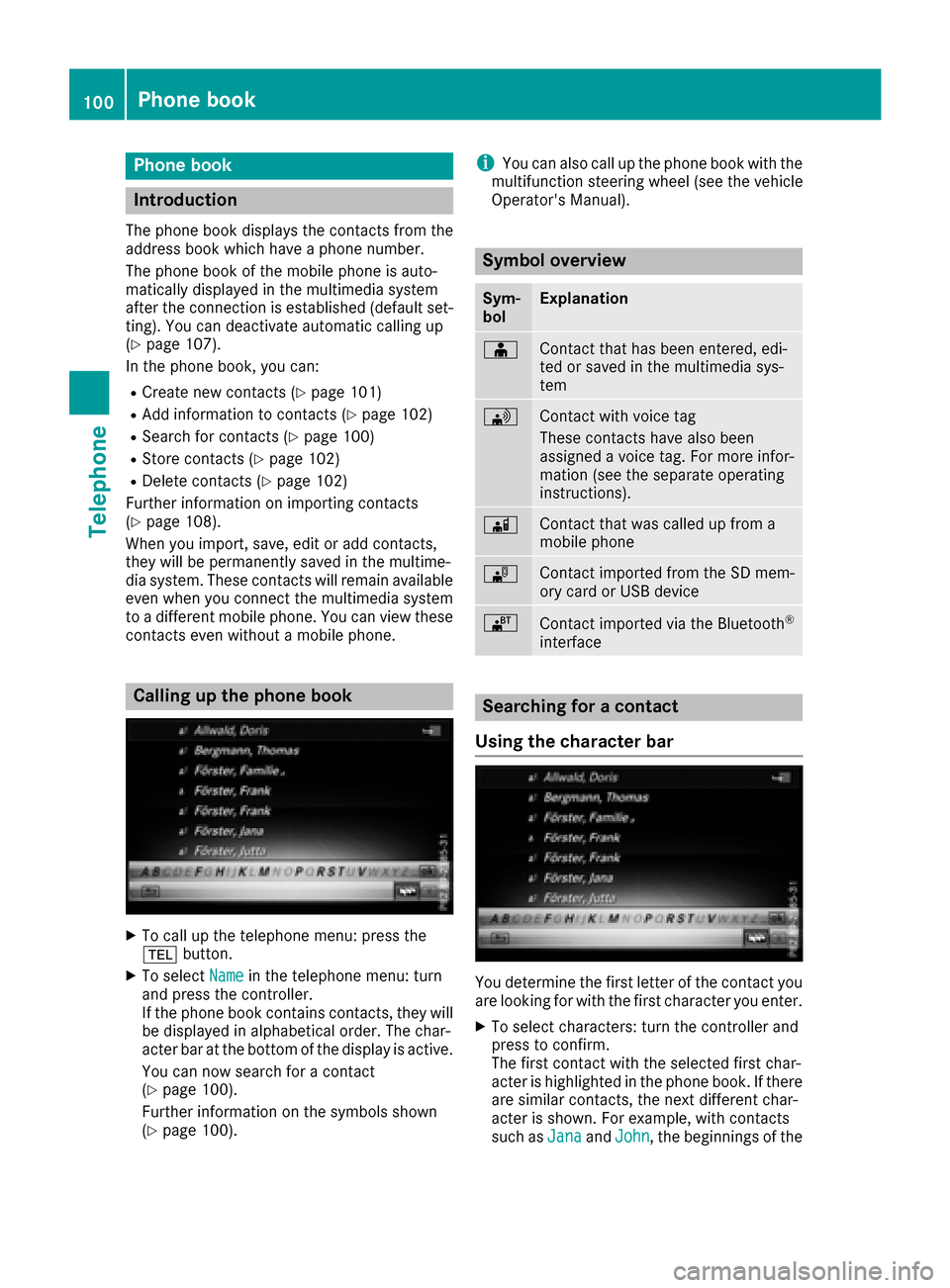
Calling up the phone book
XTo call up the telephone menu: press the
% button.
XTo select Namein the telephone menu: turn
and press the controller.
If the phone book contains contacts, they will
be displayed in alphabetical order. The char-
acter bar at the bottom of the display is active.
You can now search for a contact
(
Ypage 100).
Further information on the symbols shown
(
Ypage 100).
iYou can also call up the phone book with the
multifunction steering wheel (see the vehicle
Operator's Manual).
Symbol overview
Sym-
bolExplanation
ÆContact that has been entered, edi-
ted or saved in the multimedia sys-
tem
\Contact with voice tag
These contacts have also been
assigned a voice tag. For more infor-
mation (see the separate operating
instructions).
ÃContact that was called up from a
mobile phone
¯Contact imported from the SD mem-
ory card or USB device
®Contact imported via the Bluetooth®
interface
Searching for a contact
Using the character bar
You determine the first letter of the contact you
are looking for with the first character you enter.
XTo select characters: turn the controller and
press to confirm.
The first contact with the selected first char-
acter is highlighted in the phone book. If there
are similar contacts, the next different char-
acter is shown. For example, with contacts
such as Jana
andJohn, the beginnings of the
100Phone book
Telephone
Page 104 of 178
XTo selectContinue: turn and press the con-
troller.
The input menu with input lines is displayed.
XEnter characters using the controller
(Ypage 29) or the touchpad (Ypage 25).
XTo finish and save an entry: select ¬.
The contact is created in the phone book and
in the address book.
Adding information to a contact
You can add a telephone number to an existing
contact.
XTo highlight a contact in the phone book: turn
the controller.
XTo select G: slide 9the controller.
XTo select AddPhoneNo.: turn and press the
controller.
XTo select a category for the number, e.g.
Home: turn the controller and press to confirm.
XTo select a telephone category, e.g. MobilePhone: turn the controller and press to con-
firm.
If you have marked a number as favored, it
appears at the top of the list and is highligh-
ted.
XTo select Continue: turn and press the con-
troller.
An input line appears.
XEnter the telephone number.
XSelect ¬.
A maximum of five entries can be saved for one
category.
If five numbers are already stored for the entry
you are searching for, a prompt will appear ask-
ing whether you wish to overwrite one of the
existing numbers.
Overwriting an entry
XTo select Yes: turn and press the controller.
A list of the existing five phone numbers is
displayed.
XTo select the number to be overwritten from
the list: turn the controller and press to con-
firm.
The entry field for the new phone number is
displayed.
XEnter characters using the controller
(Ypage 29) or the touchpad (Ypage 25). Canceling the overwriting of an entry
XTo select
No: turn and press the controller.
The process is canceled.
Saving a contact
Saved contacts are indicated in the phone book
by different symbols (Ypage 100).
XSearch for a contact on the mobile phone d
(Ypage 100).
XTo select G: slide 9the controller.
XTo select Save: turn and press the controller.
The contact has now been saved. The contact
is identified by the ¥symbol in the phone
book.
iSaved contacts are also displayed in the
address book.
Saving or editing the contact data in the mul-
timedia system does not change the contacts
on the mobile phone. If automatic calling-up
of phone contacts is activated, the multime-
dia system displays the copy ¥with the
changed data.
To add additional data, such as additional
phone numbers or e-mail addresses, select
this contact. In this way, you avoid creating
additional copies of the mobile phone entry.
Deleting a name
You can delete contacts that have been added,
supplemented, saved or imported in the multi-
media system.
If there are only phone numbers saved under the
contact, the contact is deleted from the phone
book and the address book.
If there are additional entries under the contact,
such as a navigable destination, only the phone
numbers are deleted. The contact is retained in
the address book with the remaining entries.
XTo highlight a contact in the phone book: turn
the controller.
XTo select G: slide 9the controller.
XTo select Delete Entry: turn and press the
controller.
A prompt appears asking whether the contact
should be deleted.
XTo select Yes: turn and press the controller.
The phone number is deleted.
102Phone book
Telephone
Page 105 of 178
Closing the phone book
XTo select&from the character bar: turn the
controller and press to confirm.
or
XPress the %button.
Address book
Introduction
Always pay attention to traffic conditions.
Familiarize yourself with the address book func-
tions before beginning your journey.
You can use the multimedia system when the
road and traffic conditions permit. You could
otherwise become involved in an accident in
which you or others could be injured.
The address book displays all the contacts from
the various sources (mobile phone, memory
card, USB device, the phone book of the multi-
media system, navigation).
You can use the contacts to make telephone
calls, navigate and to write messages.
If a mobile phone is connected to the multimedia
system and automatic calling up is activated
(
Ypage 107), the mobile phone's contacts are
displayed in the address book. If you disconnect
the mobile phone from the multimedia system,
these contacts are no longer displayed in the
address book.
When you import, save, edit or add contacts,
they will be saved in the multimedia system.
These contacts will remain available even when
you connect the multimedia system to a differ-
ent mobile phone. You can view these contacts
even without a mobile phone.
iThe address book can store a total of 5000
contacts.
R2000 entries are reserved for permanently
saved contacts.
R3000 entries are reserved for contacts that
you can load from the mobile phone.
iBefore selling your vehicle, delete the con-
tacts saved in the multimedia system using
the reset function (
Ypage 42).
Calling up the address book
XTo call up the telephone menu: press the
% button.
XTo display the main function bar: slide 5the
controller.
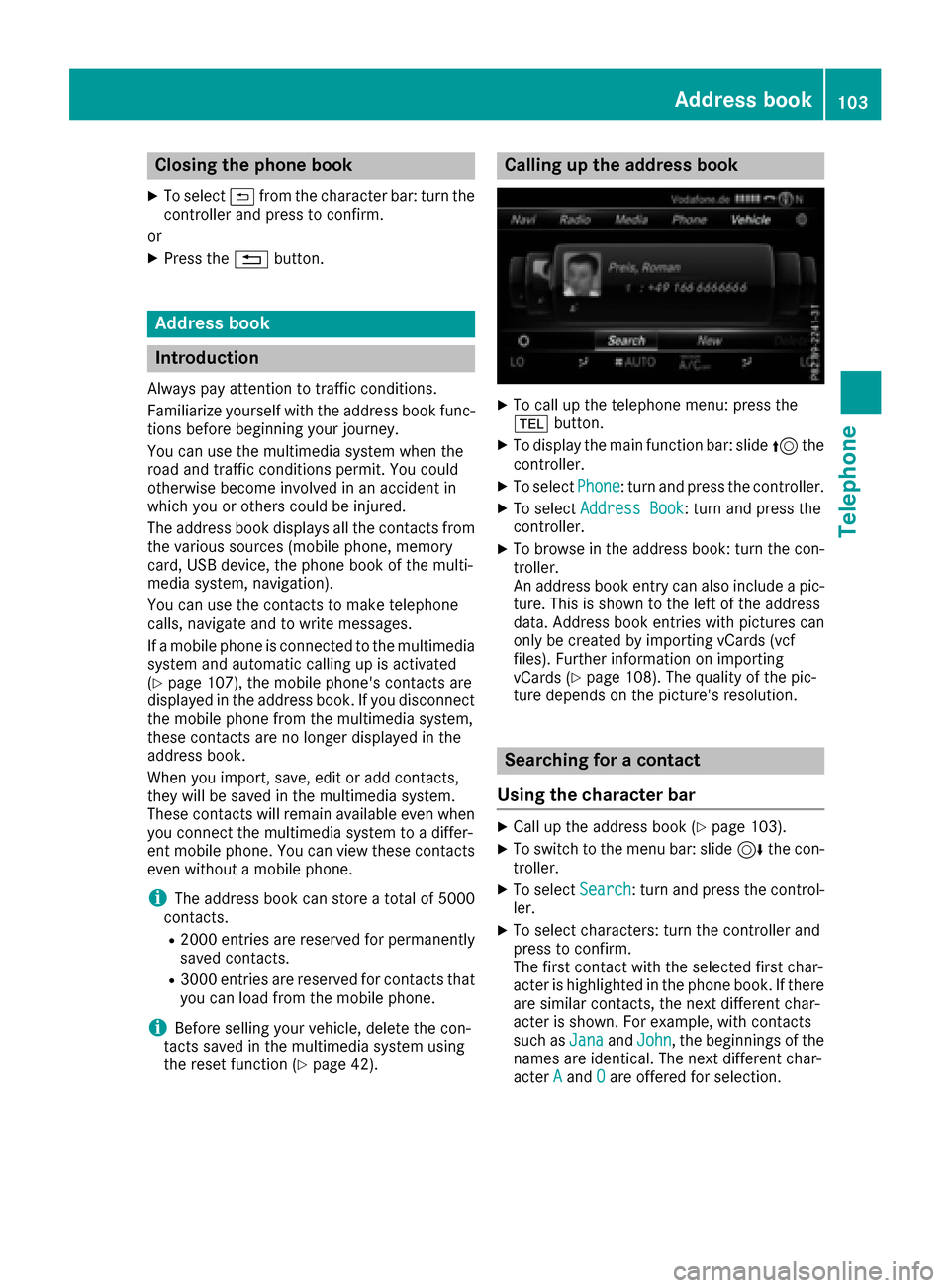
XTo select Phone: turn and press the controller.
XTo select Address Book: turn and press the
controller.
XTo browse in the address book: turn the con- troller.
An address book entry can also include a pic-
ture. This is shown to the left of the address
data. Address book entries with pictures can
only be created by importing vCards (vcf
files). Further information on importing
vCards (
Ypage 108). The quality of the pic-
ture depends on the picture's resolution.
Searching for a contact
Using the character bar
XCall up the address book (Ypage 103).
XTo switch to the menu bar: slide 6the con-
troller.
XTo select Search: turn and press the control-
ler.
XTo select characters: turn the controller and
press to confirm.
The first contact with the selected first char-
acter is highlighted in the phone book. If there
are similar contacts, the next different char-
acter is shown. For example, with contacts
such as Jana
andJohn, the beginnings of the
names are identical. The next different char-
acter A
andOare offered for selection.
Address book103
Telephone
Z
Page 109 of 178
XTo selectVoiceTag: turn and press the con-
troller.
XTo select Listen: turn and press the control-
ler.
You hear the voice tag.
Changing the display and sorting cri-
teria for contacts
XCall up the address book (Ypage 103).
XTo show the menu bar: slide 6the control-
ler.
XTo select: turn and press the control-
ler.
XTo select Display and Sorting: turn and
press the controller.
You have the following options:
RLast Name, First Name(default setting)
The contacts are sorted by surname and dis-
played with a comma.
RLast Name First Name
The contacts are sorted by surname and dis-
played without a comma.
RFirst Name Last Name
The contacts are sorted by first name and dis-
played without a comma.
XTo select the required option: turn and press
the controller.
The contacts are sorted and displayed
according to the selection.
Automatically importing contacts
from the phone
Depending on the mobile phone used, you can
set whether the contacts should be called up
automatically after the mobile phone is connec-
ted to the multimedia system.
XConnect a mobile phone (Ypage 91).
XCall up the address book (Ypage 103).
XTo show the menu bar: slide 6the control-
ler.
XTo select: turn and press the control-
ler.
XTo select Automatically Import Con‐tacts from Phone: turn and press the con-
troller.
You can allow Oor deactivate ªthe auto-
matic download.
Saving a contact
Saved contacts are indicated in the phone book
by different symbols (Ypage 100).
XCall up the address book (Ypage 103).
XTo select a contact: turn and press the con-
troller.
The details for the contact are displayed.
XTo select G: slide 9the controller.
XTo select Save: turn and press the controller.
The contact has now been saved.
iIf the saved address book entry contains a
phone number, the entry is also displayed in
the phone book.
Saving or editing the contact data in the mul-
timedia system does not change the contacts
on the mobile phone. If automatic download-
ing of phone contacts is activated, the multi-
media system displays the copy ¥with the
changed data. To add additional data, such as additional phone numbers or e-mail
addresses, select this contact. In this way,
you avoid creating additional copies of the
mobile phone entry.
Deleting a name
XCall up the address book (Ypage 103).
XSearch for a contact (Ypage 103).
XTo select G: slide 9the controller.
XTo select Delete Entry: turn and press the
controller.
XTo select Yes: turn and press the controller.
The contact is deleted.
Address book107
Telephone
Z
Page 110 of 178

Importing contacts
Information and requirements
Contacts can be imported as vCards (vc ffiles). A
vCar dis an electronic business card. Amemory
card, US Bdevice or aBluetoot h
®connection
can be used for importing .
iUp to 2000 entries can be imported int oth e
address book . Amessage notifie syou when
th emaximum number is reached. In order to
be able to then import ne wcontacts, you have
to delet eexisting contact s (
Ypage 107).
SourceRequirements
Memory cardThe SD cardis inserted. It
contain simportable contact
details.
US BdeviceThe US Bdevice is inserted
int oth eUS Bport. It contain s
importable contact details.
Bluetoot h®
connection
If thesendin gof vCards is
supported via Bluetoot h®,
vCards can be received on
mobile phones or netbooks,
for example.
Bluetoot h
®must be activa-
te din th emultimedia system
and on th erespective device ;
see th emanufacturer' soper -
ating instructions.
iIf automatic calling up of th econtact sis
deactivated (Ypage 107), th eImportfro mPhoneoption is available.
Importing from the memory card or USB
device
Contacts imported from th ememory car dor
from aUS Bdevice are identifie dby th e¯
symbol.
The followin gcondition smust be fulfilled in
order to import vCards:
RvCards (vc ffiles) may be locate din th emain
directory or in folders. The multimedia system
allows for atargeted selection of th ecorre-
sponding directories.
RvCards must have th efile extension "vcf".
iThe multimedia system support svCards in
version s2. 1and 3.0.
XTo switch to th emen ubar in th etelephon e
men uor th eaddress book :slide 6thecon-
troller .
XTo select:tur nand press th econtrol -
ler .
XTo select Download Contacts:tur nand
press th econtroller .
XTo select FromMemory Car dorFro mUSBdevice:tur nand press th econtroller .
Receiving vCards via Bluetooth®
Multimedi asystem
XTo switch to th emen ubar in th etelephon e
men uor th eaddress book :slide 6thecon-
troller .
XTo select:tur nand press th econtrol -
ler .
XTo select Download Contacts:tur nand
press th econtroller .
XTo selectFromBluetoothDevice:tur nand
press th econtroller .
If th emultimedia system is connecte dto a
mobile phone, th econnection is terminated.
vCards can no wbe received by adevice (PC,
mobile phone) via Bluetoot h
®.
External device
XStart th edat atransfer ;see th emanufactur -
er' soperating instructions.
The number of vCards received is displayed in th emultimedia system.
Multimedi asystem
XTo cance lth etransfer :press th econtroller .
If amobile phon ewas connected, th econ-
nection to th emobile phon eis established
again .
108Address book
Telephone
Page 112 of 178

Displaying detailsfrom alist entry
Abbreviated list entries can also be shown in full .
XTo callup th etelephon emenu: press th e
% button.
XTo switch to th emen ubar :slid e6 thecon-
troller.
XTo selec tCal lLists:turn and press th e
controller .
XTo selectCallsReceivedor CallsDialed:
turn and press th econtroller .
The relevant list is displayed.
XTo highlight th edesire dentry: turn th econ-
troller.
XTo selec tG: slide9 thecontroller .
XTo selectDetail s:turn and press th econ-
troller.
The details are displayed.
XTo go bac kto th elist :slid e8 thecontroller
repeatedly until th elist is highlighted.
Savin gtelephon enumber s
Adding new entries to th eaddress book
XTo cal lup th etelephon emenu: press th e
% button.
XTo switch to th emen ubar :slid e6 thecon-
troller.
XTo selec tCal lLists:turn and press th e
controller .
XTo selectCallsReceivedor CallsDialed:
turn and press th econtroller .
The relevant list is displayed.
XTo highlight th edesire dtelephon enumber :
turn th econtroller .
XTo selectG: slide9 thecontroller .
XTo selectSav e:turn and press th econtroller .
XSelectNew Entry.
XSelec t anumber category, e.g. Home.
XSelec t atelephon ecategory, e.g. MobilePhone.
The selecte dcategory is marke dwit h#.
If you hav emarke d anumber as Preferred
,it
is shown at th eto pof th elist and is highligh-
ted.
XSelec tContinue.
The entr yfield fo rth enam eof th ene wcon-
tact is displayed. The entr yfield fo rth etele-
phone number is filled in automatically.
XEnte rcharacters usin gth econtroller
(Ypage 29) or th etouchpad (Ypage 25).
XTo finish and sav ean entry: selec t¬.
The ne wcontact has bee ncreated.
Adding information to an address book
entry
XTo cal lup th etelephon emenu: press th e
% button.
XTo switch to th emen ubar :slid e6 thecon-
troller.
XTo selec tCal lLists:turn and press th e
controller .
XTo selectCallsReceivedor CallsDialed:
turn and press th econtroller .
The relevant list is displayed.
XTo highlight th edesire dtelephon enumber :
turn th econtroller .
XTo selectG: slide9 thecontroller .
XTo selectSav e:turn and press th econtroller .
XSelectAdd to Contac t.
XSelect anumber category, e.g. Home.
XSelec t atelephon ecategory, e.g. MobilePhone.
XSelectContinue.
The address boo kis displayed.
XSearc hfo rth edesire dcontact (Ypage 103).
XPress thecontroller when you hav efinished
searching.
The telephon enumber has bee nsaved.
A maximum of fiv etelephon enumber scan be
saved fo ron econtact .
If fiv enumber sare already stored fo rth eentr y
you are searchin gfor, aprompt will appear ask -
in g whether you wish to overwrit eon eof th e
existin gnumbers.
110Call lists
Telephone
Page 115 of 178

All the messages are displayed.
RNew Messages
Only the messages that are new on the
mobile phone are displayed. You can also
display the last 100 text messages using
theDownload
option in the message menu.
ROff
The messages are not displayed automati-
cally. You can display the 100 newest text
messages from the mobile phone using the
Download
option in the message menu.
XTo select the required option: turn and press
the controller.
Configuring the e-mails displayed
XCall up the settings menu for messages
(Ypage 112).
XTo highlight an e-mail account: turn the con-
troller.
XTo select G: slide 9the controller.
A menu with the following options is shown:
RAll Messages
All the messages are displayed.
RNew Messages
Only the messages that are new on the
mobile phone are displayed. You can also
display the last 100 text messages using
the Download
option in the message menu.
ROff
The messages are not displayed automati-
cally. You can display the last 100 text
messages using the Download
option in the
message menu.
Configuring an e-mail account
XCall up the settings menu for messages
(Ypage 112).
XTo select an e-mail account: turn and press
the controller.
The e-mail account is now configured. E-mails
can now be received and sent in the multi-
media system.
Deactivating the e-mail function
XCall up the settings menu for messages
(Ypage 112).
XTo select E-Mail Off: turn and press the
controller.
E-mail reception is deactivated.
Changing the displayed name of the e-
mail account
Some mobile phones:
Rdo not support the changing of the displayed
name
Rsupport only the email address of the email
account
XCall up the settings menu for messages
(Ypage 112).
XTo highlight an e-mail account: turn the con-
troller.
XTo select G: slide 9the controller.
XTo select Own E-Mail Address: turn and
press the controller.
The input menu for entering your own e-mail
address is displayed.
Downloading messages manually
XTo call up the telephone menu: press the
% button.
XTo switch to the menu bar: slide 6the con-
troller.
XTo select 1: turn and press the controller.
The message menu is displayed.
XTo switch to the menu bar: slide 6the con-
troller.
XTo select Download: turn and press the con-
troller.
Downloading text messages and e-mails
from the phone
XSelect From the Phone.
The messages are downloaded. If you have
selected Automatic Download
in the e-mail
settings, manual downloading is not possible.
Updating from the e-mail server by the
mobile phone
XSelect From the E-Mail Server.
The e-mails in the mobile phone are updated.
Messages (text messages and e-mails)113
Telephone
Z