2017 MERCEDES-BENZ B-Class ESP
[x] Cancel search: ESPPage 203 of 290
General notes
The multimedia system section in this Opera-
tor's Manual describes the basic principles for
operation. More information can be found in the Digital Operator's Manual. Important safety notes
G
WARNING
If you operate information systems and com-
munication equipment integrated in the vehi- cle while driving, you will be distracted from
traffic conditions. You could also lose control of the vehicle. There is a risk of an accident.
Only operate the equipment when the traffic
situation permits. If you are not sure that this
is possible, park the vehicle paying attention
to traffic conditions and operate the equip-
ment when the vehicle is stationary.
You must observe the legal requirements for the country in which you are currently driving whenoperating the multimedia system.
The multimedia system calculates the route to
the destination without taking the following into
account, for example:
R traffic lights
R stop and yield signs
R parking or stopping restrictions
R road narrowing
R other road and traffic rules and regulations
The multimedia system may give incorrect nav-
igation recommendations if the actual street/
traffic situation does not correspond with the
digital map's data.
For example:
R a diverted route
R the road layout or the direction of a one-way
street has been changed
For this reason, you must always observe road
and traffic rules and regulations during your
journey. Road and traffic rules and regulations
always have priority over multimedia system
driving recommendations.
Navigation announcements are intended to
direct you while driving without diverting your
attention from the road and driving. Please always use this feature instead of con-
sulting the map display for directions. Looking
at the icons or map display can distract you from traffic conditions and driving, and increase the
risk of an accident.
This equipment complies with FCC radiation
exposure limits set forth for uncontrolled equip-
ment and meets the FCC radio frequency (RF)
Exposure Guidelines in Supplement C to OET65.
This equipment has very low levels of RF energy that is deemed to comply without maximum
permissive exposure evaluation (MPE). How-
ever, it is recommended to install it at a distance
of at least 8 inches (approx. 20 cm) between the
radiation source and a person's body (not
including limbs such as hands, wrists, feet and
legs). G
WARNING
Modifications to electronic components, their software as well as wiring can impair their
function and/or the function of other net-
worked components. In particular, systems
relevant to safety could also be affected. As a
result, these may no longer function as inten-
ded and/or jeopardize the operating safety of
the vehicle. There is an increased risk of an
accident and injury.
Never tamper with the wiring as well as elec-
tronic components or their software. You
should have all work to electrical and elec-
tronic equipment carried out at a qualified
specialist workshop.
If you make any changes to the vehicle elec-
tronics, the general operating permit is ren-
dered invalid. Function restrictions
For safety reasons, some functions are restric-
ted or unavailable while the vehicle is in motion. You will notice this, for example, because either
you will not be able to select certain menu items or a message will appear to this effect. Function restrictions
201Multimedia system Z
Page 206 of 290

R
Dynamic TRF. Route After Request
Dynamic TRF. Route After Request
You can decide whether or not current traffic reports should be included in the route cal-
culation (not available in all countries).
R Calculate Alternative Routes
Calculate Alternative Routes
Different routes are being calculated. In order
to do so, instead of Start Start, select the menu
item Continue
Continue.
X To avoid/use route options: selectAvoid
Avoid
Options
Options.
X Select a route option.
Notes for route options:
R Use Toll Roads
Use Toll Roads
The route calculation includes roads which
require you to pay a usage fee (toll).
R Number of Occupants in the Vehicle: Number of Occupants in the Vehicle:
(only available in the USA)
Prerequisite: your vehicle meets the access
conditions for carpool lanes.
Carpool lanes will be included if the carpool
lanes option is activated.
Entering an address Multimedia system:
X Select Navi Navi007BNavigation Navigation.
The map shows the vehicle's current position.
X Slide 6the controller.
X Select Destination
Destination007BAddress Entry Address Entry.
Enter an address, e.g. as follows:
R city or ZIP code, street, house number
R state/province, city or ZIP code
R city or ZIP code, center
R street, city or ZIP code, intersection
X Select City
City.
The city in which the vehicle is currently loca-
ted (current vehicle position) is at the top.
Below this, you will see locations for which
route guidance has already been carried out.
X Enter the city.
The 0043symbol: the location is contained on
the digital map multiple times.
X To switch to the list: slide the5control-
ler.
X Select the location.
If available, the ZIP code is shown. If there are
different ZIP codes available for the location, the corresponding digits are displayed with an
X
X.
X Enter the street and house number.
The address is in the menu.
Further options for destination entry:
R search for a keyword
The keyword search finds destinations using
fragments of words.
R select the last destination
R select a contact
R select a POI
You can search for a POI by location, name or
telephone number.
R select destination on the map
R enter intermediate destination
You can map the route to the destination
yourself with up to four intermediate destina-
tions.
R select destinations from Mercedes-Benz
Apps
R select geo-coordinates
Calculating the route Prerequisite: the address has been entered and
is in the menu.
X Select Start StartorContinue
Continue.
The route is calculated with the selected route
type and the selected route options.
If route guidance has already been activated,
a prompt will appear asking whether you wish to end the current route guidance.
X Select Cancel Active Route Guidance Cancel Active Route Guidance or
Set as Intermediate Destination
Set as Intermediate Destination.
Cancel Active Route Guidance Cancel Active Route Guidance cancels
the current route guidance and starts route
calculation to the new destination.
Set as Intermediate Destination Set as Intermediate Destination adds
the new destination in addition to the existing
destination and opens the intermediate des-
tinations list. Connecting a mobile phone
Prerequisites For telephony via the Bluetooth
®
interface, you
require a Bluetooth ®
-capable mobile phone. The
mobile phone must support Hands-Free Profile
1.0 or above. 204
Operating systemMultimedia system
Page 213 of 290

X
Slide locking mechanism 0087in the direction
of the arrow.
X Swing flap 0044fully to the side.
Flap 0044is held open by a magnet.
X To close: swing flap 0044in the cargo compart-
ment back until it engages.
X Fold armrest 0043up fully if necessary.
Observe the loading guidelines (Y page 207).Cargo compartment enlargement
Important safety notes G
WARNING
If the rear bench seat/rear seat and seat
backrest are not engaged they could fold for- wards, e.g. when braking suddenly or in the
event of an accident.
R The vehicle occupant would thereby be
pushed into the seat belt by the rear bench
seat/rear seat or by the seat backrest. The
seat belt can no longer offer the intended
level of protection and could even cause
injuries.
R Objects or loads in the trunk/cargo com-
partment cannot be restrained by the seat
backrest.
There is an increased risk of injury.
Before every trip, make sure that the seat
backrests and the rear bench seat/rear seat
are engaged.
! Before folding the backrest in the rear com-
partment forwards, make sure that the rear
compartment armrest and the cupholder are
folded in. They may otherwise be damaged.
Observe the loading guidelines (Y page 207).
The left-hand and right-hand rear seat backrests can be folded forwards separately to increase
the cargo compartment capacity. Folding the rear seat backrest forwards
and back Folding the rear seat backrests forward
X
Fully insert the backrest head restraints if
necessary (Y page 81).
X Move the driver's or front-passenger seat
forward if necessary.
X Pull left-hand or right-hand release handle 0044
of the seat backrest forwards.
Corresponding seat backrest 0043is released.
X Fold backrest 0043forwards.
X Move the driver's or front-passenger seat
back if necessary.
Folding the rear seat backrest back
! Make sure that the seat belt does not
become trapped when folding the rear seat
backrest back. Otherwise, it could be dam-
aged. X
Move the driver's or front-passenger seat
forward if necessary.
X Fold seat backrest 0043back until it engages.
Red lock status indicator 0044is no longer visi-
ble. Stowage areas
211Stowage and features Z
Page 221 of 290

Socket in the rear compartment center
console X
Pull the cover out by the top of the handle
edge.
X Lift up the cover of the socket.
Socket in the cargo compartment X
Lift up the cover of socket 0043.mbrace
General notes The mbrace system is only available in the USA.
You must have a license agreement to activate
the mbrace service. Make sure that your system is activated and operational. To log in, press the
00D9 MB Info call button. If any of the steps
mentioned are not carried out, the system may
not be activated.
If you have questions about the activation, con- tact one of the following telephone hotlines:
Mercedes-Benz Customer Assistance Center at
1-800-FOR-MERCedes (1-800-367-6372) or
1-866-990-9007
Shortly after successfully registering with the
mbrace service, a user ID and password will be
sent to you by mail. You can use this password
to log onto the mbrace area under "Owners
Online" at http://www.mbusa.com.
The system is available if:
R it has been activated and is operational
R the corresponding mobile phone network is
available for transmitting data to the Cus-
tomer Center
R a service subscription is available Determining the location of the vehicle on a map
is only possible if:
R GPS reception is available.
R the vehicle position can be forwarded to the
Customer Assistance Center
The mbrace system To adjust the volume during a call, proceed as
follows:
X Press the 0081or0082 button on the multi-
function steering wheel.
or X Use the multimedia system's volume control.
The system offers various services, e.g.:
R Automatic and manual emergency call
R Roadside Assistance call
R MB Info call
You can find information and a description of all
available features under "Owners Online" at
http://www.mbusa.com.
System self-test After you have switched on the ignition, the sys-
tem carries out a self-diagnosis.
A malfunction in the system has been detected if one of the following occurs:
R The indicator lamp in the SOS button does not
come on during the system self-test.
R The indicator lamp in the 0052Roadside
Assistance button does not light up during
self-diagnosis of the system.
R The indicator lamp in the 00D9MB Info call
button does not light up during self-diagnosis
of the system.
R The indicator lamp in one or more of the fol-
lowing buttons continues to light up red after
the system self-diagnosis:
- SOS button
- 0052 Roadside Assistance call button
- 00D9 MB Info call button
R The Inoperative
Inoperative or theService Not Service Not
Activated
Activated message appears in the multi-
function display after the system self-diagno-
sis.
If a malfunction is indicated as outlined above,
the system may not operate as expected. In the event of an emergency, help will have to be
summoned by other means. Features
219Stowage and features Z
Page 222 of 290

Have the system checked at the nearest
Mercedes-Benz Service Center or contact the
following service hotlines:
Mercedes-Benz Customer Assistance Center at
1-800-FOR-MERCede s (1-800-367-6372) or
1-866-990-9007
Emergency call Important safety notes
G
WARNING
It can be dangerous to remain in the vehicle,
even if you have pressed the SOS button in an emergency if:
R you see smoke inside or outside of the vehi-
cle, e.g. if there is a fire after an accident
R the vehicle is on a dangerous section of
road
R the vehicle is not visible or cannot easily be
seen by other road users, particularly whendark or in poor visibility conditions
There is a risk of an accident and injury.
Leave the vehicle immediately in this or simi-
lar situations as soon as it is safe to do so.
Move to a safe location along with other vehi-
cle occupants. In such situations, secure the
vehicle in accordance with national regula-
tions, e. g. with a warning triangle.
General notes
Observe the notes on system activation
(Y page 219).
An emergency call is dialed automatically if an
air bag or Emergency Tensioning Device is trig-
gered. You cannot end an automatically trig-
gered emergency call yourself.
An emergency call can also be initiated man-
ually.
As soon as the emergency call has been initi-
ated, the indicator lamp in the SOS button
flashes. The Connecting Call
Connecting Call message
appears in the multifunction display.
The audio output is muted.
Once the connection has been made, the Call Call
Connected
Connected message appears in the multifunc-
tion display. All important information on the emergency is
transmitted, for example:
R current location of the vehicle (as determined
by the GPS system)
R vehicle identification number
R information on the severity of the accident
Shortly after the emergency call has been initi-
ated, a voice connection is automatically estab- lished between the Customer Assistance Center
and the vehicle occupants.
R If the vehicle occupants respond, the
Mercedes-Benz Customer Assistance Center
attempts to get more information on the
emergency.
R If there is no response from the vehicle occu-
pants, an ambulance is immediately sent to
the vehicle.
If no voice connection can be established to the
Mercedes-Benz Customer Assistance Center,
the system has been unable to initiate an emer- gency call.
This can occur, for example, if the relevant
mobile phone network is not available. The indi-cator lamp in the SOS button flashes continu-
ously.
The Call Failed Call Failed message appears in the mul-
tifunction display and must be confirmed.
In this case, summon assistance by other
means.
Making an emergency call X
To initiate an emergency call manually:
press cover 0043briefly to open.
X Press and hold the SOS button for at least one
second 0044.
The indicator lamp in SOS button 0044flashes
until the emergency call is concluded.
X Wait for a voice connection to the Mercedes-
Benz Customer Assistance Center. 220
FeaturesSto
wage an d features
Page 223 of 290
X
To end a call: press the0076button on the
multifunction steering wheel.
or X Press the corresponding multimedia system
button for ending a phone call.
X After the emergency call, close cover 0043.
If the mobile phone network is unavailable,
mbrace will not be able to make the emergency
call. If you leave the vehicle immediately after
pressing SOS button 0044, you do not know if
mbrace has successfully made the emergency
call. In this case, always summon assistance by other means.
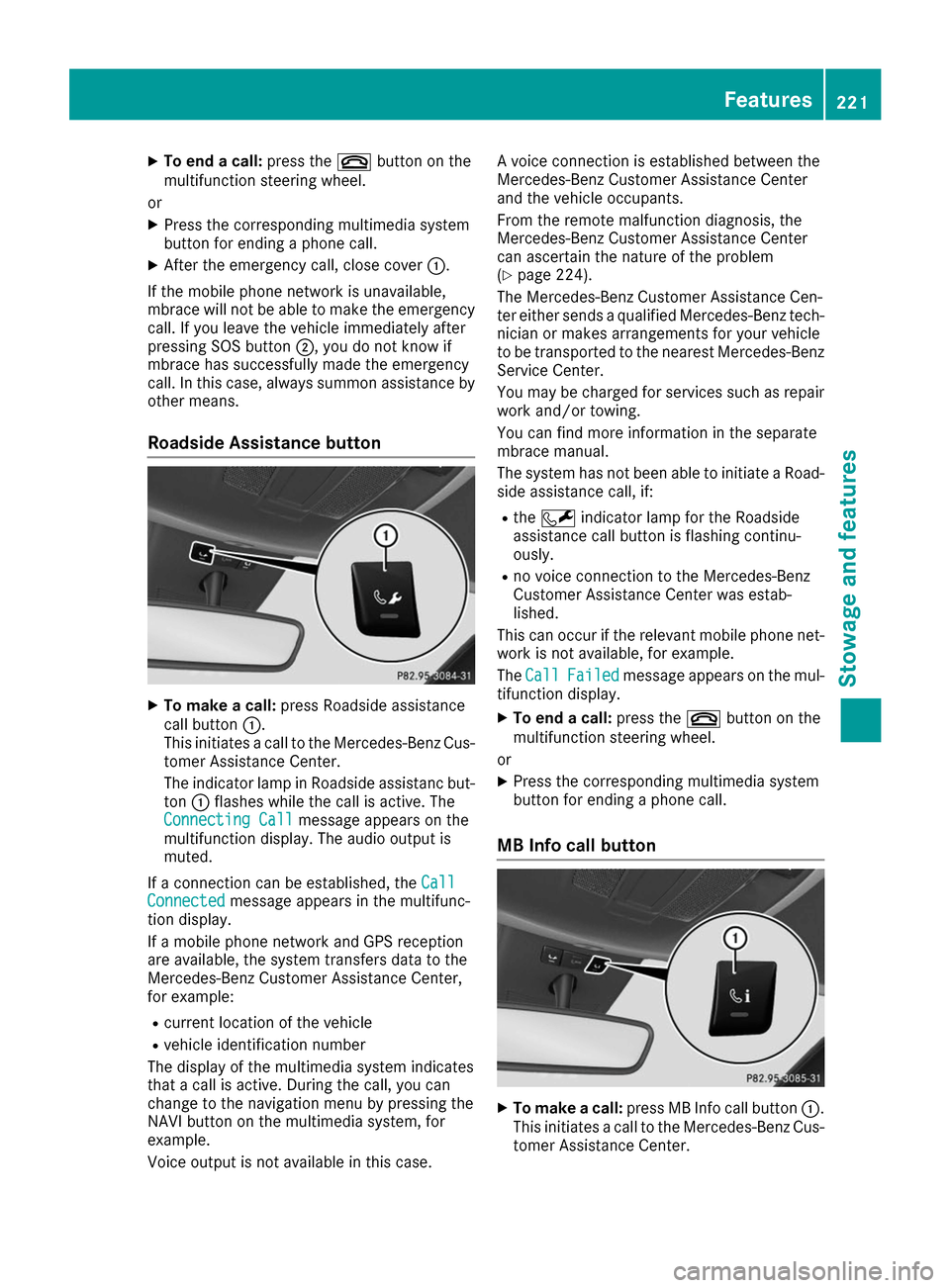
Roadside Assistance button X
To make a call: press Roadside assistance
call button 0043.
This initiates a call to the Mercedes-Benz Cus-
tomer Assistance Center.
The indicator lamp in Roadside assistanc but- ton 0043flashes while the call is active. The
Connecting Call
Connecting Call message appears on the
multifunction display. The audio output is
muted.
If a connection can be established, the Call
Call
Connected Connected message appears in the multifunc-
tion display.
If a mobile phone network and GPS reception
are available, the system transfers data to the
Mercedes-Benz Customer Assistance Center,
for example:
R current location of the vehicle
R vehicle identification number
The display of the multimedia system indicates
that a call is active. During the call, you can
change to the navigation menu by pressing the
NAVI button on the multimedia system, for
example.
Voice output is not available in this case. A voice connection is established between the
Mercedes-Benz Customer Assistance Center
and the vehicle occupants.
From the remote malfunction diagnosis, the
Mercedes-Benz Customer Assistance Center
can ascertain the nature of the problem
(Y
page 224).
The Mercedes-Benz Customer Assistance Cen-
ter either sends a qualified Mercedes-Benz tech-
nician or makes arrangements for your vehicle
to be transported to the nearest Mercedes-Benz
Service Center.
You may be charged for services such as repair work and/or towing.
You can find more information in the separate
mbrace manual.
The system has not been able to initiate a Road-
side assistance call, if:
R the 0052 indicator lamp for the Roadside
assistance call button is flashing continu-
ously.
R no voice connection to the Mercedes-Benz
Customer Assistance Center was estab-
lished.
This can occur if the relevant mobile phone net- work is not available, for example.
The Call Call Failed
Failed message appears on the mul-
tifunction display.
X To end a call: press the0076button on the
multifunction steering wheel.
or X Press the corresponding multimedia system
button for ending a phone call.
MB Info call button X
To make a call: press MB Info call button 0043.
This initiates a call to the Mercedes-Benz Cus-
tomer Assistance Center. Features
221Stowage an d features Z
Page 224 of 290

The indicator lamp in MB Info call button
0043
flashes while the connection is being made.
The Connecting Call
Connecting Call message appears on
the multifunction display. The audio output is
muted.
If a connection can be established, the Call
Call
Connected Connected message appears in the multifunc-
tion display.
If a mobile phone network and GPS reception
are available, the system transfers data to the
Mercedes-Benz Customer Assistance Center,
for example:
R current location of the vehicle
R vehicle identification number
The display of the multimedia system indicates
that a call is active. During the call, you can
change to the navigation menu by pressing the
NAVI button on the multimedia system, for
example.
Voice output is not available in this case.
A voice connection is established between the
Mercedes-Benz Customer Assistance Center
and the vehicle occupants.
You receive information about operating your
vehicle, about the nearest Mercedes-Benz Ser-
vice Center and about other products and serv- ices from Mercedes-Benz.
You can find further information on the mbrace
system under "Owners Online" at http://
www.mbusa.com.
The system has not been able to initiate an MB
Info call, if:
R the indicator lamp in MB Info call button 00D9
is flashing continuously.
R no voice connection to the Mercedes-Benz
Customer Assistance Center was estab-
lished.
This can occur if the relevant mobile phone net-
work is not available, for example.
The Call
Call Failed Failed message appears on the mul-
tifunction display.
X To end a call: press the0076button on the
multifunction steering wheel.
or X Press the corresponding multimedia system
button for ending a phone call. Call priority When service calls are active, e.g. Roadside
Assistance or MB Info calls, an emergency call
can still be initiated. In this case, an emergency
call will take priority and override all other active
calls.
The indicator lamp of the respective button
flashes until the call is ended.
An emergency call can only be terminated by the
Mercedes-Benz Customer Assistance Center.
All other calls can be ended by pressing:
R the 0076 button on the multifunction steering
wheel
R the corresponding button in the multimedia
system to end the voice call
When a call is initiated, the audio system is
muted.
The mobile phone is no longer connected to the
multimedia system.
However, if you want to use your mobile phone, do so only when the vehicle is stationary and ina safe location.
Downloading destinations Downloading destinations
Downloading destinations gives you access to a database with over 15 million points of interest(POIs). These can be downloaded on the navi-
gation system in your vehicle. If you know the
destination, the address can be downloaded.
Alternatively, you can obtain the location of
Points of Interest (POIs)/important destinationsin the vicinity.
Furthermore, you can download routes with up
to four way points.
You are prompted to confirm route guidance to
the address entered.
X SelectYes Yesby turning 3or sliding 1
the controller and confirm with 7.
The system calculates the route and subse-
quently starts the route guidance with the
address entered.
If you select No Nothe address can be stored in
the address book. 222
FeaturesStowage and features
Page 225 of 290

The destination download function is available
if:
R the vehicle is equipped with a navigation sys-
tem.
R the relevant mobile phone network is availa-
ble and data transfer is possible.
Route Assistance This service is part of the mbrace PLUS Packageand cannot be purchased separately.
You can use the Route Assistance function even
if the vehicle is not equipped with a navigation
system.
Within the framework of this service, you receive a professional and reliable form of navigation
support without having to leave your vehicle.
The customer service representative finds a
suitable route depending on your vehicle's cur-
rent position and the desired destination. You
will then be guided live through the current route section.
Search & Send General notes
To use "Search & Send", your vehicle must be
equipped with mbrace and a navigation system. Additionally, an mbrace service subscription
must be completed.
"Search & Send" is a destination entry service. A
destination address found on Google Maps™
can be transferred via mbrace directly to your
vehicle's navigation system.
Specifying and sending the destination
address
X Go to the website http://maps.google.com
and enter a destination address into the entry
field.
X To send the destination address to the e-
mail address of your mbrace account:
click on the corresponding button on the web-
site.
Example:
If you select 'Send to vehicle' and then
'Mercedes-Benz', the destination address will be sent to your vehicle.
X When the "Send" dialog window appears: Enter the e-mail address you specified when
setting up your mbrace account into the cor-
responding field.
X Click "Send".
Information on specific commands such as
"Address entry" or "Send" can be found on the
website.
Calling up a transmitted destination
address
X Turn the SmartKey to position 2in the ignition
lock (Y page 109).
The transmitted destination address is loaded into the vehicle's navigation system.
A display message appears, asking whether
navigation should be started.
X SelectYes Yesby turning 3or sliding 1
the controller and confirm with 7.
The system calculates the route and subse-
quently starts the route guidance with the
address entered.
If you select No Nothe address can be stored in
the address book.
If you have sent more than one destination
address, each individual destination must be
confirmed separately.
Destination addresses are loaded in the same
order as the order in which they were sent.
If you own multiple Mercedes-Benz vehicles with
mbrace and activated mbrace accounts:
If multiple vehicles are registered under the
same e-mail address, the destination will be
sent to all the vehicles.
Vehicle remote opening You can use the vehicle remote opening if you
have unintentionally locked your vehicle and a
replacement SmartKey is not available.
The vehicle can be opened by the Mercedes-
Benz Customer Assistance Center.
The vehicle can be immediately opened
remotely within four days of the ignition being
turned off. After this time, the remote unlocking
may be delayed by 15 to 60 minutes. After
30 days, the vehicle can no longer be opened
remotely.
The vehicle remote unlocking feature is availa-
ble if the relevant mobile phone network is avail- able and a data connection is possible.
X Contact the following service hotlines: Features
223Stowage and features Z