2017 MAZDA MX5 MIATA battery
[x] Cancel search: batteryPage 224 of 568

5 –2 Interior Features
Climate Control System
Operating Tips
Operate the climate control system with
the engine running.
To prevent the battery from being
discharged, do not leave the fan control
dial on for a long period of time with the
ignition switched ON when the engine is
not running.
Clear all obstructions such as leaves,
snow and ice from the hood and the air
inlet in the cowl grille to improve the
system efficiency.
Use the climate control system to defog
the windows and dehumidify the air.
The recirculate mode should be used
when driving through tunnels or while in
a traffic jam, or when you would like to
shut off outside air for quick cooling of
the interior.
Use the outside air position for
ventilation or windshield defrosting.
If the vehicle has been parked in direct
sunlight during hot weather, open the
windows to let warm air escape, then
run the climate control system.
Run the air conditioner about 10 minutes
at least once a month to keep internal
parts lubricated.
Have the air conditioner checked before
the weather gets hot. Lack of refrigerant
may make the air conditioner less
efficient.
The refrigerant specifications are
indicated on a label attached to the
inside of the engine compartment. Check
the label before refilling the refrigerant.
If the wrong type of refrigerant is used,
it could result in a serious malfunction
of the air conditioner.
For details, consult an Authorized
Mazda Dealer. Label
MX-5_8FR4-EA-16J_Edition1.indb 2 2016/08/11 20:29:06
Page 236 of 568

5 –14 Interior Features
Audio System
Operating Tips for Audio
System WARNINGAlways adjust the audio while the
vehicle is stopped:
Do not adjust the audio control
switches while driving the vehicle.
Adjusting the audio while driving
the vehicle is dangerous as it could
distract your attention from the vehicle
operation which could lead to a
serious accident.
Even if the audio control switches are
equipped on the steering wheel, learn
to use the switches without looking
down at them so that you can keep
your maximum attention on the road
while driving the vehicle.
CAUTION For the purposes of safe driving,
adjust the audio volume to a level that
allows you to hear sounds outside of
the vehicle including car horns and
particularly emergency vehicle sirens.
NOTE
To prevent the battery from being
discharged, do not leave the audio
system on for a long period of time
when the engine is not running.
If a cellular phone or CB radio is used
in or near the vehicle, it could cause
noise to occur from the audio system,
however, this does not indicate that the
system has been damaged. Do not spill any liquid on the audio
system.
Do not insert any objects, other than CDs,
into the slot.
Radio Reception AM characteristics
AM signals bend around such things as
buildings or mountains and bounce off the
ionosphere.
Therefore, they can reach longer distances
than FM signals.
Because of this, two stations may
sometimes be picked up on the same
frequency at the same time.
Station 2Station 1 Ionosphere
MX-5_8FR4-EA-16J_Edition1.indb 14 2016/08/11 20:29:09
Page 243 of 568

5 –21 Interior Features
Audio System Operating Tips for iPodThis unit supports playback of music files
recorded to an iPod.
*
iPod is a trademark of Apple Inc.,
registered in the U.S. and other
countries.
The iPod may not be compatible
depending on the model or OS version. In
this case, an error message is displayed.
CAUTION
Remove the iPod when it is not in
use. Because the iPod is not designed
to withstand excessive changes in
temperature inside the cabin, it could be
damaged or the battery may deteriorate
due to the excessive temperature or
humidity inside the cabin if it is left in the
vehicle.
If data in the iPod is lost while it is
connected to the unit, Mazda cannot
guarantee recovery of any lost data.
If the iPod battery is deteriorated, the
iPod may not recharge and playback
may not be possible when it is connected
to the unit.
For details on using the iPod, refer to the
iPod instruction manual.
When connecting the iPod to a USB port,
all commands are made from the audio
unit. iPod control is not possible.
NOTE
The audio unit cannot display images or
videos stored in an iPod.
MX-5_8FR4-EA-16J_Edition1.indb 21 2016/08/11 20:29:11
Page 265 of 568

5 –43 Interior Features
Audio System
*Some models.Favorites Radio
Selected stations can be registered for
convenient operation. Up to 50 stations
can be registered. The Favorites list is
common to AM, FM, and satellite radio.
Registering to Favorites
Long-press the
icon to register the
current radio station. The registration can
also be performed using the following
procedure.
1. Select the icon to display the
Favorites list.
2. Select .
3. Select .
4. The station is added to the bottom of
the Favorites list.
NOTE
If the battery is disconnected, your
Favorites list will not be deleted.
Selecting radio station from Favorites
1. Select the icon to display the
Favorites list.
2. Select the radio frequency to tune in the
radio station.
Deleting from Favorites
1. Select the icon to display the
Favorites list.
2. Select .
3. Select .
4. Select the radio frequency you want to
delete.
5. Select . Changing Favorites list order
1. Select the icon to display the
Favorites list.
2. Select .
3. Select .
4. Select a radio frequency. The selected
radio station can be moved.
5. Slide the radio station or move it using
the commander switch, then select .
Radio Broadcast Data System (RBDS) *
Radio text information display
Radio text information sent from a
broadcasting station is displayed in the
center display.
NOTE
Radio text information is a function of FM
radio only. There is no text function on AM
radio. Text information is not displayed in
the following:
During reception
Not an RBDS broadcast
RBDS broadcast, but radio text is not
transmitted from the radio station
Genre Seek
Some FM stations transmit Genre codes
(Program type like a Rock, News, and so
on). This code enables alternative stations
transmitting the same Genre code to be
found quickly.
(To scan for Genre Seek:)
1. Select the icon while in the FM
mode.
2. Select to open the genre list.
3. Select the genre type you want to select.
4. Select the , icon.
MX-5_8FR4-EA-16J_Edition1.indb 43 2016/08/11 20:29:15
Page 280 of 568

5 –58 Interior Features
Audio System
CAUTION Depending on the portable audio
device, noise may occur when the
device is connected to the vehicle
accessory socket. (If noise occurs, do
not use the accessory socket.)
NOTE
This mode may not be usable depending
on the portable audio device to be
connected.
Before using the auxiliary jack/USB
port, refer to the instruction manual for
the portable audio device.
Use a commercially-available, non-
impedance (3.5 ) stereo mini plug for
connecting the portable audio unit to
the auxiliary jack. Before using the
auxiliary jack, read the manufacturer's
instructions for connecting a portable
audio unit to the auxiliary jack.
To prevent discharging of the battery,
do not use the auxiliary input for long
periods with the engine off or idling.
When connecting a device to the
auxiliary jack or USB port, noise may
occur depending on the connected
device. If the device is connected to the
vehicle's accessory socket, the noise can
be reduced by unplugging it from the
accessory socket. How to connect USB port/
Auxiliary jack Type A USB port Auxiliary jack
Type B USB port Auxiliary jack
Connecting a device
1. If there is a cover on the AUX jack or
USB port, remove the cover.
2. Connect the connector on the device to
the USB port.
Connecting with a connector cable
1. If there is a cover on the AUX jack or
USB port, remove the cover.
2. Connect the device plug/connector
cable to the auxiliary jack/USB port.
MX-5_8FR4-EA-16J_Edition1.indb 58 2016/08/11 20:29:18
Page 335 of 568
5 –113 Interior Features
Bluetooth ®
Bluetooth ®
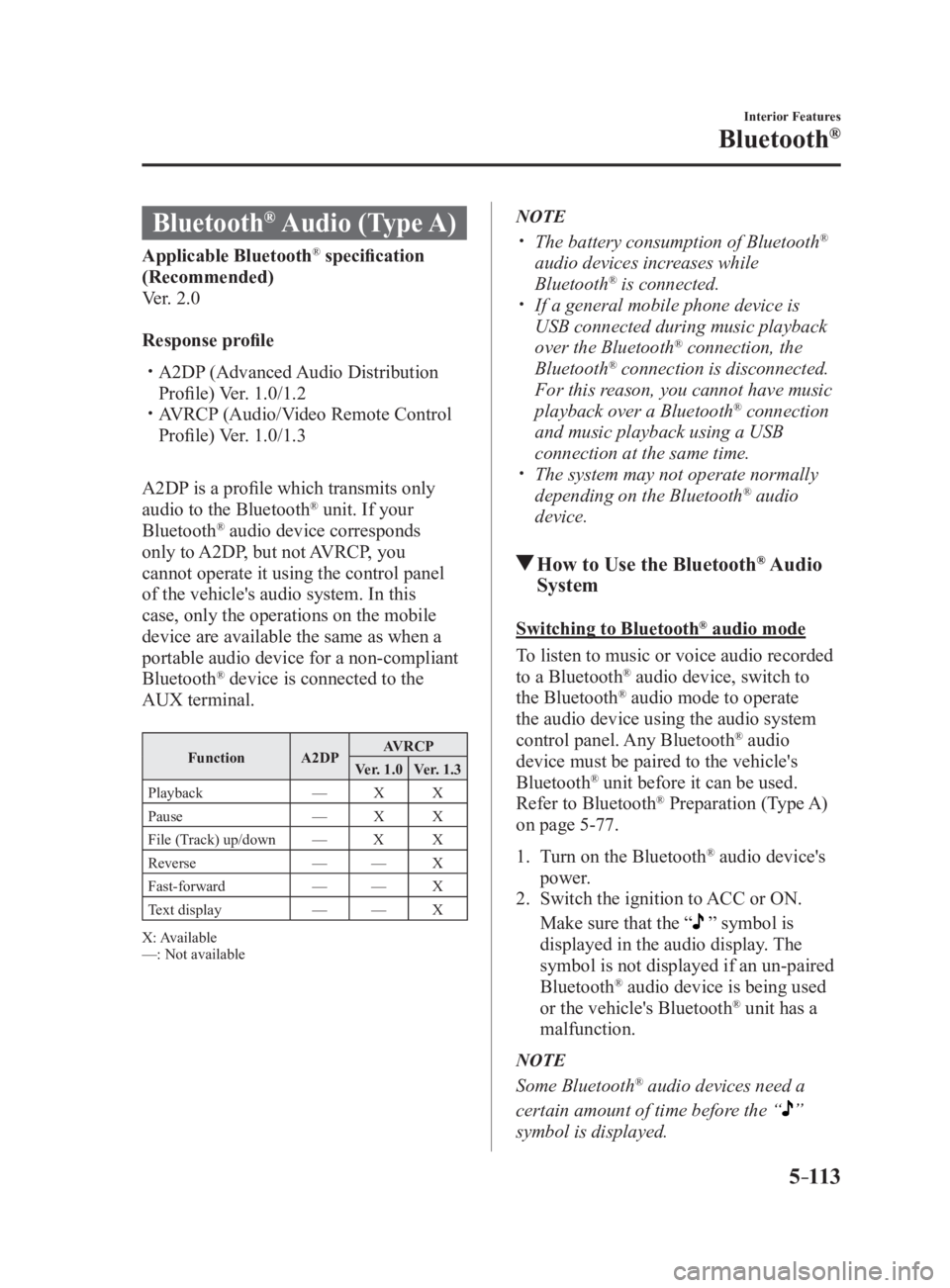
Audio (Type A)Applicable Bluetooth ®
specification
(Recommended)
Ver. 2.0
Response profile
A2DP (Advanced Audio Distribution
Profile) Ver. 1.0/1.2
AVRCP (Audio/Video Remote Control
Profile) Ver. 1.0/1.3
A2DP is a profile which transmits only
audio to the Bluetooth ®
unit. If your
Bluetooth ®
audio device corresponds
only to A2DP, but not AVRCP, you
cannot operate it using the control panel
of the vehicle's audio system. In this
case, only the operations on the mobile
device are available the same as when a
portable audio device for a non-compliant
Bluetooth ®
device is connected to the
AUX terminal. Function A2DP AVRCP
Ver. 1.0 Ver. 1.3
Playback — X X
Pause — X X
File (Track) up/down — X X
Reverse — — X
Fast-forward — — X
Text display — — X
X: Available
—: Not available NOTE
The battery consumption of Bluetooth ®
audio devices increases while
Bluetooth ®
is connected.
If a general mobile phone device is
USB connected during music playback
over the Bluetooth ®
connection, the
Bluetooth ®
connection is disconnected.
For this reason, you cannot have music
playback over a Bluetooth ®
connection
and music playback using a USB
connection at the same time.
The system may not operate normally
depending on the Bluetooth ®
audio
device.
How to Use the Bluetooth ®
Audio
System Switching to Bluetooth ®
audio mode
To listen to music or voice audio recorded
to a Bluetooth ®
audio device, switch to
the Bluetooth ®
audio mode to operate
the audio device using the audio system
control panel. Any Bluetooth ®
audio
device must be paired to the vehicle's
Bluetooth ®
unit before it can be used.
Refer to Bluetooth ®
Preparation (Type A)
on page 5-77 .
1. Turn on the Bluetooth ®
audio device's
power.
2. Switch the ignition to ACC or ON.
Make sure that the “ ” symbol is
displayed in the audio display. The
symbol is not displayed if an un-paired
Bluetooth ®
audio device is being used
or the vehicle's Bluetooth ®
unit has a
malfunction.
NOTE
Some Bluetooth ®
audio devices need a
certain amount of time before the “
”
symbol is displayed.
MX-5_8FR4-EA-16J_Edition1.indb 113 2016/08/11 20:29:30
Page 338 of 568

5 –116 Interior Features
Bluetooth ®
A2DP is a profile which transmits only
audio to the Bluetooth ®
unit. If your
Bluetooth ®
audio device corresponds
only to A2DP, but not AVRCP, you
cannot operate it using the control panel
of the vehicle's audio system. In this
case, only the operations on the mobile
device are available the same as when a
portable audio device for a non-compliant
Bluetooth ®
device is connected to the
AUX terminal. Function A2DP AVRCP
Ver. 1.0 Ver. 1.3 Ver. 1.4
Playback X X X X
Pause X X X X
File (Track)
up/down — X X X
Reverse — — X X
Fast-forward — — X X
Text display — — X X
Repeat — — Depends
on
device Depends
on
device
Shuffle — — Depends
on
device Depends
on
device
Scan — — Depends
on
device Depends
on
device
Folder up/
down — — — Depends
on
device
X: Available
—: Not available NOTE
The battery consumption of Bluetooth ®
audio devices increases while
Bluetooth ®
is connected.
If a general mobile phone device is
USB connected during music playback
over the Bluetooth ®
connection, the
Bluetooth ®
connection is disconnected.
For this reason, you cannot have music
playback over a Bluetooth ®
connection
and music playback using a USB
connection at the same time.
The system may not operate normally
depending on the Bluetooth ®
audio
device.
MX-5_8FR4-EA-16J_Edition1.indb 116 2016/08/11 20:29:31
Page 341 of 568

5 –119 Interior Features
Bluetooth ®
Bluetooth ®
Audio Device
Information DisplayIf a Bluetooth ®
audio device is connected,
the following information is displayed in
the center display. AVRCP
Ver. lower
than 1.3 AVRCP
Ver. 1.3 AVRCP
Ver. 1.4 or
higher
Device name X X X
Remaining
battery
charge of
device X X X
Song name — X X
Artist name — X X
Album name — X X
Playback
time — X X
Genre name — X X
Album art
image — — —
X: Available
—: Not available
NOTE
Some information may not display
depending on the device, and if the
information cannot be displayed,
“Unknown - - -” is indicated.
MX-5_8FR4-EA-16J_Edition1.indb 119 2016/08/11 20:29:31