2017 MAZDA MX5 MIATA AUX
[x] Cancel search: AUXPage 244 of 568
![MAZDA MX5 MIATA 2017 Owners Manual 5 –22 Interior Features
Audio System
Audio set [Type A (non-touchscreen)] Power/Volume/Sound Controls ............................................................................. page 5-24
Cl](/manual-img/28/59019/w960_59019-243.png "MAZDA MX5 MIATA 2017 Owners Manual 5 –22 Interior Features
Audio System
Audio set [Type A (non-touchscreen)] Power/Volume/Sound Controls ............................................................................. page 5-24
Cl")
5 –22 Interior Features
Audio System
Audio set [Type A (non-touchscreen)] Power/Volume/Sound Controls ............................................................................. page 5-24
Clock ..................................................................................................................... page 5-26
Operating the Radio .............................................................................................. page 5-28
Operating the Compact Disc (CD) Player ............................................................. page 5-30
How to use Auxiliary jack/USB port .................................................................... page 5-33
Error Indications ................................................................................................... page 5-33
MX-5_8FR4-EA-16J_Edition1.indb 22 2016/08/11 20:29:11
Page 255 of 568

5 –33 Interior Features
Audio SystemNOTE
The information viewable in the display
is only CD information (such as artist
name, song title) which has been
recorded to the CD.
This unit cannot display some
characters. Characters which cannot be
displayed are indicated by an asterisk
(
).
Display scroll
Only 13 characters can be displayed at one
time. To display the rest of the characters
of a long title, press and hold the text
button (3). The display scrolls the next 13
characters. Press and hold the text button
(3) again after the last 13 characters have
been displayed to return to the beginning
of the title.
NOTE
The number of characters which can be
displayed is restricted.
Message display
If “CHECK CD” is displayed, it means
that there is some CD malfunction. Check
the CD for damage, dirt, or smudges, and
then properly reinsert it. If the message
appears again, insert another known good
CD. If the message continues to appear,
take the unit to an Authorized Mazda
Dealer for service. How to use Auxiliary jack/USB
port Audio can be heard from the vehicle's
speakers by connecting a commercially-
available portable audio unit to the
auxiliary jack.
Use a commercially-available, non-
impedance (3.5
) stereo mini plug cable.
Contact an Authorized Mazda Dealer for
details.
In addition, audio can be played from the
vehicle audio device by connecting a USB
device to the USB port.
Refer to AUX/USB mode on page 5-57 .
Error Indications If you see an error indication on the audio
display, find the cause in the chart. If you
cannot clear the error indication, take the
vehicle to an Authorized Mazda Dealer. Indication Cause Solution
CHECK
CD CD is
inserted
upside
down Insert the CD properly.
If the error indication
continues to display,
consult an Authorized
Mazda Dealer.
CD is
defective Insert another CD
properly. If the error
indication continues
to display, consult an
Authorized Mazda
Dealer.
MX-5_8FR4-EA-16J_Edition1.indb 33 2016/08/11 20:29:13
Page 274 of 568
5 –52 Interior Features
Audio System Icon Function
If selected within a few seconds of a song which has started to play, the previous song is
selected.
If more than a few seconds have elapsed after a song has begun to play, the song currently
being played is replayed from the beginning.
Long-press to fast reverse. It stops when you remove your hand from the icon or the
commander knob.
Plays a CD. When selected again, playback is temporarily stopped.
Advances to the beginning of the next song.
Long-press to fast forward. It stops when you remove your hand from the icon or the
commander knob.
Displays sound settings to adjust audio quality level.
Refer to Volume/Display/Sound Controls on page 5-40 .
Example of use (When searching for
a song from the top level of an MP3/
WMA/AAC CD)
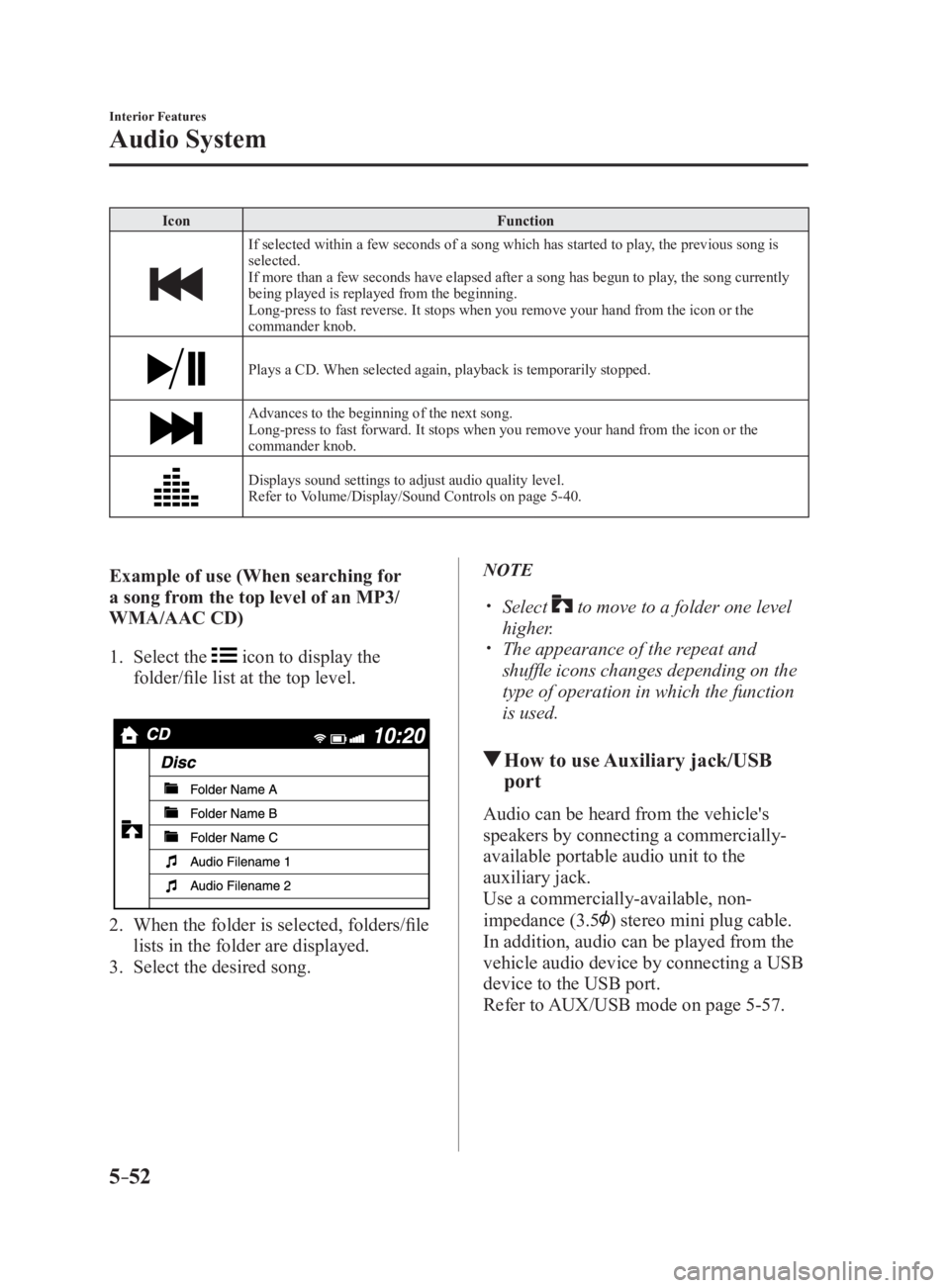
1. Select the icon to display the
folder/file list at the top level.
2. When the folder is selected, folders/file
lists in the folder are displayed.
3. Select the desired song. NOTE
Select to move to a folder one level
higher.
The appearance of the repeat and
shuffle icons changes depending on the
type of operation in which the function
is used.
How to use Auxiliary jack/USB
port Audio can be heard from the vehicle's
speakers by connecting a commercially-
available portable audio unit to the
auxiliary jack.
Use a commercially-available, non-
impedance (3.5
) stereo mini plug cable.
In addition, audio can be played from the
vehicle audio device by connecting a USB
device to the USB port.
Refer to AUX/USB mode on page 5-57 .
MX-5_8FR4-EA-16J_Edition1.indb 52 2016/08/11 20:29:17
Page 279 of 568

5 –57 Interior Features
Audio System
AUX/USB mode Audio can be heard from the vehicle's
speakers by connecting a commercially-
available portable audio unit to the
auxiliary jack.
A commercially-available, non-impedance
(3.5
) stereo mini plug cable is required.
Contact an Authorized Mazda Dealer for
details.
In addition, audio can be played from the
vehicle audio device by connecting a USB
device to the USB port.
NOTE
(Type B)
The SD card slot is for the navigation
system. For vehicles with the navigation
system, the SD card (Mazda genuine) with
stored map data is inserted into the SD
card slot and used.
Type A Auxiliary jack/USB port Type B
USB port Auxiliary jack
How to use AUX mode
(Type A)
................................ page 5-59
How to use USB mode
(Type A)
................................ page 5-60
How to use iPod mode
(Type A)
................................ page 5-64
How to use AUX mode
(Type B)
................................ page 5-67
How to use USB mode
(Type B)
................................ page 5-67
WARNING Do not adjust the portable audio unit
or a similar product while driving the
vehicle:
Adjusting the portable audio unit
or a similar product while driving
the vehicle is dangerous as it could
distract your attention from the vehicle
operation which could lead to a serious
accident. Always adjust the portable
audio unit or a similar product while
the vehicle is stopped.
MX-5_8FR4-EA-16J_Edition1.indb 57 2016/08/11 20:29:18
Page 280 of 568

5 –58 Interior Features
Audio System
CAUTION Depending on the portable audio
device, noise may occur when the
device is connected to the vehicle
accessory socket. (If noise occurs, do
not use the accessory socket.)
NOTE
This mode may not be usable depending
on the portable audio device to be
connected.
Before using the auxiliary jack/USB
port, refer to the instruction manual for
the portable audio device.
Use a commercially-available, non-
impedance (3.5 ) stereo mini plug for
connecting the portable audio unit to
the auxiliary jack. Before using the
auxiliary jack, read the manufacturer's
instructions for connecting a portable
audio unit to the auxiliary jack.
To prevent discharging of the battery,
do not use the auxiliary input for long
periods with the engine off or idling.
When connecting a device to the
auxiliary jack or USB port, noise may
occur depending on the connected
device. If the device is connected to the
vehicle's accessory socket, the noise can
be reduced by unplugging it from the
accessory socket. How to connect USB port/
Auxiliary jack Type A USB port Auxiliary jack
Type B USB port Auxiliary jack
Connecting a device
1. If there is a cover on the AUX jack or
USB port, remove the cover.
2. Connect the connector on the device to
the USB port.
Connecting with a connector cable
1. If there is a cover on the AUX jack or
USB port, remove the cover.
2. Connect the device plug/connector
cable to the auxiliary jack/USB port.
MX-5_8FR4-EA-16J_Edition1.indb 58 2016/08/11 20:29:18
Page 281 of 568

5 –59 Interior Features
Audio System
WARNING Do not allow the connection plug cord
to get tangled with the parking brake or
the shift lever (manual transmission)/
selector lever (automatic transmission):
Allowing the plug cord to become
tangled with the parking brake or the
shift lever (manual transmission)/
selector lever (automatic transmission)
is dangerous as it could interfere with
driving, resulting in an accident.
CAUTION Do not place objects or apply force to
the auxiliary jack/USB port with the
plug connected.
NOTE
Insert the plug into the auxiliary jack/
USB port securely.
Insert or pull out the plug with the plug
perpendicular to the auxiliary jack/USB
port hole.
Insert or remove the plug by holding its
base. How to use AUX mode (Type A) 1. Switch the ignition to ACC or ON.
2. Press the power/volume dial to turn the
audio system on.
3. Press the media button ( ) of the
audio unit to change to the AUX mode.
NOTE
When the device is not connected to the
auxiliary jack, the mode does not switch
to the AUX mode.
Adjust the audio volume using the
portable audio device or audio unit.
Audio adjustments other than audio
volume can only be done using the
portable audio device.
If the connection plug is pulled out from
the auxiliary jack while in AUX mode,
noise may occur.
MX-5_8FR4-EA-16J_Edition1.indb 59 2016/08/11 20:29:19
Page 289 of 568
5 –67 Interior Features
Audio System How to use AUX mode (Type B)1. Select the icon on the home screen to display the Entertainment screen.
2. Select to switch to the AUX mode. The following icons are displayed in the lower
part of the center display. Icon Function
Displays the Entertainment menu. Use to switch to a different audio source.
Displays sound settings to adjust audio quality level.
Refer to Volume/Display/Sound Controls on page 5-40 .
NOTE
If a device is not connected to the auxiliary jack, the mode does not switch to the AUX
mode.
Adjust the audio volume using the portable audio device, commander switch, or audio
control switch.
Audio adjustments can also be made using the portable audio device's volume setting.
If the connection plug is pulled out from the auxiliary jack while in AUX mode, noise may
occur.
How to use USB mode (Type B) Type Playable data
USB mode MP3/WMA/AAC/OGG file
This unit does not support a USB 3.0 device. In addition, other devices may not be
supported depending on the model or OS version.
USB devices formatted to FAT32 are supported (USB devices formatted to other formats
such as NTFS are not supported).
MX-5_8FR4-EA-16J_Edition1.indb 67 2016/08/11 20:29:20
Page 335 of 568
5 –113 Interior Features
Bluetooth ®
Bluetooth ®
Audio (Type A)Applicable Bluetooth ®
specification
(Recommended)
Ver. 2.0
Response profile
A2DP (Advanced Audio Distribution
Profile) Ver. 1.0/1.2
AVRCP (Audio/Video Remote Control
Profile) Ver. 1.0/1.3
A2DP is a profile which transmits only
audio to the Bluetooth ®
unit. If your
Bluetooth ®
audio device corresponds
only to A2DP, but not AVRCP, you
cannot operate it using the control panel
of the vehicle's audio system. In this
case, only the operations on the mobile
device are available the same as when a
portable audio device for a non-compliant
Bluetooth ®
device is connected to the
AUX terminal. Function A2DP AVRCP
Ver. 1.0 Ver. 1.3
Playback — X X
Pause — X X
File (Track) up/down — X X
Reverse — — X
Fast-forward — — X
Text display — — X
X: Available
—: Not available NOTE
The battery consumption of Bluetooth ®
audio devices increases while
Bluetooth ®
is connected.
If a general mobile phone device is
USB connected during music playback
over the Bluetooth ®
connection, the
Bluetooth ®
connection is disconnected.
For this reason, you cannot have music
playback over a Bluetooth ®
connection
and music playback using a USB
connection at the same time.
The system may not operate normally
depending on the Bluetooth ®
audio
device.
How to Use the Bluetooth ®
Audio
System Switching to Bluetooth ®
audio mode
To listen to music or voice audio recorded
to a Bluetooth ®
audio device, switch to
the Bluetooth ®
audio mode to operate
the audio device using the audio system
control panel. Any Bluetooth ®
audio
device must be paired to the vehicle's
Bluetooth ®
unit before it can be used.
Refer to Bluetooth ®
Preparation (Type A)
on page 5-77 .
1. Turn on the Bluetooth ®
audio device's
power.
2. Switch the ignition to ACC or ON.
Make sure that the “ ” symbol is
displayed in the audio display. The
symbol is not displayed if an un-paired
Bluetooth ®
audio device is being used
or the vehicle's Bluetooth ®
unit has a
malfunction.
NOTE
Some Bluetooth ®
audio devices need a
certain amount of time before the “
”
symbol is displayed.
MX-5_8FR4-EA-16J_Edition1.indb 113 2016/08/11 20:29:30