Page 444 of 587

When HD Radio broadcasts are active, you can access the following functions:
Action and description
Message
Allows you to save an active channel as a memory preset. Touch and hold a memory preset slot
until the sound returns. There is a brief mute while the radio saves the\
station. Sound returns
when the channel saves. When switching to an HD2 or HD3 memory preset, t\
he sound mutes
before the digital audio plays, because the system has to reacquire the \
digital signal.
Presets
Note: As with any station you save, you cannot access the saved station if your vehicle is outside the sta\
tion’ s reception area.
HD Radio Reception and Station Troubleshooting Potential reception issues
If you are listening to a multicast station and you are on the fringe of\
the reception area, the station
may mute due to weak signal strength.
Reception area
If you are listening to HD1, the system changes back to the analog broad\
cast until the digital
broadcast is available again. However, if you are listening to any of the possible HD2-HD7 multicast
channels, the station mutes and stays muted unless it is able to connect\
to the digital signal again.
When the system first receives a station (aside from HD2-HD7 multicast \
stations), it first plays the
station in the analog version. Once the receiver verifies the station is\
an HD Radio station, it shifts
to the digital version. Depending on the station quality, you may hear a slight sound change when
the station changes from analog to digital. Blending is the shift from a\
nalog to digital sound or
digital back to analog sound.
Station blending
441
MKX (CD9) Canada/United States of America, enUSA, First Printing SYNC™ 3
Page 445 of 587

In order to provide the best possible
experience, use the contact form to report
any station issues found while listening to a
station broadcasting with HD Radio
technology. Independent entities own and
operate each station. These stations are
responsible for ensuring all audio streams
and data fields are accurate. Potential station issues
Action
Cause
Issues
No action required. This is a broadcast issue.
This is poor time alignment by the radio broad-
caster.
Echo, stutter, skip or repeat in audio.
Increase or decrease in audio
volume.
No action required. The reception issue may clear
up as you continue to drive.
The radio is shifting between analog and digital
audio.
Sound fading or blending in and out.
No action required. This is normal behavior. Wait
until the audio is available.
The digital multicast is not available until the HD
Radio broadcast is decoded. Once decoded, the
audio is available.
There is an audio mute delay when
selecting HD2 or HD3, multicast
preset or Direct Tune.
No action required. The station is not available in
your current location.
The previously stored multicast preset or direct
tune is not available in your current reception area.
Cannot access HD2 or HD3 multicast
channel when recalling a preset or
from a direct tune.
Fill out the station issue form.1
Data service issue by the radio broadcaster.
Text information does not match
currently playing audio.
Fill out the station issue form. 1
Data service issue by the radio broadcaster.
There is no text information shown
for currently selected frequency.
1 You can find the form here:
442
MKX (CD9) Canada/United States of America, enUSA, First Printing SYNC™ 3
Page 446 of 587

Website
http://www.ibiquity.com/automotive/report_radio_station_experiences
HD Radio Technology manufactured under
license from iBiquity Digital Corp. U.S. and
foreign patents. HD Radio and the HD and
HD Radio logos are proprietary trademarks
of iBiquity Digital Corp. Ford Motor Company
and iBiquity Digital Corp. are not responsible
for the content sent using HD Radio
technology. Content may be changed, added
or deleted at any time at the station owner's
discretion. CD (If equipped)
Once you select this option, the system
returns you to the main audio screen.
The current audio information appears on
the screen.
The following buttons are also available: Function
Button
You can use the browse button to select a track.
Browse
Select this button and a small number one displays to indicate the track\
is set to repeat.
Repeat
For MP3 CDs, this button allows you to toggle through repeat off, repeat one track (a small number
one displays), and repeat current folder (a small folder displays).
Select the shuffle symbol to have the audio on the disk play in random o\
rder.
Shuffle
443
MKX (CD9) Canada/United States of America, enUSA, First Printing SYNC™ 3
Page 449 of 587
USB Ports
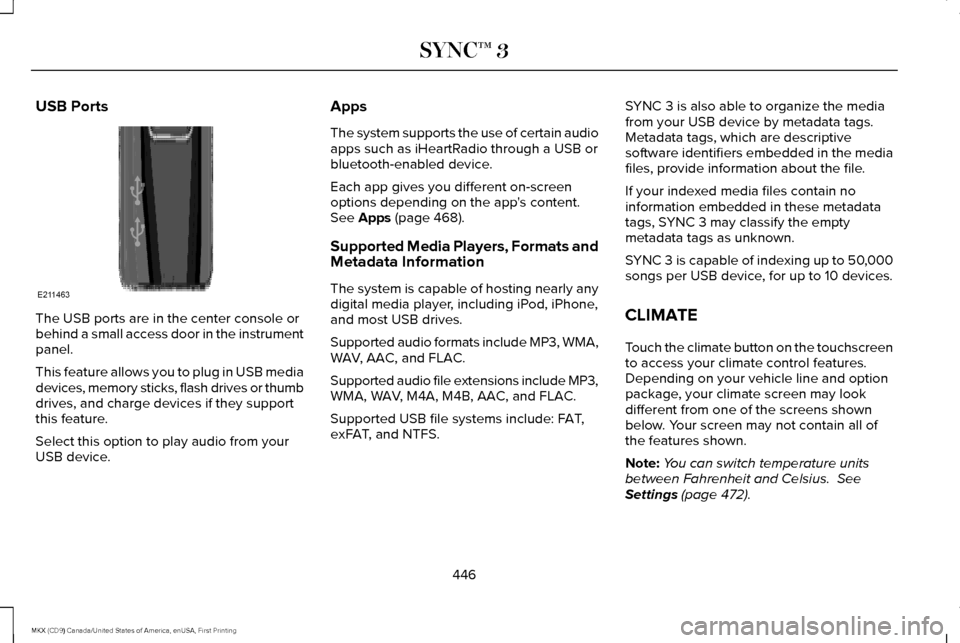
The USB ports are in the center console or
behind a small access door in the instrument
panel.
This feature allows you to plug in USB media
devices, memory sticks, flash drives or thumb
drives, and charge devices if they support
this feature.
Select this option to play audio from your
USB device. Apps
The system supports the use of certain audio
apps such as iHeartRadio through a USB or
bluetooth-enabled device.
Each app gives you different on-screen
options depending on the app's content.
See Apps (page 468).
Supported Media Players, Formats and
Metadata Information
The system is capable of hosting nearly any
digital media player, including iPod, iPhone,
and most USB drives.
Supported audio formats include MP3, WMA,
WAV, AAC, and FLAC.
Supported audio file extensions include MP3,
WMA, WAV, M4A, M4B, AAC, and FLAC.
Supported USB file systems include: FAT,
exFAT, and NTFS. SYNC 3 is also able to organize the media
from your USB device by metadata tags.
Metadata tags, which are descriptive
software identifiers embedded in the media
files, provide information about the file.
If your indexed media files contain no
information embedded in these metadata
tags, SYNC 3 may classify the empty
metadata tags as unknown.
SYNC 3 is capable of indexing up to 50,000
songs per USB device, for up to 10 devices.
CLIMATE
Touch the climate button on the touchscreen
to access your climate control features.
Depending on your vehicle line and option
package, your climate screen may look
different from one of the screens shown
below. Your screen may not contain all of
the features shown.
Note:
You can switch temperature units
between Fahrenheit and Celsius.
See
Settings (page 472).
446
MKX (CD9) Canada/United States of America, enUSA, First Printing SYNC™ 3E211463
Page 481 of 587

Action and Description
Menu Item
Text Messaging
You can then select: No sound plays when a message comes to your phone.
No Alert (Silence)
You can select one of the three available notification sounds.
When enabled, a voice prompt alerts you when you receive a new message.
Voice Readout
You can enable and disable the following options as well: Action and Description
Menu Item
When enabled, vehicle audio (such as radio or apps) is muted for the d\
uration of the phone call even when
the phone call is in privacy.
Mute Audio in Privacy
When enabled, an alert displays that your phone is roaming when you atte\
mpt to place a call.
Roaming Warning
When enabled, a message displays when the battery on your phone is runni\
ng low.
Low Battery Notification
911 Assist
Note: This service is only available in the
United States and Canada. Select this button to modify the on or off
setting for this feature. If the mobile phone
’s
contacts have been downloaded, you can
adjust the following option:
478
MKX (CD9) Canada/United States of America, enUSA, First Printing SYNC™ 3
Page 482 of 587
Action and Description
Menu Item
You can select up to two numbers from your mobile device's phonebook as emergency contacts for quick
access at the end of the 911 Assist call process.
Set Emergency Contacts
Radio
This button is available if a Radio source such
as AM or FM is the active media source.
Pressing the button allows you to access the
following features: Action and Description
Menu Item
Activation of this feature allows you to listen to HD radio broadcasts.
FM HD Radio
AM HD Radio
(Dependent on current
radio source, If Available)
This feature is available when FM Radio is your active media source. Activate this feature to have the system
display radio text.
Radio Text
Refresh
Autoset Presets (AST)
Selecting this option stores the six strongest stations in your current \
location to the last preset bank of the
currently tuned source.
479
MKX (CD9) Canada/United States of America, enUSA, First Printing SYNC™ 3
Page 490 of 587

Onboard Modem Serial Number (ESN)
Selecting this button on the settings menu
shows you the ESN number for your system.
You need this number for certain
registrations such as Satellite Radio.
Display
To make adjustments using the touchscreen, select: Action and Description
Menu Item
Make the screen display brighter or dimmer.
Brightness
You can select:
Mode
The screen automatically switches between day and night modes based on t\
he outside
light level.
Auto
The screen displays with a light background to enhance daytime viewing.
Day
The screen displays with a darker background to make nighttime viewing easier.
Night
The screen goes black and does not display anything. To switch the screen back on,
simply tap the screen.
Off
Enable this option to automatically dim the display brightness based on \
ambient lighting conditions.
Auto Dim
Voice Control
You can adjust the voice control settings by
selecting the following options.
487
MKX (CD9) Canada/United States of America, enUSA, First Printing SYNC™ 3
Page 506 of 587

General
Possible solution
Possible cause
Issue
SYNC 3 only supports four languages in a single module for text
display, voice control and voice prompts. The country where you
bought your vehicle dictates the four languages based on the most
popular languages spoken. If the selected language is not available,
SYNC 3 remains in the current active language.
SYNC 3 does not support the currently
selected language for the instrument
cluster and information and entertainment
display.
The language selected for
the instrument cluster and
information and entertain-
ment display does not
match the SYNC 3
language (phone, USB,
Bluetooth audio, voice
control and voice prompts).
SYNC 3 offers several new voice control features for a wide range of
languages. Dialing a contact name directly from the phonebook
without pre-recording (for example, “call John Smith
”) or selecting a
track, artist, album, genre or playlist directly from your media player
(for example, "play artist Madonna"). SYNC 3 System Reset
The system has a System Reset feature that can be performed if the function of a SYNC 3 feature is lost. This reset is intended to restore
functionality and will not erase any information previously stored in th\
e system (such as paired devices, phonebook, call history , text
messages, or user settings). To perform a System Reset, press and hold the Seek Up (>>|) button while pressing and holdi\
ng the Radio
Power button. After approximately 5 seconds the screen will go black. Allow 1-2 minutes for the s\
ystem reset to complete. You may then
resume using the SYNC 3 system.
503
MKX (CD9) Canada/United States of America, enUSA, First Printing SYNC™ 3
