2017 LINCOLN MKC troubl shooting
[x] Cancel search: troubl shootingPage 4 of 538

Introduction
About This Manual............................................7
Symbols Glossary
..............................................7
Data Recording
..................................................9
California Proposition 65................................11
Perchlorate........................................................12
Lincoln Automotive Financial Services
.........................................................12
Replacement Parts Recommendation........12
Special Notices
.................................................13
Mobile Communications Equipment
...........14
Export Unique Options...................................14
Environment
Protecting the Environment..........................16
Child Safety
General Information
........................................17
Installing Child Restraints
..............................19
Booster Seats..................................................25
Child Restraint Positioning
...........................28
Child Safety Locks..........................................29 Seatbelts
Principle of Operation
.....................................31
Fastening the Seatbelts................................32
Seatbelt Height Adjustment.........................35
Seatbelt Warning Lamp and Indicator Chime
............................................................35
Seatbelt Reminder..........................................36
Child Restraint and Seatbelt Maintenance
................................................38
Seatbelt Extension.........................................39
Personal Safety System ™
Personal Safety System ™
..............................40
Supplementary Restraints System
Principle of Operation
.....................................41
Driver and Passenger Airbags
....................42
Front Passenger Sensing System..............44
Side Airbags.....................................................47
Driver Knee Airbag.........................................48
Safety Canopy™
...............................................48
Crash Sensors and Airbag Indicator
..........49 Airbag Disposal
................................................51
Keys and Remote Controls
General Information on Radio Frequencies.................................................52
Remote Control...............................................53
Replacing a Lost Key or Remote Control...........................................................57
MyKey™
Principle of Operation...................................58
Creating a MyKey...........................................59
Clearing All MyKeys.......................................60
Checking MyKey System Status.................60
Using MyKey With Remote Start Systems..........................................................61
MyKey Troubleshooting
.................................61
Locks
Locking and Unlocking
.................................63
Power Liftgate
.................................................68
Keyless Entry.....................................................71
1
MKC (TME) Canada/United States of America, enUSA, Edition date: 01/2016, First Printing Table of Contents
Page 8 of 538

Cleaning Products.......................................305
Cleaning the Exterior..................................306
Waxing.............................................................307
Cleaning the Engine
....................................307
Cleaning the Windows and Wiper Blades.........................................................308
Cleaning the Interior....................................308
Cleaning the Instrument Panel and Instrument Cluster Lens..........................310
Cleaning Leather Seats................................311
Repairing Minor Paint Damage...................311
Cleaning the Alloy Wheels.........................312
Vehicle Storage
.............................................312
Wheels and Tires
General Information......................................315
Tire Care
..........................................................317
Using Snow Chains
.......................................331
Tire Pressure Monitoring System.............332
Changing a Road Wheel.............................336
Technical Specifications
.............................342 Capacities and Specifications
Engine Specifications - 2.0L
EcoBoost™..................................................344
Engine Specifications - 2.3L EcoBoost™..................................................345
Motorcraft Parts - 2.0L EcoBoost™...........346
Motorcraft Parts - 2.3L EcoBoost™
............347
Vehicle Identification Number..................348
Vehicle Certification Label.........................348
Transmission Code Designation..............349
Capacities and Specifications - 2.0L EcoBoost™..................................................350
Capacities and Specifications - 2.3L EcoBoost™..................................................356
Audio System
General Information
.....................................362
Audio Unit - Vehicles With: Premium AM/ FM/CD.........................................................363
Media Hub
......................................................365
SYNC™ 3
General Information.....................................366
Home Screen
................................................384 Using Voice Recognition............................385
Entertainment................................................396
Climate............................................................409
Phone
...............................................................413
Navigation......................................................420
Apps
..................................................................431
Settings...........................................................434
SYNC™ 3 Troubleshooting
...........................451
Accessories
Accessories...................................................468
Lincoln Protect
Lincoln Protect
..............................................470
Scheduled Maintenance
General Maintenance Information...........472
Normal Scheduled Maintenance..............476
Special Operating Conditions Scheduled Maintenance.............................................480
Scheduled Maintenance Record..............484
5
MKC (TME) Canada/United States of America, enUSA, Edition date: 01/2016, First Printing Table of Contents
Page 64 of 538

Number of Admin Keys
Indicates how many admin keys are
programmed to your vehicle. Use this feature
to determine how many admin keys you have
for your vehicle, and detect if an additional
MyKey has been programmed.
USING MYKEY WITH REMOTE
START SYSTEMS
MyKey is not compatible with non
Ford-approved, aftermarket remote start
systems. If you choose to install a remote
start system, see an authorized dealer for a
Ford-approved remote start system.
MYKEY TROUBLESHOOTING Potential causes
Condition
· The key or transmitter used to start the vehicle does not have admin
privileges.
I cannot create a MyKey.
· Vehicles with keyless start: Make sure you place the transmitter into
the backup position. See Starting a Gasoline Engine (page 157).
· The key or transmitter used to start the vehicle is the only admin key.
There always has to be at least one admin key.
· SecuriLock passive anti-theft system is disabled or in unlimited mode.
· The key or transmitter used to start the vehicle does not have admin
privileges.
I cannot program the configurable settings.
61
MKC (TME) Canada/United States of America, enUSA, Edition date: 01/2016, First Printing MyKey™
Page 205 of 538

The system determines the clearance to the
front and rear of your vehicle and
automatically steers your vehicle out of a
parallel parking space (hands-free) while you
control the accelerator, gearshift and brakes.
The system visually and audibly guides you
to enter traffic.
After the system has directed your vehicle
past the adjacent vehicle or object, it guides
you to take control of the steering to
complete the exit from the parking spot.
Note:
If the clearance in front of your vehicle
allows easy departure, the Park Out Assist
feature might not be available.
Note: You are responsible for controlling
your vehicle and making sure the path is
clear prior to pulling into traffic. Note:
This system is not intended to assist
in exiting perpendicular parking spaces,
damages to your vehicle may occur.
Note: If your vehicle speed exceeds 3 mph
(5 km/h) or the maneuver is interrupted
(driver input), the system switches off and
you need to take full control of your vehicle.
Deactivating the Active Park Assist
Feature
Manually deactivate the system by:
• Pressing the active park assist button
during an active maneuver.
• Grabbing the steering wheel during an
active maneuver. •
Driving above approximately
22 mph
(35 km/h) for 30 seconds during an active
park search.
• Driving above approximately
6 mph
(10 km/h) during automatic steering.
• Switching off the traction control system.
Certain vehicle conditions can also
deactivate the system, such as:
• Traction control has activated.
• There is an anti-lock brake system
activation or failure.
If a problem occurs with the system, a
warning message displays accompanied by
a tone. Occasional system messages may
occur in normal operation. For recurring or
frequent system faults, contact an authorized
dealer to have your vehicle serviced.
Troubleshooting the System The system does not look for a space
The traction control system may be off.
The transmission is in reverse (R). Your vehicle must be moving forward to be able to detect a parking space.
202
MKC (TME) Canada/United States of America, enUSA, Edition date: 01/2016, First Printing Parking Aids
Page 223 of 538

Note:
The alert and aid diagrams illustrate
general zone coverage. They do not indicate
the exact zone coverage area.
Intensity: This setting affects the intensity of
the steering wheel vibration used for the alert
and alert + aid modes. This setting is not valid
for the aid mode.
• Low
• Medium
• High
System Display When you turn the system on, an overhead
graphic of a vehicle with lane markings will
display in the information display. If you turn
the system on and select aid mode, arrows
will display along with the lane markings.
When you turn the system off, the lane
marking graphics will not display.
Note:
If adaptive cruise control is enabled
the overhead vehicle graphic may still be
displayed.
While the system is on, the color of the lane
markings will change to indicate the system
status.
Gray: Indicates that the system is temporarily
unable to provide a warning or intervention
on the indicated side(s). This may be
because:
• Your vehicle is under the activation
speed.
• Your turn indicator is active.
• Your vehicle is in a dynamic maneuver. •
The road has no or poor lane markings
in the camera field-of-view.
• The camera is obscured or unable to
detect the lane markings due to
environmental conditions (significant sun
angles, shadows, snow, heavy rain, fog),
traffic conditions (following a large
vehicle that is blocking or shadowing the
lane), or vehicle conditions (poor
headlamp illumination).
See
Troubleshooting for additional
information.
Green: Indicates that the system is available
or ready to provide a warning or intervention,
on the indicated side(s).
Yellow: Indicates that the system is providing
or has just provided a lane keeping aid
intervention.
Red: Indicates that the system is providing
or has just provided a lane keeping alert
warning.
You can temporarily disable the system at
any time by doing the following:
• Quick braking.
• Fast acceleration.
220
MKC (TME) Canada/United States of America, enUSA, Edition date: 01/2016, First Printing Driving AidsE151660
Page 224 of 538
 when I can s\
ee the lane markings on the road?
Vehicle spe")
•
Using the turn signal indicator. •Evasive steering maneuver.
Troubleshooting Why is the feature not available (line markings are gray) when I can s\
ee the lane markings on the road?
Vehicle speed is outside the operational range of the feature
Sun is shining directly into the camera lens
Quick intentional lane change
Staying too close to the lane marking
Driving at high speeds in curves
Previous feature activation happened within the last one second
Ambiguous lane markings (mainly in construction zones)
Rapid transition from light to dark or vice versa
Sudden offset in lane markings
ABS or AdvanceTrac activation
Camera blockage due to dirt, grime, fog, frost or water on the windshield
Driving too close to the vehicle in front of you
Transitioning between no lane markings to lane markings or vice versa
Standing water on the road
221
MKC (TME) Canada/United States of America, enUSA, Edition date: 01/2016, First Printing Driving Aids
Page 385 of 538
When the installation is complete, take the
USB drive back to the computer to report
the update. Log into your owner account and
return to the SYNC software update page
and confirm that you have installed the
update. Insert the USB drive used for the
update into your computer and choose to
report your update. The website updates
your records to reflect your current software
version.
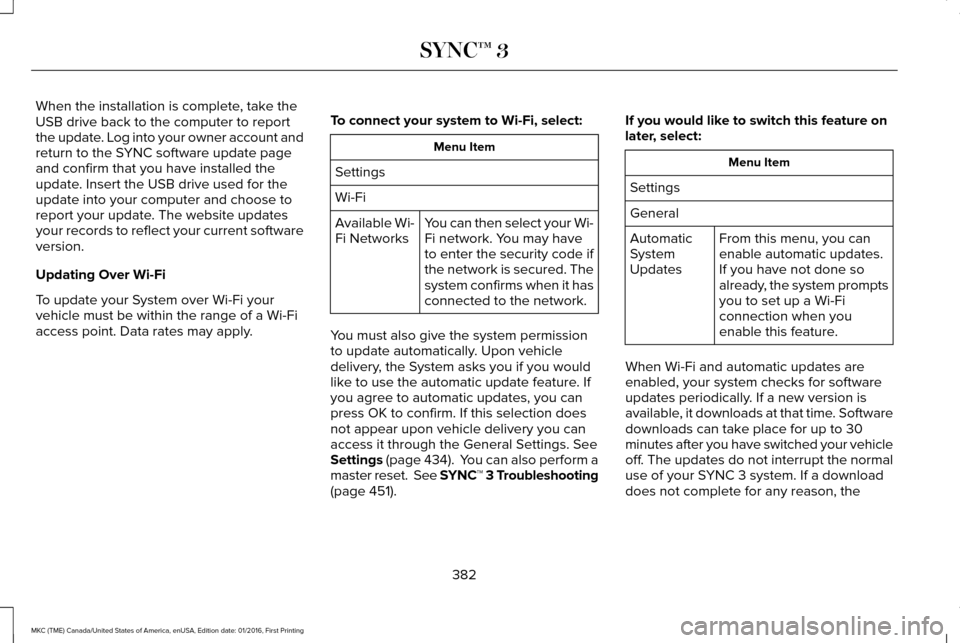
Updating Over Wi-Fi
To update your System over Wi-Fi your
vehicle must be within the range of a Wi-Fi
access point. Data rates may apply.
To connect your system to Wi-Fi, select: Menu Item
Settings
Wi-Fi You can then select your Wi-
Fi network. You may have
to enter the security code if
the network is secured. The
system confirms when it has
connected to the network.
Available Wi-
Fi Networks
You must also give the system permission
to update automatically. Upon vehicle
delivery, the System asks you if you would
like to use the automatic update feature. If
you agree to automatic updates, you can
press OK to confirm. If this selection does
not appear upon vehicle delivery you can
access it through the General Settings. See
Settings (page 434). You can also perform a
master reset. See SYNC™ 3 Troubleshooting
(page 451). If you would like to switch this feature on
later, select: Menu Item
Settings
General From this menu, you can
enable automatic updates.
If you have not done so
already, the system prompts
you to set up a Wi-Fi
connection when you
enable this feature.
Automatic
System
Updates
When Wi-Fi and automatic updates are
enabled, your system checks for software
updates periodically. If a new version is
available, it downloads at that time. Software
downloads can take place for up to 30
minutes after you have switched your vehicle
off. The updates do not interrupt the normal
use of your SYNC 3 system. If a download
does not complete for any reason, the
382
MKC (TME) Canada/United States of America, enUSA, Edition date: 01/2016, First Printing SYNC™ 3
Page 404 of 538
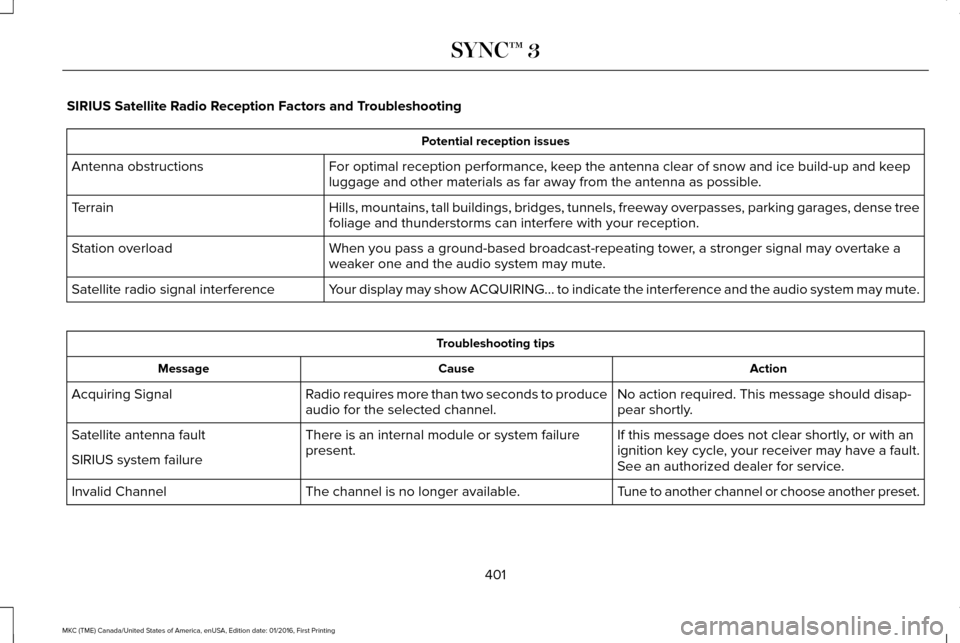
SIRIUS Satellite Radio Reception Factors and Troubleshooting
Potential reception issues
For optimal reception performance, keep the antenna clear of snow and ice build-up and keep
luggage and other materials as far away from the antenna as possible.
Antenna obstructions
Hills, mountains, tall buildings, bridges, tunnels, freeway overpasses, \
parking garages, dense tree
foliage and thunderstorms can interfere with your reception.
Terrain
When you pass a ground-based broadcast-repeating tower, a stronger signal may overtake a
weaker one and the audio system may mute.
Station overload
Your display may show ACQUIRING... to indicate the interference and the a\
udio system may mute.
Satellite radio signal interference Troubleshooting tips
Action
Cause
Message
No action required. This message should disap-
pear shortly.
Radio requires more than two seconds to produce
audio for the selected channel.
Acquiring Signal
If this message does not clear shortly, or with an
ignition key cycle, your receiver may have a fault.
See an authorized dealer for service.
There is an internal module or system failure
present.
Satellite antenna fault
SIRIUS system failure
Tune to another channel or choose another preset.
The channel is no longer available.
Invalid Channel
401
MKC (TME) Canada/United States of America, enUSA, Edition date: 01/2016, First Printing SYNC™ 3