Page 478 of 776

4785-6. Using an external device
RX350/RX200t_EE_OM48F32E
■USB memory
●Compatible devices
USB memory devices that can be used for MP3, WMA and AAC (audio mode) or
MP4, WMV and AVI (video mode) playback.
●Compatible device formats
The following device format can be used:
• USB communication format: USB2.0 FS (480 Mbps) • File system format: FAT16/32 (Windows)• Correspondence class: Mass storage class
MP3, WMA and AAC files written to a device with any format other than those listed above may not play correctly, and their file names and folder names may notbe displayed correctly.
Items related to standards and limitations are as follows:
• Maximum directory hierarchy: 8 levels • Maximum number of folders in a device: 3000 (including the root)
• Maximum number of files in a device: 9999 • Maximum number of files per folder: 255
●MP3, WMA and AAC files
MP3 (MPEG Audio LAYER 3) is a standard audio compression format. Files can be compressed to approximately 1/ 10 of their original size using MP3 com-
pression.
WMA (Windows Media Audio) is a Microsoft audio compression format. This format compresses audio data to a size smaller than that of the MP3 format.
AAC is short for Advanced Audio Coding an d refers to an audio compression technol- ogy standard used with MPEG2 and MPEG4.
MP3, WMA and AAC file and media/ formats compatibility are limited.
●MP3 file compatibility
• Compatible standards
MP3 (MPEG1 AUDIO LAYERIII, MPEG2 AUDIO LAYERIII) • Compatible sampling frequencies MPEG1 AUDIO LAYERIII: 32, 44.1, 48 (kHz)
MPEG2 AUDIO LAYERIII: 16, 22.05, 24 (kHz) • Compatible bit rates (c ompatible with VBR) MPEG1 AUDIO LAYERIII: 32-320 (kbps)
MPEG2 AUDIO LAYERIII: 8-160 (kbps) • Compatible channel modes: stereo, joint stereo, dual channel and monaural
Page 480 of 776

4805-6. Using an external device
RX350/RX200t_EE_OM48F32E
●MP3, WMA and AAC playback
• When a device containing MP3, WMA or AA C files is connected, all files in the USB memory device are checked. Once the file check is finished, the first MP3,
WMA or AAC file is played. To make the file check finish more quickly, we recom- mend that you do not include any files other than MP3, WMA or AAC files or cre-ate any unnecessary folders.
• When a USB memory device is connected and the audio source is changed to USB memory mode, the USB memory device will start playing the first file in the firstfolder. If the same device is removed and reconnected (and the contents have not
been changed), the USB memory device will resume play from the same point in which it was last used.
●Extensions
If the file extensions .mp3, .wma and .m4a are used for files other than MP3, WMA and AAC files, they will be skipped (not played).
●Playback
• To play MP3 files with steady sound quality, we recommend a fixed bit rate of at least 128 kbps and a sampling frequency of 44.1 kHz.
• There is a wide variety of freeware and other encoding software for MP3, WMA and AAC files on the market, and depending on the status of the encoding and thefile format, poor sound quality or noise at the start of playback may result. In some
cases, playback may not be possible at all. • Microsoft, Windows, and Windows Medi a are the registered trademarks of Microsoft Corporation in the U.S.A. and other countries.
NOTICE
■To prevent damage to the USB memory device or its terminals
●Depending on the size and shape of the USB memory that is connected to the sys-tem, the console box may not close fully. In this case, do not forcibly close the consolebox as this may damage the USB memory or the terminal, etc.
●Do not leave the USB memory device in the vehicle. The temperature inside the vehi-cle may become high.
●Do not push down on or apply unnecessary pressure to the USB memory device
while it is connected.
●Do not insert foreign objects into the port.
Page 519 of 776
519
5
Lexus Display Audio system
RX350/RX200t_EE_OM48F32E
5-12. Other function
Go to “Information”: “MENU” button “Info”
Display the “MirrorLink ” screen.
( P. 520)
Display the “USB photo” screen.
( P. 524)
“Information” screen
Display “Information” screen
1
2
Page 520 of 776
5205-12. Other function
RX350/RX200t_EE_OM48F32E
P. 445
MirrorLink™
The MirrorLink™ function enables operations of some smartphone content
via the Lexus Display Audio system.
Depending on differences between models or software version etc., some
models might be incompatible with this system.
Connect a smartphone to US B port using a USB cable.
For safety reasons, the safe driving screen is displayed while driving depend-
ing on the application.
Connecting a smartphone
Page 522 of 776

5225-12. Other function
RX350/RX200t_EE_OM48F32E
■Operational conditions
●When MirrorLink™ is activated, previous applications, run with a USB, are closed, and vice versa.
●Compatible devices
Smartphones, which passed the Car Connectivity Consortium certification program ver1.1 or later. Confirm with the smartphone manufacture or the distributor for theMirrorLink™ compatibility.
●Compatible applications Applications, which are certified by Car Connectivity Consortium as MirrorLink™Base-Certified or Drive-Certified applications.
■About MirrorLink™
MirrorLink is a registered trademark of Car Connectivity Consortium, Inc.
■When using MirrorLink™
●Check that the smartphone screen is unlo cked. Unlock the smartphone screen before connecting it to the Lexus Display Audio system. (Some smartphones may not be able to be connected via MirrorLink™ if the screen is locked.)
●Make sure that the smartphone has been connected via Bluetooth®. (Some smart-phones may not be able to perform hands-free calls using the MirrorLink™ function if it has not been connected to the vehicle via Bluetooth®.
●If a MirrorLink™ application cannot be started, check that the MirrorLink™ applica-tion certificate has not expired. The certificates of MirrorLink™ applications have an expiration date. (An internet connection is required to automatically update the certifi-
cate.) If a MirrorLink™ application becomes unavailable, it may be due to the certifi- cate expiring. In this case, the certificat e must be updated manually. Check with the smartphone manufacturer or application developer for how to update the certificate.
●Make sure the volume of the smartphone is set to an appropriate level. If the Mirror-Link™ application volume is excessively low even when the volume of the Lexus Dis- play Audio system is increased, check the vo lume of the smartphone and increase it as
necessary.
WARNING
■While driving
Do not connect smartphone or operate the controls.
Page 524 of 776
5245-12. Other function
RX350/RX200t_EE_OM48F32E
Go to “USB photo”: “MENU” button “Info” “USB 1 photo” or “USB 2
photo”
P. 445
Move the controller to the left to display the menu screen.
Change the full screen mode.
Select to set the slide show display
on/off.
Start the slide show at a selected folder.
Change the play speed.
Change the play mode.
Move the controller to the right and select “Browse”.
Select the desired folder, and then select a desired file to begin using the
selected folder.
USB photo
Connecting a USB memory device enables you to enjoy photo on the Lexus
Display Audio display.
USB photo screen
Connecting a USB memory device
Menu screen
1
2
3
4
Selecting a folder and a file
1
2
Page 525 of 776
5255-12. Other function
5
Lexus Display Audio system
RX350/RX200t_EE_OM48F32E
■USB memory functions
P. 477
■USB memory
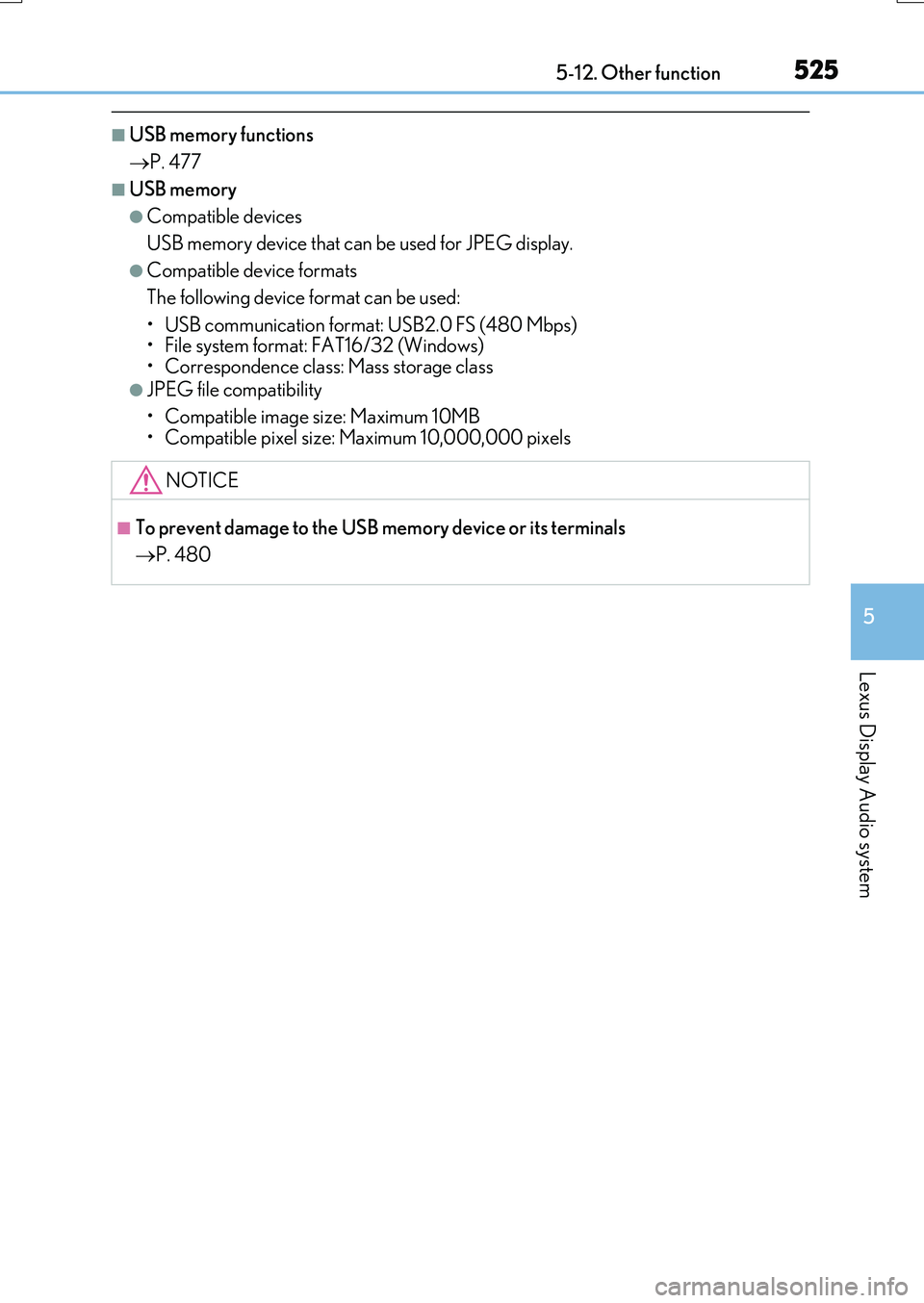
●Compatible devices
USB memory device that can be used for JPEG display.
●Compatible device formats
The following device format can be used:
• USB communication format: USB2.0 FS (480 Mbps) • File system format: FAT16/32 (Windows)• Correspondence class: Mass storage class
●JPEG file compatibility
• Compatible image size: Maximum 10MB
• Compatible pixel size: Maximum 10,000,000 pixels
NOTICE
■To prevent damage to the USB memory device or its terminals
P. 480
Page 759 of 776

759Alphabetical index
RX350/RX200t_EE_OM48F32E
Alarm ............................................................83
All-wheel drive lock mode................. 421
Anchor brackets ......................................58
Antenna
Radio ........................................................465
Smart entry & start system ............. 168
Anti-lock Brake System (ABS) ....... 422
Warning light ....................................... 667
Approach warning ............................... 336
Armrest ..................................................... 576
Assist grips .............................................. 577
Audio system (with Lexus
Display Audio System)....................438
Antenna ..................................................465
Audio input ........................................... 445
AUX port...............................................445
Bluetooth® audio ............................. 490
CD player ..............................................466
iPod........................................................... 472
MP3/WMA disc ...............................466
Optimal use ..........................................456
Portable music player....................... 481
Radio ........................................................ 464
Setup menu...........................................448
Steering wheel audio
switches............................................... 444
USB memory....................................... 476
Audio system
(with navigation system)*
Automatic air conditioning
system .................................................... 536
Air conditioning filter ....................... 633
Blower customization ..................... 543
S-FLOW mode ................................. 538
Automatic headlight leveling
system .....................................................267
Automatic High Beam ........................274
Automatic light control system....... 265
Automatic transmission .......................251
If the shift lever cannot be
shifted from P................................... 256
M mode.................................................. 253
Paddle shift switches............ 252, 253
AUX port................................................. 445
Auxiliary boxes ............................ 561, 565
*: Refer to the “NAVIGATION SYSTEM OWNER’S MANUAL”.