Page 497 of 776
4975-9. Bluetooth® Phone
5
Lexus Display Audio system
RX350/RX200t_EE_OM48F32E
Press the off-hook switch on the steer-
ing wheel or select .
Press the on-hook switch on the steering wheel or select .
■International calls
Depending on the cellular phone in use, re ceived international calls may not be dis-
played correctly.
Receiving a call
When a call is received, the following screen is displayed together with a
sound.
To answer the phone
To refuse a call
Page 499 of 776
4995-9. Bluetooth® Phone
5
Lexus Display Audio system
RX350/RX200t_EE_OM48F32E
Select “Handset mode” to change from a hands-free call to a cellular phone call
or vice versa.
Press the on-hook switch on the steering wheel or select .
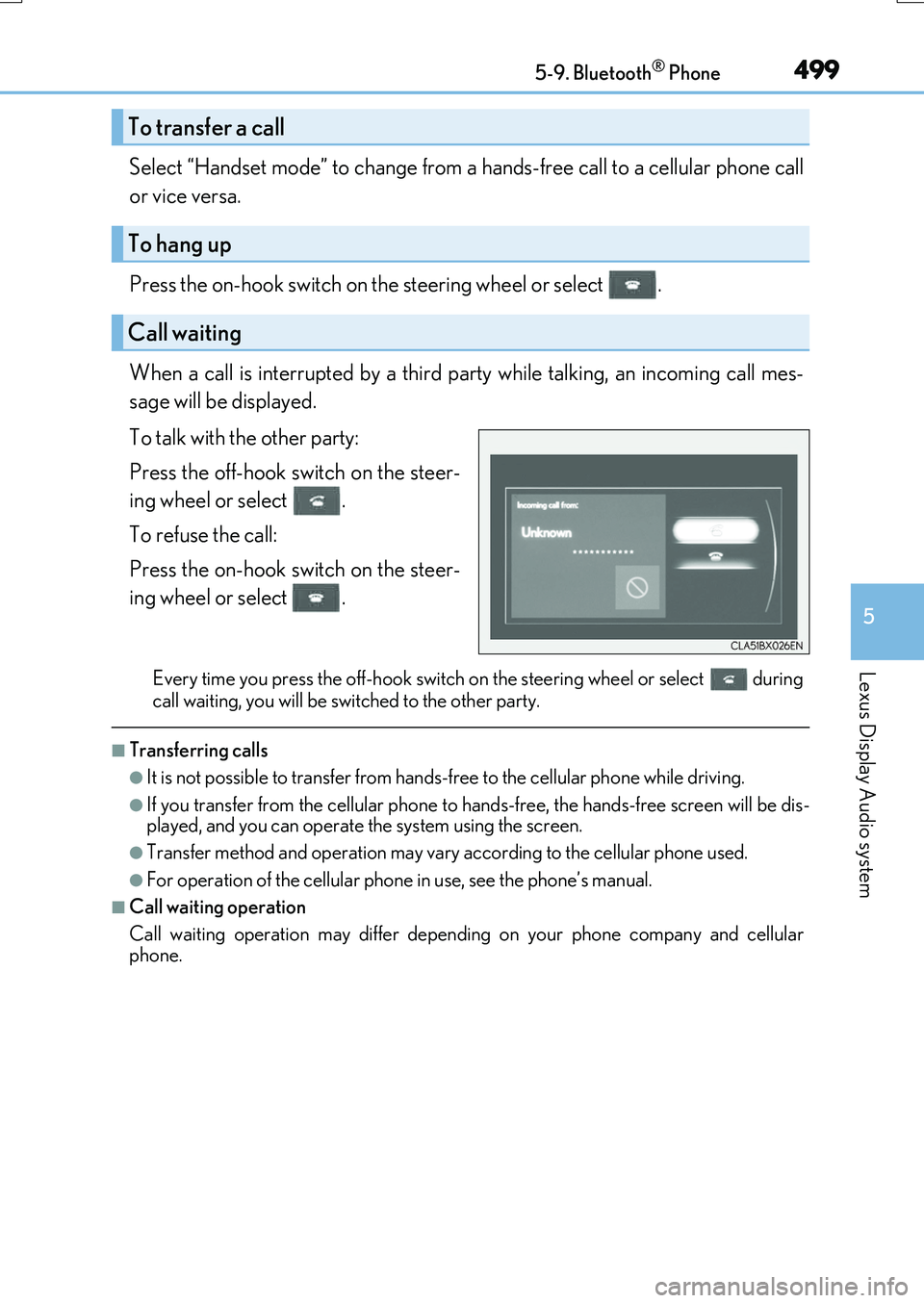
When a call is interrupted by a third party while talking, an incoming call mes-
sage will be displayed.
To talk with the other party:
Press the off-hook switch on the steer-
ing wheel or select .
To refuse the call:
Press the on-hook switch on the steer-
ing wheel or select .
Every time you press the off-hook switch on the steering wheel or select during
call waiting, you will be sw itched to the other party.
■Transferring calls
●It is not possible to transfer from hands-free to the cellular phone while driving.
●If you transfer from the cellul ar phone to hands-free, the hands-free screen will be dis-
played, and you can operate the system using the screen.
●Transfer method and operation may vary according to the cellular phone used.
●For operation of the cellular phone in use, see the phone’s manual.
■Call waiting operation
Call waiting operation may differ dependin g on your phone company and cellular
phone.
To transfer a call
To hang up
Call waiting
Page 501 of 776
5015-9. Bluetooth® Phone
5
Lexus Display Audio system
RX350/RX200t_EE_OM48F32E
Move the controller to the left while on the message screen.
Select “Quick message” to display the “Quick message” screen.
Select the desired message and then select “Send”.
■Editing a quick message
Move the controller to the left while on the message screen.
Select “Quick message” and then th e desired message. Move the control-
ler to the left while the desired message is displayed.
Select “Edit”.
To return to the default message after editing, select “Default”.
Replying to a message
1
2
3
1
2
3
Page 503 of 776
5035-9. Bluetooth® Phone
5
Lexus Display Audio system
RX350/RX200t_EE_OM48F32E
Volume switch
During an incoming call: Adjusts the
ring tone volume
During speaking on the phone:
Adjusts in call volume.
The voice guidance volume cannot be
adjusted using this button.
Talk switch
Press: Turns the speech command system on
Press and hold: Turns the speech command system off
On-hook switch
•End call
•Refuse call
Off-hook switch
• Start call
• Receiving
• Phone top screen display
Using the steering wheel switches
The steering wheel switches can be used to operate a connected cellular
phone.
Operating a phone using the steering wheel switches
1
2
3
4
Page 505 of 776
5055-9. Bluetooth® Phone
5
Lexus Display Audio system
RX350/RX200t_EE_OM48F32E
Change the incoming call display
Set the phonebook/history transfer
status notification display on/off
■To return to the default volume settings
Move the controller to the left and then select “Defaults”.
Phone display settings
1
2
Page 507 of 776

5075-10. Phonebook
5
Lexus Display Audio system
RX350/RX200t_EE_OM48F32E
Edit a contact (PBAP incompatible Bluetooth® phones, or compatible
phones with “Automatic transfer” off)
Select the desired contact to edit.
Delete contacts ( P. 508) (PBAP incompatible Bluetooth® phones, or
compatible phones with “Automatic transfer” off)
Edit a voice tag ( P. 526)
■Return to the default settings
Move the controller to the left and select “Defaults”.
You can transfer the phone numbers in your Bluetooth® phone to the system.
Operation methods differ between PBAP compatible and PBAP incompatible
Bluetooth® phones. If your cellular phone does not support either PBAP or
OPP services, you cannot transfer contacts.
Go to “Transfer contacts”: “MENU” button “Setup” “Telephone” “Con-
tact/call history settings” “Update contacts from telephone”
For PBAP compatible Bluetooth® phones when “Automatic transfer” is set to
on
Start the update automatically.
For PBAP compatible Bluetooth® phones when “Automatic transfer” is set to
off and PBAP incompatible Bluetooth® phones
Select to transfer the contact from
the connected cellular phone and
replace the current one.
Select to transfer the desired con-
tact data from the connected cellu-
lar phone to add to the current one.
Transferring a phone number
9
10
11
1
2
Page 508 of 776

5085-10. Phonebook
RX350/RX200t_EE_OM48F32E
You can register the desired contact from the phonebook. Up to 15 contacts per
phone can be registered.
Go to “Add favourite”: “MENU” button “Setup” “Telephone” “Con-
tact/call history settings” “Add favourite”
Choose the contact to register.
Go to “Remove favourite”: “MENU” button “Setup” “Telephone”
“Contact/call history settings” “Remove favourite”
Select the desired contacts.
You can select all contacts by selecting “Select all”.
Move the controller to the left and select “Remove”.
Go to “Delete contacts”: “MENU” button “Setup” “Telephone”
“Contact/call history settings” “Delete contacts”
Select the desired contacts.
You can select all contacts by selecting “Select all”.
Move the controller to the left and select “Delete”.
■Phonebook data
Phonebook data is managed separately for every registered phone. When one phone is connected, you cannot read the registered data of the other phones.
■When transferring contacts
Transfer contacts while the engine is running. If the cellular phone is OPP or PBAP compat ible, you may need to input “1234” on the
cellular phone for OBEX certification.
■When you have selected “Replace contacts” or “Add contact” to transfer contacts
If the cellular phone does not support OPP se rvice, you cannot use these functions. You
can transfer the phonebook data only by operating your phone.
■Transferring contacts while Bluetooth® audio is playing
Bluetooth® audio will disconnect. It will reconnect automatically when data transfer fin-
ishes. It may not reconnect dependin g on the phone which is connected.
Registering favorites
Removing favorites
Deleting the contacts data
1
2
1
2
3
1
2
3
Page 509 of 776
5095-10. Phonebook
5
Lexus Display Audio system
RX350/RX200t_EE_OM48F32E
Go to “Messaging settings”: “MENU” button “Setup” “Telephone”
“Messaging settings”
Select to set the message forward-
ing from cellular phones on/off
Select to set the new SMS/MMS
notification display on/off
Select to set the new e-mail notifica-
tion display on/off
Select to set the signature function
on/off
Select to set the cellular phone’s
message read and unread status
update function on/off.
Change the incoming SMS/MMS
display.
Change the incoming e-mail display.
Change the account name to “Ser-
vice name” (names from the con-
nected device) or “Fixed name”
(pre-defined names).
■Restoring the default settings
Move the controller to the left then select “Defaults” on the “Messaging settings” screen.
Messaging setting
1
2
3
4
5
6
7
8


