Page 349 of 724
349
5
Lexus Display Audio system
5-2. Setup
Go to “Setup”: “MENU” button → “Setup”
Change the settings for operation
sounds, screen animation, etc.
(→ P. 350)
Change the settings for voice guid-
ance. ( →P. 353)
Change the settings for registering,
removing, connecting and discon-
necting Bluetooth
® devices.
(→ P. 387, 388, 389, 390)
Change the settings for FM radio,
iPod, etc. ( →P. 357)
Change the settings for vehicle cus-
tomization. ( →P. 673)
Change the settings for phone
sound, phonebook, etc. ( →P. 408)
Set the pop up reminder for mobile
data usage notification.
Setup menu
The Lexus Display Audio system can be adjusted to the desired settings.
Display “Setup” screen
1
2
3
4
5
6
7
Page 350 of 724
3505-2. Setup
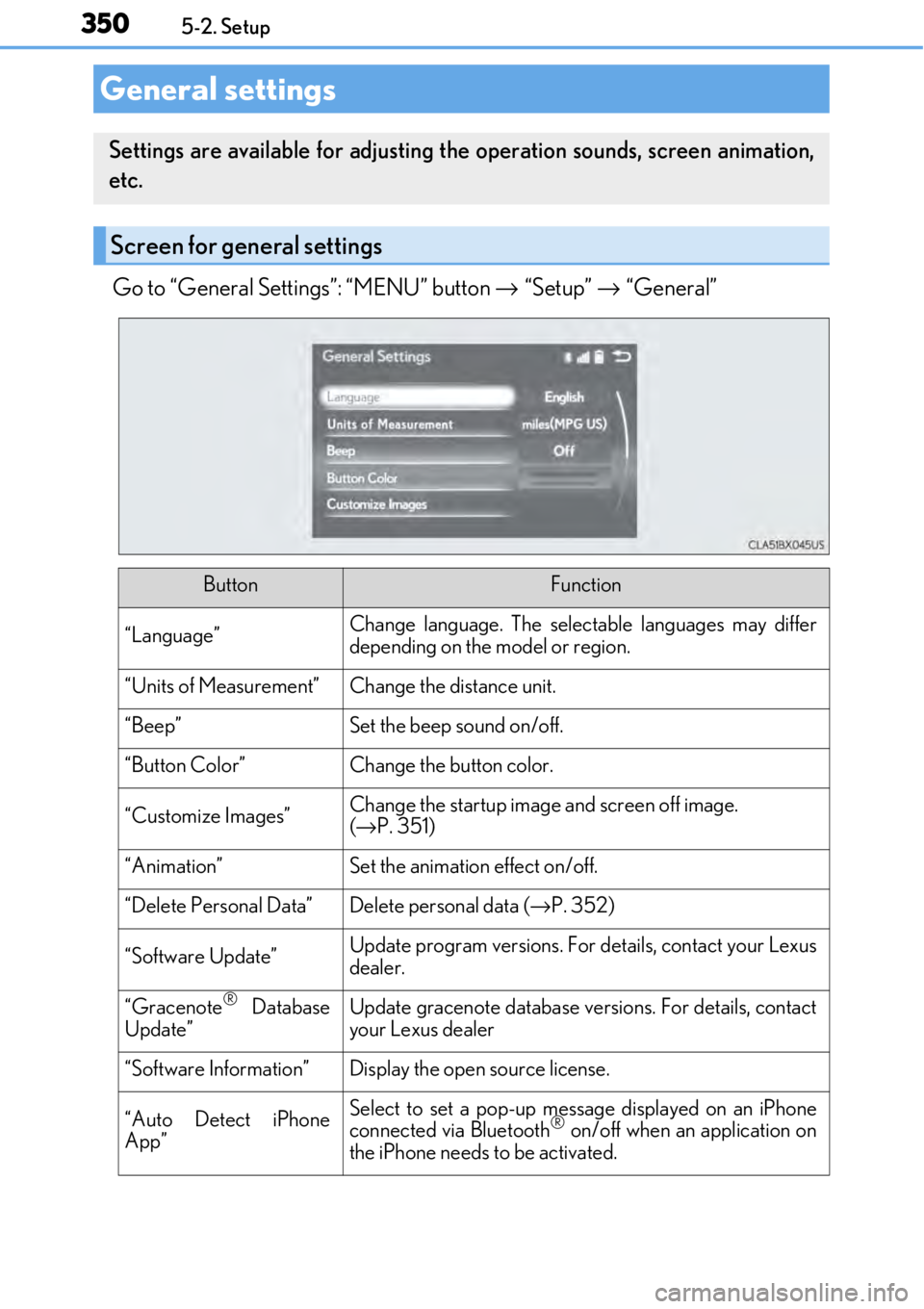
Go to “General Settings”: “MENU” button → “Setup” → “General”
General settings
Settings are available for adjusting th e operation sounds, screen animation,
etc.
Screen for general settings
ButtonFunction
“Language”Change language. The select able languages may differ
depending on the model or region.
“Units of Measurement”Change the distance unit.
“Beep”Set the beep sound on/off.
“Button Color”Change the button color.
“Customize Images”Change the startup image and screen off image.
( → P. 351)
“Animation”Set the animation effect on/off.
“Delete Personal Data”Delete personal data ( →P. 352)
“Software Update”Update program versions. For details, contact your Lexus
dealer.
“Gracenote® Database
Update”Update gracenote database versions. For details, contact
your Lexus dealer
“Software Information”Display the open source license.
“Auto Detect iPhone
App”Select to set a pop-up message displayed on an iPhone
connected via Bluetooth® on/off when an application on
the iPhone needs to be activated.
Page 352 of 724
3525-2. Setup
Go to “Delete Personal Data”: “MENU” button → “Setup” → “General” →
“Delete Personal Data”
Select “Delete”.
Check carefully beforeha nd, as data cannot be retrieved once deleted.
The following personal data will be dele ted or changed to its default settings.
• Phonebook data
• Call history data
•Favorite data
•Bluetooth
® devices data
• Phone sound settings
• Detailed Bluetooth
® settings
• Audio/video setting
• Customized image data
•FM info setting
• iPod tagging information
• Software update history
• Software update detail information
• Phone display setting
• Contact/call history setting
• Messaging setting
• Traffic information map
• Weather information
• Phonebook data for voice recognition
• Music data for voice recognition
NOTICE
■To prevent damage to the USB me mory device or its terminals
→ P. 383
Deleting personal data
1
2
Page 361 of 724
3615-3. Using the audio system
5
Lexus Display Audio system
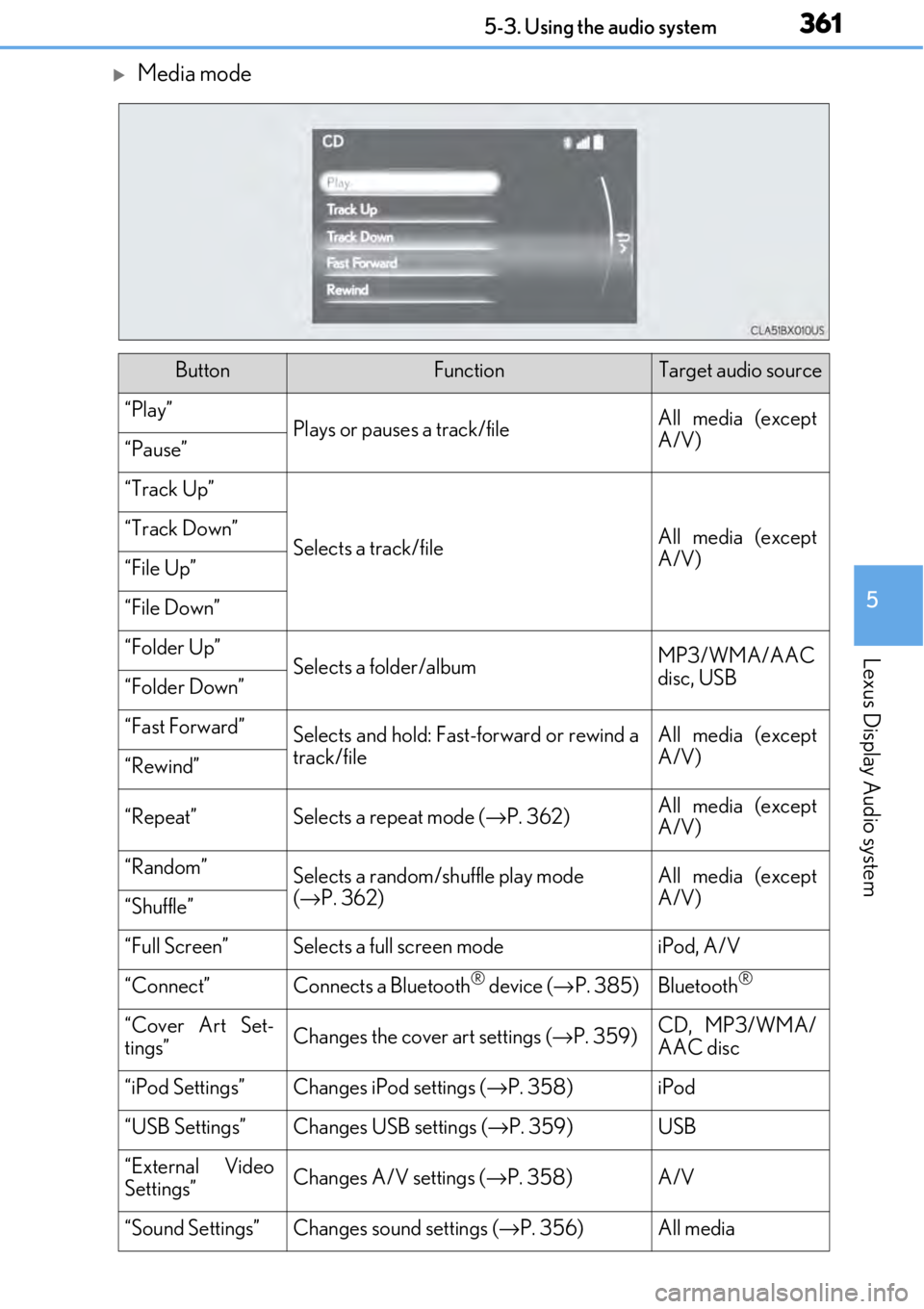
Media mode
ButtonFunctionTarget audio source
“Play”Plays or pauses a track/fileAll media (except
A/V)
“Pause”
“Track Up”
Selects a track/fileAll media (except
A/V)“Track Down”
“File Up”
“File Down”
“Folder Up”Selects a folder/albumMP3/WMA/AAC
disc, USB
“Folder Down”
“Fast Forward”Selects and hold: Fast-forward or rewind a
track/fileAll media (except
A/V)
“Rewind”
“Repeat”Selects a repeat mode ( →P. 362)All media (except
A/V)
“Random”Selects a random/shuffle play mode
(→ P. 362)All media (except
A/V)
“Shuffle”
“Full Screen”Selects a full screen modeiPod, A/V
“Connect”Connects a Bluetooth® device ( →P. 385)Bluetooth®
“Cover Art Set-
tings”Changes the cover art settings ( →P. 359)CD, MP3/WMA/
AAC disc
“iPod Settings”Changes iPod settings ( →P. 358)iPod
“USB Settings”Changes USB settings (→ P. 359)USB
“External Video
Settings”Changes A/V settings (→P. 358)A/V
“Sound Settings”Changes sound settings ( →P. 356)All media
Page 385 of 724
385
5
Lexus Display Audio system
5-7. Connecting Bluetooth®
Steps for using Bluetooth® devices
The following can be performed using Bluetooth® wireless communication:
■A portable audio player can be operated and listened to via the Lexus
Display Audio system
■Hands-free phone calls can be made via a cellular phone
In order to use wireless communication, register and connect a Bluetooth
®
device by performing the following procedures.
Device registration/connection flow
1. Register the Bluetooth® device to be used with Lexus Display
Audio system ( →P. 387)
2. Select the Bluetooth® device to be used
(→ P. 388)
AudioHands-free phone
3. Start Bluetooth® connec-
tion ( →P. 389)3. Start Bluetooth® connec-
tion ( →P. 390)
4. Use Bluetooth® audio
(→ P. 395)4. Check connection status
(→ P. 398)
5. Use Bluetooth® phone
(→ P. 399)
Page 386 of 724
3865-7. Connecting Bluetooth®
Go to “Bluetooth* Setup”: “MENU” button → “Setup” → “Bluetooth*”
*: Bluetooth is a registered tr ademark of Bluetooth SIG, Inc.
■When displaying “Bluetooth* Setup” screen from the “Bluetooth* Audio” screen
Display the “Bluetooth
* Audio” screen. ( →P. 395)
Move the controller to the left and select “Connect”.
■When displaying “Bluetooth* Setup” screen from the phone top screen
Display the phone top screen. ( →P. 397)
Move the controller to the left and select “Connect Phone”.
*: Bluetooth is a registered trad emark of Bluetooth SIG, Inc.
“Bluetooth* Setup” screen
1
2
1
2
Page 387 of 724
3875-7. Connecting Bluetooth®
5
Lexus Display Audio system
Turn the Bluetooth® connection setting of your device set to on.
Go to “Bluetooth
* Setup”: “MENU” button → “Setup” → “Bluetooth*”
Move the controller to the left and then select “Add Device”.
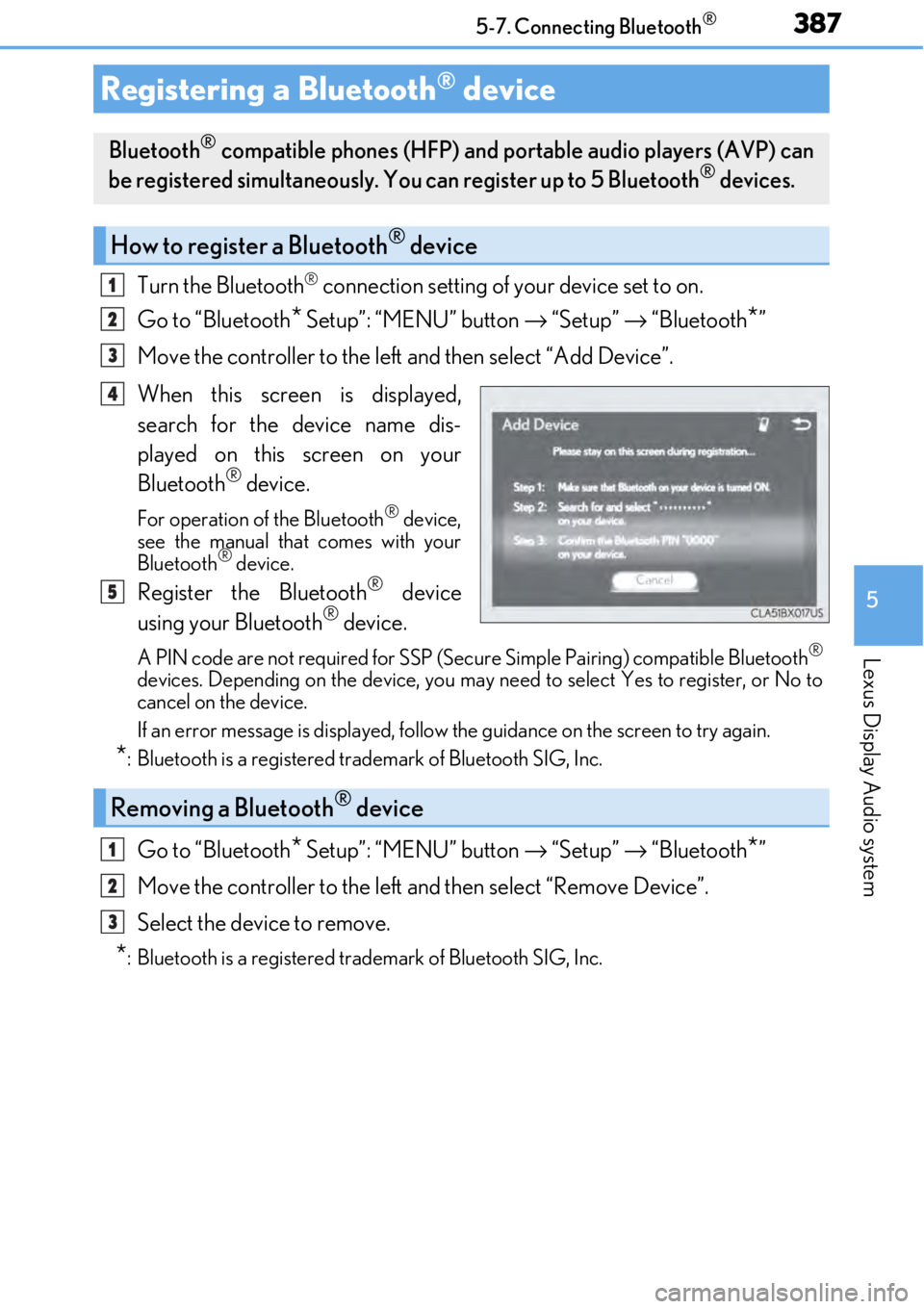
When this screen is displayed,
search for the device name dis-
played on this screen on your
Bluetooth
® device.
For operation of the Bluetooth® device,
see the manual that comes with your
Bluetooth
® device.
Register the Bluetooth® device
using your Bluetooth® device.
A PIN code are not required for SSP (Secur e Simple Pairing) compatible Bluetooth®
devices. Depending on the device, you may need to select Yes to register, or No to
cancel on the device.
If an error message is displayed, follow the guidance on the screen to try again.
*: Bluetooth is a registered trademark of Bluetooth SIG, Inc.
Go to “Bluetooth* Setup”: “MENU” button → “Setup” → “Bluetooth*”
Move the controller to the left and then select “Remove Device”.
Select the device to remove.
*: Bluetooth is a registered trademark of Bluetooth SIG, Inc.
Registering a Bluetooth® device
Bluetooth® compatible phones (HFP) and portable audio players (AVP) can
be registered simultaneously. You can register up to 5 Bluetooth® devices.
How to register a Bluetooth® device
1
2
3
4
5
Removing a Bluetooth® device
1
2
3
Page 388 of 724
3885-7. Connecting Bluetooth®
Go to “Bluetooth*1 Setup”: “MENU” button → “Setup” → “Bluetooth*1”
Select the device to connect.
Select “Connect XX
*2”, “Connect as a Phone” or “Connect as an Audio
Player”.
“Connect XX
*2” means connect both the phon e and audio functions of one
device.
If the desired Bluetooth
® device is not displayed, register the device.
(→ P. 387)
*1: Bluetooth is a registered trademark of Bluetooth SIG, Inc.
*2: XX represents the selected device name.
Selecting a Bluetooth® device
If multiple Bluetooth® devices are registered, follow the procedure below to
select the Bluetooth® device to be used. You ma y only use one device at a
time.
How to select a Bluetooth® device
1
2
3


