2017 Lexus GX460 tire
[x] Cancel search: tirePage 289 of 644
GX 460 _O M_ OM6 0F 6 8U _(U )
2874-5. Using the driving support systems
4
Driving
CAUTION
■When using the perpendicular parking assist screen
Estimated course line display mode: If the steering wheel is straight and the vehicle
width guide lines and the estimated course lines are not in alignment, have the vehicle
inspected by your Lexus dealer.
■When using the parallel parking assist screen
●Do not use the system if the display is incorrect due to an uneven (curvy/hilly) road or
a non-straight road.
●Make sure to operate the steering wheel only when the vehicle is stopped.
●Be sure to check that there are no obstacles inside the blue outline.
If there are any obstacles inside the blue ou tline, do not use the parallel parking assist.
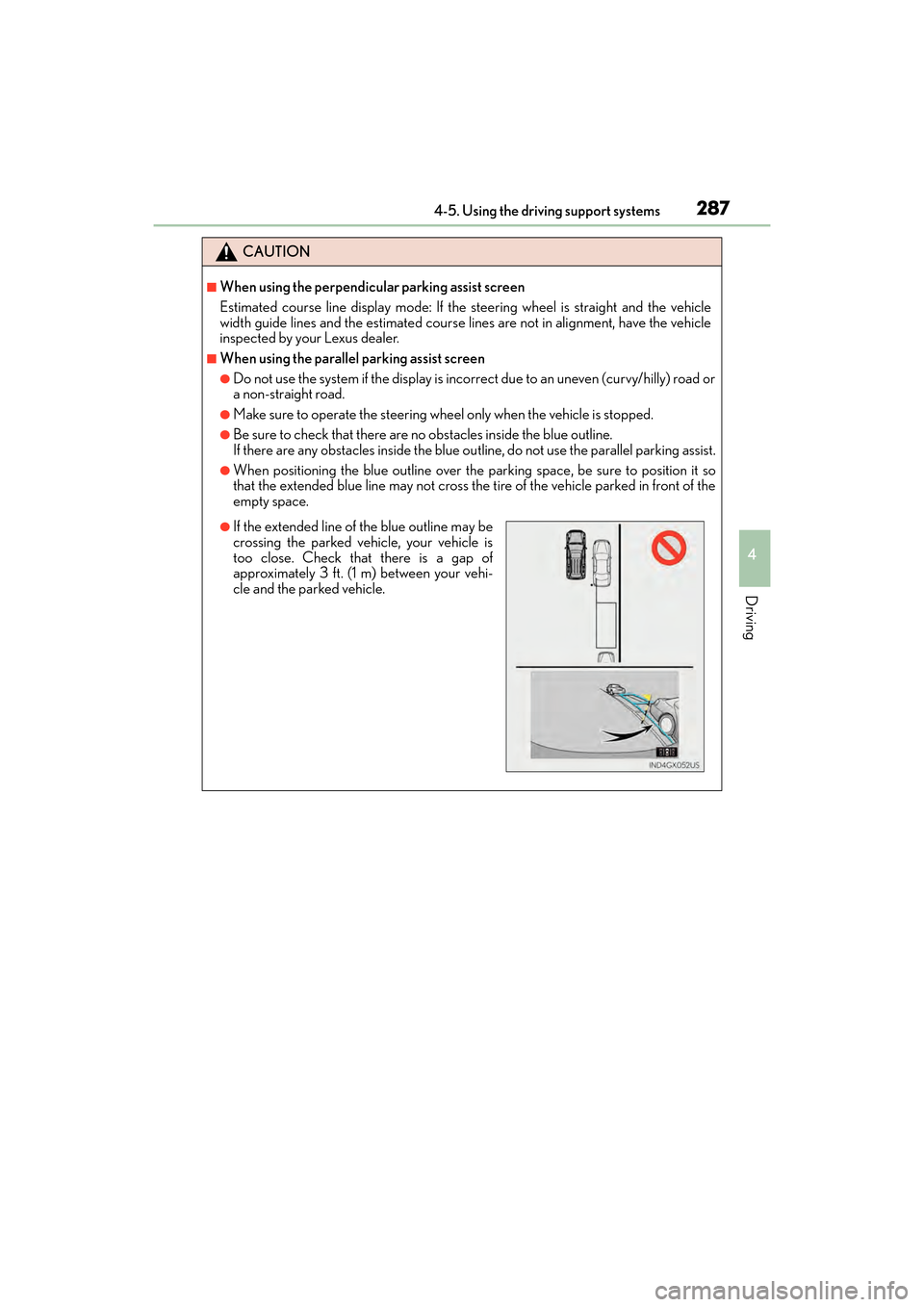
●When positioning the blue outline over the parking space, be sure to position it so
that the extended blue line may not cross the tire of the vehicle parked in front of the
empty space.
●If the extended line of the blue outline may be
crossing the parked vehicle, your vehicle is
too close. Check that there is a gap of
approximately 3 ft. (1 m) between your vehi-
cle and the parked vehicle.
GX460_OM_OM60F68U_(U).book Page 287 Wednesday, June 8, 2016 6:37 PM
Page 296 of 644

294
GX 460 _O M_ OM6 0F 6 8U _(U )4-5. Using the driving support systems
●Simultaneous display
Front wheel contact point
Shows the position of the vehicle’s
front tire.
Vehicle front edge line
Shows the position of the vehicle’s
leading edge.
Vehicle width line (blue)
Indicates the width of the vehicle
including the outside rear view mir-
ror.
Projected course line (yellow)
Displays a rough guide of the vehicle path that moves according to the steering
wheel position. Displayed along with the minimum projected turning circle.
Minimum projected turning circle (blue)
Displays the smallest turning circle projected by the system if the steering wheel is
turned to full lock. Displayed when the steering wheel is turned to the right (further
than 90 ° from straight ahead).
Rear wheel contact point
Shows the position of the vehicle’s rear tire.
Using the side monitor
1
2
3
4
5
6
GX460_OM_OM60F68U_(U).book Page 294 Wednesday, June 8, 2016 6:37 PM
Page 297 of 644
GX 460 _O M_ OM6 0F 6 8U _(U )
2954-5. Using the driving support systems
4
Driving
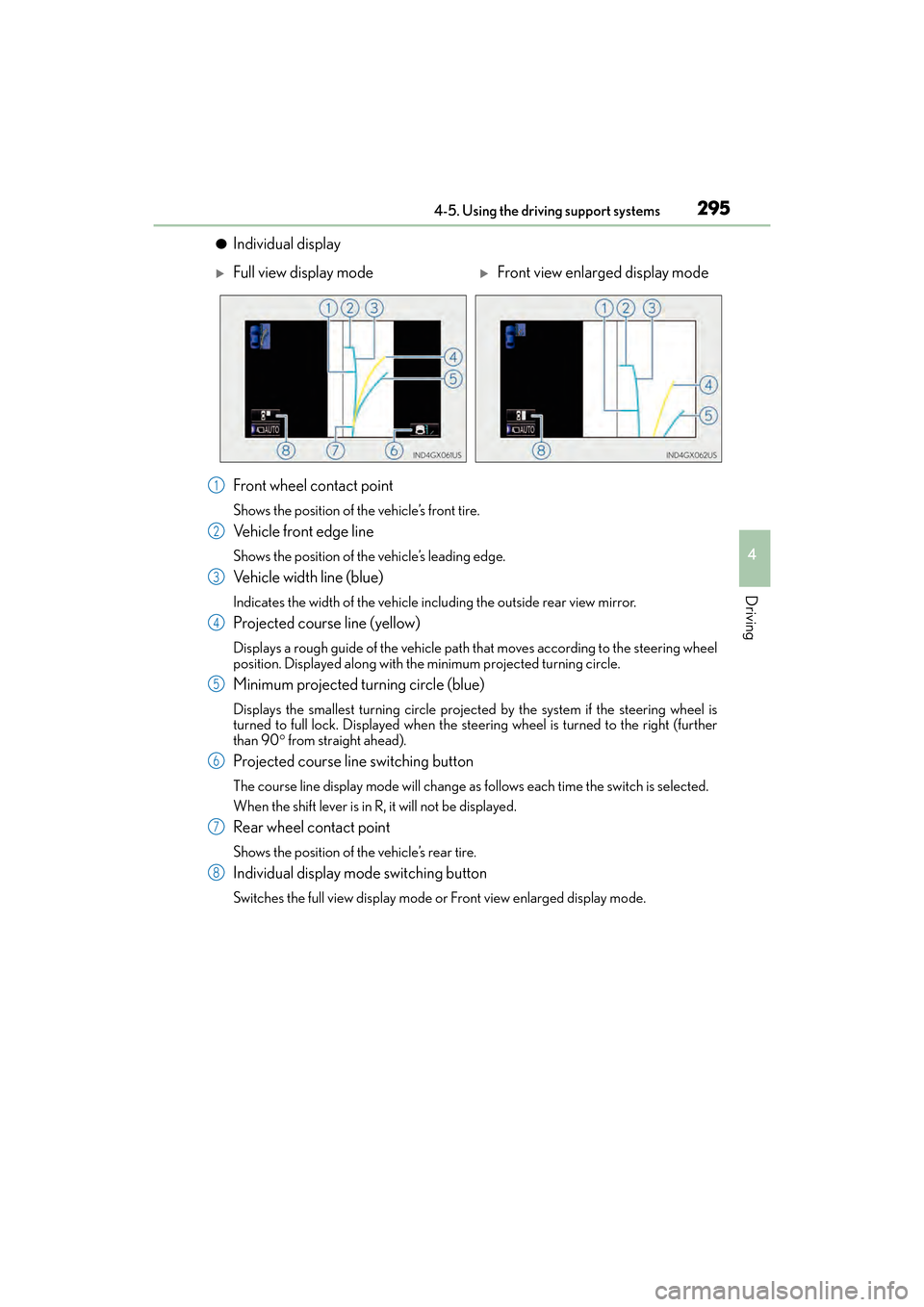
●Individual display
Front wheel contact point
Shows the position of the vehicle’s front tire.
Vehicle front edge line
Shows the position of the vehicle’s leading edge.
Vehicle width line (blue)
Indicates the width of the vehicle including the outside rear view mirror.
Projected course line (yellow)
Displays a rough guide of the vehicle path that moves according to the steering wheel
position. Displayed along with the minimum projected turning circle.
Minimum projected turning circle (blue)
Displays the smallest turning circle projected by the system if the steering wheel is
turned to full lock. Displayed when the steer ing wheel is turned to the right (further
than 90 ° from straight ahead).
Projected course line switching button
The course line display mode will change as follows each time the switch is selected.
When the shift lever is in R, it will not be displayed.
Rear wheel contact point
Shows the position of the vehicle’s rear tire.
Individual display mode switching button
Switches the full view display mode or Front view enlarged display mode.
XFull view display modeXFront view enlarged display mode
1
2
3
4
5
6
7
8
GX460_OM_OM60F68U_(U).book Page 295 Wednesday, June 8, 2016 6:37 PM
Page 306 of 644

304
GX 460 _O M_ OM6 0F 6 8U _(U )4-5. Using the driving support systems
‰
Switch sound effects do not work
The multimedia or navigation system vol-
ume setting is low or muted.Increase the volume in the multimedia or
navigation system volume settings.
‰The fixed guide lines are very far out of alignment
The camera position is out of alignment.Have the vehicle inspected by your Lexus
dealer.
• The vehicle is tilted (there is a heavy
load on the vehicle, tire pressure is low
due to a tire puncture, etc.)
• The vehicle is used on an incline.If this happens due to these causes, it
does not indicate a malfunction.
Drive carefully while visually checking the
vehicle’s surroundings.
‰ “System is initializing.” is displayed
• The battery has been reinstalled.
• The steering wheel has been moved
while the battery was being reinstalled.
• Battery power is low.
• The steering sensor has been rein- stalled.
• There is a malfunction in the signals
being output by the steering sensor.Stop the vehicle, and turn the steering
wheel as far as it will go to the left and
right. (Selecting “?” on the screen displays
the operating procedure above.)
If this does not resolve the symptom, have
the vehicle inspected by your Lexus
dealer.
‰ The color of buttons on the screen are toned down
The vehicle is driven at 7 mph (12 km/h)
or more while the side monitor is dis-
played.The color of buttons displayed on the side
monitor that are toned down return to
normal when the vehicle speed slows to
approximately 6 mph (10 km/h).
Likely causeSolution
GX460_OM_OM60F68U_(U).book Page 304 Wednesday, June 8, 2016 6:37 PM
Page 307 of 644

GX 460 _O M_ OM6 0F 6 8U _(U )
3054-5. Using the driving support systems
4
Driving
CAUTION
■When using the wide view front & side monitor system
Observe the following precautions to avoid an accident that could result in death or
serious injuries.
●When attempting to use the side camera while the door mirror is folded in, the base
of the door mirror is displayed on the screen and the area in front of the vehicle can-
not be observed. The image displayed on the screen differs depending on the posi-
tion of the door mirror.
●The field of view of the camera is limited. Do not rely solely upon the wide view front &
side monitor.
As with unequipped vehicles, drive carefully while directly confirming the safety of
your surroundings.
●Always check visually to confirm your intended path is clear.
●The camera uses a special lens. The distances between objects and pedestrians that
appear in the image displayed on the sc reen will differ from the actual distances.
●When the monitor is in front view enlarged display mode, even if obstacles in the
image from the side monitor have disappeared, do not turn the steering wheel any
further until the vehicle has passed the obstacle. By turning the steering wheel further,
the vehicle may make a tight turn, causing the vehicle to make contact with the obsta-
cle.
●Do not drive the vehicle while only lookin g at the monitor screen under any circum-
stances.
Driving while only viewing the monitor screen may cause a collision or lead to an
accident, as the image displayed on the monitor screen may differ from actual condi-
tions. Make sure to visually check the surrounding areas with and without the mirror
while driving.
●Do not use the wide view front & side monitor in the following cases:
• On icy or slick road surfaces, or in snow.
• When the front passenger’s door is not closed completely
•When using tire chains
• On roads that is not flat, such as slopes
●In low temperatures, the screen may darken or the image may become faint. The
image could distort when the vehicle is moving, or you may become unable to see the
image on the screen. Be sure to check dire ct visually all around the vehicle before
proceeding.
●If the tires are changed, the position of the guide lines displayed on the screen may be
incorrect. When changing the tires, consult your Lexus dealer.
●Depending on the circumstances of the ve hicle (number of passengers, amount of
luggage, etc.), the position of the guide lines displayed on the screen may change. Be
sure to check visually behind and all around the vehicle before proceeding.
●When washing the vehicle, do not apply intensive bursts of water to the camera or
camera area. Doing so may result in the camera malfunctioning.
GX460_OM_OM60F68U_(U).book Page 305 Wednesday, June 8, 2016 6:37 PM
Page 314 of 644

312
GX 460 _O M_ OM6 0F 6 8U _(U )4-5. Using the driving support systems
■When it is difficult to generate traction
MUD & SAND mode provides the largest amount of tire slippage, followed by LOOSE
ROCK, MOGUL and ROCK mode.
Drivability can be improved by selecting a mo
de which provides a smaller amount of tire
slippage than the current mode when the amount of tire slippage is large, or conversely
selecting a mode which provides a larger amou nt of tire slippage than the current mode
when the amount of tire slippage is small.
■When the vehicle is stuck
Switching the transfer and differential
For the operation of the following functions, refer to the following pages.
●Four-wheel drive system ( →P. 3 4 2 )
●Center differential lock ( →P. 3 4 3 )
■When the TRAC or Active TRAC operates continuously
→P. 3 5 4
■When the four-wheel drive cont rol switch is in L4 position
If the Multi-terrain Select system is not op erating and the four-wheel drive control switch
is in L4, “TRAC OFF” will be shown on the multi-information display.
■When there is a malfunction in the system
The slip indicator light will come on. Have the vehicle inspected by your Lexus dealer
immediately.
CAUTION
■When using the Multi-terrain Select
Observe the following precautions to avoid an accident that could result in death or
serious injuries:
●There is a chance that the selected mode may not be the most appropriate in terms of
road conditions such as pitch, slipperiness, undulation, etc. ( →P. 3 0 8 )
●Multi-terrain Select is not intended to expand the limits of the vehicle. Check the road
conditions thoroughly beforehand, and drive safely and carefully.
NOTICE
■Precaution for use
The Multi-terrain Select is intended for use during off-road driving. Do not use the sys-
tem at any other time.
GX460_OM_OM60F68U_(U).book Page 312 Wednesday, June 8, 2016 6:37 PM
Page 315 of 644

313
GX 460 _O M_ OM6 0F 6 8U _(U )4-5. Using the driving support systems
4
Driving
Multi-terrain Monitor∗
●By pressing the Multi-terrain Monitor sw
itch, the display can be shown, or the
display image can be changed between the front screen, wide view front &
side monitor screen, side-front simultaneous display monitor screen, side-
rear simultaneous display monitor screen or rear screen. (The screens that
can be selected differ depending on the shift position and the transfer mode.)
●By referring to the guidelines shown on the front monitor screen, you can
decide a driving line while assessing the distance to obstacles ahead of the
vehicle and confirm the projected path, and by using the wide view front &
side monitors, the side-front simultaneous display monitor and the side-rear
simultaneous display monitor to identify objects in the vicinity or course of the
tires, you can drive while preventing the vehicle from becoming stuck unex-
pectedly.
Multi-terrain Monitor switch
Multimedia screen (if equipped)
or navigation system screen (if
equipped)
∗: If equipped
The Multi-terrain Monitor displays the vehicle surroundings when driving at
low speeds, thus assisting off-road driv ing and helping the driver to check the
vehicle surroundings.
Display of the Multi-terrain Monitor
1
2
GX460_OM_OM60F68U_(U).book Page 313 Wednesday, June 8, 2016 6:37 PM
Page 320 of 644

318
GX 460 _O M_ OM6 0F 6 8U _(U )4-5. Using the driving support systems
■Side-front simultaneous display monitor
The image from both side cameras is
displayed. Use this monitor to help
check the area on both sides of the
vehicle at the same time, and to
check for objects near the tires or
the sides of the vehicle. Guidelines
showing an image of the vehicle
width and the position of the front
tires are displayed.
■Side-rear simultaneous display monitor
The image from both side cameras is
displayed. Use this monitor to help
check the area on both sides of the
vehicle at the same time, and to
check for objects near the tires or
the sides of the vehicle. Guidelines
showing an image of the vehicle
width and the position of the rear
tires are displayed.
■Rear monitor (Lexus parking assist monitor)
The image from the rear camera is
displayed. (
→P. 263)
GX460_OM_OM60F68U_(U).book Page 318 Wednesday, June 8, 2016 6:37 PM