2017 KIA SOUL driving
[x] Cancel search: drivingPage 270 of 589
Audio system
535
Phone
✽
✽NOTICE - Using
Bluetooth®Wireless Technology
Phone
• Bluetooth®Wireless Technology is
a near-field wireless networking
technology that uses the 2.4 GHz
frequency to connect various
devices within a certain distance
wirelessly.
• The technology is used in PCs, peripherals, Bluetooth
®Wireless
Technology phones, tablet PCs,
household appliances and automo-
biles. Devices supporting Bluetooth
®
Wireless Technology can exchange
data at high speeds without physi-
cal cable connections.
• Bluetooth
®Wireless Technology
Handsfree devices enable conven-
ient access to phone functions
through cell phones equipped with
Bluetooth
®Wireless Technology.
• Some Bluetooth®Wireless Technology
devices may not be supported by
the Bluetooth
®Wireless Technology
Handsfree function. (Continued)(Continued)
• When
Bluetooth
®Wireless
Technology is connected and calls
are attempted through a connect-
ed cell phone from outside the
vehicle, the call is connected
through the Bluetooth
®Wireless
Technology Handsfree function of
the vehicle.
• Please be sure to disconnect the Bluetooth
®Wireless Technology
Handsfree function through your
Bluetooth
®Wireless Technology
device or the audio screen.
• The Bluetooth
®Wireless Technology
Handsfree function helps drivers
to drive safely. By connecting a
Bluetooth
®Wireless Technology-
enabled phone to the vehicle’s
audio system, phone calls can be
made and received through the
audio system and contacts can be
managed. Consult the user manu-
al before use.
• Excessive manipulation of con- trols while driving, making it diffi-
cult to pay attention to the road
ahead, can lead to accidents. Do
not operate the device excessively
while driving. (Continued)(Continued)
• Looking at the screen for a pro-
longed time increases the risk of
accidents. Keep time spent looking
at the screen to a minimum.
Page 278 of 589
Audio system
543
Siri
✽
✽NOTICE - Using Siri
• If you want to use Siri, you have to
connect your iOS device to multi-
media system through Bluetooth
®
Wireless Technology. (Please
check whether your iOS device
supports Siri and turning Siri On)
• If the iOS version is changed, the functions and response may be dif-
ferent according to the iOS device
and the latest version.
• Siri automatically stops in the fol- lowing events.
1) Outgoing and incoming phone calls.
2) Media (USB, etc.) is connected. (Siri mode is maintained when
iPod®s are connected)
3) Rear camera is activated (option).
4) Vehicle is started or engine is turned off.
5) Screen transition buttons, such as RADIO or MEDIA, are
selected. (Continued)(Continued)
6) When a pop-up message is dis- played on the screen due to
accidental execution of Siri.
• The microphone is located above the driver’s seat. To ensure proper
Siri, state your voice while main-
taining proper driving posture.
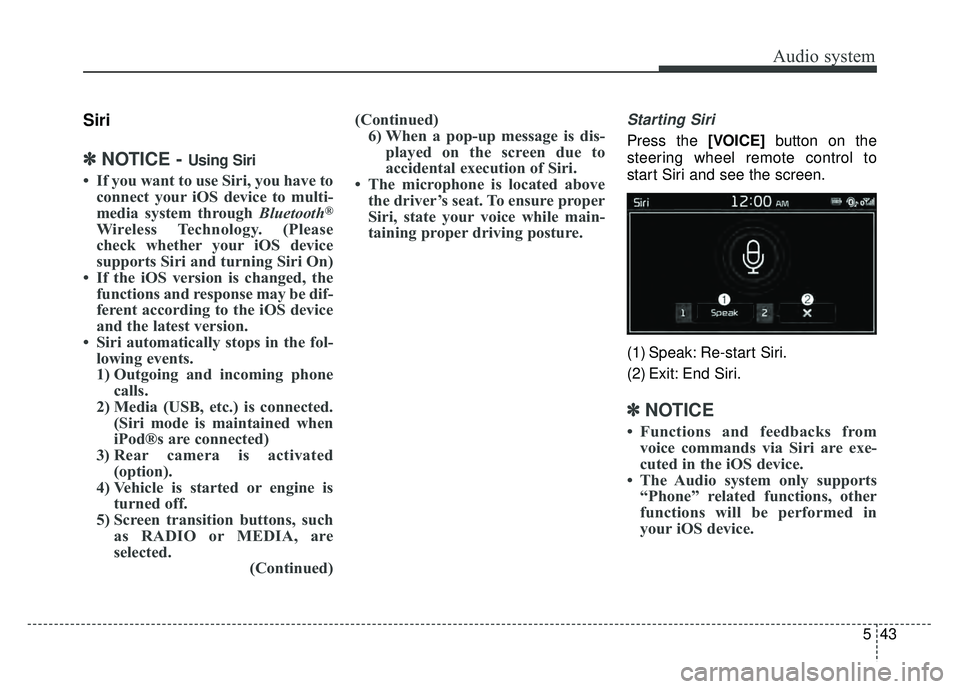
Starting Siri
Press the [VOICE] button on the
steering wheel remote control to
start Siri and see the screen.
(1) Speak: Re-start Siri.
(2) Exit: End Siri.
✽ ✽ NOTICE
• Functions and feedbacks from
voice commands via Siri are exe-
cuted in the iOS device.
• The Audio system only supports “Phone” related functions, other
functions will be performed in
your iOS device.
Page 285 of 589
Audio system
50
5 Adjust the volume to levels that
allow the driver to hear sounds
from outside of the vehicle. Driving
in a state where external sounds
cannot be heard may lead to acci-
dents.
Pay attention to the volume setting when turning the device on. A sud-
den output of extreme volume
upon turning the device on could
lead to hearing impairment. (Adjust
the volume to a suitable levels
before turning off the device.)
If you want to change the position of device installation, please
inquire with your place of purchase
or service maintenance center.
Technical expertise is required to
install or disassemble the device. Turn on the car ignition before
using this device. Do not operate
the audio system for long periods
of time with the ignition turned off
as such operations may lead to
battery discharge.
In case of product malfunction, please contact your place of pur-
chase or After Service center.
Placing the audio system within an electromagnetic environment may
result in noise interference.
WARNING - Driver
distraction
Operating the device while driv-
ing could lead to accidents due
to a lack of attention to external
surroundings. First park the
vehicle before operating the
device.
CAUTION- LCD Monitor
Do not subject the device to
severe shock or impact. Direct
pressure onto the front side of
the monitor may cause damage
to the LCD or touch screen.
CAUTION
When cleaning the device, make sure to turn off theaudio system and use a dryand smooth cloth.
Do not place beverages close to the audio system. Spillingbeverages may lead to systemmalfunction.
Never use tough materials, chemical cloths, or solvents(alcohol, benzene, thinners,etc.) as such materials maydamage the device panel orcause color/quality deteriora-tion.
Prevent caustic solutions such as perfume and cosmet-ic oil from contacting thedashboard because they maycause damage or discol-oration.
Page 286 of 589
Audio system
551
WARNING- Antenna
Do not touch the antenna dur-
ing thunder or lightening as
such acts may lead to lightning
induced electric shock.WARNING- Driver Distraction
Do not stare at the screen while driving. Staring at the
screen for prolonged periods
of time could lead to traffic
accidents.
Using the phone while driving may lead to a lack of attention
of traffic conditions and
increase the likelihood of acci-
dents. Use the phone feature
after parking the vehicle.
WARNING- Audio System
Do not disassemble, assem- ble, or modify the audio sys-
tem. Such acts could result in
fire or electric shock.
Exercise caution not to spill water or introduce foreign
objects into the device. Such
acts could lead to smoke, fire,
or product malfunction.
Page 301 of 589
Audio system
66
5
✽
✽
NOTICE - Using Bluetooth®
Wireless Technology Audio
•Bluetooth®Wireless Technology
Audio mode can only be used if a
Bluetooth
®Wireless Technology-
enabled phone is connected. Only
devices that support Bluetooth
®
Wireless Technology audio can be
used.
• If the Bluetooth
®Wireless
Technology-enabled phone is dis-
connected during play, the music
stops.
• When the TRACK UP/DOWN buttons are used during
Bluetooth
®Wireless Technology
audio streaming, a popping noise
or sound interruptions may occur,
depending on the cell phone
device.
• Depending on the cell phone model, the audio streaming func-
tion may not be supported.
• If a phone call is made or received when music is playing in
Bluetooth
®Wireless Technology
Audio mode, the call may mix with
the music. (Continued)(Continued)
• When returning to Bluetooth
®
Wireless Technology Audio mode
after ending a call, play might not
resume automatically for some cell
phone models.
Bluetooth®Wireless Technology
Handsfree is a feature that enables
drivers to practice safe driving.
Connecting the car audio system
with a
Bluetooth®Wireless Technology
phone allows the user to conve-
niently make calls, receive calls,
and manage the phone book.
Before using the
Bluetooth®
Wireless Technology, carefully
read the contents of this user’s
manual.
Excessive use or operations while driving may lead to negligent driv-
ing practices and be the cause of
accidents.
Do not operate the device exces- sively while driving.
Viewing the screen for prolonged periods of time is dangerous and
may lead to accidents.
When driving, view the screen only for short periods of time.
WARNING
Driving while distracted can
result in a loss of vehicle con-
trol that may lead to an acci-
dent, severe personal injury,
and death. The driver’s primary
responsibility is in the safe and
legal operation of a vehicle, and
use of any handheld devices,
other equipment, or vehicle sys-
tems which take the driver’s
eyes, attention and focus away
from the safe operation of a
vehicle or which are not permis-
sible by law should never be
used during operation of the
vehicle.
Page 308 of 589
Audio system
573
Phone
✽
✽NOTICE - Using
Bluetooth®Wireless Technology
Phone
• Bluetooth®Wireless Technology is
a near-field wireless networking
technology that uses the 2.4 GHz
frequency to connect various
devices within a certain distance
wirelessly.
• The technology is used in PCs, peripherals, Bluetooth
®Wireless
Technology phones, tablet PCs,
household appliances and automo-
biles. Devices supporting
Bluetooth
®Wireless Technology
can exchange data at high speeds
without physical cable connec-
tions.
• Bluetooth
®Wireless Technology
Handsfree devices enable conven-
ient access to phone functions
through cell phones equipped with
Bluetooth
®Wireless Technology.
• Some Bluetooth®Wireless Technology
devices may not be supported by
the Bluetooth
®Wireless Technology
Handsfree function. (Continued)(Continued)
• When
Bluetooth
®Wireless
Technology is connected and calls
are attempted through a connect-
ed cell phone from outside the
vehicle, the call is connected
through the Bluetooth
®Wireless
Technology Handsfree function of
the vehicle.
• Please be sure to disconnect the Bluetooth
®Wireless Technology
Handsfree function through your
Bluetooth
®Wireless Technology
device or the audio screen.
• The Bluetooth
®Wireless
Technology Handsfree function
helps drivers to drive safely. By
connecting a Bluetooth
®Wireless
Technology-enabled phone to the
vehicle’s audio system, phone calls
can be made and received through
the audio system and contacts can
be managed. Consult the user
manual before use.
• Excessive manipulation of con- trols while driving, making it diffi-
cult to pay attention to the road
ahead, can lead to accidents. Do
not operate the device excessively
while driving. (Continued)(Continued)
• Looking at the screen for a pro-
longed time increases the risk of
accidents. Keep time spent looking
at the screen to a minimum.
Page 316 of 589
Audio system
581
Siri
✽
✽NOTICE - Using Siri
• If you want to use Siri, you have to
connect your iOS device to multi-
media system through Bluetooth
®
Wireless Technology. (Please
check whether your iOS device
supports Siri and turning Siri On)
• If the iOS version is changed, the functions and response may be dif-
ferent according to the iOS device
and the latest version.
• Siri automatically stops in the fol- lowing events.
1) Outgoing and incoming phone calls.
2) Media (USB, etc.) is connected. (Siri mode is maintained when
iPod
®s are connected)
3) Rear camera is activated (option).
4) Vehicle is started or engine is turned off.
5) Screen transition buttons, such as RADIO or MEDIA, are
selected. (Continued)(Continued)
6) When a pop-up message is dis- played on the screen due to
accidental execution of Siri.
• The microphone is located above the driver’s seat. To ensure proper
Siri, state your voice while main-
taining proper driving posture.
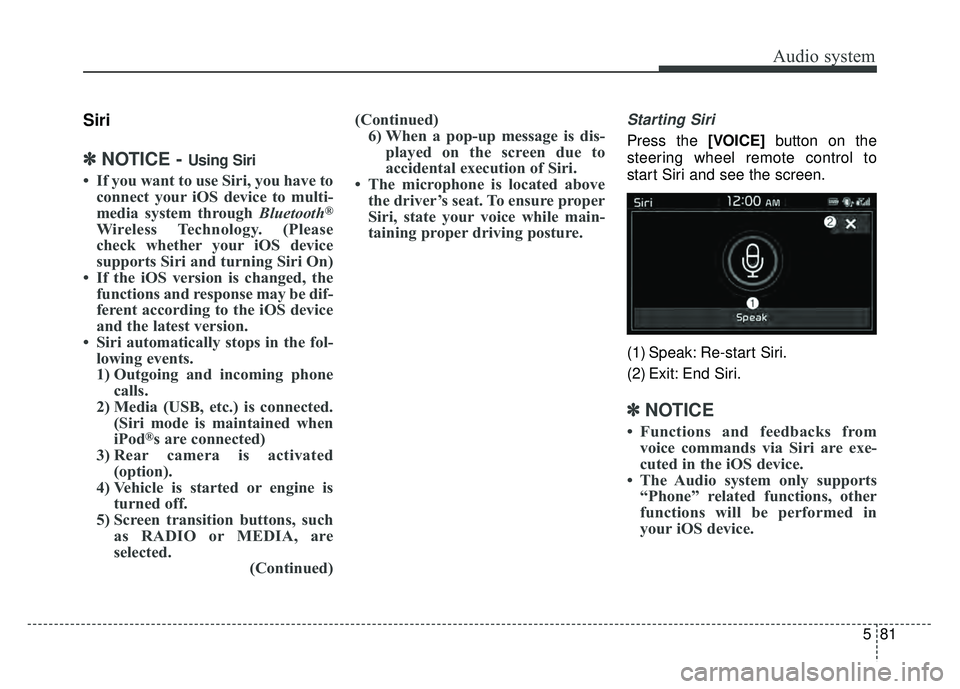
Starting Siri
Press the [VOICE] button on the
steering wheel remote control to
start Siri and see the screen.
(1) Speak: Re-start Siri.
(2) Exit: End Siri.
✽ ✽ NOTICE
• Functions and feedbacks from
voice commands via Siri are exe-
cuted in the iOS device.
• The Audio system only supports “Phone” related functions, other
functions will be performed in
your iOS device.
Page 320 of 589

Driving your vehicle
• Be sure the exhaust system does not leak. . . . . . . . . . 6-3
Before driving . . . . . . . . . . . . . . . . . . . . . . . . . . . . . . 6-4
. . . . . . . . . . . . . . . . . . . . . . . . . 6-4
. . . . . . . . . . . . . . . . . . . . . . . . . . 6-4
. . . . . . . . . . . . . . . . . . . . . . . . . . . . . . . 6-4
Key positions . . . . . . . . . . . . . . . . . . . . . . . . . . . . . . . 6-6
. . . . . . . . . . . . . . . . . . . . . 6-6
. . . . . . . . . . . . . . . . . . . . . . . . . 6-6
. . . . . . . . . . . . . . . . . . . . . . . . . . . . 6-7
Engine start/stop button . . . . . . . . . . . . . . . . . . . . . 6-9
. . . . . . . . . . . . . . 6-9
position. . . . . . . . . . . . . . . . . 6-9
. . . . . . . . . . . . 6-11
Manual transaxle . . . . . . . . . . . . . . . . . . . . . . . . . . 6-14
. . . . . . . . . . . . . . . . . . . . 6-14
. . . . . . . . . . . . . . . . . . . . . . . . 6-17
Automatic transaxle . . . . . . . . . . . . . . . . . . . . . . . . 6-18
. . . . . . . . . . . . . . . . . . 6-18
. . . . . . . . . . . . . . . . . . . . . . . . 6-23
Dual Clutch Transmission (DCT) . . . . . . . . . . . . . 6-24
. . . . . . . . . . . . . 6-24
. . . . . . . . . . . . . . . . . . . . . . . . 6-31
Brake system . . . . . . . . . . . . . . . . . . . . . . . . . . . . . . 6-32
. . . . . . . . . . . . . . . . . . . . . . . . . . . . . . . . 6-32
. . . . . . . . . . . . . . . . . . 6-36
. . . . . . . . . . . . . . . 6-38
. . . . . . . . . . . . 6-42
. . . . . . . . . . . . . . . . . . 6-43
Cruise Control system . . . . . . . . . . . . . . . . . . . . . . 6-45
. . . . . . . . . . . . . . . . . . . . . . . . . 6-46
. . . . . . . . . . . . . . . . . . . . 6-46
. . . . . . . . . . . . . 6-47
. . . . . . . . . . . . . . . . . 6-47
. .
6-47
do one of the following: . . 6-48
approximately 20 mph (30 km/h): . . . . . . . . . . . . . . 6-48
do one of the following:. . . 6-49
Drive mode integrated control system . . . . . . . . . 6-50
Lane departure warning system (LDWS) . . . . . . 6-52
. . . . . . . . . . . . . . . . . . . . . . . . . . . 6-54
. . . . . . . . . . . . . . 6-55
vehicle leaves the lane, or may warn you even if the
vehicle does not leave the lane when; . . . . . . . . . . . 6-55
Blind spot detection system (BSD) . . . . . . . . . . . . 6-57
LCA (Lane Change Assist) . . . . . . . . . . . . . . . . . . . . 6-58
6