Page 111 of 470
441
Features of your vehicle
Instrument Cluster Control
Adjusting Instrument ClusterIllumination
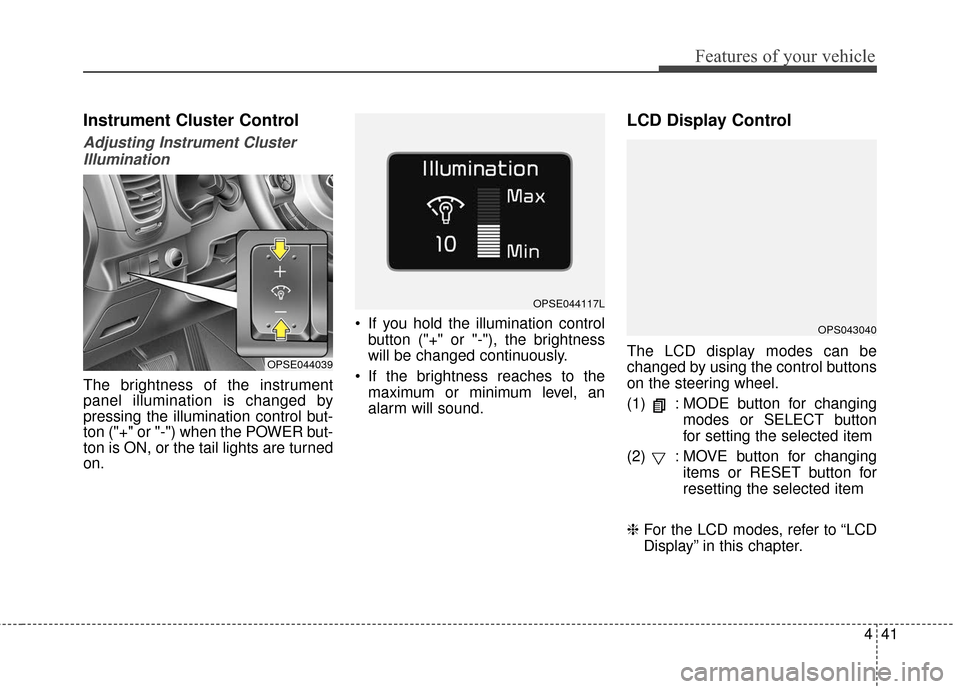
The brightness of the instrument
panel illumination is changed by
pressing the illumination control but-
ton ("+" or "-") when the POWER but-
ton is ON, or the tail lights are turned
on. If you hold the illumination control
button ("+" or "-"), the brightness
will be changed continuously.
If the brightness reaches to the maximum or minimum level, an
alarm will sound.
LCD Display Control
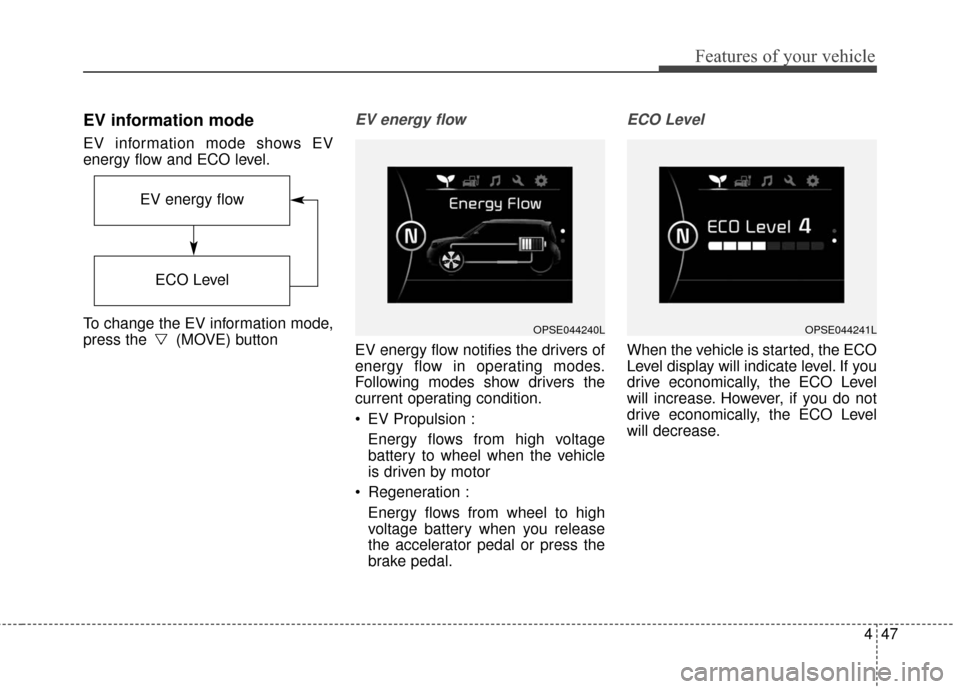
The LCD display modes can be
changed by using the control buttons
on the steering wheel.
(1) : MODE button for changing modes or SELECT button
for setting the selected item
(2) : MOVE button for changing items or RESET button for
resetting the selected item
❈ For the LCD modes, refer to “LCD
Display” in this chapter.OPSE044039
OPSE044117L
OPS043040
Page 117 of 470
447
Features of your vehicle
EV information mode
EV information mode shows EV
energy flow and ECO level.
To change the EV information mode,
press the (MOVE) button
EV energy flow
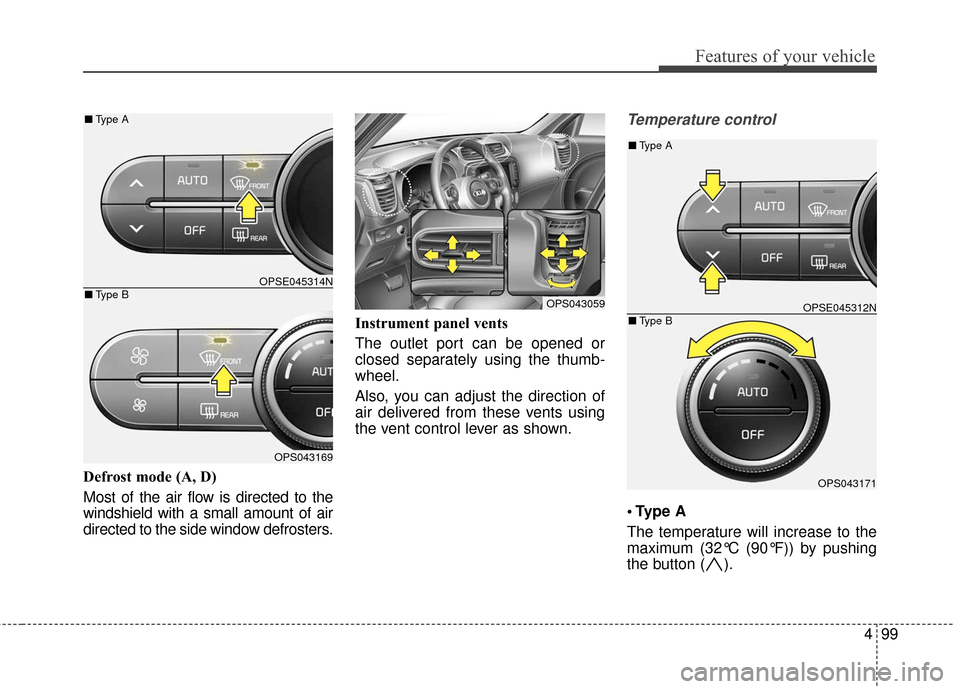
EV energy flow notifies the drivers of
energy flow in operating modes.
Following modes show drivers the
current operating condition.
EV Propulsion :Energy flows from high voltage
battery to wheel when the vehicle
is driven by motor
Regeneration : Energy flows from wheel to high
voltage battery when you release
the accelerator pedal or press the
brake pedal.
ECO Level
When the vehicle is started, the ECO
Level display will indicate level. If you
drive economically, the ECO Level
will increase. However, if you do not
drive economically, the ECO Level
will decrease.
OPSE044240L
EV energy flow
ECO Level
OPSE044241L
Page 132 of 470
Features of your vehicle
62
4
Manual reset
To clear the average energy con-
sumption manually, press the but-
ton (MOVE) on the steering wheel for
more than 1 second when the aver-
age energy consumption is displayed.
Automatic reset
To make the average energy con-
sumption be reset automatically
whenever recharging, select the
“Auto Reset” mode in User Settings
menu of the LCD display (Refer to
“LCD Display”).
Under “Auto Reset” mode, the aver-
age energy consumption will be
cleared to zero (---) when the driving
distance exceeds 0.19 mile (300m)
after recharging more than 10%.Instant energy consumption (2)
This mode displays the instant ener- gy consumption during the last few
seconds when the vehicle speed is
more than 10 km/h (6.2 MPH).
- Instant energy consumptionrange : 0.0 ~ 8miles/kwh
Trip A/B
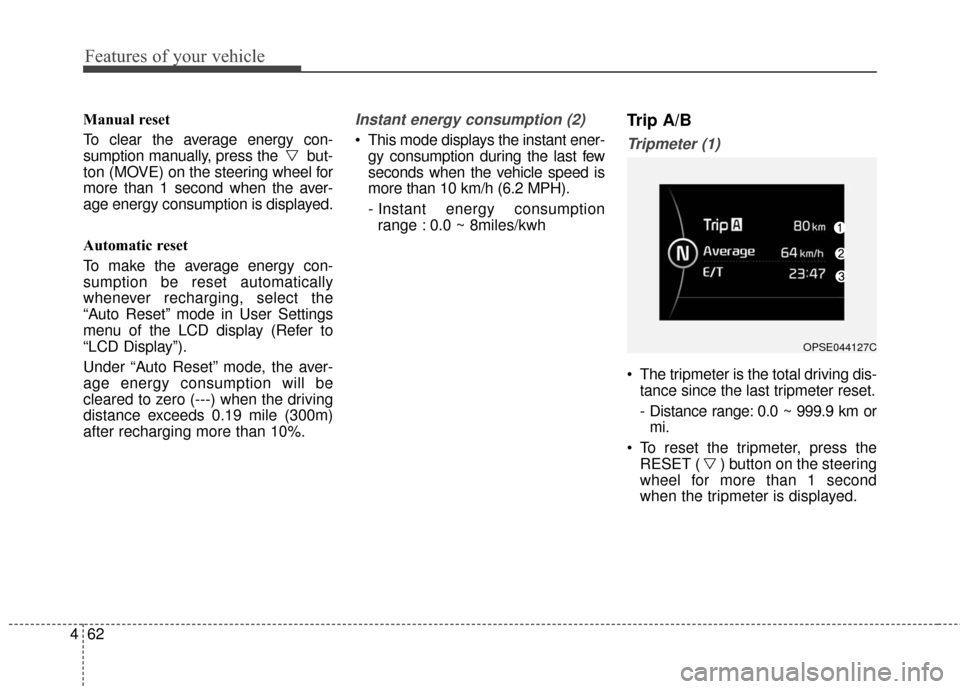
Tripmeter (1)
The tripmeter is the total driving dis- tance since the last tripmeter reset.
- Distance range: 0.0 ~ 999.9 km ormi.
To reset the tripmeter, press the RESET ( ) button on the steering
wheel for more than 1 second
when the tripmeter is displayed.
OPSE044127C
Page 133 of 470
463
Features of your vehicle
Average Vehicle Speed (2)
The average vehicle speed is cal-culated by the total driving dis-
tance and driving time since the
last average vehicle speed reset.
- Speed range: 200 km/h or 160
MPH
To reset the average vehicle speed, press the RESET ( ) button on
the steering wheel for more than 1
second when the average vehicle
speed is displayed.
✽ ✽ NOTICE
• The average vehicle speed is not dis-
played if the driving distance is less
than 50 meters (0.03 miles) or the
driving time is less than 10 seconds
since the POWER button is turned
to ON.
• Even if the vehicle is not in motion, the average vehicle speed
keeps going while the vehicle is in
the ready ( ) mode.
Elapsed Time (3)
The elapsed time is the total driv-
ing time since the last elapsed time
reset.
- Time range (hh:mm): 00:00 ~ 99:59
To reset the elapsed time, press the RESET ( ) button on the
steering wheel for more than 1
second when the elapsed time is
displayed.
✽ ✽ NOTICE
Even if the vehicle is not in motion,
the elapsed time keeps going while
the vehicle is in the ready ( )
mode.
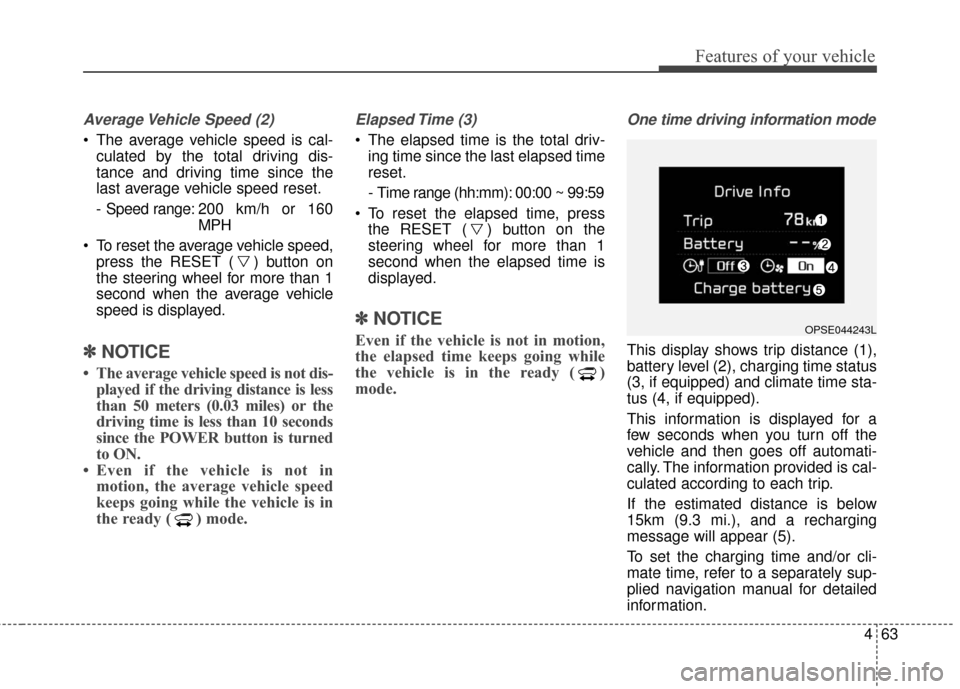
One time driving information mode
This display shows trip distance (1),
battery level (2), charging time status
(3, if equipped) and climate time sta-
tus (4, if equipped).
This information is displayed for a
few seconds when you turn off the
vehicle and then goes off automati-
cally. The information provided is cal-
culated according to each trip.
If the estimated distance is below
15km (9.3 mi.), and a recharging
message will appear (5).
To set the charging time and/or cli-
mate time, refer to a separately sup-
plied navigation manual for detailed
information.
OPSE044243L
Page 138 of 470

Features of your vehicle
68
4
Dual-diagonal braking system
Your vehicle is equipped with dual-
diagonal braking systems. This
means you still have braking on two
wheels even if one of the dual sys-
tems should fail.
With only one of the dual systems
working, more than normal pedal
travel and greater pedal pressure are
required to stop the vehicle.
Also, the vehicle will not stop in as
short a distance with only a portion
of the brake system working.
If the brakes fail while you are driv-
ing, shift to B position for additional
engine braking and stop the vehicle
as soon as it is safe to do so.Anti-lock Brake System
(ABS) Warning Light
This warning light illuminates:
Once you set the POWER button to the ON position.
- It illuminates for approximately 3seconds and then goes off.
When there is a malfunction with the ABS (The normal braking sys-
tem will still be operational without
the assistance of the anti-lock
brake system).
In this case, have your vehicle
inspected by an authorized Kia
dealer.
WARNING - Parking Brake
& Brake Fluid Warning Light
Driving the vehicle with a warn-
ing light ON is dangerous. If the
Parking Brake & Brake Fluid
Warning Light illuminates with
the parking brake released, it
indicates that the brake fluid
level is low.
In this case, have your vehicle
inspected by an authorized Kia
dealer.
Page 169 of 470
499
Features of your vehicle
Defrost mode (A, D)
Most of the air flow is directed to the
windshield with a small amount of air
directed to the side window defrosters.Instrument panel vents
The outlet port can be opened or
closed separately using the thumb-
wheel.
Also, you can adjust the direction of
air delivered from these vents using
the vent control lever as shown.
Temperature control
A
The temperature will increase to the
maximum (32°C (90°F)) by pushing
the button ( ).
OPS043059
OPSE045314N
OPS043169
■
Type B
■Type A
OPSE045312N
OPS043171
■Type B
■Type A
Page 212 of 470
Features of your vehicle
142
4
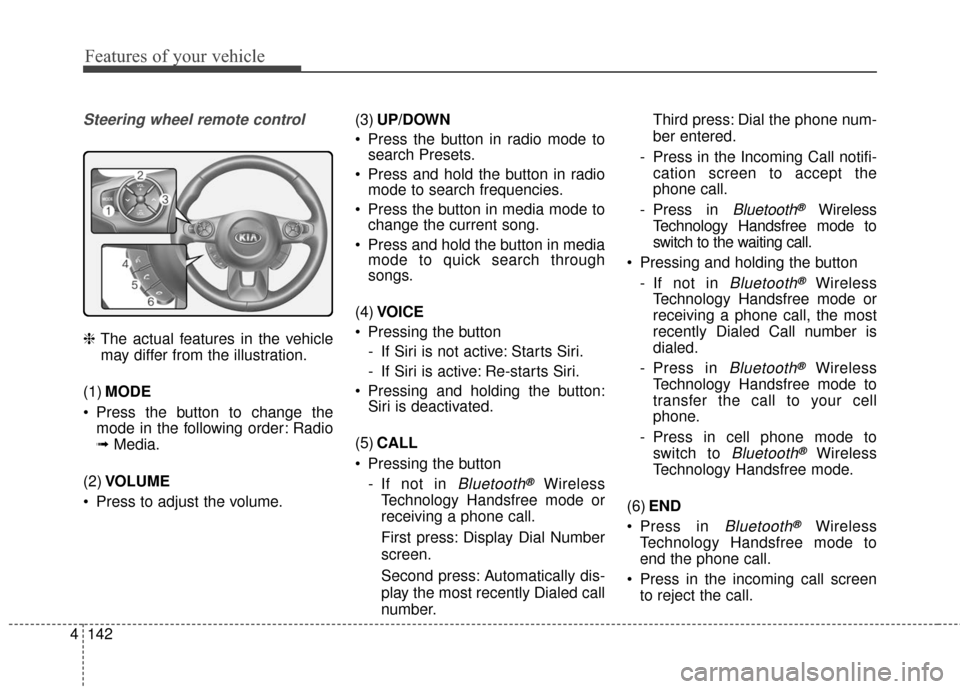
Steering wheel remote control
❈ The actual features in the vehicle
may differ from the illustration.
(1) MODE
Press the button to change the mode in the following order: Radio
➟ Media.
(2) VOLUME
Press to adjust the volume. (3)
UP/DOWN
Press the button in radio mode to search Presets.
Press and hold the button in radio mode to search frequencies.
Press the button in media mode to change the current song.
Press and hold the button in media mode to quick search through
songs.
(4) VOICE
Pressing the button - If Siri is not active: Starts Siri.
- If Siri is active: Re-starts Siri.
Pressing and holding the button: Siri is deactivated.
(5) CALL
Pressing the button - If not in
Bluetooth®Wireless
Technology Handsfree mode or
receiving a phone call.
First press: Display Dial Number
screen.
Second press: Automatically dis-
play the most recently Dialed call
number. Third press: Dial the phone num-
ber entered.
- Press in the Incoming Call notifi- cation screen to accept the
phone call.
- Press in
Bluetooth®Wireless
Technology Handsfree mode to
switch to the waiting call.
Pressing and holding the button - If not in
Bluetooth®Wireless
Technology Handsfree mode or
receiving a phone call, the most
recently Dialed Call number is
dialed.
- Press in
Bluetooth®Wireless
Technology Handsfree mode to
transfer the call to your cell
phone.
- Press in cell phone mode to switch to
Bluetooth®Wireless
Technology Handsfree mode.
(6) END
Press in
Bluetooth®Wireless
Technology Handsfree mode to
end the phone call.
Press in the incoming call screen to reject the call.
Page 236 of 470
Features of your vehicle
166
4
Pairing a Bluetooth®Wireless
Technology device
Information on pairing Bluetooth®
Wireless Technology devices
Pairing refers to the process of
pairing
Bluetooth®Wireless
Technology cell phones or devices
with the system prior to connec-
tion. This is a necessary procedure
for
Bluetooth®Wireless Technology
connection and usage.
Up to five devices can be paired.
Pairing the first Bluetooth
®Wireless
Technology device
Select the [PHONE] button on the
audio system or the [CALL] button
on the steering wheel remote control
➟ Search for the vehicle from the
Bluetooth®Wireless Technology
device, and pair ➟ Enter the passkey
on the
Bluetooth®Wireless Technology
device or approve passkey ➟
Bluetooth®Wireless Technologypair-
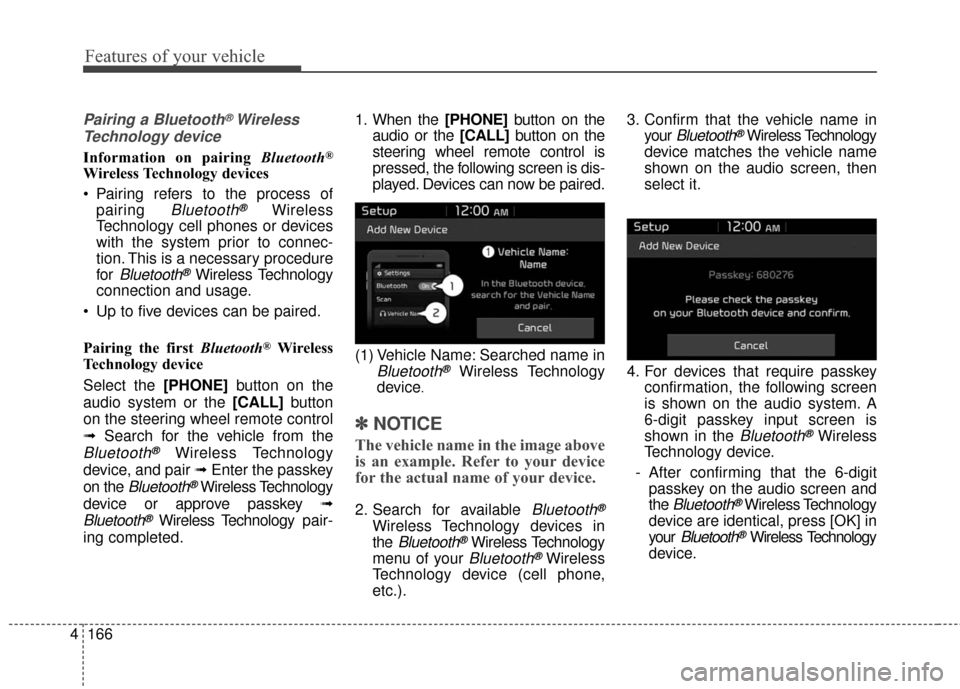
ing completed. 1. When the [PHONE]
button on the
audio or the [CALL] button on the
steering wheel remote control is
pressed, the following screen is dis-
played. Devices can now be paired.
(1) Vehicle Name: Searched name in
Bluetooth®Wireless Technology
device
.
✽ ✽ NOTICE
The vehicle name in the image above
is an example. Refer to your device
for the actual name of your device.
2. Search for available Bluetooth®
Wireless Technology devices in
the
Bluetooth®Wireless Technology
menu of your
Bluetooth®Wireless
Technology device (cell phone,
etc.). 3. Confirm that the vehicle name in
your
Bluetooth®Wireless Technology
device matches the vehicle name
shown on the audio screen, then
select it.
4. For devices that require passkey confirmation, the following screen
is shown on the audio system. A
6-digit passkey input screen is
shown in the
Bluetooth®Wireless
Technology device.
- After confirming that the 6-digit passkey on the audio screen and
the
Bluetooth®Wireless Technology
device are identical, press [OK] in
your
Bluetooth®Wireless Technology
device.