2017 KIA Soul EV steering
[x] Cancel search: steeringPage 132 of 470
Features of your vehicle
62
4
Manual reset
To clear the average energy con-
sumption manually, press the but-
ton (MOVE) on the steering wheel for
more than 1 second when the aver-
age energy consumption is displayed.
Automatic reset
To make the average energy con-
sumption be reset automatically
whenever recharging, select the
“Auto Reset” mode in User Settings
menu of the LCD display (Refer to
“LCD Display”).
Under “Auto Reset” mode, the aver-
age energy consumption will be
cleared to zero (---) when the driving
distance exceeds 0.19 mile (300m)
after recharging more than 10%.Instant energy consumption (2)
This mode displays the instant ener- gy consumption during the last few
seconds when the vehicle speed is
more than 10 km/h (6.2 MPH).
- Instant energy consumptionrange : 0.0 ~ 8miles/kwh
Trip A/B
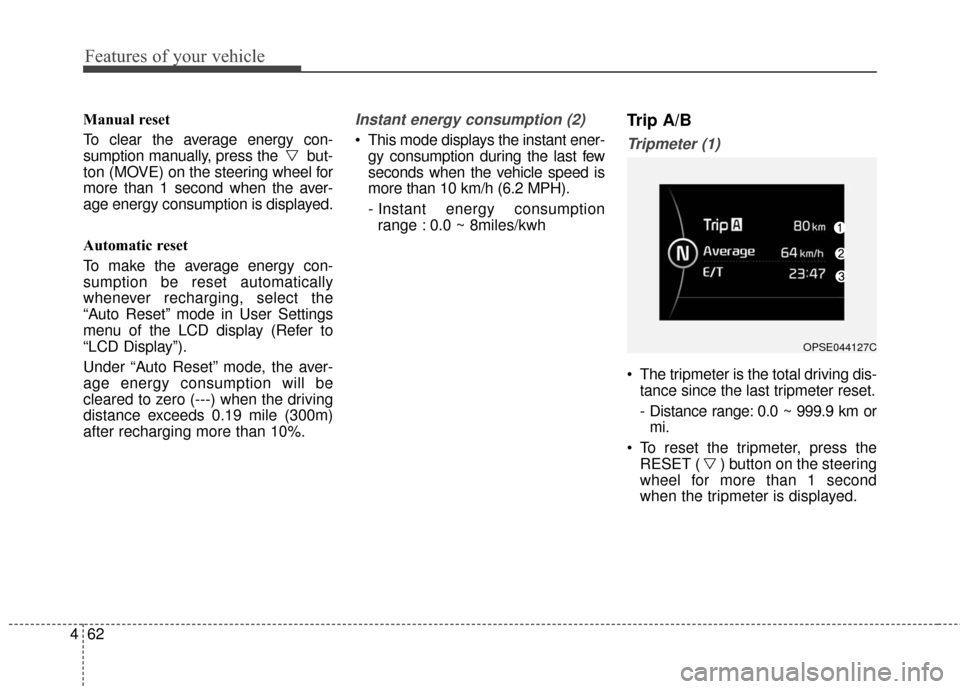
Tripmeter (1)
The tripmeter is the total driving dis- tance since the last tripmeter reset.
- Distance range: 0.0 ~ 999.9 km ormi.
To reset the tripmeter, press the RESET ( ) button on the steering
wheel for more than 1 second
when the tripmeter is displayed.
OPSE044127C
Page 133 of 470
463
Features of your vehicle
Average Vehicle Speed (2)
The average vehicle speed is cal-culated by the total driving dis-
tance and driving time since the
last average vehicle speed reset.
- Speed range: 200 km/h or 160
MPH
To reset the average vehicle speed, press the RESET ( ) button on
the steering wheel for more than 1
second when the average vehicle
speed is displayed.
✽ ✽ NOTICE
• The average vehicle speed is not dis-
played if the driving distance is less
than 50 meters (0.03 miles) or the
driving time is less than 10 seconds
since the POWER button is turned
to ON.
• Even if the vehicle is not in motion, the average vehicle speed
keeps going while the vehicle is in
the ready ( ) mode.
Elapsed Time (3)
The elapsed time is the total driv-
ing time since the last elapsed time
reset.
- Time range (hh:mm): 00:00 ~ 99:59
To reset the elapsed time, press the RESET ( ) button on the
steering wheel for more than 1
second when the elapsed time is
displayed.
✽ ✽ NOTICE
Even if the vehicle is not in motion,
the elapsed time keeps going while
the vehicle is in the ready ( )
mode.
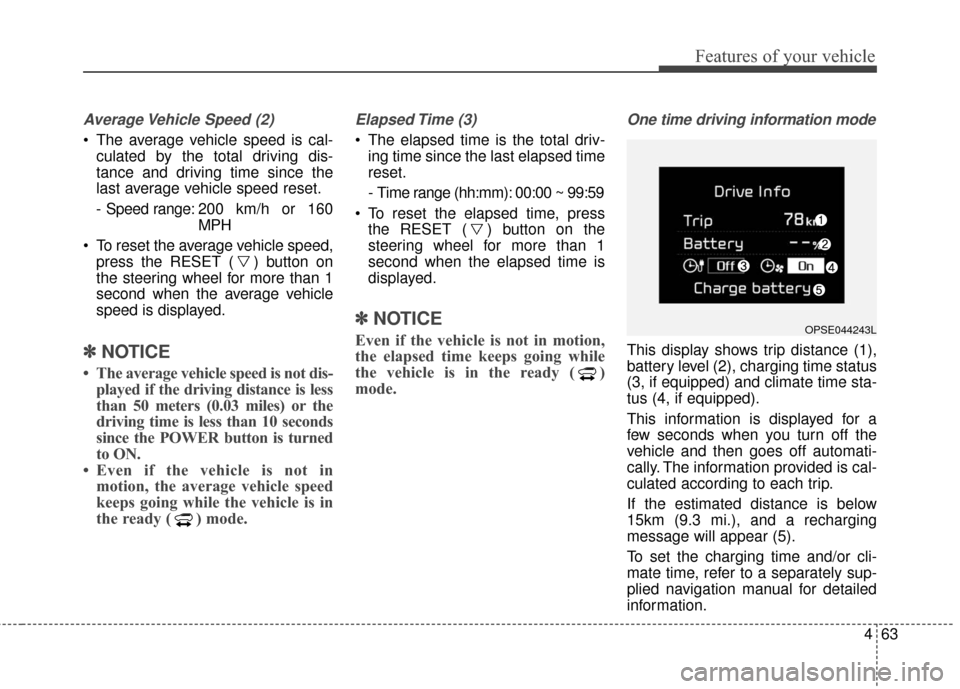
One time driving information mode
This display shows trip distance (1),
battery level (2), charging time status
(3, if equipped) and climate time sta-
tus (4, if equipped).
This information is displayed for a
few seconds when you turn off the
vehicle and then goes off automati-
cally. The information provided is cal-
culated according to each trip.
If the estimated distance is below
15km (9.3 mi.), and a recharging
message will appear (5).
To set the charging time and/or cli-
mate time, refer to a separately sup-
plied navigation manual for detailed
information.
OPSE044243L
Page 139 of 470
469
Features of your vehicle
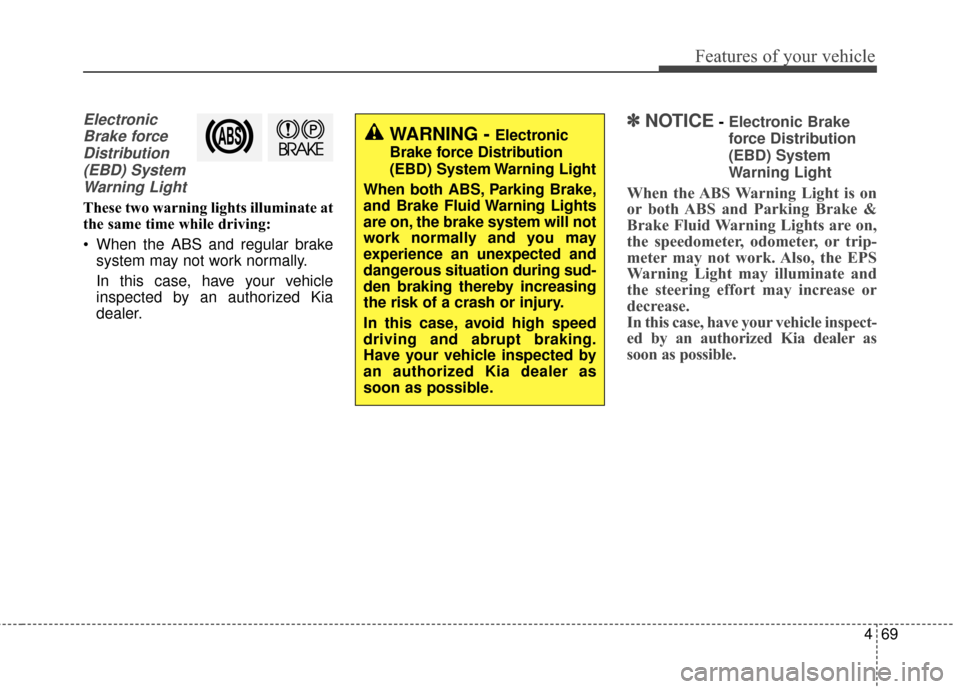
ElectronicBrake forceDistribution(EBD) SystemWarning Light
These two warning lights illuminate at
the same time while driving:
When the ABS and regular brake system may not work normally.
In this case, have your vehicle
inspected by an authorized Kia
dealer.
✽ ✽ NOTICE- Electronic Brake
force Distribution
(EBD) System
Warning Light
When the ABS Warning Light is on
or both ABS and Parking Brake &
Brake Fluid Warning Lights are on,
the speedometer, odometer, or trip-
meter may not work. Also, the EPS
Warning Light may illuminate and
the steering effort may increase or
decrease.
In this case, have your vehicle inspect-
ed by an authorized Kia dealer as
soon as possible.
WARNING - Electronic
Brake force Distribution
(EBD) System Warning Light
When both ABS, Parking Brake,
and Brake Fluid Warning Lights
are on, the brake system will not
work normally and you may
experience an unexpected and
dangerous situation during sud-
den braking thereby increasing
the risk of a crash or injury.
In this case, avoid high speed
driving and abrupt braking.
Have your vehicle inspected by
an authorized Kia dealer as
soon as possible.
Page 140 of 470

Features of your vehicle
70
4
Electronic Power
Steering (EPS) WarningLight
This warning light illuminates:
Once you set the POWER button to the ON position.
- It remains on until the vehicle is in
the ready ( ) mode.
When there is a malfunction with the EPS.
In this case, have your vehicle
inspected by an authorized Kia
dealer.
Charging System
Warning Light (for 12-volt battery)
This warning light illuminates:
When the 12-volt battery level is low or a failure occurs on the
charging system such as LDC.
If the warning light turns on while driving, move the vehicle to a safe
location, turn off and turn on the
vehicle again, and check if the
warning light turns off. If the warn-
ing light remains on, In this case,
have your vehicle inspected by an
authorized Kia dealer.
Even if the warning lamp turns off, have your vehicle inspected by an
authorized Kia dealer.
If you drive the vehicle while the
warning light is on, vehicle speed
may be limited and the 12-volt bat-
tery may be discharged.
❈ LDC : Low voltage DC-DC Converter.
Low Tire Pressure
Warning Light
This warning light illuminates:
Once you set the POWER button to the ON position.
- It illuminates for approximately 3seconds and then goes off.
When one or more of your tires are significantly underinflated.
For more details, refer to “Tire
Pressure Monitoring System
(TPMS)” in chapter 6.
Page 151 of 470
481
Features of your vehicle
Headlamp escort (if equipped)
If you turn the POWER button to the
ACC or OFF position with the head-
lights ON, the headlights remain on
for about 5 minutes. However, if the
driver’s door is opened and closed,
the headlights are turned off after 15
seconds.
The headlights can be turned off by
pressing the lock button on the smart
key twice or turning the light switch to
the OFF or Auto position. However, if
you turn the light switch to the Auto
position when it is dark outside, the
headlights will not be turned off
immediately.
Battery saver function
The purpose of this feature is toprevent the battery from being dis-
charged. The system automatically
turns off the parking lights when
the driver turns the vehicle off and
opens the driver-side door (in that
order).
With this feature, the parking lights will turn off automatically if the driv-
er parks on the side of the road at
night.
If necessary, to keep the lights on
when the vehicle is turned off, per-
form the following:
1) Open the driver-side door.
2) Turn the parking lights OFF and ON again using the light switch
on the steering column.
Daytime running light
Daytime Running Lights (DRL) may
help make it easier for others to see
the front of your vehicle during the
day. DRL can be helpful in many dif-
ferent driving conditions, and it is
especially helpful after dawn and
before sunset.
The DRL system turns OFF when:
1. The front fog light or headlight (lowbeam) switch is ON.
2. The POWER button is OFF.
3. The parking brake is applied.
LIGHTING
Page 212 of 470
Features of your vehicle
142
4
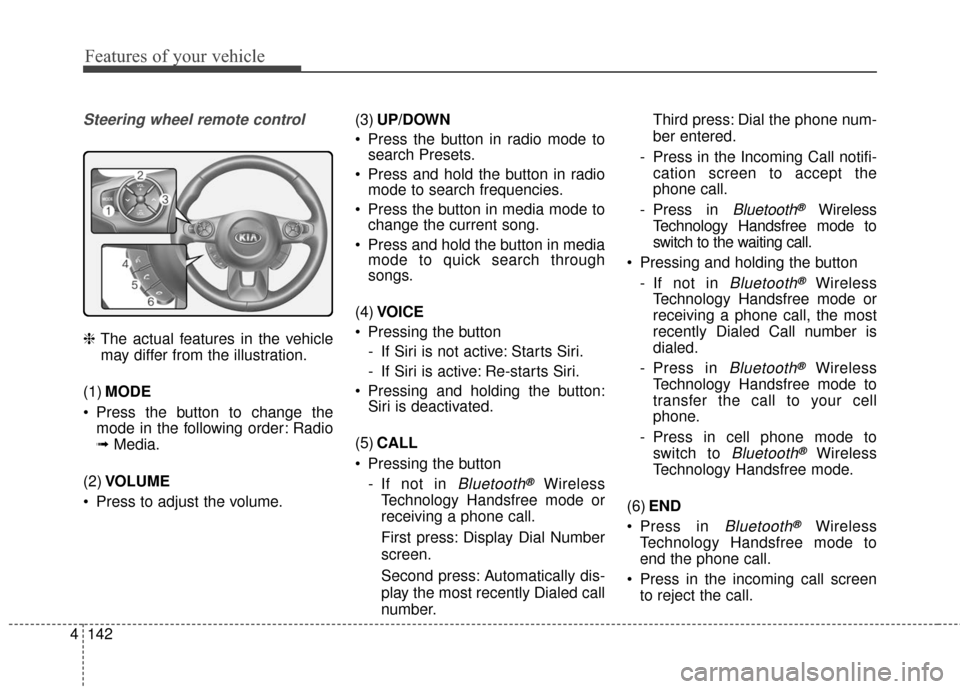
Steering wheel remote control
❈ The actual features in the vehicle
may differ from the illustration.
(1) MODE
Press the button to change the mode in the following order: Radio
➟ Media.
(2) VOLUME
Press to adjust the volume. (3)
UP/DOWN
Press the button in radio mode to search Presets.
Press and hold the button in radio mode to search frequencies.
Press the button in media mode to change the current song.
Press and hold the button in media mode to quick search through
songs.
(4) VOICE
Pressing the button - If Siri is not active: Starts Siri.
- If Siri is active: Re-starts Siri.
Pressing and holding the button: Siri is deactivated.
(5) CALL
Pressing the button - If not in
Bluetooth®Wireless
Technology Handsfree mode or
receiving a phone call.
First press: Display Dial Number
screen.
Second press: Automatically dis-
play the most recently Dialed call
number. Third press: Dial the phone num-
ber entered.
- Press in the Incoming Call notifi- cation screen to accept the
phone call.
- Press in
Bluetooth®Wireless
Technology Handsfree mode to
switch to the waiting call.
Pressing and holding the button - If not in
Bluetooth®Wireless
Technology Handsfree mode or
receiving a phone call, the most
recently Dialed Call number is
dialed.
- Press in
Bluetooth®Wireless
Technology Handsfree mode to
transfer the call to your cell
phone.
- Press in cell phone mode to switch to
Bluetooth®Wireless
Technology Handsfree mode.
(6) END
Press in
Bluetooth®Wireless
Technology Handsfree mode to
end the phone call.
Press in the incoming call screen to reject the call.
Page 236 of 470
Features of your vehicle
166
4
Pairing a Bluetooth®Wireless
Technology device
Information on pairing Bluetooth®
Wireless Technology devices
Pairing refers to the process of
pairing
Bluetooth®Wireless
Technology cell phones or devices
with the system prior to connec-
tion. This is a necessary procedure
for
Bluetooth®Wireless Technology
connection and usage.
Up to five devices can be paired.
Pairing the first Bluetooth
®Wireless
Technology device
Select the [PHONE] button on the
audio system or the [CALL] button
on the steering wheel remote control
➟ Search for the vehicle from the
Bluetooth®Wireless Technology
device, and pair ➟ Enter the passkey
on the
Bluetooth®Wireless Technology
device or approve passkey ➟
Bluetooth®Wireless Technologypair-
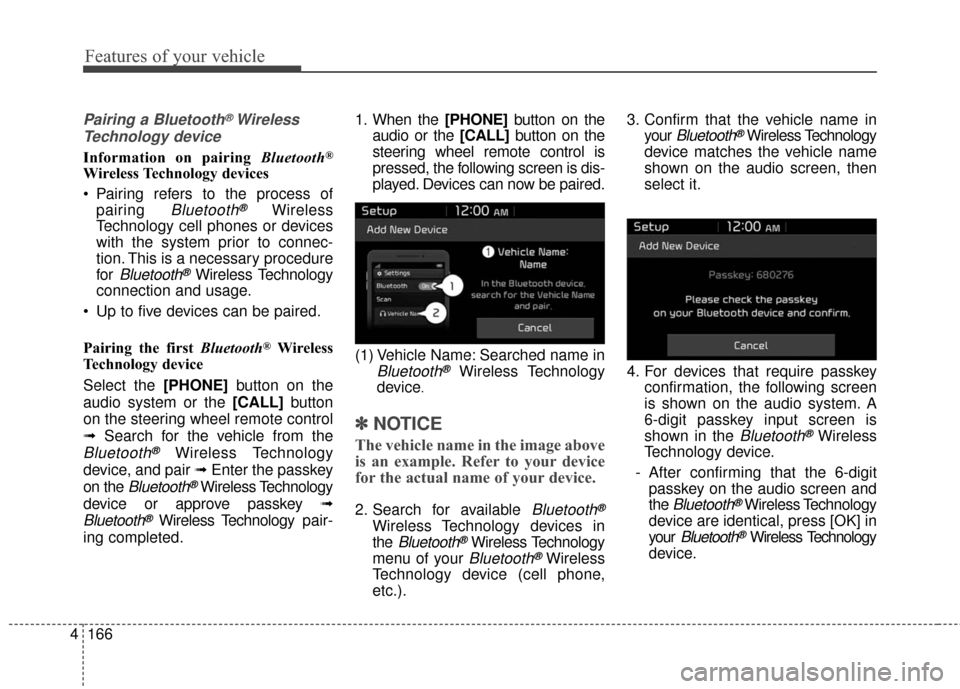
ing completed. 1. When the [PHONE]
button on the
audio or the [CALL] button on the
steering wheel remote control is
pressed, the following screen is dis-
played. Devices can now be paired.
(1) Vehicle Name: Searched name in
Bluetooth®Wireless Technology
device
.
✽ ✽ NOTICE
The vehicle name in the image above
is an example. Refer to your device
for the actual name of your device.
2. Search for available Bluetooth®
Wireless Technology devices in
the
Bluetooth®Wireless Technology
menu of your
Bluetooth®Wireless
Technology device (cell phone,
etc.). 3. Confirm that the vehicle name in
your
Bluetooth®Wireless Technology
device matches the vehicle name
shown on the audio screen, then
select it.
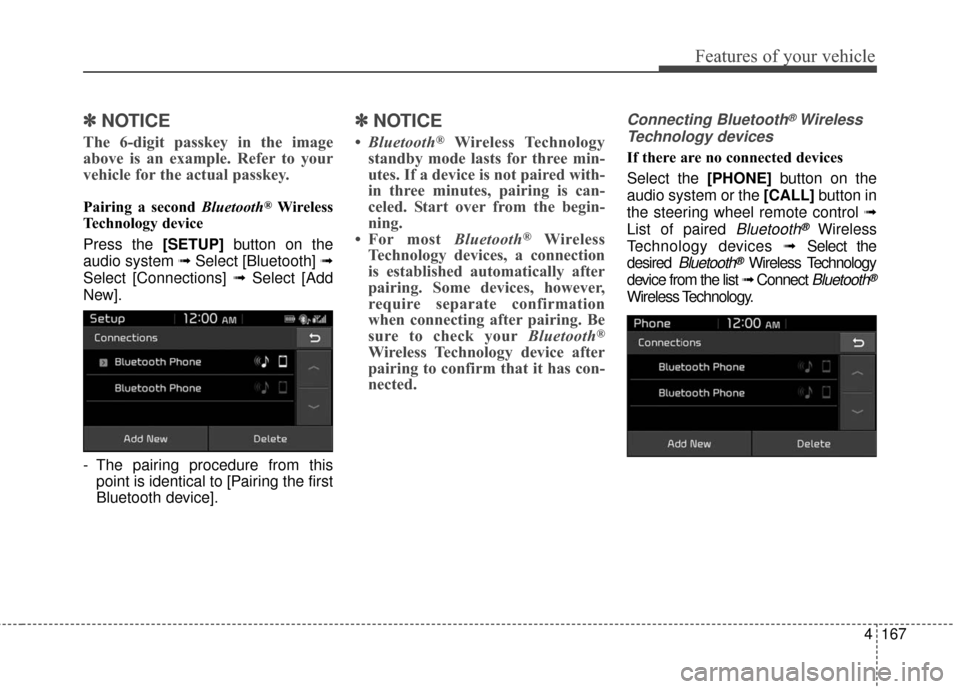
4. For devices that require passkey confirmation, the following screen
is shown on the audio system. A
6-digit passkey input screen is
shown in the
Bluetooth®Wireless
Technology device.
- After confirming that the 6-digit passkey on the audio screen and
the
Bluetooth®Wireless Technology
device are identical, press [OK] in
your
Bluetooth®Wireless Technology
device.
Page 237 of 470
Features of your vehicle
4167
✽ ✽NOTICE
The 6-digit passkey in the image
above is an example. Refer to your
vehicle for the actual passkey.
Pairing a second Bluetooth®Wireless
Technology device
Press the [SETUP] button on the
audio system ➟ Select [Bluetooth] ➟
Select [Connections] ➟ Select [Add
New].
- The pairing procedure from this point is identical to [Pairing the first
Bluetooth device].
✽ ✽ NOTICE
•Bluetooth®Wireless Technology
standby mode lasts for three min-
utes. If a device is not paired with-
in three minutes, pairing is can-
celed. Start over from the begin-
ning.
• For most Bluetooth
®Wireless
Technology devices, a connection
is established automatically after
pairing. Some devices, however,
require separate confirmation
when connecting after pairing. Be
sure to check your Bluetooth
®
Wireless Technology device after
pairing to confirm that it has con-
nected.
Connecting Bluetooth®Wireless
Technology devices
If there are no connected devices
Select the [PHONE] button on the
audio system or the [CALL] button in
the steering wheel remote control ➟
List of paired
Bluetooth®Wireless
Technology devices ➟Select the
desired
Bluetooth®Wireless Technology
device from the list ➟ Connect
Bluetooth®
Wireless Technology.