Page 170 of 470
Features of your vehicle
100
4
The temperature will decrease to the
minimum (17°C (62°F)) by pushing
the button ( ).
When pushing the button, the tem-
perature will increase or decrease by
0.5°C/1°F. When set to the lowest
temperature setting, the air condi-
tioning will operate continuously.
B
The temperature will increase to the
maximum (32°C (90°F)) by turning
the knob to the right extremely.
The temperature will decrease to the
minimum (17°C (62°F)) by turning
the knob to the left extremely.
When turning the knob, the tempera-
ture will increase or decrease by
0.5°C/1°F. When set to the lowest
temperature setting, the air condi-
tioning will operate continuously. Temperature scale conversion
If the battery has been discharged or
disconnected, the temperature mode
display will reset to Centigrade.
This is normal condition. You can
switch the temperature scale as fol-
lows;
While pressing the AUTO button,
press the OFF button for 3 seconds
or more. The temperature scale will
change from Centigrade to
Fahrenheit, or from Fahrenheit to
Centigrade.
The temperature unit (from °C to °F
or from °F to °C) can be changed by
using the “User Settings” mode of the
LCD display.
❈
You change the temperature unit,
the temperature unit on the instru-
ment cluster is changed as well.Air intake control
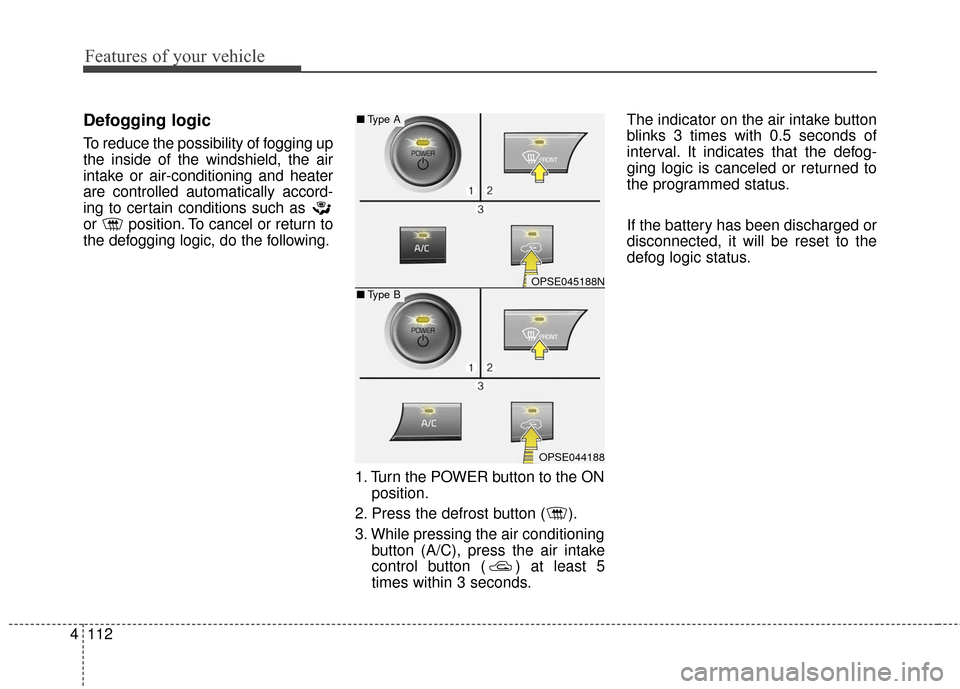
This is used to select outside (fresh)
air position or recirculated air position.
To change the air intake control posi-
tion, push the control button.
OPSE045315N
OPSE044173N
■ Type B
■Type A
Page 182 of 470
Features of your vehicle
112
4
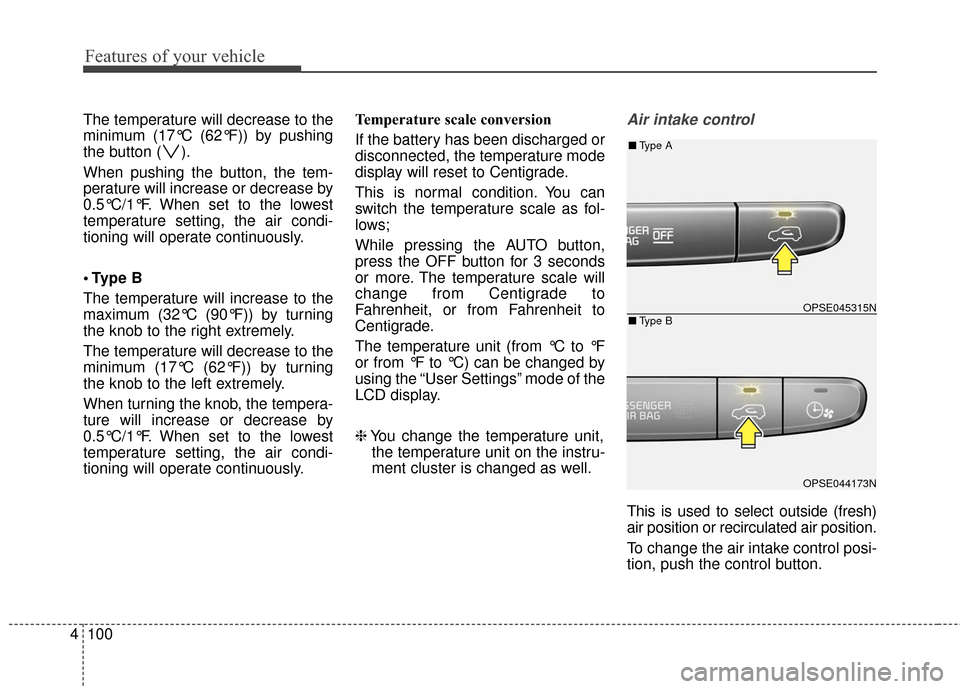
Defogging logic
To reduce the possibility of fogging up
the inside of the windshield, the air
intake or air-conditioning and heater
are controlled automatically accord-
ing to certain conditions such as
or position. To cancel or return to
the defogging logic, do the following.
1. Turn the POWER button to the ONposition.
2. Press the defrost button ( ).
3. While pressing the air conditioning button (A/C), press the air intake
control button ( ) at least 5
times within 3 seconds. The indicator on the air intake button
blinks 3 times with 0.5 seconds of
interval. It indicates that the defog-
ging logic is canceled or returned to
the programmed status.
If the battery has been discharged or
disconnected, it will be reset to the
defog logic status.
OPSE045188N
OPSE044188
■
Type B
■Type A
Page 184 of 470
Features of your vehicle
114
4
AUTO DEFOGGING SYSTEM
Auto defogging reduces the possibil-
ity of fogging up the inside of the
windshield by automatically sensing
the moisture of inside the windshield.
The auto defogging system operates
when the AUTO mode is on. This indicator illuminates
when the auto defogging
system senses the mois-
ture of inside the wind-
shield and operates.
If more moisture is in the vehicle,
higher steps operate as follow.
Step 1 : Outside air position
Step 2 : Operating the air conditioning
Step 3 : Blowing air flow toward the windshield
Step 4 : Increasing air flow toward the windshield If your vehicle is equipped with the
auto defogging system, it is automati-
cally activated when the conditions
are met. However, if you would like to
cancel the auto defogging system,
press the front defroster button more
than 3 seconds. To use the system,
repeat the above procedure again.
- When cancelled : The indicator in
the front defroster button will blink 3
times (interval of 1 seconds) to noti-
fy you that the system is cancelled.
- When activated : The indicator in the front defroster button will blink 6
times (interval of 0.5 seconds) to
notify you that the system is set.
If the battery has been disconnected
or discharged, it resets to the auto
defogging status.
✽ ✽ NOTICE
If the A/C off is manually selected
while the auto defogging system is
on, the auto defogging indicator will
blink 3 times to give notice that the
A/C off can not be selected.
OPSE044066
Page 204 of 470
Features of your vehicle
134
4
USING iPod®DEVICE
iPhone®is a registered grademark of
Apple inc.
Some iPod
®models may not sup-
port communication protocol and
files may not properly play.
Supported iPod
®models:
- iPhone
®3GS/4
- iPod
®touch 1st~4th generation
- iPod
®nano 1st~6th generation
- iPod
®classic
The order of search or playback of songs in the iPod
®can be different
from the order searched in the
audio system.
If the iPod
®is disabled due to its
own malfunction, reset the iPod®.
(Reset: Refer to iPod®manual)
An iPod
®may not operate normally
on low battery.
(Continued)
(Continued)
Some USB flash memory read-
ers (such as CF, SD, micro SD,
etc.) or external-HDD type
devices can be unrecognizable.
Music files protected by DRM (DIGITAL RIGHTS MANAGE-
MENT) are not recognizable.
The data in the USB memory may be lost while using this
audio. Always back up important
data on a personal storage
device.
Please avoid using USB memory prod-
ucts which can be
used as key chains or
cellular phone acces-
sories as they could cause dam-
age to the USB jack. Please
make certain only to use plug
type connector products.
(Continued)
If you use devices such as aUSB hub purchased separately,
the vehicle’s audio system may
not recognize the USB device. In
that case, connect the USB
device directly to the multimedia
terminal of the vehicle.
If the USB device is divided by logical drives, only the music
files on the highest-priority drive
are recognized by car audio.
Devices such as MP3 Player/ Cellular phone/Digital camera
can be unrecognizable by stan-
dard USB I/F can be unrecogniz-
able.
Charging through the USB may not be supported in some mobile
devices.
USB HDD or USB types liable to connection failures due to vehi-
cle vibrations are not supported.
(i-stick type)
Some non-standard USB devices (METAL COVER TYPE
USB) can be unrecognizable.
(Continued)
Page 211 of 470
Features of your vehicle
4141
(7)DISP
Turn the display on or off.
(8) CLOCK
Display the time/date/day.
(9) SETUP
Access Display, Sound, Date/Time, Bluetooth, System, Screen Saver
and Display Off settings. (10)
TUNE knob
Turn to navigate through the sta- tions/songs list.
Press to select an item.
(11) RESET
Shutdown and restart the system.
Page 212 of 470
Features of your vehicle
142
4
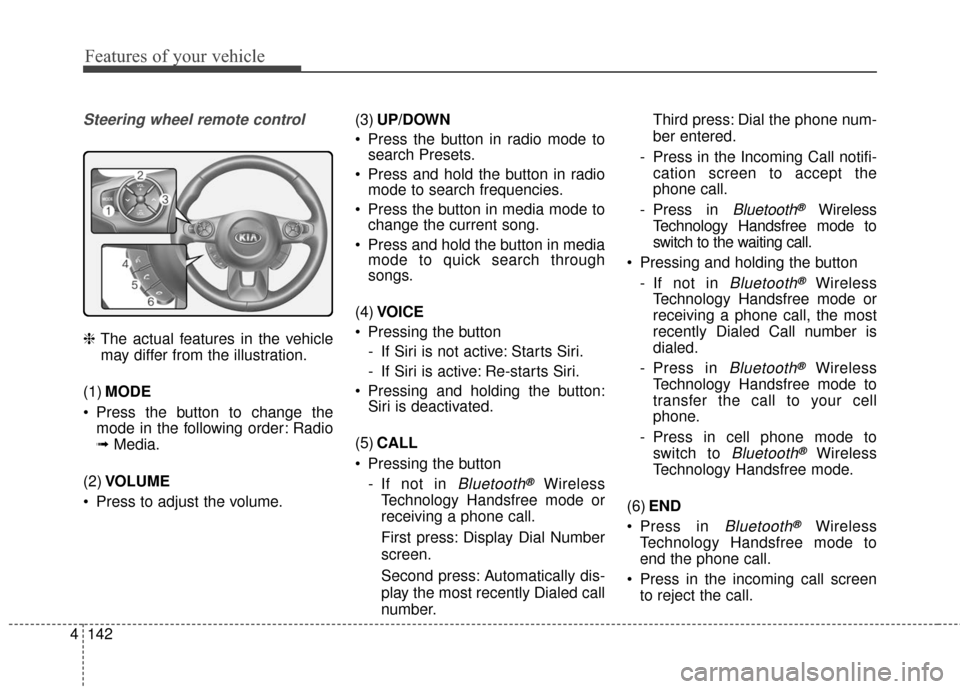
Steering wheel remote control
❈ The actual features in the vehicle
may differ from the illustration.
(1) MODE
Press the button to change the mode in the following order: Radio
➟ Media.
(2) VOLUME
Press to adjust the volume. (3)
UP/DOWN
Press the button in radio mode to search Presets.
Press and hold the button in radio mode to search frequencies.
Press the button in media mode to change the current song.
Press and hold the button in media mode to quick search through
songs.
(4) VOICE
Pressing the button - If Siri is not active: Starts Siri.
- If Siri is active: Re-starts Siri.
Pressing and holding the button: Siri is deactivated.
(5) CALL
Pressing the button - If not in
Bluetooth®Wireless
Technology Handsfree mode or
receiving a phone call.
First press: Display Dial Number
screen.
Second press: Automatically dis-
play the most recently Dialed call
number. Third press: Dial the phone num-
ber entered.
- Press in the Incoming Call notifi- cation screen to accept the
phone call.
- Press in
Bluetooth®Wireless
Technology Handsfree mode to
switch to the waiting call.
Pressing and holding the button - If not in
Bluetooth®Wireless
Technology Handsfree mode or
receiving a phone call, the most
recently Dialed Call number is
dialed.
- Press in
Bluetooth®Wireless
Technology Handsfree mode to
transfer the call to your cell
phone.
- Press in cell phone mode to switch to
Bluetooth®Wireless
Technology Handsfree mode.
(6) END
Press in
Bluetooth®Wireless
Technology Handsfree mode to
end the phone call.
Press in the incoming call screen to reject the call.
Page 216 of 470
Features of your vehicle
146
4
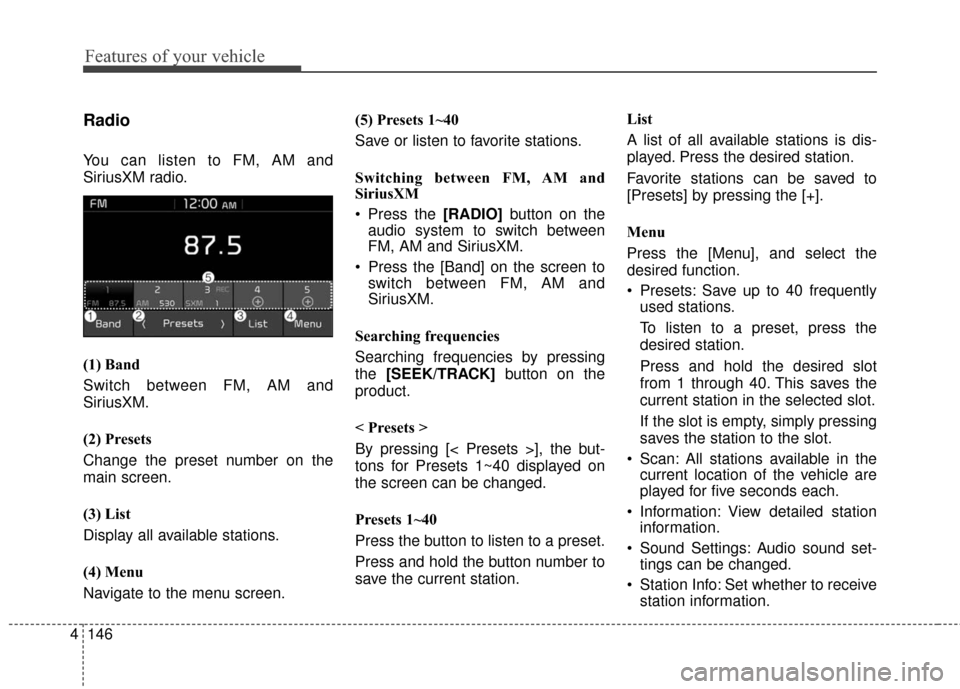
Radio
You can listen to FM, AM and
SiriusXM radio.
(1) Band
Switch between FM, AM and
SiriusXM.
(2) Presets
Change the preset number on the
main screen.
(3) List
Display all available stations.
(4) Menu
Navigate to the menu screen. (5) Presets 1~40
Save or listen to favorite stations.
Switching between FM, AM and
SiriusXM
Press the [RADIO]
button on the
audio system to switch between
FM, AM and SiriusXM.
Press the [Band] on the screen to switch between FM, AM and
SiriusXM.
Searching frequencies
Searching frequencies by pressing
the [SEEK/TRACK] button on the
product.
< Presets >
By pressing [< Presets >], the but-
tons for Presets 1~40 displayed on
the screen can be changed.
Presets 1~40
Press the button to listen to a preset.
Press and hold the button number to
save the current station. List
A list of all available stations is dis-
played. Press the desired station.
Favorite stations can be saved to
[Presets] by pressing the [+].
Menu
Press the [Menu], and select the
desired function.
Presets: Save up to 40 frequently
used stations.
To listen to a preset, press the
desired station.
Press and hold the desired slot
from 1 through 40. This saves the
current station in the selected slot.
If the slot is empty, simply pressing
saves the station to the slot.
Scan: All stations available in the current location of the vehicle are
played for five seconds each.
Information: View detailed station information.
Sound Settings: Audio sound set- tings can be changed.
Station Info: Set whether to receive station information.
Page 218 of 470
Features of your vehicle
148
4
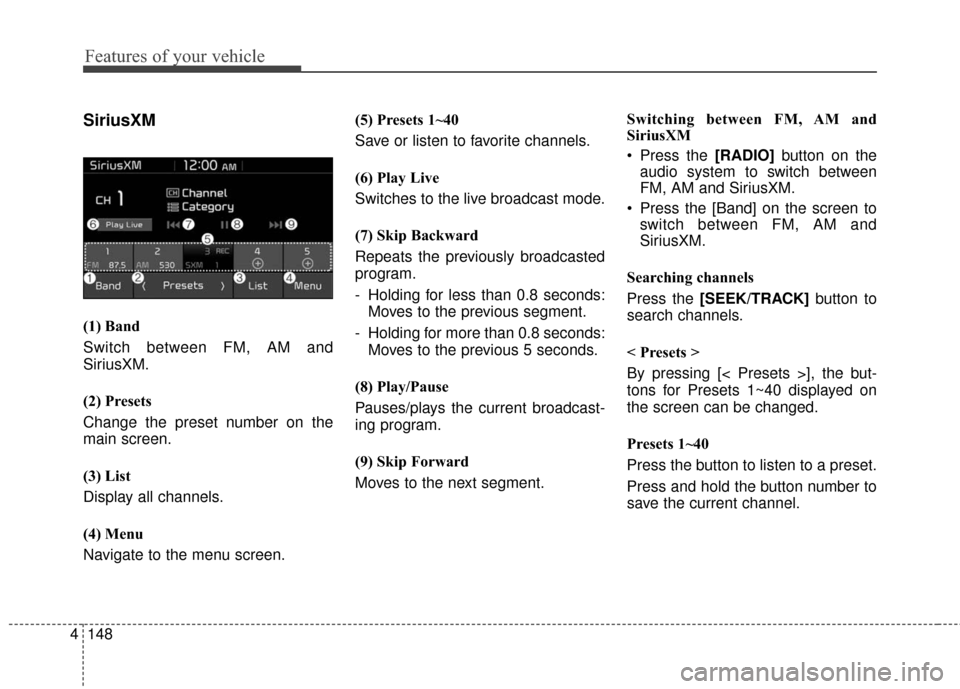
SiriusXM
(1) Band
Switch between FM, AM and
SiriusXM.
(2) Presets
Change the preset number on the
main screen.
(3) List
Display all channels.
(4) Menu
Navigate to the menu screen. (5) Presets 1~40
Save or listen to favorite channels.
(6) Play Live
Switches to the live broadcast mode.
(7) Skip Backward
Repeats the previously broadcasted
program.
- Holding for less than 0.8 seconds:
Moves to the previous segment.
- Holding for more than 0.8 seconds: Moves to the previous 5 seconds.
(8) Play/Pause
Pauses/plays the current broadcast-
ing program.
(9) Skip Forward
Moves to the next segment. Switching between FM, AM and
SiriusXM
Press the [RADIO]
button on the
audio system to switch between
FM, AM and SiriusXM.
Press the [Band] on the screen to switch between FM, AM and
SiriusXM.
Searching channels
Press the [SEEK/TRACK] button to
search channels.
< Presets >
By pressing [< Presets >], the but-
tons for Presets 1~40 displayed on
the screen can be changed.
Presets 1~40
Press the button to listen to a preset.
Press and hold the button number to
save the current channel.