Page 309 of 625
![KIA Rondo 2017 3.G Owners Manual Audio system
539
2. Select [OK] button to enter thePair Phone screen.
1) Vehicle Name : Name of device as shown when searching from your
Bluetooth®Wireless Technology
device
2) Passkey : Passkey used](/manual-img/2/2982/w960_2982-308.png "KIA Rondo 2017 3.G Owners Manual Audio system
539
2. Select [OK] button to enter thePair Phone screen.
1) Vehicle Name : Name of device as shown when searching from your
Bluetooth®Wireless Technology
device
2) Passkey : Passkey used")
Audio system
539
2. Select [OK] button to enter thePair Phone screen.
1) Vehicle Name : Name of device as shown when searching from your
Bluetooth®Wireless Technology
device
2) Passkey : Passkey used to pair the device
3. From your
Bluetooth®Wireless
Technology device (i.e. Mobile
Phone), search and select your
car audio system. [Non SSP supported device]
(SSP: Secure Simple Pairing)
4. After a few moments, a screen is
displayed where the passkey is
entered. Hear, enter the passkey
"0000" to pair your
Bluetooth®
Wireless Technology device with
the car audio system.
[SSP supported device]
4 After a few moments, a screen is displayed 6 digits passkey. Hear,
check the passkey on your
Bluetooth®Wireless Technology
device and confirm.
5. Once pairing is complete, the fol- lowing screen is displayed. Some phones (i.e., iPhone
®, Android
and Blackberry phones) may offer an
option to allow acceptance of all
future Bluetooth connection requests
by default.
Bluetooth®Wireless Technology
devices are paired but none are
currently connected, pressing the key or the key on the
steering wheel displays the follow-
ing screen. Select [Pair] button to
pair a new device or select
[Connect] to connect a previously
paired device.
PHONE
Page 314 of 625
Audio system
44
5
USING Bluetooth®Wireless
Technology
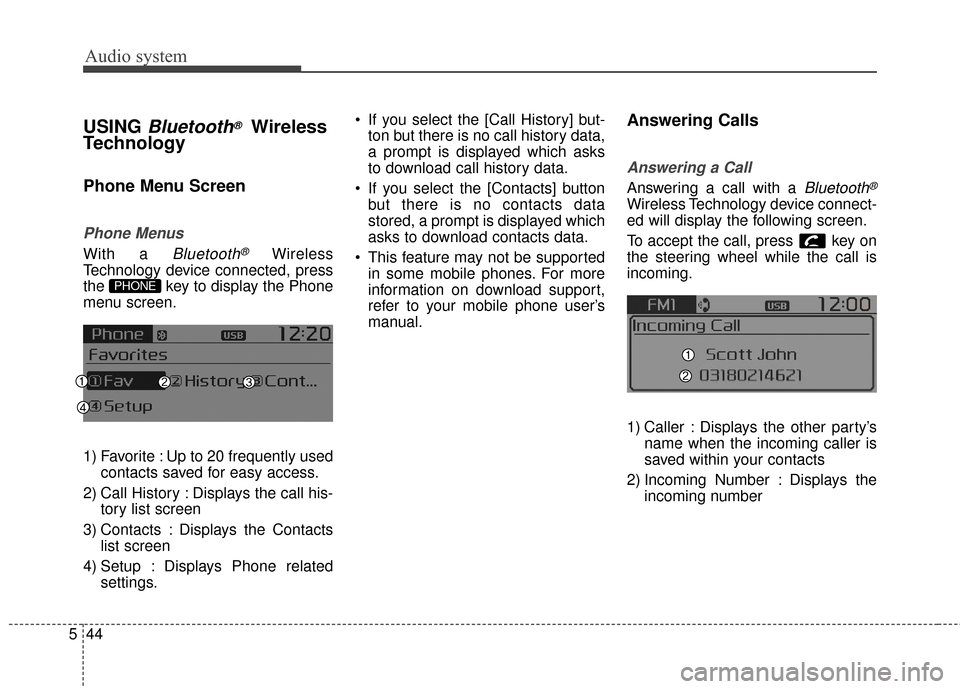
Phone Menu Screen
Phone Menus
With a Bluetooth®Wireless
Technology device connected, press
the key to display the Phone
menu screen.
1) Favorite : Up to 20 frequently used contacts saved for easy access.
2) Call History : Displays the call his- tory list screen
3) Contacts : Displays the Contacts list screen
4) Setup : Displays Phone related settings. If you select the [Call History] but-
ton but there is no call history data,
a prompt is displayed which asks
to download call history data.
If you select the [Contacts] button but there is no contacts data
stored, a prompt is displayed which
asks to download contacts data.
This feature may not be supported in some mobile phones. For more
information on download support,
refer to your mobile phone user’s
manual.
Answering Calls
Answering a Call
Answering a call with a Bluetooth®
Wireless Technology device connect-
ed will display the following screen.
To accept the call, press key on
the steering wheel while the call is
incoming.
1) Caller : Displays the other party’s name when the incoming caller is
saved within your contacts
2) Incoming Number : Displays the incoming number
PHONE
Page 320 of 625
![KIA Rondo 2017 3.G Owners Manual Audio system
50
5
VOICE RECOGNITION
Using Voice Recognition
Starting Voice Recognition
Shortly press the key on the
steering wheel. Say a command
If prompt feedback is in [ON], then
the system will](/manual-img/2/2982/w960_2982-319.png "KIA Rondo 2017 3.G Owners Manual Audio system
50
5
VOICE RECOGNITION
Using Voice Recognition
Starting Voice Recognition
Shortly press the key on the
steering wheel. Say a command
If prompt feedback is in [ON], then
the system will")
Audio system
50
5
VOICE RECOGNITION
Using Voice Recognition
Starting Voice Recognition
Shortly press the key on the
steering wheel. Say a command
If prompt feedback is in [ON], then
the system will say “Please say a
command after the beep (BEEP)”
If prompt feedback is in [OFF]
mode, then the system will only
say “(BEEP)”
To change Prompt Feedback [On]/[Off], go to [System][Prompt Feedback]
For proper recognition, say the command after the voice instruc-
tion and beep tone.
Contact List Best Practices
1)Do not store single-name entries(e.g., “Bob”, “Mom”, “Kim”, etc.).
Instead, always use full names
(including first and last names) for
all contacts (e.g., use “Jacob
Stevenson” instead of “Dad”).
2)Do not use abbreviations (i.e., use “Lieutenant” instead of “Lt.” or
“Sergeant” instead of “Sgt.”).
3)Do not use acronyms (i.e., use “County Finance Department”
instead of “CFD”).
4)Do not use special characters (e.g., “@”, “hyphen -“, “asterisk *”,
ampersand &”).
5)If a name is not recognized from the contact list, change it to a more
descriptive name (e.g., use
“Grandpa Joseph” instead of “Pa
Joe”).
Skipping Prompt Messages
While prompt message is being stat-
ed Shortly press the key on the
steering remote controller
The prompt message is immediately
ended and the beep tone will sound.
After the “beep”, say the voice com-
mand.
Re-starting Voice Recognition
While system waits for a command
Shortly press the key on the
steering remote controller
The command wait state is immedi-
ately ended and the beep ton will
sound. After the “beep”, say the voice
command.
SETUPCLOCK
Page 321 of 625

Audio system
551
ENDING VOICE
RECOGNITION
While Voice Recognition is operatingPress and hold the key on the
steering remote controller
While using voice command, pressing any steering wheel con-
trol or a different key will end voice
command.
When the system is waiting for a voice command, say “cancel” or
“end” to end voice command.
When the system is waiting for a voice command, press and hold
the key on the steering wheel
to end voice command.
Voice Recognition and Phone
Contact Tips:
The Kia Voice Recognition System
may have difficulty understanding
some accents or uncommon
names. When using Voice
Recognition to place a call, speak in
a moderate tone, with clear pronun-
ciation
To maximize the use of Voice
Recognition, consider these guide-
lines when storing contacts:
Do not store single-name entries(e.g., “Bob”, “Mom”, etc.). Instead,
always use full names (including
first and last names) for these con-
tacts
Do not use special characters (e.g., '@', '-', '*', '&', etc.)
Do not use abbreviations (i.e., use "Lieutenant" instead of "Lt.") or
acronyms (i.e., use "County
Finance Department" instead of
"C. F. D."; Be sure to say the name
exactly as it is entered in the con-
tacts list
Page 363 of 625

Audio system
593
Phone Mode
Making a call using the Steeringwheel controls
❈ The actual features in the vehicle
may differ from the illustration.
(1) Each time this button is pressed,
the mode is changed in the order of
FM1
➟FM2➟AM➟SAT1➟SAT2
➟SAT3➟CD➟USB(iPod®)➟AUX
➟My Music➟BT Audio.
If the media is not connected or a
disc is not inserted, correspon-
ding modes will be disabled.
(2) Mutes audio volume. (3) Used to control volume.
(4) When pressed shortly
- Radio mode: Searches broad-cast frequencies saved to pre-
sets.
- Media(CD/USB/iPod
®/My Music/
BT Audio) modes: Changes the
track, file or chapter.
When pressed and held - Radio mode, automaticallysearches broadcast frequencies
and channels.
- Media(CD/USB/iPod
®/My Music)
modes, rewinds or fast forwards
the track or song(file).
- BT Audio mode may not be sup- ported in some mobile phones.
(5) When pressed shortly - Starts voice recognition.
- When selecting during a voiceprompt, stops the prompt and
converts to voice command wait-
ing state.
When pressed and held - Ends voice recognition. (6) When pressed shortly
- When pressed in the phonescreen, displays call history
screen.
- When pressed in the dial screen, makes a call.
- When pressed in the incoming call screen, answers the call.
- When pressed during call wait- ing, switches to waiting call (Call
Waiting).
When pressed and held - When pressed in the
Bluetooth®
Wireless Technology Handsfree
wait mode, redials the last call.
- When pressed during a
Bluetooth®
Wireless Technology Handsfree
call, switches call back to mobile
phone (Private).
- When pressed while calling on the mobile phone, switches call
back to
Bluetooth®Wireless
Technology Handsfree (Operates
only when
Bluetooth®Wireless
Technology Handsfree is con-
nected).
(7) Ends phone call.
Page 364 of 625
Audio system
94
5
Bluetooth®Wireless Technology
When No Devices have been
Paired
➀ Press the [PHONE] button or the
[CALL] button on the steering
wheel controls. The following
screen is displayed.
\b Press the [OK] to enter the Pair
Phone screen. Vehicle Name: Name of device as
shown when searching from your
Bluetooth®Wireless Technology
device.
Passkey: Passkey used to pair the device.
➂ From your
Bluetooth®Wireless
Technology device (i.e. Mobile
Phone), search and select your
car audio system.
❈ SSP: Secure Simple Pairing
Non SSP supported device:
➃ After a few moments, a screen is
displayed where the passkey is
entered.
Enter the passkey “0000” to pair your
Bluetooth®Wireless Technology
device with the car audio system. SSP supported device:
➃
After a few moments, a screen is
displayed 6 digits passkey.
Check the passkey on your
Bluetooth®Wireless Technology
device and confirm.
➄ Once pairing is complete, the fol-
lowing screen is displayed.
Page 365 of 625
Audio system
595
✽ ✽NOTICE
If Bluetooth®Wireless Technology
devices are paired but none are cur-
rently connected, pressing the
[PHONE] button or the [CALL]
but-
ton
on the steering wheel controls dis-
plays the following screen. Press the
[Pair] to pair a new device or press the
[Connect] to connect a previously
paired device.
Pairing through [PHONE] Setup
Press the [SETUP] button �Select
[Phone].
Pair Phone
The following steps are the same as
those described in the section “When
No Devices have been Paired” on the
previous page.
Paired Phone List
Press the [SETUP] button
�Select
[Phone] �Select [Pair Phone List].
Connected Phone: Device that is currently connected.
Paired Phone: Device that is paired but not connected.
Connecting a Device
From the paired phone list, select the
device you want to connect and
press the [Connect](1).
Page 371 of 625
![KIA Rondo 2017 3.G Owners Manual Audio system
5 101
Voice Recognition Mode
Using Voice Recognition
Starting Voice Recognition
Shortly press the button on the
steering wheel controls. Say a com-
mand.
If prompt feedback is in [ON],](/manual-img/2/2982/w960_2982-370.png "KIA Rondo 2017 3.G Owners Manual Audio system
5 101
Voice Recognition Mode
Using Voice Recognition
Starting Voice Recognition
Shortly press the button on the
steering wheel controls. Say a com-
mand.
If prompt feedback is in [ON],")
Audio system
5 101
Voice Recognition Mode
Using Voice Recognition
Starting Voice Recognition
Shortly press the button on the
steering wheel controls. Say a com-
mand.
If prompt feedback is in [ON], then
the system will say “Please say a
command after the beep (BEEP)”.
If prompt feedback is in [ON]mode, then the system will only
say “(BEEP)”.
To change Prompt Feedback [ON]/[OFF], press the [SETUP]
button �[System] �[Prompt
Feedback].
For proper recognition, say the com-
mand after the voice instruction and
beep tone.
✽ ✽ NOTICE
Contact List Best Practices
1) Do not store single-name entries.
(e.g., “Bob”, “Mom”, “Kim” etc.)
Instead, always use full names
(including first and last names)
for all contacts. (e.g., use “Jacob
Stevenson” instead of “Dad”)
2) Do not use abbreviations. (i.e., use “Lieutenant” instead of “Lt.” or
“Sergeant” instead of “Sgt.”)
3) Do not use acronyms. (i.e., use “County Finance Department”
instead of “CFD”)
4) Do not use special characters. (e.g., “@”, “hyphen -”, “aster-
isk*”, “ampersand &”)
5) If a name is not recognized from the contact list, change it to a
more descriptive name. (e.g., use
“Grandpa Joseph” instead of “Pa
Joe”)
Skipping Prompt Messages
While prompt message is being stat-
ed �Shortly press the button on
the steering wheel controls.
The prompt message is immediately
ended and the beep tone will sound.
After the “Beep”, say the voice com-
mand.
Re-starting Voice Recognition
While system waits for a command
� Shortly press the button on the
steering wheel controls.
The command wait state is immedi-
ately ended and the beep tone will
sound. After the “Beep”, say the
voice command.
![KIA Rondo 2017 3.G Owners Manual Audio system
94
5
Bluetooth®Wireless Technology
When No Devices have been
Paired
➀ Press the [PHONE] button or the
[CALL] button on the steering
wheel controls. The following
screen is displayed.](/manual-img/2/2982/w960_2982-363.png "KIA Rondo 2017 3.G Owners Manual Audio system
94
5
Bluetooth®Wireless Technology
When No Devices have been
Paired
➀ Press the [PHONE] button or the
[CALL] button on the steering
wheel controls. The following
screen is displayed.")
![KIA Rondo 2017 3.G Owners Manual Audio system
595
✽ ✽NOTICE
If Bluetooth®Wireless Technology
devices are paired but none are cur-
rently connected, pressing the
[PHONE] button or the [CALL]
but-
ton
on the steering wheel contr](/manual-img/2/2982/w960_2982-364.png "KIA Rondo 2017 3.G Owners Manual Audio system
595
✽ ✽NOTICE
If Bluetooth®Wireless Technology
devices are paired but none are cur-
rently connected, pressing the
[PHONE] button or the [CALL]
but-
ton
on the steering wheel contr")