Page 234 of 449
![KIA RIO 2017 Owners Manual Features of your vehicle
4163
Contacts
Press the key Select
[Contacts]
The list of saved phone book entries is
displayed.
NOTE:
Find a contact in an alphabetical
order, press the key. Up to 1,000 co](/manual-img/2/40419/w960_40419-233.png "KIA RIO 2017 Owners Manual Features of your vehicle
4163
Contacts
Press the key Select
[Contacts]
The list of saved phone book entries is
displayed.
NOTE:
Find a contact in an alphabetical
order, press the key. Up to 1,000 co")
Features of your vehicle
4163
Contacts
Press the key Select
[Contacts]
The list of saved phone book entries is
displayed.
NOTE:
Find a contact in an alphabetical
order, press the key. Up to 1,000 contacts saved in your
Bluetooth®Wireless Technology
phone can be downloaded into the car
contacts. Contacts that have been
downloaded to the car cannot be edit-
ed or deleted on the phone.
Mobile phone contacts are managed separately for each paired
Bluetooth®
Wireless Technology device (max 5
devices x 1,000 contacts each).
Previously downloaded data is main-
tained even if
the Bluetooth®Wireless
Technologydevice has been discon-
nected. (However, the contacts and call
history saved to the phone will be
deleted if a paired phone is deleted.)
It is possible to download contacts dur- ing Bluetooth streaming audio.
When downloading contacts, the icon will be displayed within the status bar. It is not possible to begin downloading a
contact list when the contact download
feature has been turned off within the
Bluetooth®Wireless Technology device.
In addition, some devices may require
device authorization upon attempting to
download contacts. If downloading does
not normally occur, check the
Bluetooth®Wireless Technology device
settings or the screen state.
The contacts download feature may not be supported in some mobile phones. For
more information of supported
Bluetooth®devices and function sup-
port, refer to your phone's user's manual.
MENU
PHONE
Page 235 of 449
Features of your vehicle
164
4
Bluetooth®Wireless Technology
Setting
The Bluetooth®word mark and logos are
registered trademarks owned by
Bluetooth SIG, Inc. and any use of such
marks by Kia is under license. Other
trademarks and trade names are those
of their respective owners. A Bluetooth
®
enabled cell phone is required to useBluetooth®Wireless Technology.
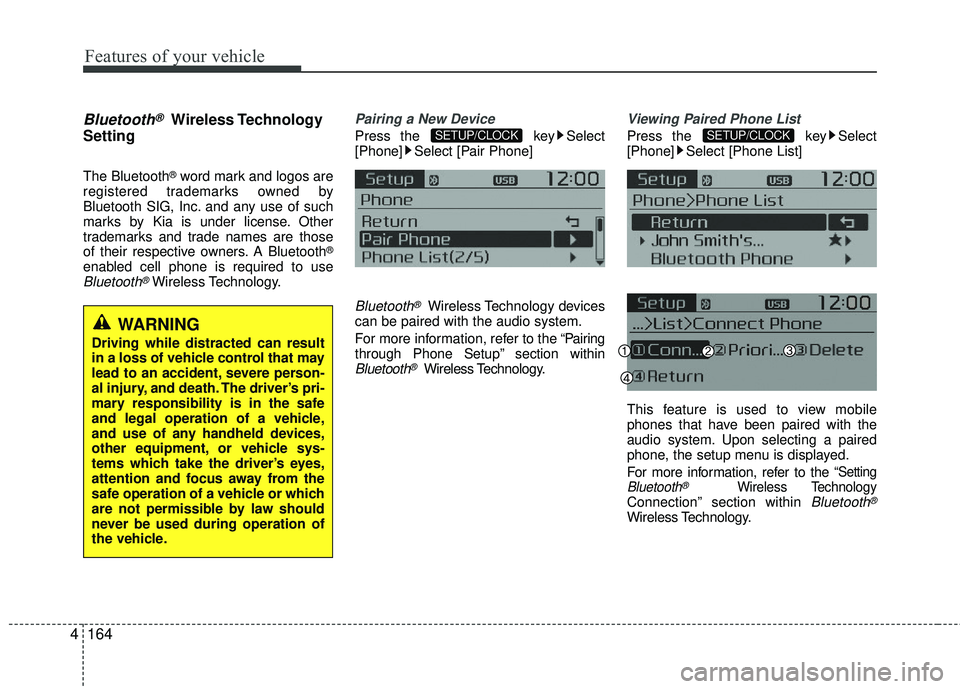
Pairing a New Device
Press the key Select
[Phone] Select [Pair Phone]
Bluetooth®Wireless Technology devices
can be paired with the audio system.
For more information, refer to the “Pairing
through Phone Setup” section within
Bluetooth®Wireless Technology.
Viewing Paired Phone List
Press the key Select
[Phone] Select [Phone List]
This feature is used to view mobile
phones that have been paired with the
audio system. Upon selecting a paired
phone, the setup menu is displayed.
For more information, refer to the
“SettingBluetooth®Wireless TechnologyConnection” section within Bluetooth®
Wireless Technology.
SETUP/CLOCKSETUP/CLOCK
WARNING
Driving while distracted can result
in a loss of vehicle control that may
lead to an accident, severe person-
al injury, and death. The driver’s pri-
mary responsibility is in the safe
and legal operation of a vehicle,
and use of any handheld devices,
other equipment, or vehicle sys-
tems which take the driver’s eyes,
attention and focus away from the
safe operation of a vehicle or which
are not permissible by law should
never be used during operation of
the vehicle.
Page 236 of 449
Features of your vehicle
4165
1) Connect/Disconnect Phone : Connect/disconnects currently selected phone
2) Priority : Sets currently selected phone to highest connection priority
3) Delete : Deletes the currently selected phone
4) Return : Moves to the previous screen
To learn more about whether your mobile phone supports contacts down-
loads, refer to your mobile phone
user’s manual.
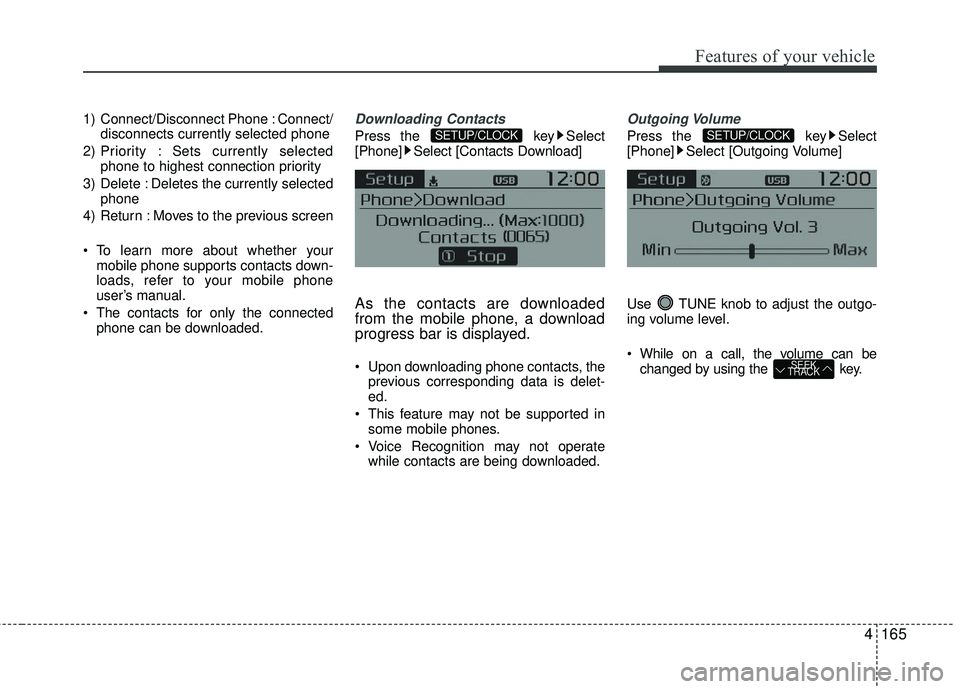
The contacts for only the connected phone can be downloaded.Downloading Contacts
Press the key Select
[Phone] Select [Contacts Download]
As the contacts are downloaded
from the mobile phone, a download
progress bar is displayed.
Upon downloading phone contacts, the previous corresponding data is delet-
ed.
This feature may not be supported in some mobile phones.
Voice Recognition may not operate while contacts are being downloaded.
Outgoing Volume
Press the key Select
[Phone] Select [Outgoing Volume]
Use TUNE knob to adjust the outgo-
ing volume level.
While on a call, the volume can be changed by using the key.
SEEK
TRACK
SETUP/CLOCKSETUP/CLOCK
Page 241 of 449
Features of your vehicle
170
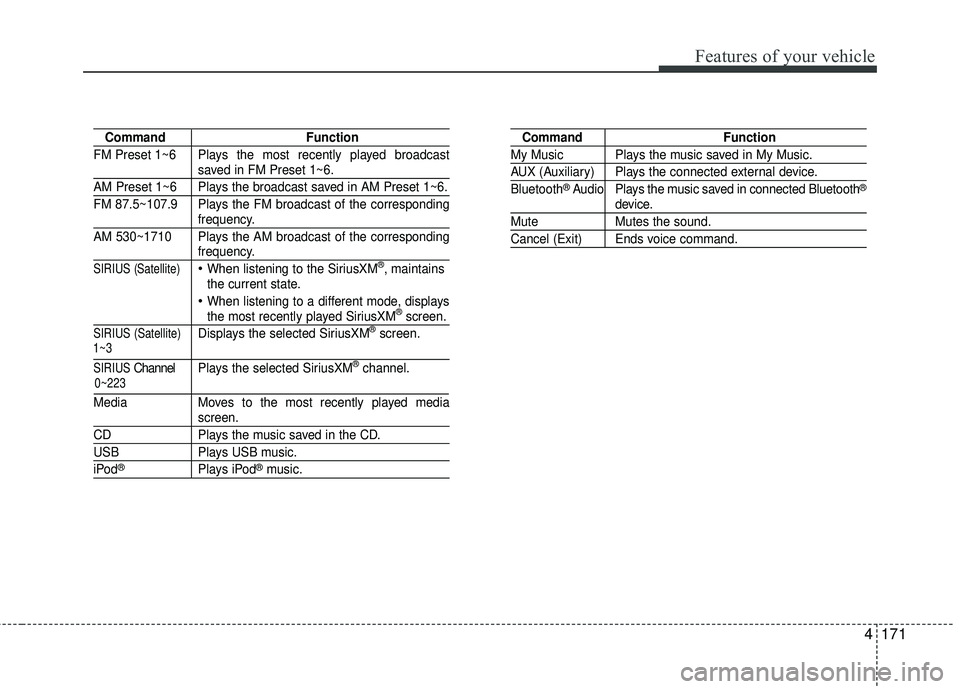
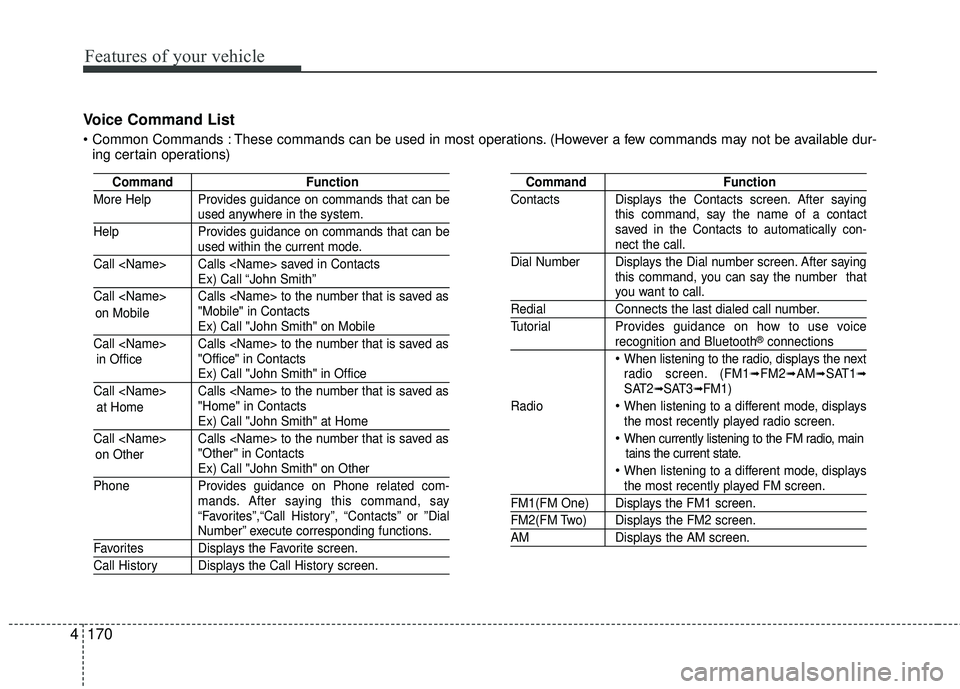
4 Voice Command List
These commands can be used in most operations. (However a few commands may not be available dur-
ing certain operations)
Command Function
More Help Provides guidance on commands that can be
used anywhere in the system.
Help Provides guidance on commands that can be
used within the current mode.
Call Calls saved in Contacts
Ex) Call “John Smith”
Call Calls to the number that is saved as "Mobile" in Contacts
Ex) Call "John Smith" on Mobile
Call Calls to the number that is saved as "Office" in Contacts
Ex) Call "John Smith" in Office
Call Calls to the number that is saved as "Home" in Contacts
Ex) Call "John Smith" at Home
Call Calls to the number that is saved as "Other" in Contacts
Ex) Call "John Smith" on Other
Phone Provides guidance on Phone related com- mands. After saying this command, say
“Favorites”,“Call History”, “Contacts” or ”Dial
Number” execute corresponding functions.
Favorites Displays the Favorite screen.
Call History Displays the Call History screen.
Command Function
Contacts Displays the Contacts screen. After saying this command, say the name of a contact
saved in the Contacts to automatically con-
nect the call.
Dial Number Displays the Dial number screen. After saying this command, you can say the number that
you want to call.
RedialConnects the last dialed call number.
Tutorial Provides guidance on how to use voice
recognition and Bluetooth®connections
When listening to the radio, displays the next
radio screen. (FM1➟FM2➟AM➟SAT1➟SAT2➟SAT3➟FM1)
Radio
When listening to a different mode, displays
the most recently played radio screen.
When currently listening to the FM radio, main tains the current state.
When listening to a different mode, displaysthe most recently played FM screen.
FM1(FM One) Displays the FM1 screen.
FM2(FM Two) Displays the FM2 screen.
AM Displays the AM screen.
on Mobile
in Office
at Home
on Other
Page 242 of 449
Features of your vehicle
4171
CommandFunction
FM Preset 1~6 Plays the most recently played broadcast
saved in FM Preset 1~6.
AM Preset 1~6 Plays the broadcast saved in AM Preset 1~6.
FM 87.5~107.9 Plays the FM broadcast of the corresponding
frequency.
AM 530~1710 Plays the AM broadcast of the corresponding
frequency.
SIRIUS (Satellite)When listening to the SiriusXM®, maintains
the current state.
When listening to a different mode, displaysthe most recently played SiriusXM®screen.
SIRIUS (Satellite)Displays the selected SiriusXM®screen.
SIRIUSChannel P l ay s the selected SiriusXM®channel.
Media Moves to the most recently played media
screen.
CD Plays the music saved in the CD.
USBPlays USB music.
iPod®Plays iPod®music.
Command Function
My Music Plays the music saved in My Music.
AUX (Auxiliary) Plays the connected external device.
Bluetooth®Audio Plays the music saved in connected Bluetooth®
device.
Mute Mutes the sound.
Cancel (Exit) Ends voice command.
0~223
1~3
Page 243 of 449
Features of your vehicle
172
4
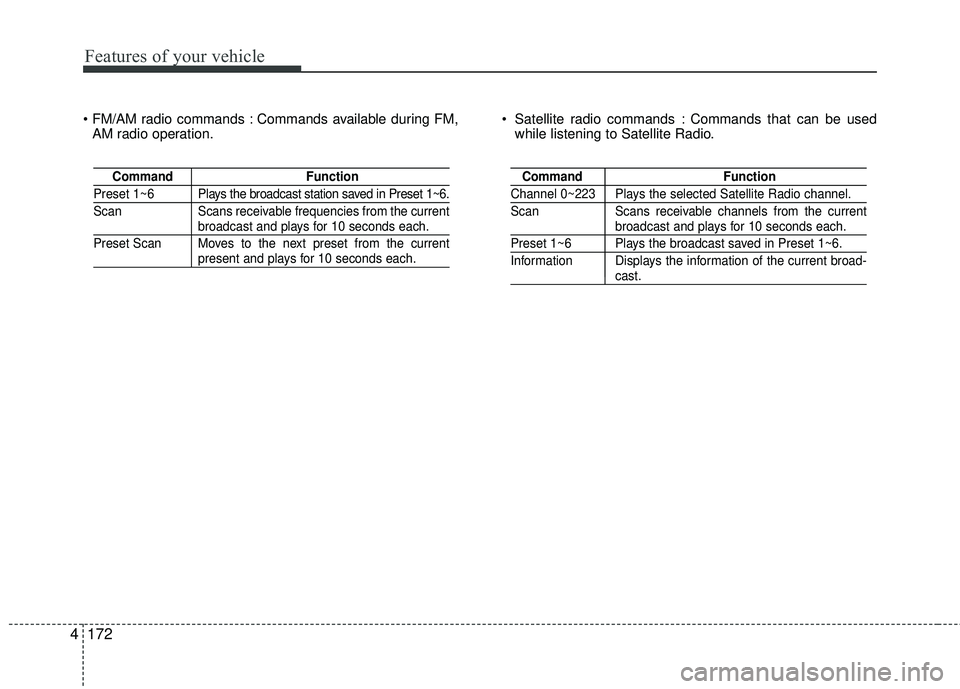
Commands available during FM,
AM radio operation. Satellite radio commands : Commands that can be used
while listening to Satellite Radio.
Command Function
Preset 1~6 Plays the broadcast station saved in Preset 1~6.
Scan Scans receivable frequencies from the current
broadcast and plays for 10 seconds each.
Preset Scan Moves to the next preset from the current
present and plays for 10 seconds each.
Command Function
Channel 0~223 Plays the selected Satellite Radio channel.
Scan Scans receivable channels from the current
broadcast and plays for 10 seconds each.
Preset 1~6 Plays the broadcast saved in Preset 1~6.
Information Displays the information of the current broad-
cast.
Page 244 of 449
Features of your vehicle
4173
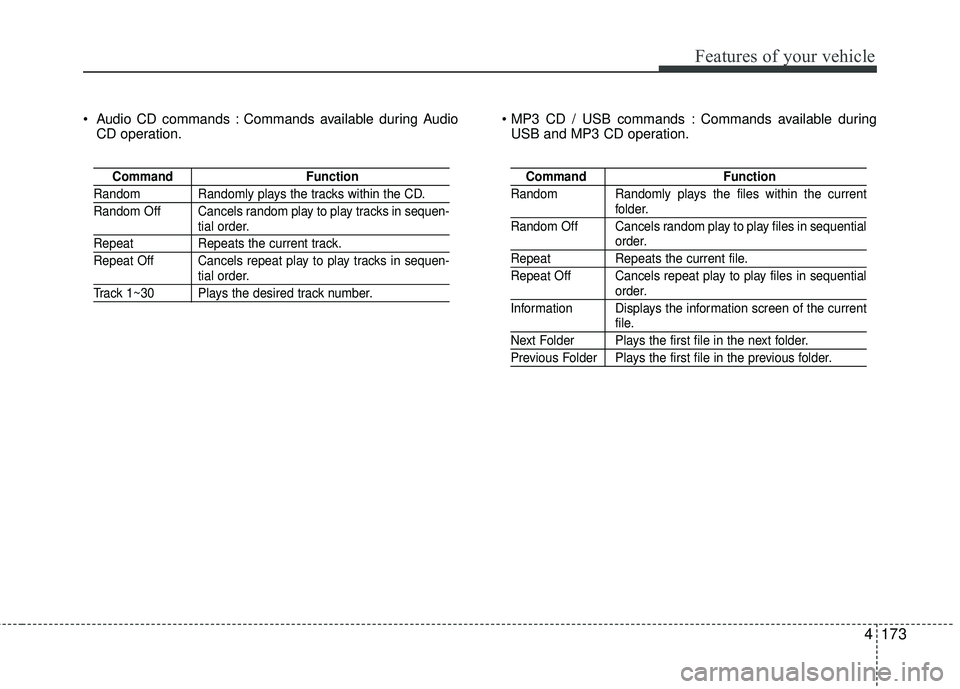
Audio CD commands : Commands available during AudioCD operation. Commands available during
USB and MP3 CD operation.
Command Function
Random Randomly plays the tracks within the CD.
Random Off Cancels random play to play tracks in sequen-
tial order.
RepeatRepeats the current track.
Repeat Off Cancels repeat play to play tracks in sequen-
tial order.
Track 1~30 Plays the desired track number.
Command Function
Random Randomly plays the files within the current
folder.
Random Off Cancels random play to play files in sequential
order.
Repeat Repeats the current file.
Repeat Off Cancels repeat play to play files in sequential
order.
Information Displays the information screen of the current
file.
Next Folder Plays the first file in the next folder.
Previous Folder Plays the first file in the previous folder.
Page 258 of 449

511
Driving your vehicle
Starting the engine with a smart
key (if equipped)
1. Carry the smart key or leave it insidethe vehicle.
2. Make sure the parking brake is firmly applied
3. Place the transaxle shift lever in P (Park).
4. Press the ENGINE START/STOP but- ton while depressing the brake pedal.
It should be started without depress-ing the accelerator.
5. Do not wait for the engine to warm up while the vehicle remains stationary.
Start driving at moderate engine
speeds. (Steep accelerating and decel-
erating should be avoided.)
Even if the smart key is in the vehicle, if it is far away from you, the engine
may not start.
When the ENGINE START/STOP but- ton is in the ACC position or above, if
any door is opened, the system checks
for the smart key. If the smart key is not
in the vehicle,the “ ” or “” indi-
cator will blink or the warning "Key not
in vehicle" will illuminate on the LCD
display. And if all doors are closed, the
chime will sound for 5 seconds. The
indicator or warning will turn off while
the vehicle is moving. Always have the
smart key with you.
The engine will start, only when the
smart key is in the vehicle.
KEY
OUTOUB055069
WARNING - Unintended
vehicle movement
Never leave the smart key in the
vehicle with children or vehicle
occupants who are unfamiliar with
the vehicle operation. Pushing the
ENGINE START/STOP button while
the smart key is in the vehicle may
result in unintended engine activa-
tion and/or unintended vehicle
movement.