Page 293 of 629
Audio system
50
5 If the system becomes unstable
due to communication errors
between the car Handsfree and the
Bluetooth®Wireless Technology
device, reset the device by turning
off and back on again. Upon reset-
ting
Bluetooth®Wireless
Technology device, the system will
be restored.
After pairing is complete, a con- tacts download request is sent
once to the mobile phone. Some
mobile phones may require confir-
mation upon receiving a download
request, ensure your mobile phone
accepts the connection. Refer to
your phones user’s manual for
additional information regarding
phone pairing and connections. Phone List
Press the [SETUP/CLOCK]
button
� Select [Phone]
�Select [Phone
List]
1) Connected Phone : Device that is currently connected
2) Paired Phone : Device that is paired but not connected Connecting a Device
From the paired phone list, select the
device you want to connect and
select [Connect].
JF CAN (ENG) 5 (Audio).qxp 2016-09-21 11:22 Page 50
Page 295 of 629
![KIA OPTIMA 2017 Owners Manual Audio system
52
5 Deleting a Device
From the paired phone list, select the
device you want to delete and select
[Delete] button.
- When deleting the currently con-
nected device, the device will auto](/manual-img/2/40406/w960_40406-294.png "KIA OPTIMA 2017 Owners Manual Audio system
52
5 Deleting a Device
From the paired phone list, select the
device you want to delete and select
[Delete] button.
- When deleting the currently con-
nected device, the device will auto")
Audio system
52
5 Deleting a Device
From the paired phone list, select the
device you want to delete and select
[Delete] button.
- When deleting the currently con-
nected device, the device will auto-
matically be disconnected to pro-
ceed with the deleting process.
- If a paired
Bluetooth®Wireless
Technology device is deleted, the
device’s call history and contacts
data will also be deleted.
- To re-use a deleted device, you must pair the device again. Pairing a New Device
Press the [SETUP/CLOCK]
button
� Select [Phone]
�Select [Pair
Phone]
Bluetooth®Wireless Technology
devices can be paired with the audio
system.
For more information, refer to the
“Pairing through Phone Setup” sec-
tion within
Bluetooth®Wireless
Technology. Viewing Paired Phone List
Press the [SETUP/CLOCK]
button
� Select [Phone]
�Select [Phone
List]
This feature is used to view mobile
phones that have been paired with
the audio system. Upon selecting a
paired phone, the setup menu is dis-
played.
For more information, refer to the
“Setting
Bluetooth®Wireless Technology
Connection” section within
Bluetooth®
Wireless Technology.
JF CAN (ENG) 5 (Audio).qxp 2016-09-21 11:22 Page 52
Page 296 of 629

Audio system
553
1) Connect/Disconnect Phone :Connect/ disconnects currently
selected phone
2) Change Priority : Sets currently selected phone to highest connec-
tion priority
3) Delete : Deletes the currentlyselected phone
4) Return : Moves to the previous screen
To learn more about whether your mobile phone supports contact
downloads, refer to your mobile
phone user’s manual.
The contacts for only the connect- ed phone can be downloaded Downloading Contacts
Press the
[SETUP/CLOCK] button
� Select [Phone]
�Select [Contacts
Download]
As the contacts are downloaded
from the mobile phone, a download
progress bar is displayed.
Upon downloading phone con- tacts, the previous corresponding
data is deleted.
This feature may not be supported in some mobile phones.
Voice Recognition may not operate while contacts are being down-
loaded. Outgoing Volume
Press the
[SETUP/CLOCK] button
� Select [Phone]
�Select
[Outgoing Volume]
Use
TUNEknob to adjust the outgo-
ing volume level.
changed by using the [SEEK
TRACK] button.
JF CAN (ENG) 5 (Audio).qxp 2016-09-21 11:22 Page 53
Page 297 of 629
Audio system
54
5 Turning Bluetooth System Off
Press the
[SETUP/CLOCK] button
� Select [Phone]
�Select
[Bluetooth System Off]
Once
Bluetooth®Wireless Technology
is turned off,
Bluetooth®Wireless
Technology related features will not
be supported within the audio sys-
tem.
To turn
Bluetooth®Wireless
Technology back on, go to
[SETUP/CLOCK] �[Phone] and
select “Yes”.
With the System Button
Press the [SETUP/CLOCK] button
� Select [System] Memory Information
Displays currently used memory and
total system memory.
Select [Memory Information]
�OK
The currently used memory is dis-
played on the left side while the total
system memory is displayed on the
right side.
JF CAN (ENG) 5 (Audio).qxp 2016-09-21 11:22 Page 54
Page 302 of 629
Audio system
559
(7) DISP
(8) SCAN
Radio mode : previews all receiv- able broadcasts for 5 seconds
each
Media (CD/USB/My Music) modes : previews each song (file) for 10
seconds each. (9)
SETUP
Changes to Setup mode.
(10) CLOCK
When pressed briefly : Display time screen
When pressed and held : Move to the time setting mode
(11) CAT/FOLDER
SiriusXM RADIO : Category Search
MP3 CD/USB mode : Search Folder
(12) TUNE knob
Radio mode : turn to change broadcast frequencies.
Media (CD/USB/iPod
®/My Music)
modes : turn to search Tracks/
chan nels/files.
JF CAN (ENG) 5 (Audio).qxp 2016-09-21 11:22 Page 59
Page 348 of 629
![KIA OPTIMA 2017 Owners Manual Audio system
5105
Setup Mode
Press the [SETUP]button to display
the Setup screen.
You can select and control options
related to [Display], [Sound],
[Clock/Calendar], [Phone] and
[System] .
With the Di](/manual-img/2/40406/w960_40406-347.png "KIA OPTIMA 2017 Owners Manual Audio system
5105
Setup Mode
Press the [SETUP]button to display
the Setup screen.
You can select and control options
related to [Display], [Sound],
[Clock/Calendar], [Phone] and
[System] .
With the Di")
Audio system
5105
Setup Mode
Press the [SETUP]button to display
the Setup screen.
You can select and control options
related to [Display], [Sound],
[Clock/Calendar], [Phone] and
[System] .
With the Display Button
Press the [SETUP] button �Select
[Display]
You can select and control options
related to [Brightness], [Mode Pop
up] and [Media Display].
Adjusting the Brightness
Use the [Left/Right] b uttons to adjust
the screen brightness or set the
Brightness on Automatic, Day or Night
mode.
Press the [Default] button to reset.
Automatic : Adjusts the brightness automatically.
Day : Always maintains the bright- ness on high.
Night : Always maintains the bright- ness on low. Mode Pop up
This feature is used to display the
Mode Pop up screen when entering
radio and media modes.
When this feature is turned on,
pressing the [RADIO]
or [MEDIA]
button will display the Mode Pop up
screen.
✽ ✽ NOTICE
The media Mode Pop up screen can
be displayed only when two or more
media modes have been connected.
JF CAN (ENG) 5 (Audio).qxp 2016-09-21 11:22 Page 105
Page 351 of 629
Audio system
108
5
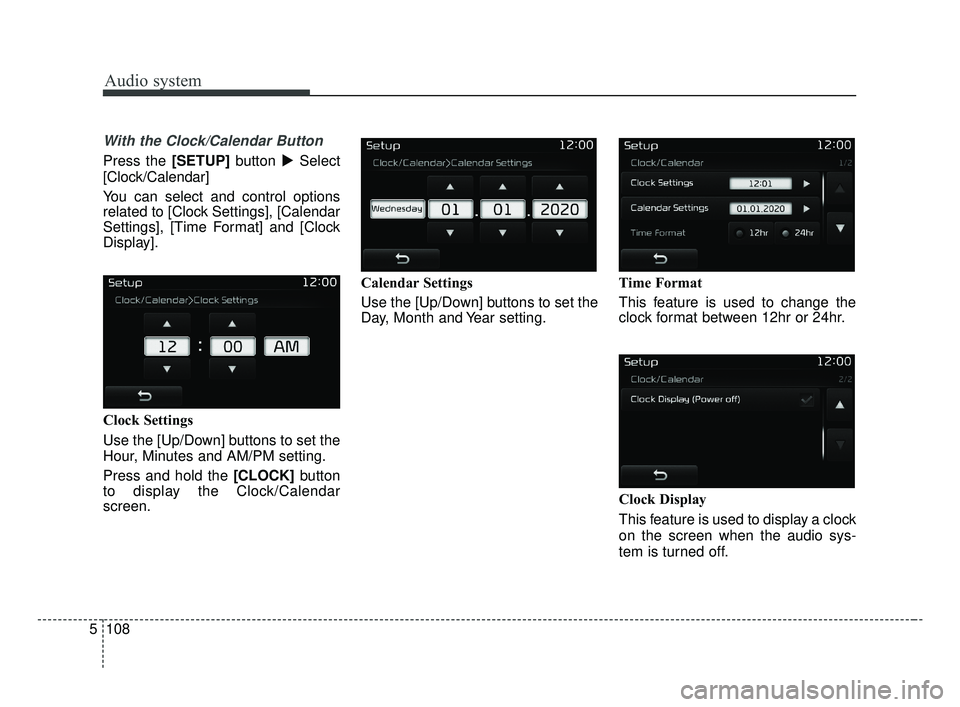
With the Clock/Calendar Button
Press the [SETUP] button �Select
[Clock/Calendar]
You can select and control options
related to [Clock Settings], [Calendar
Settings], [Time Format] and [Clock
Display].
Clock Settings
Use the [Up/Down] buttons to set the
Hour, Minutes and AM/PM setting.
Press and hold the [CLOCK] button
to display the Clock/Calendar
screen. Calendar Settings
Use the [Up/Down] buttons to set the
Day, Month and Year setting.
Time Format
This feature is used to change the
clock format between 12hr or 24hr.
Clock Display
This feature is used to display a clock
on the screen when the audio sys-
tem is turned off.
JF CAN (ENG) 5 (Audio).qxp 2016-09-21 11:22 Page 108
Page 485 of 629
What to do in an emergency
16
7
Removing and storing the
spare tire (if equipped)
Turn the tire hold-down wing bolt
counterclockwise.
Store the tire in the reverse order of
removal.
To prevent the spare tire and tools
from “rattling” while the vehicle is in
motion, store them properly. If it is hard to loosen the tire hold-
down wing bolt by hand, you can
loosen it easily using the jack handle.
1. Put the jack handle (1) inside of
the tire hold-down wing bolt.
2. Turn the tire hold-down wing bolt counterclockwise with the jack
handle.
Use caution when utilizing the sharp
jack handle.
WARNING- Running vehi- cle on jack
Do not start or run the engine of
the vehicle while the vehicle is
on the jack as this may cause
the vehicle to fall off the jack.
OJF065004
OJFC065035
JF CAN (ENG) 7.qxp 8/25/2016 5:22 PM Page 16