Page 148 of 552
445
Features of your vehicle
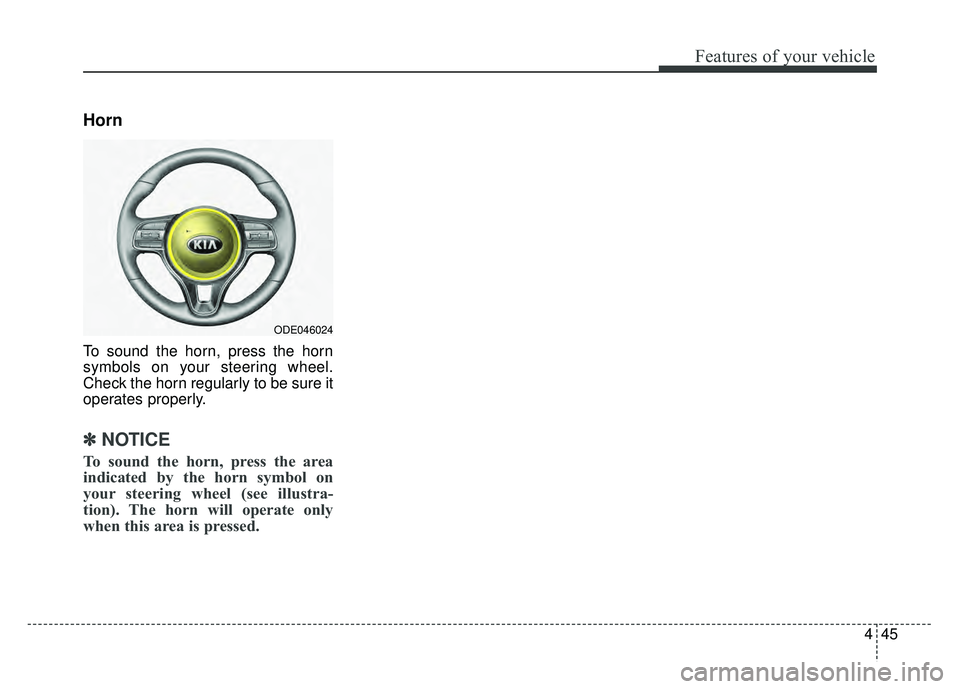
Horn
To sound the horn, press the horn
symbols on your steering wheel.
Check the horn regularly to be sure it
operates properly.
✽ ✽NOTICE
To sound the horn, press the area
indicated by the horn symbol on
your steering wheel (see illustra-
tion). The horn will operate only
when this area is pressed.
ODE046024
Page 155 of 552
Features of your vehicle
52
4
Instrument Cluster Control
Adjusting Instrument Cluster
Illumination
The brightness of the instrument
panel illumination is changed by
pressing the illumination control but-
ton (“+” or “-”) when Engine
Start/Stop button is ON, or the tail-
lights are turned on. If you hold the illumination control
button (“+” or “-”), the brightness
will be changed continuously.
If the brightness reaches to the maximum or minimum level, an
alarm will sound.
LCD window control
The LCD window modes can be
changed by using the control buttons
on the steering wheel.
ODE046102N
OQLE045233 ODE046103
ODE046104
■Type A
■Type B
Page 163 of 552

Features of your vehicle
60
4
Fuel Economy
Average Fuel Economy (1)
The average fuel economy is calcu-
lated by the total driving distance
and fuel consumption since the last
average fuel economy reset.
- Fuel economy range : 0.0 ~ 99.9km/L, L/100Km or MPG
The average fuel economy can be reset both manually and automati-
cally. Manual reset
To clear the average fuel economy
manually, press the OK button
(reset) on the steering wheel for
more than 1 second when the aver-
age fuel economy is displayed.
Automatic reset
To make the average fuel economy
be reset automatically whenever
refueling, select the “Fuel economy
auto reset” mode in User Setting
menu of the LCD display (Refer to
“LCD window”).
OFF - You may set to default man-
ually by using the trip switch reset
button.
After ignition - The vehicle will automatically set to default once 4
hours pass after the Engine
start/stop button is turned to the
OFF position.
After refueling - After refueling more than 6 liters and driving over
1mph (1km/h), the vehicle will
reset to default automatically.
✽ ✽ NOTICE
The average vehicle speed is not dis-
played, when the vehicle drives
shorter than 0.2 miles(300 meters)
or less than 10 seconds after turning
ON the Engine Start/Stop button.
ODE046172N
Page 164 of 552

461
Features of your vehicle
Instant Fuel Economy (2)
This mode displays the instant fueleconomy during the last few sec-
onds when the vehicle speed is
more than 6 mph (10 km/h).
- Fuel economy range : 0.0 ~ 50.0MPG or 0.0 ~ 30 L/100kmTrip A/B
Tripmeter (1)
The tripmeter is the total driving distance since the last tripmeter
reset.
- Distance range: 0.0 ~ 9999.9 mior km.
To reset the tripmeter, press the OK button (reset) on the steering
wheel for more than 1 second
when the tripmeter is displayed. Average Vehicle Speed (2)
The average vehicle speed is cal-
culated by the total driving dis-
tance and driving time since the
last average vehicle speed reset.
- Speed range: 0 ~ 999 mph orkm/h.
To reset the average vehicle speed, press the OK button (reset)
on the steering wheel for more
than 1 second when the average
vehicle speed is displayed.✽ ✽ NOTICE
• The average vehicle speed is not
displayed if the driving distance
has been less than 0.03 miles(500
meters) or the driving time has
been less than 10 seconds since the
ignition switch or Engine
Start/Stop button was turned to
ON.
• Even if the vehicle is not in motion, the average vehicle speed
keeps going while the engine is
running.
OJFH046368N
Page 177 of 552

Features of your vehicle
74
4
Press START button while turn steer-
ing (for smart key system)
This warning message illuminates
if the steering wheel does not
unlock normally when the Engine
Start/Stop Button is pressed.
It means that you should press the Engine Start/Stop Button while
turning the steering wheel right
and left.
Steering wheel unlocked
(for smart key system)
This warning message illuminates if the steering wheel does not lock
when the Engine Start/Stop Button
changes to the OFF position. Check Steering Wheel Lock System
(for smart key system)
This warning message illuminates
if the steering wheel does not lock
normally when the Engine
Start/Stop Button changes to the
OFF position.
Press brake pedal to start engine
(for smart key system)
This warning message illuminates if the Engine Start/Stop Button
changes to the ACC position twice
by pressing the button repeatedly
without depressing the brake pedal.
It means that you should depress the brake pedal to start the engine. Key not in vehicle (for smart key system)
This warning message illuminates
if the smart key is not in the vehicle
when you press the Engine
Start/Stop Button.
It means that you should always have the smart key with you.
Key not detected (for smart key system)
This warning message illuminates if the smart key is not detected
when you press the Engine
Start/Stop Button.
Page 260 of 552

Audio system
75
Steering wheel remote control
❈The actual features in the vehicle
may differ from the illustration.
(1) VOICE
Pressing the button - If Siri is not active: Starts Siri.
- If Siri is active: Re-starts Siri.
Pressing and holding the button: Siri is deactivated.
(2) MODE
Press the button to change the mode in the following order: Radio
➟ Media.
Press and hold the button to turn off. (3)
VOLUME
Press to adjust the volume.
(4) UP/DOWN
Press the button in radio mode to search Presets.
Press and hold the button in radio mode to search frequencies.
Press the button in media mode to change the current song.
Press and hold the button in media mode to quick search through
songs.
(5) CALL
Pressing the button - If not in
Bluetooth®Wireless
Technology Handsfree mode or
receiving a phone call.
First press: Display Dial Number
screen.
Second press: Automatically dis-
play the most recently Dialed call
number.
Third press: Dial the phone num-
ber entered. - Press in the Incoming Call notifi-
cation screen to accept the
phone call.
- Press in
Bluetooth®Wireless
Technology Handsfree mode to
switch to the waiting call.
Pressing and holding the button - If not in
Bluetooth®Wireless
Technology Handsfree mode or
receiving a phone call, the most
recently Dialed Call number is
dialed.
- Press in
Bluetooth®Wireless
Technology Handsfree mode to
transfer the call to your cell
phone.
- Press in cell phone mode to switch to
Bluetooth®Wireless
Technology Handsfree mode.
(6) END
Press in
Bluetooth®Wireless
Technology Handsfree mode to
end the phone call.
Press in the incoming call screen to reject the call.
Page 279 of 552

Audio system
526
Pairing a Bluetooth®Wireless
Technology device
Information on pairing Bluetooth®
Wireless Technology devices
Pairing refers to the process of pair-
ing
Bluetooth®Wireless Technology
cell phones or devices with the
system prior to connection. This is
a necessary procedure for
Bluetooth®
Wireless Technology connection
and usage.
Up to five devices can be paired.
Pairing the first Bluetooth
®Wireless
Technology device
Press the [PHONE] button on the
audio system or the [CALL] button
on the steering wheel remote control
➟ Search for the vehicle from the
Bluetooth®Wireless Technology
device, and pair ➟ Enter the passkey
on the
Bluetooth®Wireless Technology
device or approve passkey ➟
Bluetooth®Wireless Technology pair-
ing completed. 1. When the [PHONE]
button on the
audio or the [CALL] button on the
steering wheel remote control is
pressed, the following screen is dis-
played. Devices can now be paired.
(1) Vehicle Name: Searched name in
Bluetooth®Wireless Technology
device
.
✽ ✽ NOTICE
The vehicle name in the image above
is an example. Refer to your device
for the actual name of your device.
2. Search for available Bluetooth®
Wireless Technology devices in
the
Bluetooth®Wireless Technology
menu of your
Bluetooth®Wireless
Technology device (cell phone,
etc.).
3. Confirm that the vehicle name in your
Bluetooth®Wireless Technology
device matches the vehicle name
shown on the audio screen, then
select it.
4-1. For devices that require passkey entry, a passkey entry screen is
shown on your
Bluetooth®
Wireless Technology device.
- Enter the passkey ‘0000’, in your
Bluetooth®Wireless Technology
device.
Page 281 of 552
![KIA NIRO 2017 Owners Manual Audio system
528
Connecting Bluetooth®Wireless
Technology devices
If there are no connected devices
Press the [PHONE] button on the
audio system or the [CALL] button in
the steering wheel remote cont](/manual-img/2/54822/w960_54822-280.png "KIA NIRO 2017 Owners Manual Audio system
528
Connecting Bluetooth®Wireless
Technology devices
If there are no connected devices
Press the [PHONE] button on the
audio system or the [CALL] button in
the steering wheel remote cont")
Audio system
528
Connecting Bluetooth®Wireless
Technology devices
If there are no connected devices
Press the [PHONE] button on the
audio system or the [CALL] button in
the steering wheel remote control ➟
List of paired
Bluetooth®Wireless
Technology devices ➟Select the
desired
Bluetooth®Wireless Technology
device from the list ➟ Connect
Bluetooth®
Wireless Technology. If there are connected devices
Press the [PHONE]
button on the
audio system ➟ Select [Settings] ➟
Select [Connections] ➟ Select
Bluetooth®Wireless Technology device
to connect ➟ Select [Connect] ➟
Connect
Bluetooth®Wireless Technology.
✽ ✽ NOTICE
• Only one Bluetooth®Wireless
Technology device can be connected
at a time.
• When a Bluetooth
®Wireless
Technology device is connected,
other devices cannot be paired.
Accepting/rejecting phone calls
Receiving phone calls with
Bluetooth®Wireless Technology con-
nected.
(1) Caller name: If the caller number is in your contacts, the correspon-
ding name is displayed.
(2) Incoming phone number: Incoming phone number is displayed.
(3) Accept: Accept call.
(4) Reject: Reject call.