Page 268 of 595
![KIA FORTE 2017 Owners Manual 4 196
Features of your vehicle
Voice Recognition Mode
Using Voice Recognition
Shortly press the button on the
steering wheel controls. Say a com-
mand.
If prompt feedback is in [On], then
the system](/manual-img/2/40398/w960_40398-267.png "KIA FORTE 2017 Owners Manual 4 196
Features of your vehicle
Voice Recognition Mode
Using Voice Recognition
Shortly press the button on the
steering wheel controls. Say a com-
mand.
If prompt feedback is in [On], then
the system")
4 196
Features of your vehicle
Voice Recognition Mode
Using Voice Recognition
Shortly press the button on the
steering wheel controls. Say a com-
mand.
If prompt feedback is in [On], then
the system will say “Please say a
command after the beep (BEEP)”.
• If prompt feedback is in [On] mode,
then the system will only say
“(BEEP)”.
• To change Prompt Feedback
[On]/[Off], go to [SETUP]button
�
[System]
�[Prompt Feedback].
• For proper recognition, say the
command after the voice instruc-
tion and beep tone.
Contact List Best Practices
• Use full names vs. short or single
syllable names. (“John Smith” vs.
“Dad”, “Smith Residence” vs.
“Home”)
• Avoid using special characters or
hyphens. (@, &, #, /, -, *, +, etc.)
• Avoid using acronyms. (“In Case of
Emergency” vs. “ICE”)
• Spell words completely, no abbre-
viations. (“Doctor Goodman” vs.
“Dr. Goodman”)
Skipping Prompt Messages
While prompt message is being stat-
ed
�Shortly press the button on
the steering wheel controls.
The prompt message is immediately
ended and the beep tone will sound.
After the “Beep”, say the voice com-
mand.
Re-starting Voice Recognition
While system waits for a command
�Shortly press the button on the
steering wheel controls.
The command wait state is immedi-
ately ended and the beep tone will
sound. After the “Beep”, say the
voice command.
Ending Voice Recognition
While Voice Recognition is operating
�Press and hold the button on
the steering wheel controls.
• While using voice command,
pressing any steering wheel con-
trols or a different button will end
voice command.
• When the system is waiting for a
voice command, say “cancel” or
“end” to end voice command.
• When the system is waiting for a
voice command, press and hold
the button on the steering
wheel to end voice command.
Page 277 of 595
205 4
Features of your vehicle
Setup Mode
With the Display Button
Press the [SETUP]button
�Select
[Display].
Mode Pop up
[Mode Pop up]
�Changes [On]
selection mode.
• During On state, press the [RADIO]
or[MENU]button to display the
mode change pop up screen.Media Display
When playing an MP3 file, select the
desired display info from ‘Folder/File’
or ‘Album/Artist/Song’.
With the Sound Button
Press the [SETUP]button
�Select
[Sound].
Page 279 of 595
![KIA FORTE 2017 Owners Manual 207 4
Features of your vehicle
With the Phone Button
Press the [SETUP]button
�Select
[Phone].
Pair Phone
The following steps are the same as
those described in the section
“Pairing on the Steering](/manual-img/2/40398/w960_40398-278.png "KIA FORTE 2017 Owners Manual 207 4
Features of your vehicle
With the Phone Button
Press the [SETUP]button
�Select
[Phone].
Pair Phone
The following steps are the same as
those described in the section
“Pairing on the Steering")
207 4
Features of your vehicle
With the Phone Button
Press the [SETUP]button
�Select
[Phone].
Pair Phone
The following steps are the same as
those described in the section
“Pairing on the Steering wheel con-
trols” on the previous page.•
Bluetooth®Wireless Technology
features supported within the vehi-
cle are as follows. Some features
may not be supported depending
on your
Bluetooth®Wireless
Technology device.
- Outgoing/Incoming Handsfree
calls
- Operations during a call (Switch
to Private, Switch to call waiting,
MIC on/off)
- Downloading Call History
- Downloading Mobile Contacts
-
Bluetooth®Wireless Technology
device auto connection
- Bluetooth
®Audio Streaming
• Up to five
Bluetooth®Wireless
Technology devices can be paired
to the Car Handsfree system.
• Only one
Bluetooth®Wireless
Technology device can be con-
nected at a time.• Other devices cannot be paired
while a
Bluetooth®Wireless
Technology device is connected.
• Only
Bluetooth®Wireless Technology
Handsfree and Bluetooth®audio
related features are supported.
• Bluetooth
®related operations are
possible only within devices that
support Handsfree or audio fea-
tures, such as a
Bluetooth®
Wireless Technology mobile phone
or a Bluetooth®audio device.
• If a connected
Bluetooth®Wireless
Technology device becomes dis-
connected due to being out of
communication range, turning the
device OFF, or a
Bluetooth®
Wireless Technology communica-
tion error, corresponding
Bluetooth®
Wireless Technology devices are
automatically searched and recon-
nected.
Page 280 of 595
4 208
Features of your vehicle
• If the system becomes unstable
due to communication errors
between the car Handsfree and the
Bluetooth®Wireless Technology
device, reset the device by turning
off and back on again.Upon reset-
ting
Bluetooth®Wireless Technology
device, the system will be restored.
• After pairing is complete, a con-
tacts download request is sent
once to the mobile phone. Some
mobile phones may require confir-
mation upon receiving a download
request, ensure your mobile phone
accepts the connection. Refer to
your phones user’s manual for
additional information regarding
phone pairing and connections.Phone List
Press the [SETUP]button
�Select
[Phone]
�Select [Phone List].
1) Connected Phone: Device that is
currently connected.
2) Paired Phone: Device that is
paired but not connected.
• Connecting a Device
From the paired phone list, select the
device you want to connect and
select [Connect].
Page 282 of 595
![KIA FORTE 2017 Owners Manual 4 210
Features of your vehicle
• Deleting a Device
From the paired phone list, select the
device you want to delete and select
[Delete].
- When deleting the currently con-
nected device, the device](/manual-img/2/40398/w960_40398-281.png "KIA FORTE 2017 Owners Manual 4 210
Features of your vehicle
• Deleting a Device
From the paired phone list, select the
device you want to delete and select
[Delete].
- When deleting the currently con-
nected device, the device")
4 210
Features of your vehicle
• Deleting a Device
From the paired phone list, select the
device you want to delete and select
[Delete].
- When deleting the currently con-
nected device, the device will auto-
matically be disconnected to pro-
ceed with the deleting process.
- If a paired
Bluetooth®Wireless
Technology device is deleted, the
device’s call history and contacts
data will also be deleted.
- To re-use a deleted device, you
must pair the device again.Pairing a New Device
Press the [SETUP]button
�Select
[Phone]
�Select [Pair Phone].
Bluetooth®Wireless Technology
devices can be paired with the audio
system.
For more information, refer to the
“Pairing through Phone Setup” sec-
tion within
Bluetooth®Wireless
Technology.Viewing Paired Phone List
Press the [SETUP]button
�Select
[Phone]
�Select [Phone List].
This feature is used to view mobile
phones that have been paired with
the audio system. Upon selecting a
paired phone, the setup menu is dis-
played.
For more information, refer to the
“Setting
Bluetooth®Wireless Technology
Connection” section within
Bluetooth®
Wireless Technology.
Page 283 of 595

211 4
Features of your vehicle
1) Connect/Disconnect Phone: Connect/
Disconnects currently selected
phone.
2) Change Priority: Sets currently
selected phone to highest connec-
tion priority.
3) Delete: Deletes the currently
selected phone.
4) Return: Moves to the previous
screen.
• To learn more about whether your
mobile phone supports contact
downloads, refer to your mobile
phone user’s manual.
• The contacts for only the connect-
ed phone can be downloaded.Downloading Contacts
Press the [SETUP]button�Select
[Phone]�Select [Contacts Download].
As the contacts are downloaded
from the mobile phone, a download
progress bar is displayed.
• Upon downloading phone con-
tacts, the previous corresponding
data is deleted.
• This feature may not be supported
in some mobile phones.
• Voice Recognition may not operate
while contacts are being down-
loaded.Outgoing Volume
Press the [SETUP]button
�Select
[Phone]
�Select [Outgoing Volume].
Use
TUNEknob to adjust the outgo-
ing volume level.
• While on a call, the volume can be
changed by using the [SEEK/TRACK]
button.
Page 284 of 595
4 212
Features of your vehicle
Turning Bluetooth System Off
Press the [SETUP]button
�Select
[Phone]
�Select [Bluetooth System
Off].
Once
Bluetooth®Wireless Technology
is turned off,
Bluetooth®Wireless
Technology related features will not
be supported within the audio sys-
tem.
•To turn
Bluetooth®Wireless Technology
back on, go to[SETUP]button
�
[Phone] and select “Yes”.
With the System Button
Press the [SETUP]button
�Select
[System].Memory Information
Displays currently used memory and
total system memory.
Select [Memory Information]
�[OK].
The currently used memory is dis-
played on the left side while the total
system memory is displayed on the
right side.
Page 289 of 595
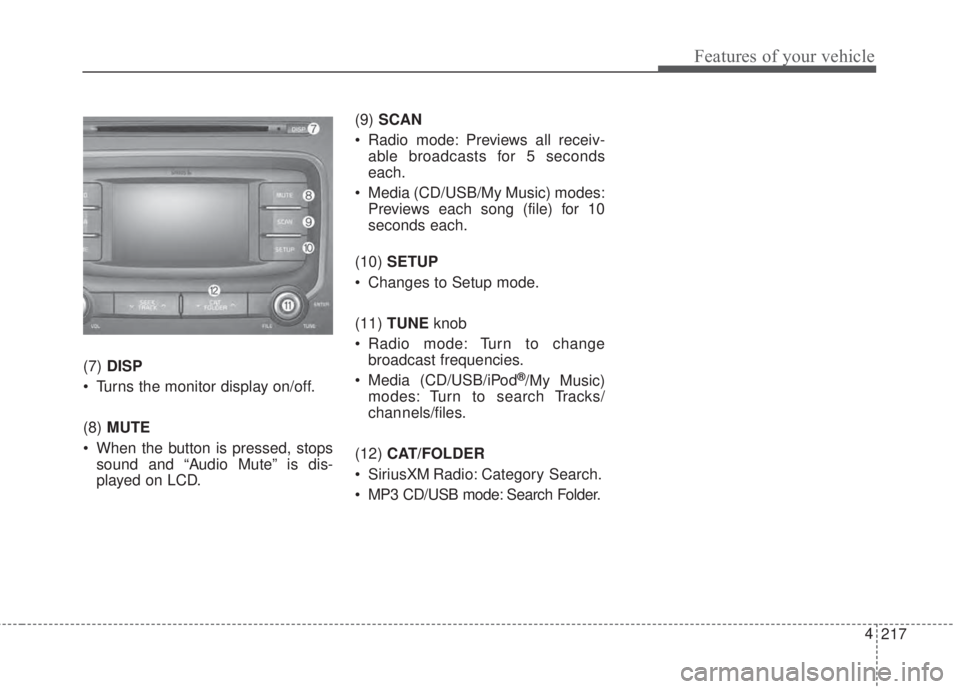
217 4
Features of your vehicle
(7)DISP
• Turns the monitor display on/off.
(8)MUTE
• When the button is pressed, stops
sound and “Audio Mute” is dis-
played on LCD.(9)SCAN
• Radio mode: Previews all receiv-
able broadcasts for 5 seconds
each.
• Media (CD/USB/My Music) modes:
Previews each song (file) for 10
seconds each.
(10)SETUP
• Changes to Setup mode.
(11)TUNEknob
• Radio mode: Turn to change
broadcast frequencies.
• Media (CD/USB/iPod®/My Music)
modes: Turn to search Tracks/
chan nels/files.
(12)CAT/FOLDER
• SiriusXM Radio: Category Search.
• MP3 CD/USB mode: Search Folder.