Page 258 of 595
![KIA FORTE KOUP 2017 Owners Manual 4 186
Features of your vehicle
Random
While song (file) is playing
�[RDM]
button.
Audio CD, My Music mode: RDM on
screen.
• Random (press the button): Plays
all songs in random order.
MP3 CD, USB mo](/manual-img/2/57957/w960_57957-257.png "KIA FORTE KOUP 2017 Owners Manual 4 186
Features of your vehicle
Random
While song (file) is playing
�[RDM]
button.
Audio CD, My Music mode: RDM on
screen.
• Random (press the button): Plays
all songs in random order.
MP3 CD, USB mo")
4 186
Features of your vehicle
Random
While song (file) is playing
�[RDM]
button.
Audio CD, My Music mode: RDM on
screen.
• Random (press the button): Plays
all songs in random order.
MP3 CD, USB mode: FLD.RDM on
screen.
• Folder Random (press the button):
Plays all files within the current
folder in random order.
iPod
®mode: RDM on screen.
• All Random (press the button):
Plays all files in random order.
MP3 CD, USB: ALL RDM on screen.
• All Random (press the button
twice): Plays all files in random
order.
Press the [RDM]button again to turn
off random.Changing Song/File
While song (file) is playing
�
[
SEEK/TRACK
∨]button.
• Shortly pressing the button: Plays
the current song from the begin-
ning.
If the [
SEEK/TRACK
∨]button is
pressed again within 2 seconds, the
previous song is played.
• Pressing and holding the button:
Rewinds the song.
While song (file) is playing
�
[
SEEK/TRACK
∧]button.
• Shortly pressing the button: Plays
the next song.
• Pressing and holding the button:
Fast forwards the song.
Scan
While song (file) is playing
�
[SCAN]button.
• Shortly pressing the button: Scans
all songs from the next song for 10
seconds each.
• Press the [SCAN]button again to
turn off.
• The SCAN function is not support-
ed in iPod
®mode.Folder Search
(Only MP3 CD, USB mode)
While file is playing �[CAT/
FOLDER
∧]button.
• Searches the next folder.
While file is playing �[CAT/
FOLDER
∨]button.
• Searches the parent folder.
If a folder is selected by pressing the
TUNEknob, the first file within the
selected folder will be played.
In iPod
®mode, moves to the Parent
Folder.
Searching Songs/Files
• Turning TUNEknob: Searches for
songs (files).
• Pressing TUNEknob: Plays select-
ed song (file).
Page 263 of 595

191 4
Features of your vehicle
Phone Mode
Making a call using the Steering
wheel controls
❈The actual features in the vehicle
may differ from the illustration.
(1) Mutes audio volume.
(2) Press the button to change audio
source.
FM1
➟ FM2➟ AM➟ SAT1 ➟ SAT2
➟ SAT3 ➟ CD➟ USB(iPod®)➟
AUX ➟ My Music ➟ BT Audio
( 3 ) Raises or l owe r s speaker volume.(4) Activates voice recognition.
(5) Places and transfers calls.
• Check call history and making calls
- Shortly press the [CALL]button
on the steering wheel controls.
- The call history list will be dis-
played on the screen.
- Press the [CALL]button again to
connect a call to the selected
number.
• Redialing the most recently called
number
- Press and hold the [CALL]but-
ton on the steering wheel con-
trols.
- The most recently called number
is redialed.
(6) Ends calls or cancels functions.
❈If call history does not exist, a
screen asking whether to down-
load call history is displayed. (The
download feature may not be sup-
ported in some mobile phones)
Pairing on the Steering wheel
controls
1. Press the [CALL]button on the
steering wheel controls.
2. Select [OK] to enter the Pair
Phone screen.
• Vehicle Name: Name of device as
shown when searching from your
Bluetooth®Wireless Technology
device.
• Passkey: Passkey used to pair the
device.
Page 268 of 595
![KIA FORTE KOUP 2017 Owners Manual 4 196
Features of your vehicle
Voice Recognition Mode
Using Voice Recognition
Shortly press the button on the
steering wheel controls. Say a com-
mand.
If prompt feedback is in [On], then
the system](/manual-img/2/57957/w960_57957-267.png "KIA FORTE KOUP 2017 Owners Manual 4 196
Features of your vehicle
Voice Recognition Mode
Using Voice Recognition
Shortly press the button on the
steering wheel controls. Say a com-
mand.
If prompt feedback is in [On], then
the system")
4 196
Features of your vehicle
Voice Recognition Mode
Using Voice Recognition
Shortly press the button on the
steering wheel controls. Say a com-
mand.
If prompt feedback is in [On], then
the system will say “Please say a
command after the beep (BEEP)”.
• If prompt feedback is in [On] mode,
then the system will only say
“(BEEP)”.
• To change Prompt Feedback
[On]/[Off], go to [SETUP]button
�
[System]
�[Prompt Feedback].
• For proper recognition, say the
command after the voice instruc-
tion and beep tone.
Contact List Best Practices
• Use full names vs. short or single
syllable names. (“John Smith” vs.
“Dad”, “Smith Residence” vs.
“Home”)
• Avoid using special characters or
hyphens. (@, &, #, /, -, *, +, etc.)
• Avoid using acronyms. (“In Case of
Emergency” vs. “ICE”)
• Spell words completely, no abbre-
viations. (“Doctor Goodman” vs.
“Dr. Goodman”)
Skipping Prompt Messages
While prompt message is being stat-
ed
�Shortly press the button on
the steering wheel controls.
The prompt message is immediately
ended and the beep tone will sound.
After the “Beep”, say the voice com-
mand.
Re-starting Voice Recognition
While system waits for a command
�Shortly press the button on the
steering wheel controls.
The command wait state is immedi-
ately ended and the beep tone will
sound. After the “Beep”, say the
voice command.
Ending Voice Recognition
While Voice Recognition is operating
�Press and hold the button on
the steering wheel controls.
• While using voice command,
pressing any steering wheel con-
trols or a different button will end
voice command.
• When the system is waiting for a
voice command, say “cancel” or
“end” to end voice command.
• When the system is waiting for a
voice command, press and hold
the button on the steering
wheel to end voice command.
Page 269 of 595
197 4
Features of your vehicle
Voice Recognition and Phone
Contact Tips:
The Kia Voice Recognition System
may have difficulty understanding
some accents or uncommon names.
When using Voice Recognition to
place a call, speak in a moderate
tone, with clear pronunciation.
To maximize the use of Voice
Recognition, consider these guide-
lines when storing contacts:
• Use full names vs. short or single
syllable names. (“John Smith” vs.
“Dad”, “Smith Residence” vs.
“Home”)
• Avoid using special characters or
hyphens. (@, &, #, /, -, *, +, etc.)
• Avoid using acronyms. (“In Case of
Emergency” vs. “ICE”)
• Spell words completely, no abbre-
viations. (“Doctor Goodman” vs.
“Dr. Goodman”)
Page 270 of 595
4 198
Features of your vehicle
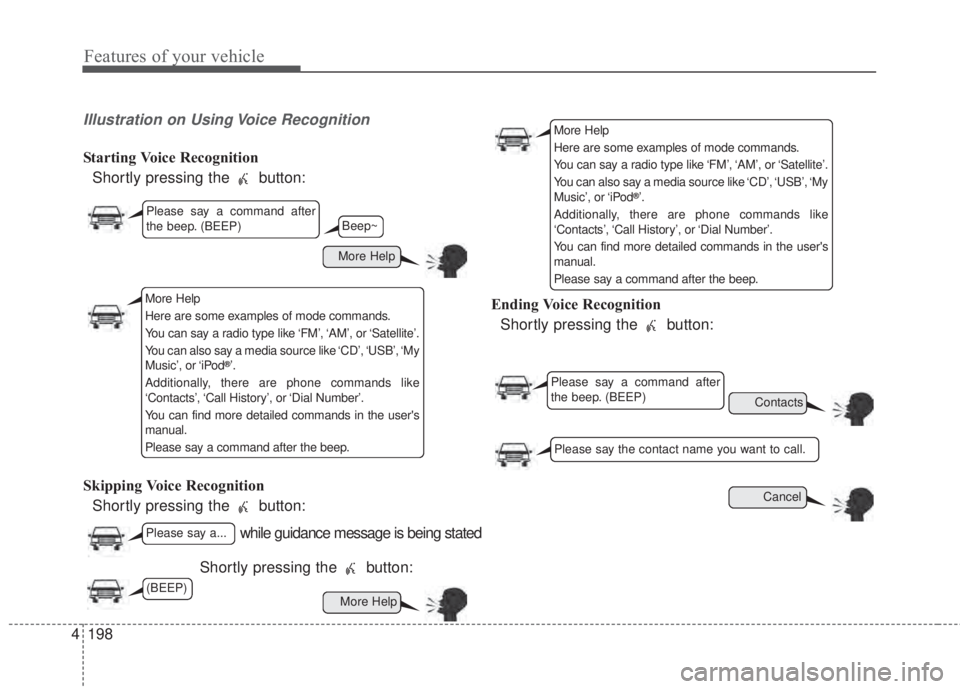
Illustration on Using Voice Recognition
Starting Voice Recognition
Shortly pressing the button:
Skipping Voice Recognition
Shortly pressing the button:
Shortly pressing the button:Ending Voice Recognition
Shortly pressing the button:
while guidance message is being stated
More Help
Contacts
Cancel
More Help
Please say a command after
the beep. (BEEP)
Please say a...
Please say the contact name you want to call.
Beep~
More Help
Here are some examples of mode commands.
You can say a radio type like ‘FM’, ‘AM’, or ‘Satellite’.
You can also say a media source like ‘CD’, ‘USB’, ‘My
Music’, or ‘iPod
®’.
Additionally, there are phone commands like
‘Contacts’, ‘Call History’, or ‘Dial Number’.
You can find more detailed commands in the user's
manual.
Please say a command after the beep.
More Help
Here are some examples of mode commands.
You can say a radio type like ‘FM’, ‘AM’, or ‘Satellite’.
You can also say a media source like ‘CD’, ‘USB’, ‘My
Music’, or ‘iPod
®’.
Additionally, there are phone commands like
‘Contacts’, ‘Call History’, or ‘Dial Number’.
You can find more detailed commands in the user's
manual.
Please say a command after the beep.
Please say a command after
the beep. (BEEP)
(BEEP)
Page 271 of 595

199 4
Features of your vehicle
Voice Command List
Common Commands
These commands can be used in most operations.
(However a few commands may not be available during certain operations)
CommandFunction
More HelpProvides guidance on commands that can be used
anywhere in the system.
HelpProvides guidance on commands that can be used
within the current mode.
CallCalls saved in Contacts.
Ex) Call “John Smith”
Call
on MobileCalls to the number that is saved as
“Mobile” in Contacts.
Ex) Call “John Smith” on Mobile
Call
in OfficeCalls to the number that is saved as
“Office” in Contacts.
Ex) Call “John Smith” in Office
Call
at HomeCalls to the number that is saved as
“Home” in Contacts
Ex) Call “John Smith” at Home
Call
on OtherCalls to the number that is saved as
“Other” in Contacts
Ex) Call “John Smith” on Other
PhoneProvides guidance on Phone related commands.
After saying this command, say “Favorites”,“Call
History”, “Contacts” or ”Dial Number” execute cor-
responding functions.
Favor itesDisplays the Favorite screen.
CommandFunction
Call HistoryDisplays the Call History screen.
ContactsDisplays the Contacts screen. After saying this
command, say the name of a contact saved in the
Contacts to automatically connect the call.
Dial NumberDisplays the Dial number screen. After saying this
command, you can say the number that you want
to call.
RedialConnects the last dialed call number.
TutorialProvides guidance on how to use voice recognition
and Bluetooth®connections
Radio
• When listening to the radio, displays the next
radio screen. (FM1➟FM2➟AM➟SAT1➟SAT2➟
SAT3➟FM1)
• When listening to a different mode, displays the
most recently played radio screen.
• When currently listening to the FM radio, main-
tains the current state.
• When listening to a different mode, displays the
most recently played FM screen.
FM1(FM One)Displays the FM1 screen.
FM2(FM Two)Displays the FM2 screen.
AMDisplays the AM screen.
Page 285 of 595
213 4
Features of your vehicle
Prompt Feedback
This feature is used to change voice
command feedback between Normal
and Expert modes.
Select [Prompt Feedback] �Set
through
TUNEknob.
• On: This mode is for beginner
users and provides detailed
instructions during voice command
operation.
• Off: This mode is for expert users
and omits some information during
voice command operation. (When
using Expert mode, guidance
instructions can be heard through
the [Help] or [Menu] commands.Language
This menu is used to set the display
and voice recognition language.
Select [Language].
The system will reboot after the lan-
guage is changed.
• Language support by region.
English, Français, Español
Page 289 of 595
217 4
Features of your vehicle
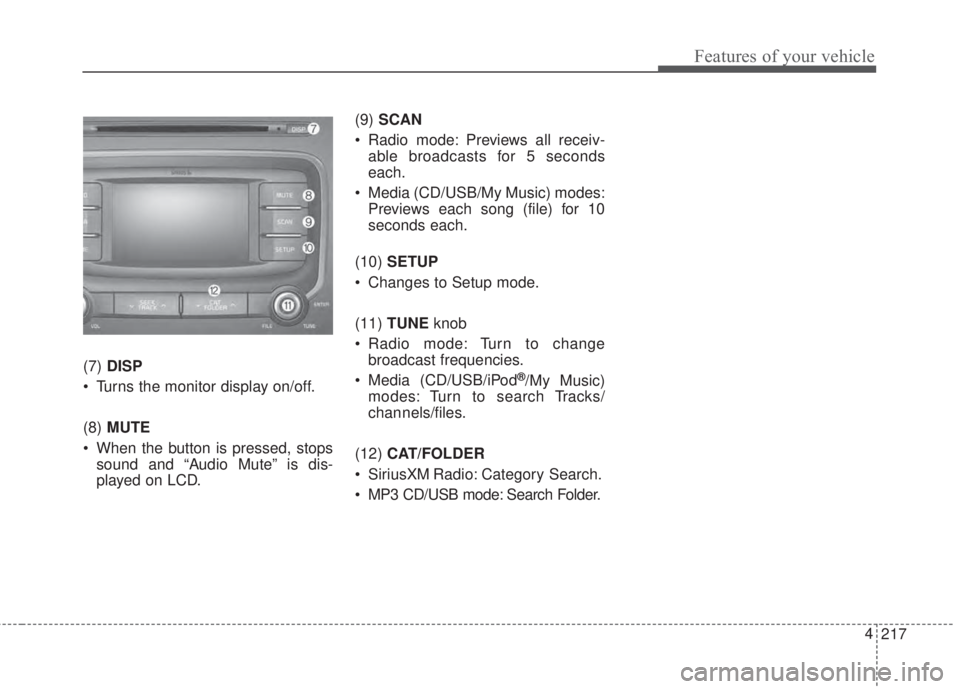
(7)DISP
• Turns the monitor display on/off.
(8)MUTE
• When the button is pressed, stops
sound and “Audio Mute” is dis-
played on LCD.(9)SCAN
• Radio mode: Previews all receiv-
able broadcasts for 5 seconds
each.
• Media (CD/USB/My Music) modes:
Previews each song (file) for 10
seconds each.
(10)SETUP
• Changes to Setup mode.
(11)TUNEknob
• Radio mode: Turn to change
broadcast frequencies.
• Media (CD/USB/iPod®/My Music)
modes: Turn to search Tracks/
chan nels/files.
(12)CAT/FOLDER
• SiriusXM Radio: Category Search.
• MP3 CD/USB mode: Search Folder.