Page 415 of 723
Audio system
132
5
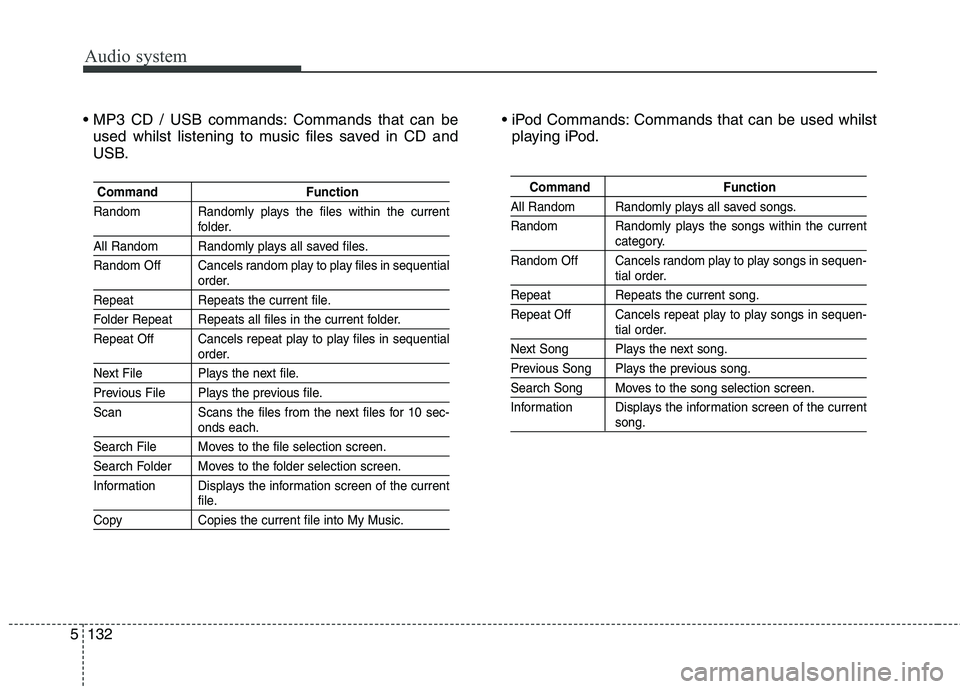
Commands that can be
used whilst listening to music files saved in CD and
USB. Commands that can be used whilst
playing iPod.
Command Function
Random Randomly plays the files within the current
folder.
All Random Randomly plays all saved files.
Random Off Cancels random play to play files in sequential
order.
Repeat Repeats the current file.
Folder Repeat Repeats all files in the current folder.
Repeat Off Cancels repeat play to play files in sequential
order.
Next File Plays the next file.
Previous File Plays the previous file.
Scan Scans the files from the next files for 10 sec-
onds each.
Search File Moves to the file selection screen.
Search Folder Moves to the folder selection screen.
Information Displays the information screen of the current
file.
Copy Copies the current file into My Music.
Command Function
All Random Randomly plays all saved songs.
Random Randomly plays the songs within the current
category.
Random Off Cancels random play to play songs in sequen-
tial order.
Repeat Repeats the current song.
Repeat Off Cancels repeat play to play songs in sequen-
tial order.
Next Song Plays the next song.
Previous Song Plays the previous song.
Search Song Moves to the song selection screen.
Information Displays the information screen of the current
song.
Page 416 of 723
5133
Audio system
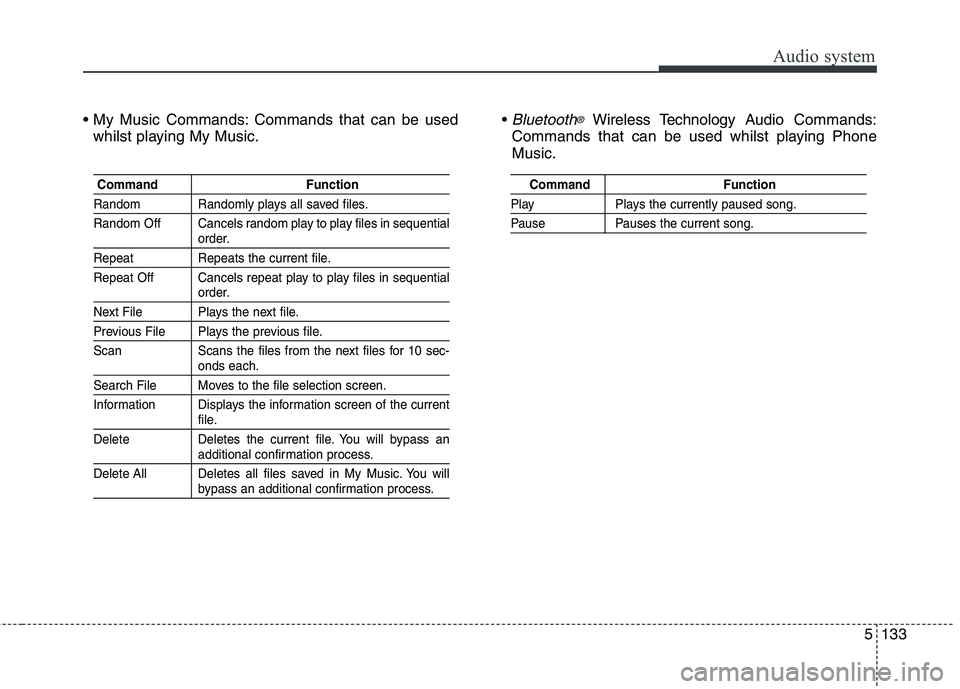
Commands that can be usedwhilst playing My Music. Bluetooth®Wireless Technology A
udio Commands:
Commands that can be used whilst playing Phone Music.
Command Function
Random Randomly plays all saved files.
Random Off Cancels random play to play files in sequential
order.
Repeat Repeats the current file.
Repeat Off Cancels repeat play to play files in sequential
order.
Next File Plays the next file.
Previous File Plays the previous file.
Scan Scans the files from the next files for 10 sec-
onds each.
Search File Moves to the file selection screen.
Information Displays the information screen of the current
file.
Delete Deletes the current file. You will bypass an
additional confirmation process.
Delete All Deletes all files saved in My Music. You will
bypass an additional confirmation process.
Command Function
Play Plays the currently paused song.
Pause Pauses the current song.
Page 417 of 723
![KIA CARENS RHD 2017 Owners Manual Audio system
134
5
SETUP
(for RDS model) AM111 A4EE
Starting Mode
Press the key to display the Setup screen.
You can select and control options
related to [Display], [Sound],
[Clock/Day], [Phone](/manual-img/2/57939/w960_57939-416.png "KIA CARENS RHD 2017 Owners Manual Audio system
134
5
SETUP
(for RDS model) AM111 A4EE
Starting Mode
Press the key to display the Setup screen.
You can select and control options
related to [Display], [Sound],
[Clock/Day], [Phone")
Audio system
134
5
SETUP
(for RDS model) AM111 A4EE
Starting Mode
Press the key to display the Setup screen.
You can select and control options
related to [Display], [Sound],
[Clock/Day], [Phone] and [System]. Display Settings
Adjusting the Brightness
Press the key Select
[Display] Select [Brightness]
Use the , buttons to adjust the
screen brightness or set the
Brightness on Automatic, Day, or
Night mode.
Press the button to reset.
(1) Automatic : Adjusts the bright-
ness automatically
(2) Daylight : Always maintains the brightness on high
(3) Night : Always maintains the
brightness on low
Pop-up Mode
Press the key Select
[Display] Select [Pop-up Mode]
This feature is used to display the
Pop-up Mode screen when entering
radio and media modes.
When this feature is turned on, pressing the or key
will display the Pop-up Mode screen.
✽✽ NOTICE
The media Pop-up Mode screen can
be displayed only when two or more
media modes have been connected.
MEDIA RADIO
SETUP
Default
SETUP
SETUP
Page 418 of 723
5135
Audio system
Scroll Text
Press the key Select
[Display] Select [Scroll text]
This feature is used to scroll text dis-
played on the screen when it is too
long to be displayed at once.
When turned on, the text is repeat-
edly scrolled. When turned off, the
text is scrolled just once.
MP3 Information Display
Press the key Select
[Display] Select [Song Info]
This feature is used to change the
information displayed within USB
and MP3 CD modes.
(1) Folder File : Displays file nameand folder name
(2) Album Ar tist Song : Displays
album name/artist name/songSETUP SETUP
Page 419 of 723
Audio system
136
5
Sound Settings
Sound Settings
Press the key Select
[Sound] Select [Audio Setting] Use the , , , buttons to
adjust the Fader/Balance settings.
Use the , buttons to adjust the
Bass/Middle/Treble settings.
Press the button to reset.
SDVC (Speed Dependent Volume
Control)
Press the key Select
[Sound] Select [Speed Dependent
Vol.]
The volume level is controlled auto-
matically according to the vehicle
speed. SDVC can be set by selecting
from Off/Low/Mid/High.
Voice Recognition Setting
Press the key Select
[Sound] Select [Volume Dialogue]
Use the , buttons to adjust
the Volume Dialog.SETUP
SETUP
DefaultSETUP
Page 420 of 723
5137
Audio system
Touch Screen Beep
Press the key Select
[Sound] Select [Touch ScreenBeep]
This feature is used to turn the touch
screen beep on/off.Clock/Day Setting
Clock Setting
Press the key Select
[Clock/Day] Select [Clock Settings]
Use the , buttons to set the
Hour, Minutes and AM/PM setting.
✽✽
NOTICE
Press and hold the key (over
0.8 seconds) to display the
Clock/Day screen.
Calendar Setting
Press the key Select
[Clock/Day] Select [Day Settings]
Use the , buttons to set the
Day, Month and Year setting.SETUP
CLOCK
SETUP
SETUP
Page 421 of 723
Audio system
138
5
Time Format
Press the key Select
[Clock/Day] Select [Time Format]
This feature is used to change the
clock format between 12hr or 24hr.
Clock Display
Press the key Select
[Clock/Day] Select [Clock Display
(Power off)]
This feature is used to display a clock on the screen when the audio sys-
tem is turned off.
Automatic RDS Time
Press the key Select
[Clock/Day] Select [Automatic RDSTime]
This feature is used to set time auto-
matically by synchronizing with RDS.SETUP SETUP SETUP
Page 422 of 723
![KIA CARENS RHD 2017 Owners Manual 5139
Audio system
Bluetooth®Wireless
Technology Setting
Pairing a New Device
Press the key Select
[Phone] Select [Pair Phone]
Bluetooth®Wireless Technology devices
can be paired with the audio sys](/manual-img/2/57939/w960_57939-421.png "KIA CARENS RHD 2017 Owners Manual 5139
Audio system
Bluetooth®Wireless
Technology Setting
Pairing a New Device
Press the key Select
[Phone] Select [Pair Phone]
Bluetooth®Wireless Technology devices
can be paired with the audio sys")
5139
Audio system
Bluetooth®Wireless
Technology Setting
Pairing a New Device
Press the key Select
[Phone] Select [Pair Phone]
Bluetooth®Wireless Technology devices
can be paired with the audio system.
For more information, refer to the
“Pairing through Phone Setup” sec-tion within
Bluetooth®Wireless
Technology.
Viewing Paired Phone List
Press the key Select
[Phone] Select [Paired Phone List]
This feature is used to view mobile
phones that have been paired with
the audio system. Upon selecting a
paired phone, the setup menu is dis-
played.
For more information, refer to the“Setting
Bluetooth®Wireless
Technology Connection” section with-in
Bluetooth®Wireless Technology.
1) : Moves to the previous screen
2) Connect/Disconnect Phone : Connect/ disconnects currentlyselected phone 3) Delete : Deletes the currently
selected phone
4) Change Priority : Sets currentlyselected phone to highest connec-
tion priority
✽✽NOTICE BEFORE DOWN-
LOADING PHONE BOOKS
Only phone books within connect- ed phones can be downloaded.
Also check to see that your mobile
phone supports the download fea-
ture.
To learn more about whether your mobile phone supports phone
book downloads, refer to your
mobile phone user’s manual.
The Phone book for only the con- nected phone can be downloaded.
Before downloading, check to see
whether your phone supports the
download feature.
SETUP
SETUP
![KIA CARENS RHD 2017 Owners Manual 5135
Audio system
Scroll Text
Press the key Select
[Display] Select [Scroll text]
This feature is used to scroll text dis-
played on the screen when it is too
long to be displayed at once.
When](/manual-img/2/57939/w960_57939-417.png "KIA CARENS RHD 2017 Owners Manual 5135
Audio system
Scroll Text
Press the key Select
[Display] Select [Scroll text]
This feature is used to scroll text dis-
played on the screen when it is too
long to be displayed at once.
When")
![KIA CARENS RHD 2017 Owners Manual Audio system
136
5
Sound Settings
Sound Settings
Press the key Select
[Sound] Select [Audio Setting] Use the , , , buttons to
adjust the Fader/Balance settings.
Use the , buttons to adjust the](/manual-img/2/57939/w960_57939-418.png "KIA CARENS RHD 2017 Owners Manual Audio system
136
5
Sound Settings
Sound Settings
Press the key Select
[Sound] Select [Audio Setting] Use the , , , buttons to
adjust the Fader/Balance settings.
Use the , buttons to adjust the")
![KIA CARENS RHD 2017 Owners Manual 5137
Audio system
Touch Screen Beep
Press the key Select
[Sound] Select [Touch ScreenBeep]
This feature is used to turn the touch
screen beep on/off.Clock/Day Setting
Clock Setting
Press the key](/manual-img/2/57939/w960_57939-419.png "KIA CARENS RHD 2017 Owners Manual 5137
Audio system
Touch Screen Beep
Press the key Select
[Sound] Select [Touch ScreenBeep]
This feature is used to turn the touch
screen beep on/off.Clock/Day Setting
Clock Setting
Press the key")
![KIA CARENS RHD 2017 Owners Manual Audio system
138
5
Time Format
Press the key Select
[Clock/Day] Select [Time Format]
This feature is used to change the
clock format between 12hr or 24hr.
Clock Display
Press the key Select
[Clo](/manual-img/2/57939/w960_57939-420.png "KIA CARENS RHD 2017 Owners Manual Audio system
138
5
Time Format
Press the key Select
[Clock/Day] Select [Time Format]
This feature is used to change the
clock format between 12hr or 24hr.
Clock Display
Press the key Select
[Clo")