Page 288 of 625
Audio system
18
5 (13) ~ (Preset)
Radio Mode: Saves frequencies
(channels) or receives saved fre-
quencies (channels)
CD, USB, iPod
®, My Music mode
- : Repeat
- : Random
In the Radio, Media, Setup, and
Menu pop up screen, the number
menu is selected.
(14)
Changes to FM/AM mode.
Each time the key is pressed, the
mode is changed in order of FM1
➟
FM2 ➟AM.
(15)
Changes to SiriusXM Satellite Radio
mode.
Each time the key is pressed, the
mode is changed in order of SAT1
➟
SAT2 ➟SAT3.
SAT
FM/AM
2
1
61
Page 304 of 625
Audio system
34
5 \b
After selecting, press key
and select the delete menu.
My Music
Even if memory is available, a
maximum of 6,000 songs can be
stored.
The same song can be copied up to 1,000 times.
Memory info can be checked in the System menu of Setup.
AUX
AUX is used to play external MEDIA
currently connected with the AUX
terminal.
AUX mode will automatically start
when an external device is connect-
ed with the AUX terminal.
If an external device is connected,
you can also press the key to
change to AUX mode.
❈ AUX mode cannot be started
unless there is an external device
connected to the AUX terminal.
AUX
Fully insert the AUX cable into the
AUX terminal for use.
MEDIA
MENU
Page 330 of 625
Audio system
60
5
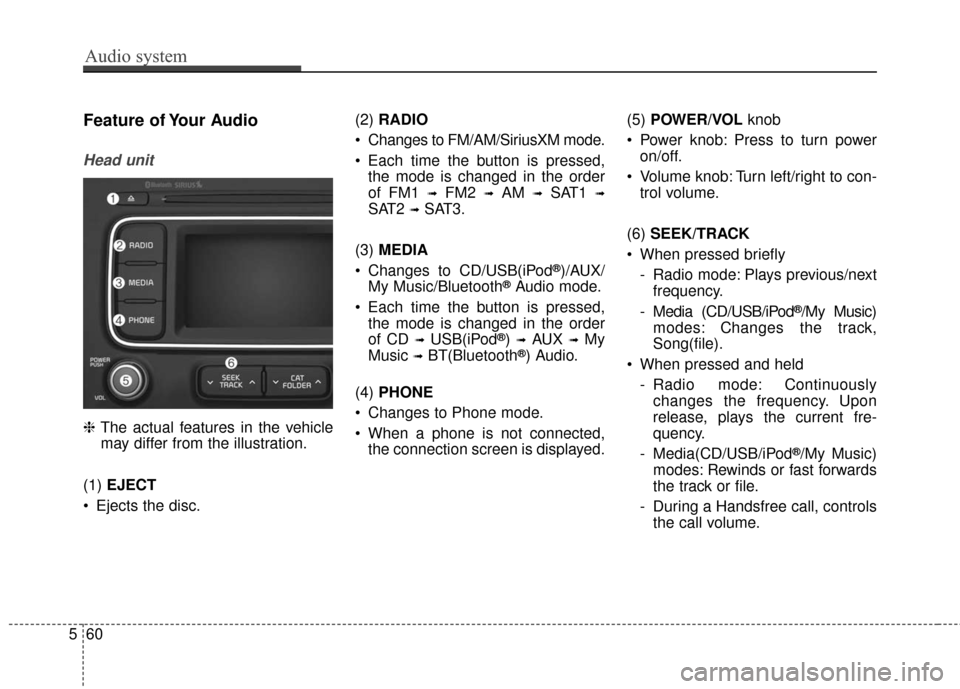
Feature of Your Audio
Head unit
❈ The actual features in the vehicle
may differ from the illustration.
(1) EJECT
Ejects the disc. (2)
RADIO
Changes to FM/AM/SiriusXM mode.
Each time the button is pressed, the mode is changed in the order
of FM1
➟FM2 ➟AM ➟SAT1 ➟
SAT2 ➟SAT3.
(3) MEDIA
Changes to CD/USB(iPod
®)/AUX/
My Music/Bluetooth®Audio mode.
Each time the button is pressed, the mode is changed in the order
of CD
➟USB(iPod®) ➟AUX ➟My
Music
➟BT(Bluetooth®) Audio.
(4) PHONE
Changes to Phone mode.
When a phone is not connected, the connection screen is displayed. (5)
POWER/VOL knob
Power knob: Press to turn power on/off.
Volume knob: Turn left/right to con- trol volume.
(6) SEEK/TRACK
When pressed briefly - Radio mode: Plays previous/nextfrequency.
- Media (CD/USB/iPod
®/My Music)
modes: Changes the track,
Song(file).
When pressed and held - Radio mode: Continuouslychanges the frequency. Upon
release, plays the current fre-
quency.
- Media(CD/USB/iPod
®/My Music)
modes: Rewinds or fast forwards
the track or file.
- During a Handsfree call, controls the call volume.
Page 331 of 625
Audio system
561
(7) DISP
(8) CLOCK
When pressed briefly: Display time screen.
When pressed and held: Move to the time setting mode. (9)
SCAN
Radio mode: Previews all receiv- able broadcasts for 5 seconds
each.
Media (CD/USB/My Music) modes: Previews each song (file) for 10
seconds each.
(10) SETUP
Changes to Setup mode.
(11) TUNE knob
Radio mode: Turn to change broadcast frequencies.
Media (CD/USB/iPod®/My Music)
modes: Turn to search Tracks/
chan nels/files.
(12) CAT/FOLDER
SiriusXM Radio: Category Search.
MP3 CD/USB mode: Search Folder. (13)
RESET
Forced system termination and system restart.
Page 333 of 625

Audio system
563
✽ ✽NOTICE
• If you want to change the position
of device installation, please
inquire with your place of pur-
chase or service maintenance cen-
ter. Technical expertise is required
to install or disassemble the
device.
• Turn on the car ignition before using this device. Do not operate
the audio system for long periods
of time with the ignition turned off
as such operations may lead to
battery discharge.
✽ ✽ NOTICE
In case of product malfunction,
please contact your dealer or vehicle
service center.CAUTION
Do not subject the device to
severe shock or impact. Directpressure onto the front side ofthe monitor may cause damageto the LCD or touch screen.
When cleaning the device, make sure to turn off thedevice and use a dry andsmooth cloth. Never usetough materials, chemicalcloths, or solvents (alcohol,benzene, thinners, etc.) assuch materials may damagethe device panel or causecolor/quality deterioration
Do not place beverages close to the audio system. Spillingbeverages may lead to systemmalfunction.
Placing the audio system with- in an electromagnetic environ-ment may result in noise inter-ference.
Page 349 of 625
Audio system
579
MENU: Audio CD
Audio CD Mode Display Controls
(1) Mode
Displays current operating mode.
(2) Operation State
From Repeat/Shuffle/Scan, displays the
currently operating function.
(3) Track Info
Displays information about the cur-
rent track.
(4) Play/Pause
Changes the play/pause state.
(5) Play Time
Displays the current play time.
(6) Info
Shows detailed information about
the current track.
(7) Shuffle
Turns the Shuffle feature on/off. (8) Repeat
Turns the Repeat feature on/off.
(9) List
Moves to the list screen.
Turn the TUNE
knob left/right to
search for tracks. Once the desired
track is displayed, press the knob to
select and play.
Page 351 of 625
Audio system
581
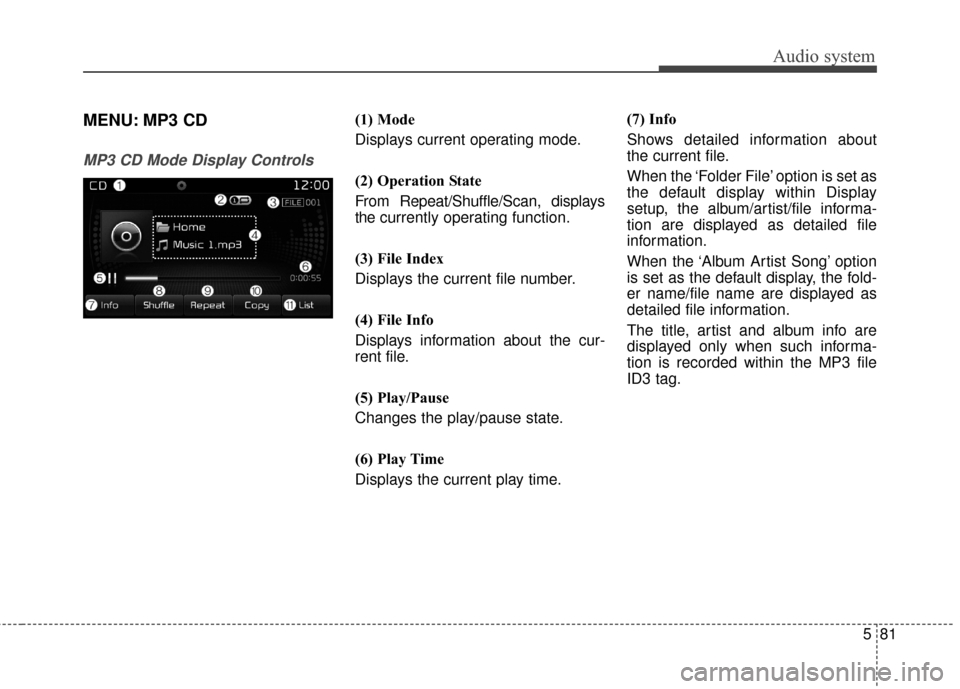
MENU: MP3 CD
MP3 CD Mode Display Controls
(1) Mode
Displays current operating mode.
(2) Operation State
From Repeat/Shuffle/Scan, displays
the currently operating function.
(3) File Index
Displays the current file number.
(4) File Info
Displays information about the cur-
rent file.
(5) Play/Pause
Changes the play/pause state.
(6) Play Time
Displays the current play time.(7) Info
Shows detailed information about
the current file.
When the ‘Folder File’ option is set as
the default display within Display
setup, the album/artist/file informa-
tion are displayed as detailed file
information.
When the ‘Album Artist Song’ option
is set as the default display, the fold-
er name/file name are displayed as
detailed file information.
The title, artist and album info are
displayed only when such informa-
tion is recorded within the MP3 file
ID3 tag.
Page 352 of 625

Audio system
82
5 (8)
Shuffle
Turns the Shuffle f eature on/off.
Each time the button is pressed, the
feature changes in the order of
Shuffle Folder
➟Shuffle All ➟Off.
Shuffle Folder: Plays all files within the current folder in shuffle order.
Shuffle All: Plays all files in shuffle order.
(9) Repeat
Turns the Repeat feature on/off.
Each time the button is pressed, the
feature changes in the order of
Repeat
➟Repeat Folder ➟Off.
Repeat: Repeats the current file.
Repeat Folder: Repeats all files within the current Folder. (10) Copy
Copies the current file into My Music.
Selecting another feature during
copying will display a pop-up asking
whether you wish to cancel copying.
To cancel, select “Yes”.
(11) List
Moves to the list screen.
Turn the TUNE
knob left/right to
search for files. Once the desired file
is displayed, press the knob to select
and play.
With the MP3 CD Mode
Playing/Pausing MP3 Files
Once an MP3 disc is inserted, the
mode will automatically start and
begin playing.
While playing, press the [II] to pause
and press [�] to play.
If there are numerous files and fold-
ers within the disc, reading time
could take more than 10 seconds
and the list may not be displayed or
song searches may not operate.
Once loading is complete, try again.
Changing Files
Press the [SEEK/TRACK] button to
move to the previous or next file.
Pressing the [ SEEK/TRACK
∨ ∨]but-
ton after the file has been playing for
2 seconds will start the current file
from the beginning.
Pressing the [ SEEK/TRACK
∨ ∨]but-
ton before the file has been playing
for 1 second will start the previous
file.