Page 324 of 625
Audio system
54
5
Command Function
FM Preset 1~6 Plays the most recently played broadcast
saved in FM Preset 1~6.
AM Preset 1~6 Plays the broadcast saved in AM Preset 1~6.
FM 87.5~107.9 Plays the FM broadcast of the corresponding
frequency.
AM 530~1710 Plays the AM broadcast of the corresponding
frequency.
SIRIUS (Satellite)When currently listening to the SiriusXM®,
maintains the current state.
When listening to a different mode, displaysthe most recently played SiriusXM®screen.
SIRIUS (Satellite)Displays the selected SiriusXM®screen.
SIRIUS ChannelPlays the selected SiriusXM®channel.
Media Moves to the most recently played media
screen.
CD Plays the music saved in the CD.
USBPlays USB music.
iPod®Plays iPod®music.
Command Function
My Music Plays the music saved in My Music.
AUX (Auxiliary) Plays the connected external device.
Bluetooth
®Audio Plays the music saved in connected Bluetooth®
device.
Mute Mutes the sound.
Cancel (Exit) Ends voice command.
0~223
1~3
Page 325 of 625
Audio system
555
FM/AM radio Commands: Commands available dur-ing FM, AM radio operation. Satellite radio Commands: Commands that can be
used while listening to Satellite Radio.
Command Function
Preset 1~6 Plays the broadcast station saved in Preset 1~6.
Scan Scans receivable frequencies from the current
broadcast and plays for 10 seconds each.
Preset Scan Moves to the next preset from the current
present and plays for 10 seconds each.
Information Displays the information of the current broad- cast.(This feature can be used when receiving
RBDS broadcasts.)
Command Function
Channel 0~223 Plays the selected Satellite Radio channel.
Scan Scans receivable channels from the current
broadcast and plays for 10 seconds each.
Preset 1~6 Plays the broadcast saved in Preset 1~6.
Information Displays the information of the current broad-
cast.
Page 326 of 625
Audio system
56
5 Audio CD Commands: Commands available during
Audio CD operation. MP3 CD / USB Commands: Commands available
during USB and MP3 CD operation.
Command Function
Random Randomly plays the tracks within the CD.
Random Off Cancels random play to play tracks in sequen-
tial order.
RepeatRepeats the current track.
Repeat Off Cancels repeat play to play tracks in sequen-
tial order.
Track 1~30 Plays the desired track number.
Command Function
Random Randomly plays the files within the current
folder.
Random Off Cancels random play to play files in sequential
order.
Repeat Repeats the current file.
Repeat Off Cancels repeat play to play files in sequential
order.
Information Displays the information screen of the current
file.
Next Folder Play the first file in the next folder.
Previous Folder Play the first file in the previous folder.
Page 327 of 625
Audio system
557
®Commands: Commands available during iPod®
operation. My Music Commands: Commands available during
My Music operation.
Command Function
Random Randomly plays the songs within the current
category.
Random Off Cancels random play to play songs in sequen-
tial order.
Repeat Repeats the current song.
Repeat Off Cancels repeat play to play songs in sequen-
tial order.
Command Function
Random Randomly plays all saved files.
Random Off Cancels random play to play files in sequential
order.
RepeatRepeats the current file.
Repeat Off Cancels repeat play to play files in sequential
order.
Delete Deletes the current file. You will bypass an
additional confirmation process.
Page 328 of 625
Audio system
58
5
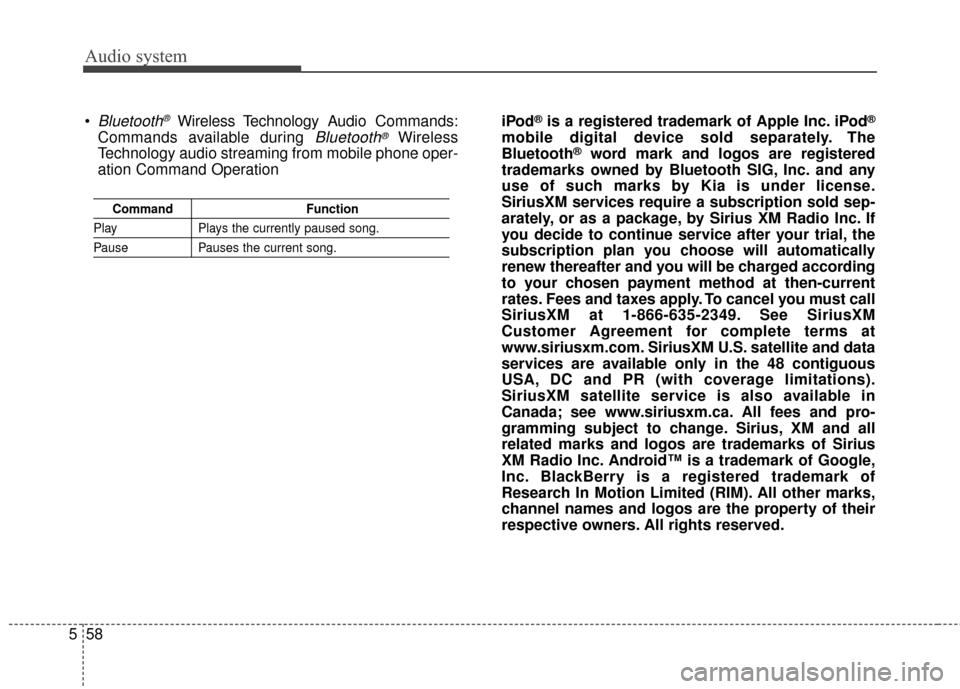
Command Function
PlayPlays the currently paused song.
PausePauses the current song.
Bluetooth®Wireless Technology A udio Commands:
Commands available during
Bluetooth®Wireless
Technology audio streaming from mobile phone oper-
ation Command Operation iPod
®is a registered trademark of Apple Inc. iPod®
mobile digital device sold separately. The
Bluetooth®word mark and logos are registered
trademarks owned by Bluetooth SIG, Inc. and any
use of such marks by Kia is under license.
SiriusXM services require a subscription sold sep-
arately, or as a package, by Sirius XM Radio Inc. If
you decide to continue service after your trial, the
subscription plan you choose will automatically
renew thereafter and you will be charged according
to your chosen payment method at then-current
rates. Fees and taxes apply. To cancel you must call
SiriusXM at 1-866-635-2349. See SiriusXM
Customer Agreement for complete terms at
www.siriusxm.com. SiriusXM U.S. satellite and data
services are available only in the 48 contiguous
USA, DC and PR (with coverage limitations).
SiriusXM satellite service is also available in
Canada; see www.siriusxm.ca. All fees and pro-
gramming subject to change. Sirius, XM and all
related marks and logos are trademarks of Sirius
XM Radio Inc. Android™ is a trademark of Google,
Inc. BlackBerry is a registered trademark of
Research In Motion Limited (RIM). All other marks,
channel names and logos are the property of their
respective owners. All rights reserved.
Page 334 of 625

Audio system
64
5
✽ ✽
NOTICE - Using Compact
Discs
• This device has been manufactured to be com-
patible with software
bearing the following logo marks.
• Do not clean discs with chemical solutions, such as record sprays,
antistatic sprays, antistatic liq-
uids, benzene, or thinners.
• After using a disc, put the disc back in its original case to prevent
disc scratches.
• Hold discs by their edges or within the center hole to prevent damage
to disc surfaces.
• Do not introduce foreign sub- stances into the disc insert/eject
slot. Introducing foreign sub-
stances could damage the device
interior.
• Do not insert two discs simultane- ously.
• When using CD-R/CD-RW discs, differences in disc reading and
playing times may occur depend-
ing on the disc manufacturer, pro-
duction method and the recording
method used. (Continued)(Continued)
• Clean fingerprints and dust off the
disc surface (coated side) with a
soft cloth.
• The use of CD-R/CD-RW discs attached with labels may result in
disc slot jams or difficulties in disc
removal. Such discs may also
result in noise while playing.
• Some CD-R/CD-RW discs may not properly operate depending on
the disc manufacturer, production
method and the recording method
used. If problems persist, trying
using a different CD as continued
use may result in malfunctions.
• The performance of this product may differ depending on the CD-
RW Drive Software.
• Copy-protected CDs such as S- type CDs may not function in the
device. DATA discs cannot be
played. (However, such discs may
still operate but will do so abnor-
mally.) (Continued)(Continued)
• Do not use abnormally shaped
discs (8cm, heart-shaped, octagon-
shaped) as such discs could lead to
malfunctions.
• If the disc is straddled on the disc slot without removal for 10 sec-
onds, the disc will automatically
be re-inserted into the disc player.
• Only genuine audio CDs are sup- ported. Other discs may result in
recognition failure. (e.g. copy CD-
R, CDs with labels)
Page 335 of 625

Audio system
565
✽ ✽NOTICE - Using the USB
Devices
• Connect the USB device after turning on the engine. The USB
device may become damaged if it
is already connected when the
ignition is turned on. The USB
device may not operate properly if
the car ignition is turned on or off
with the USB device connected.
• Be careful for static electricity when connecting/disconnecting
USB devices.
• Encoded MP3 Players will not be recognized when connected as an
external device.
• When connecting an external USB device, the vehicle's audio system
may not recognize the USB
depending on what firmware is
used by USB device or what files
are on the USB.
• Only products formatted with byte/sectors under 64Kbyte will be
recognized.
• This device recognizes USB devices formatted in FAT 12/16/32 file for-
mats. This device does not recog-
nize files in NTFS file format. (Continued)(Continued)
• Some USB devices may not be sup-
ported due to compatibility issues.
• Avoid contact between the USB connector and bodily parts or for-
eign objects.
• Repeated connecting/disconnect- ing of USB devices within short
periods of time may result in prod-
uct malfunction.
• A strange noise may occur when disconnecting the USB.
• Make sure to connect/disconnect external USB devices with the
audio power turned off.
• The amount of time required to recognize the USB device may dif-
fer depending on the type, size or
file formats stored on the USB.
Such differences in time are not
indications of malfunctions.
• The vehicle audio system only sup- ports USB devices designed to
play music files.
• USB images and videos are not supported. (Continued)(Continued)
• Do not use the USB I/F to charge
batteries or USB accessories that
generate heat. Doing so may lead
to worsened performance or dam-
age to the audio system.
• The audio system may not recog- nize the USB device if separately
purchased USB hubs and exten-
sion cables are being used.
Connect the USB device directly
with the USB port of the vehicle.
• When using mass storage USB devices with separate logical
drives, only files saved to the root
drive can be played.
• Files may not properly operate if application programs are installed
on the USBs.
• The audio system may not operate normally if MP3 Players, cellular
phones, digital cameras, or other
electronic devices (USB devices
not recognized as portable disk
drives) are connected with the
audio system. (Continued)
Page 336 of 625

Audio system
66
5
(Continued)
• Charging through the USB may
not work for some mobile devices.
• The device may not support nor- mal operation when using a typi-
cal USB memory device (minia-
ture, keychain, etc.). For best
results, use a typical USB device
that has a metal case.
• The device may not support nor- mal operation when using formats
such as HDD Type, CF, or SD
Memory.
• The device will not support files locked by DRM (Digital Rights
Management.).
• USB memory sticks used by con- necting an Adaptor (SD Type or
CF Type) may not be properly rec-
ognized.
• The device may not operate prop- erly when using USB HDDs or
USBs subject to connection fail-
ures caused by vehicle vibrations.
(e.g. i-stick type) (Continued)(Continued)
• Avoid use of USB
memory products that
can also be used as key
chains or mobile phone
accessories. Use of such products
may cause damage to the USB
jack.
• Connecting an MP3 device or phone through various channels,
such as AUX/BT or Audio/ USB
mode may result in pop noises or
abnormal operation.


