Page 311 of 744
4-62
Multimedia System
NOTE:
SiriusXM services require a sub-
scription sold separately, or as a
package, by Sirius XM Radio Inc. If
you decide to continue service
after your trial, the subscription
plan you choose will automatical-
ly renew thereafter and you will be
charged according to your chosen
payment method at then-current
rates. Fees and taxes apply. To
cancel you must call SiriusXM at
1-866-635-2349. See SiriusXM
Customer Agreement for com-
plete terms at www.siriusxm.com.
SiriusXM U.S. satellite and data
services are available only in the
48 contiguous USA, DC and PR
(with coverage limitations).
SiriusXM satellite service is also
available in Canada; see www.sir-
iusxm. ca. All fees and program-
ming subject to change. Sirius,
XM and all related marks and
logos are trademarks of Sirius XM
Radio Inc.
Page 312 of 744

4-63
Multimedia System
4
S
Si
ir
r i
iu
u s
sX
X M
M R
RA
A D
DI
IO
O
M
M O
OD
DE
E
Basic Mode Screen
1. Mode Display
Displays currently operating mode.
2. Channel Information
Displays the category, channel num-
ber, channel name, artist and title
information.
3. Preset
Displays currently playing preset
number ~ .
4. Preset Display
Displays saved presets.
Using SiriusXM Satellite Radio
Your Hyundai vehicle is equipped
with a 3-month trial subscription to
SiriusXM so you have access to over
140 channels of music, information,
and entertainment programming.
Activation
In order to extend or reactivate your
Sirius Select subscription, you will
need to contact SiriusXM Customer
Care at 1-800-643-2112. Have your
12-digit RID (Radio Identification
Number) / ESN (Electronic Serial
Number) ready. To retrieve the RID /
ESN, turn on the radio, press the
key, and tune to channel
zero.
Please note that the vehicle will need
to be turned on, in Sirius mode, and
have an unobstructed view of the sky
in order for the radio to receive the
activation signal.
Using SEEK
Press the key to play the
previous/next channel.
❈ If the “Category” icon is displayed,
channels are changed within the
current category.SEEK
TRACK
RADIO
P6P1
Page 313 of 744

4-64
Multimedia System
SCAN
Press the key to scan all
channels with superior reception for
5 seconds each.
Once scan is complete, the previous-
ly played channel will be restored.
During Scan, pressing the
key again will cancel the scan opera-
tion and restore the previously
played channel.
If the “Category” icon is displayed,
channels are changed within the cur-
rent category.
Searching Categories
Select the category by using thekey and press the
TUNE knob to select.
Channels for the selected category
are played.
Information - Trobleshooting
1. Antenna Error If this message is displayed, the
antenna or antenna cable is broken
or unplugged. Please consult with
your Hyundai dealership.
2. No Signal If this message is displayed, it
means that the antenna is covered
and that the SiriusXM Satellite
Radio signal is not available.
Ensure the antenna is uncovered
and has a clear view of the sky.Selecting Presets/Saving
Presets
Press the button to display
the broadcast information for the
channel saved to each button.
Press the ~ buttons to play
the desired preset.
Information
While listening to a channel you want
to save as a preset, press and hold one
of the ~ preset buttons to
save the current channel to the select-
ed preset.
P6P1
i
P6P1
Preset
i
CAT
FOLDER
SCAN
SCAN
Page 345 of 744

4-96
Multimedia System
❈ Illustration on using voice commands
Shortly pressing the key (under 0.8 seconds):
Shortly pressing the key (under 0.8 seconds):
Shortly pressing the key (under 0.8 seconds):
voice command.
Shortly pressing the key (under 0.8 seconds):
More Help
Contacts
Cancel
More Help
Please say a command after
the beep or say "help" for more
information.
Please say a command after
the beep or say "help" for more
information.
Please say a...
Please say the contact name you want to call.
Ding~
Ding~
More Help
Here are some examples of mode commands.
You can say a radio type like 'FM', 'AM', or 'Satellite'.
You can also say a media source like 'USB', 'My
Music', or 'iPod'.
Additionally, there are phone commands like
"Contacts', 'Call History', or 'Dial Number".
You can find more detailed commands in the user's
manual.
Please say a command after the beep.
More Help
Here are some examples of mode commands.
You can say a radio type like 'FM', 'AM', or 'Satellite'.
You can also say a media source like 'USB', 'My
Music', or 'iPod'.
Additionally, there are phone commands like
"Contacts', 'Call History', or 'Dial Number".
You can find more detailed commands in the user's
manual.
Please say a command after the beep.
(BEEP)
Page 346 of 744

4-97
Multimedia System
4
CommandFunction
More Help Provides guidance on commands that can be
used anywhere in the system.
Help Provides guidance on commands that can be
used within the current mode.
Call Calls saved in Contacts
Ex) Call “John Smith”
Call Calls to the number that is saved as "Mobile" in Contacts
Ex) Call "John Smith" on Mobile
Call Calls to the number that is saved as "Office" in Contacts
Ex) Call "John Smith" in Office
Call Calls to the number that is saved as "Home" in Contacts
Ex) Call "John Smith" at Home
Call Calls to the number that is saved as "Other" in Contacts
Ex) Call "John Smith" on Other
Phone Provides guidance on Phone related com- mands. After saying this command, say
“Favorites”,“Dial Number”, “Call History” or
“Contacts” execute corresponding functions.
Favorites Displays the Favorite screen.
Call History Displays the Call History screen.
Command Function
Contacts Displays the Contacts screen. After saying this command, say the name of a contact
saved in the Contacts to automatically con-
nect the call.
Dial Number Displays the Dial number screen. After saying this command, you can say the number that
you want to call.
RedialConnects the last dialed call number.
Tutorial Provides guidance on how to use voice
recognition and Bluetooth®connections.
When listening to the radio, displays the
next radio screen. (FM1➟FM2➟AM➟XM1➟XM2➟XM3➟FM1)
Radio
When listening to a different mode, displays
the most recently played radio screen.
When currently listening to the FM radio,
maintains the current state.
When listening to a different mode, displaysthe most recently played FM screen.
FM1(FM One) Displays the FM1 screen.
FM2(FM Two) Displays the FM2 screen.
AM Displays the AM screen.
(Call by Name)
Voice Command List
These commands can be used in most operations. (However a few commands may not be
available during certain operations)
on Mobile
in Officeat Home
on Other
Page 348 of 744
4-99
Multimedia System
4
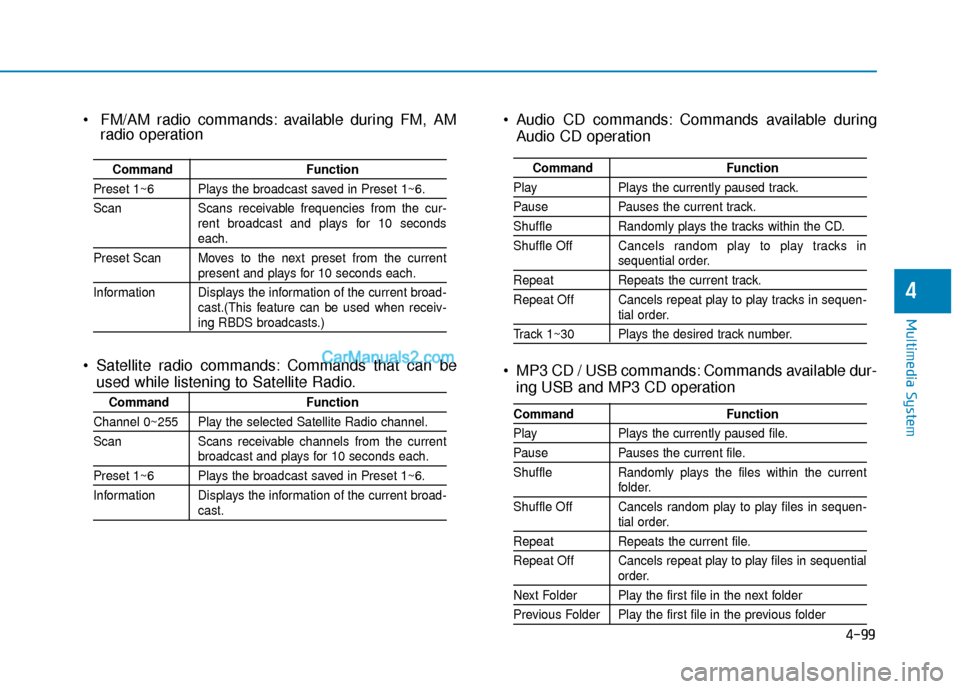
Audio CD commands: Commands available duringAudio CD operation
MP3 CD / USB commands: Commands available dur- ing USB and MP3 CD operation
Command Function
PlayPlays the currently paused track.
PausePauses the current track.
ShuffleRandomly plays the tracks within the CD.
Shuffle Off Cancels random play to play tracks in
sequential order.
Repeat Repeats the current track.
Repeat Off Cancels repeat play to play tracks in sequen-
tial order.
Track 1~30 Plays the desired track number.
Command Function
PlayPlays the currently paused file.
PausePauses the current file.
Shuffle Randomly plays the files within the current
folder.
Shuffle Off Cancels random play to play files in sequen-
tial order.
Repeat Repeats the current file.
Repeat Off Cancels repeat play to play files in sequential
order.
Next Folder Play the first file in the next folder
Previous Folder Play the first file in the previous folder
FM/AM radio commands: available during FM, AM radio operation
Satellite radio commands: Commands that can be used while listening to Satellite Radio.
Command Function
Preset 1~6 Plays the broadcast saved in Preset 1~6.
Scan Scans receivable frequencies from the cur-
rent broadcast and plays for 10 seconds
each.
Preset Scan Moves to the next preset from the current
present and plays for 10 seconds each.
Information Displays the information of the current broad- cast.(This feature can be used when receiv-
ing RBDS broadcasts.)
Command Function
Channel 0~255 Play the selected Satellite Radio channel.
Scan Scans receivable channels from the current
broadcast and plays for 10 seconds each.
Preset 1~6 Plays the broadcast saved in Preset 1~6.
Information Displays the information of the current broad-
cast.
Page 350 of 744
4-101
Multimedia System
4
S
SE
E T
T U
U P
P
Starting Mode
Press the key to display the
Setup screen.
You can select and control options
related to [Display], [Sound], [Phone]
and [System].
Display Settings
Adjusting the Brightness
Press the key Select
[Display] Select [Brightness]
Use the , buttons to adjust the
screen brightness or set the
Brightness on Automatic, Day, or
Night mode.
Press the button to reset.
1) Automatic : Adjusts the brightness
automatically
2) Day : Always maintains the bright- ness on high
3) Night : Always maintains the brightness on low
Mode Pop up
Press the key Select
[Display] Select [Mode Pop up]
This feature is used to display the
Pop-up Mode screen when entering
radio and media modes.
When this feature is turned on,
pressing the or key
will display the Pop-up Mode screen.
Information
The media Pop-up Mode screen can
be displayed only when two or more
media modes have been connected.
i
MEDIA RADIO
SETUP
Default
SETUP SETUP
Page 359 of 744

4-110
Multimedia System
Information
iPod®is a registered trademark of
Apple Inc. iPod®mobile digital device
sold separately. The Bluetooth®word
mark and logos are registered trade-
marks owned by Bluetooth
®SIG, Inc.
and any use of such marks by
Hyundai is under license. SiriusXM
services require a subscription sold
separately, or as a package, by Sirius
XM Radio Inc. If you decide to con-
tinue service after your trial, the sub-
scription plan you choose will auto-
matically renew thereafter and you
will be charged according to your cho-
sen payment method at thencurrent
rates. Fees and taxes apply. To cancel
you must call SiriusXM at 1-866-635-
2349. See SiriusXM Customer
Agreement for complete terms at
www.siriusxm.com. SiriusXM U.S.
satellite and data services are avail-
able only in the 48 contiguous USA,
DC and PR (with coverage limita-
tions). SiriusXM satellite service is
also available in Canada; see www.sir-
iusxm.ca. All fees and programming
subject to change.
(Continued)(Continued)
Sirius, XM and all related marks and
logos are trademarks of Sirius XM
Radio Inc. Android™ is a trademark
of Google, Inc. BlackBerry is a regis-
tered trademark of Research In
Motion Limited (RIM). All other
marks, channel names and logos are
the property of their respective own-
ers. All rights reserved.
i
![Hyundai Sonata Plug-in Hybrid 2017 Owners Manual 4-101
Multimedia System
4
S
SE
E T
T U
U P
P
Starting Mode
Press the key to display the
Setup screen.
You can select and control options
related to [Display], [Sound], [Phone]
and [System].
Display S](/manual-img/35/19654/w960_19654-349.png "Hyundai Sonata Plug-in Hybrid 2017 Owners Manual 4-101
Multimedia System
4
S
SE
E T
T U
U P
P
Starting Mode
Press the key to display the
Setup screen.
You can select and control options
related to [Display], [Sound], [Phone]
and [System].
Display S")