Page 201 of 563

3-116
Convenient features of your vehicle
AFLS (Adaptive Front LightingSystem) a.k.a. DBL (DynamicBending Light) (if equipped)
Adaptive front lighting system uses
the steering angle and vehicle speed
to help maximize your field of vision
by swiveling and leveling the head-
lamp.
Change the switch to the AUTO posi-
tion when the engine is running. The
adaptive front lighting system will
operate when the headlamps are
ON. To turn off the AFLS, change the
switch to other positions. After turn-
ing the AFLS off, headlamp swiveling
no longer occurs, but the leveling will
operate continuously. If the AFLS malfunction indicator
comes on, the AFLS is not working
properly. Drive to the nearest safe
location and restart the engine. If the
indicator continuously remains on,
we recommend that the system be
checked by an authorized HYUNDAI
dealer.
Daytime running light (DRL)
(if equipped)
The Daytime Running Lights (DRL)
can make it easier for others to see
the front of your vehicle during the
day, especially after dawn and before
sunset.
for U.S.A
The DRL will turn off when:
1. The light switch is not in the AUTO
position.
2. The parking brake is applied.
3. The engine is turned off.
1. The light switch is not in DRL posi- tion.
2. The parking brake is applied.
3. The engine is turned off.
for Canada
The DRL will turn off when:
1. The light switch is in the headlamp position, including the operation
that the headlamp is turned on
automatically in the AUTO light
position.
2. The parking brake is applied.
3. The engine is turned off.
OAD045436N
Page 245 of 563
3-160
Convenient features of your vehicle
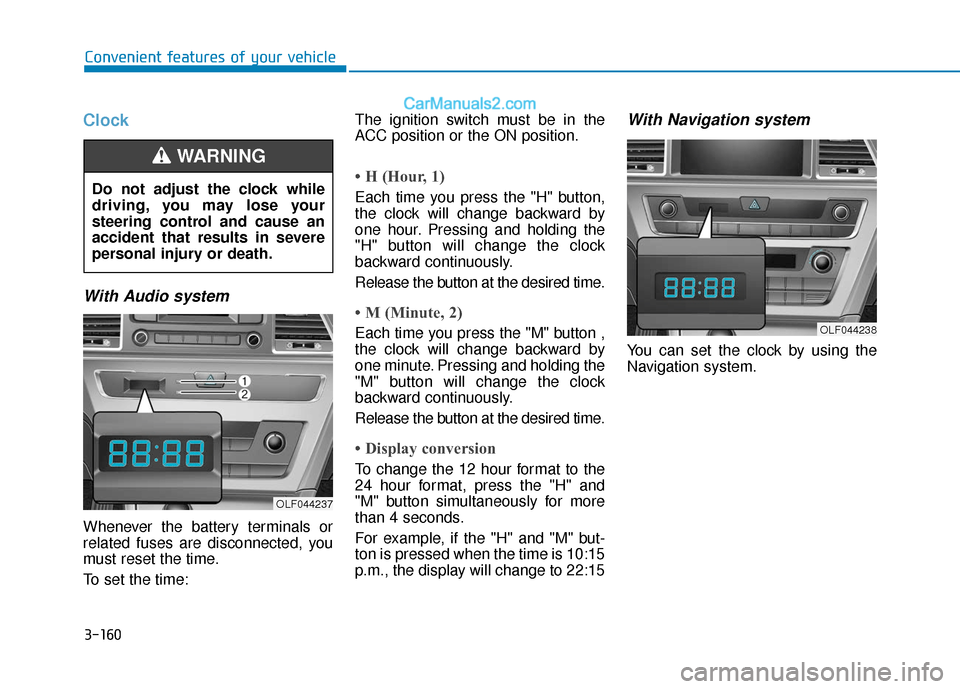
Clock
With Audio system
Whenever the battery terminals or
related fuses are disconnected, you
must reset the time.
To set the time:The ignition switch must be in the
ACC position or the ON position.
• H (Hour, 1)
Each time you press the "H" button,
the clock will change backward by
one hour. Pressing and holding the
"H" button will change the clock
backward continuously.
Release the button at the desired time.
• M (Minute, 2)
Each time you press the "M" button ,
the clock will change backward by
one minute. Pressing and holding the
"M" button will change the clock
backward continuously.
Release the button at the desired time.
• Display conversion
To change the 12 hour format to the
24 hour format, press the "H" and
"M" button simultaneously for more
than 4 seconds.
For example, if the "H" and "M" but-
ton is pressed when the time is 10:15
p.m., the display will change to 22:15
With Navigation system
You can set the clock by using the
Navigation system.
Do not adjust the clock while
driving, you may lose your
steering control and cause an
accident that results in severe
personal injury or death.
WARNING
OLF044237
OLF044238
Page 249 of 563
Multimedia System
Multimedia System.................................................4-2
AUX, USB and iPod®Port ...............................................4-2
Antenna ........................................................................\
.......4-2
Steering Wheel Audio Control........................................4-3
Audio / Video / Navigation System (AVN) ..................4-4
Bluetooth®Wireless Technology Hands-Free ...........4-4
How Vehicle Audio Works ...............................................4-5
Features of Your Vehicle.................................................4-7
System Controllers and Functions
-3.8 Inch Mono TFT ............................................4-17
Audio Head Unit ..............................................................4-17
Setup ........................................................................\
..........4-19
Radio : FM, AM, SiriusXM .............................................4-22
SiriusXM, XM
TMRADIO ...................................................4-25
Basic Method of Use : Audio CD /
MP3 CD / USB / iPod
®/ My Music ...........................4-27
Bluetooth®Wireless Technology Audio ....................4-33
Bluetooth®Wireless Technology ................................4-35
Voice Recognition ...........................................................4-46
Ending Voice Recognition .............................................4-47
Rear View Camera ..........................................................4-54
Blue Link
®........................................................................\
.4-54
Declaration of conformity ............................................4-59
4
Page 251 of 563
4-3
Multimedia System
Do not clean the inside of therear window glass with a cleaner
or scraper to remove foreign
deposits as this may cause dam-
age to the antenna elements.
Avoid adding metallic coatings such as Ni, Cd, and so on. These
can degrade the receiving AM
and FM broadcast signals.
Steering Wheel Audio Control
Do not operate audio remote con-
trol buttons simultaneously.
VOLUME (VOL + / - ) (1)
Move the VOLUME lever up toincrease volume.
Move the VOLUME lever down to decrease volume.
SEEK/PRESET ( / ) (2)
If the SEEK/PRESET lever is moved
up or down and held for 0.8 second
or more, it will function in the follow-
ing modes;
RADIO mode
It will function as the AUTO SEEK
select button. It will SEEK until you
release the button.
MEDIA mode
It will function as the FF/REW button.
If the SEEK/PRESET lever is moved
up or down, it will function in the fol-
lowing modes;
RADIO mode
It will function as the PRESET STA-
TION UP/DOWN button.
MEDIA mode
It will function as the TRACK UP/
DOWN button.
NOTICE
NOTICE
4
OLF044241N
Page 282 of 563
4-34
Multimedia System
Making a call using the Steering wheel remote
controller
The actual feature in the vehicle may differ from the illus-
tration.
Name
MODE
key
key
VOL-VOL+
Description
order of FM1
➟ FM2 ➟ AM ➟ XM1 ➟ XM2 ➟ XM3➟ CD ➟ USB or iPod ➟ AUX ➟ My Music ➟ BT
Audio
ed, corresponding modes will be disabled.
Raises or lowers speaker volume.
Places and transfers calls.
Ends calls or cancels functions.
-Shortly press (under 0.8 seconds) the key on
the steering remote controller.
- The call history list will be displayed on the screen.
- Press the key again to connect a call to the
selected number.
- Press and hold (over 0.8 seconds) the key on
the steering remote controller.
- The most recently called number is redialed.
Page 284 of 563
4-36
Multimedia System
Pairing key / key
on the Steering Remote
Controller
When No Devices have beenPaired
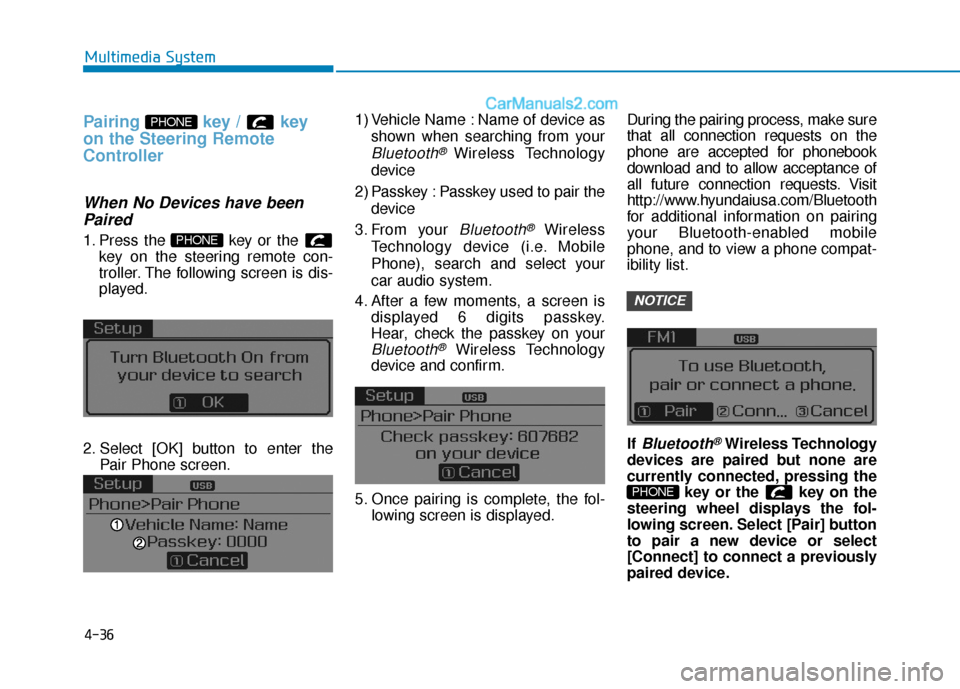
1. Press the key or the
key on the steering remote con-
troller. The following screen is dis-
played.
2. Select [OK] button to enter the Pair Phone screen. 1) Vehicle Name : Name of device as
shown when searching from your
Bluetooth® Wireless Technology
device
2) Passkey : Passkey used to pair the device
3. From your
Bluetooth®Wireless
Technology device (i.e. Mobile
Phone), search and select your
car audio system.
4. After a few moments, a screen is displayed 6 digits passkey.
Hear, check the passkey on your
Bluetooth®Wireless Technology
device and confirm.
5. Once pairing is complete, the fol- lowing screen is displayed. During the pairing process, make sure
that all connection requests on the
phone are accepted for phonebook
download and to allow acceptance of
all future connection requests. Visit
http://www.hyundaiusa.com/Bluetooth
for additional information on pairing
your Bluetooth-enabled mobile
phone, and to view a phone compat-
ibility list.
If
Bluetooth®Wireless Technology
devices are paired but none are
currently connected, pressing the key or the key on the
steering wheel displays the fol-
lowing screen. Select [Pair] button
to pair a new device or select
[Connect] to connect a previously
paired device.
PHONE
NOTICE
PHONE
PHONE
Page 291 of 563
4-43
Multimedia System
4
Phone Menu Screen
Phone Menus
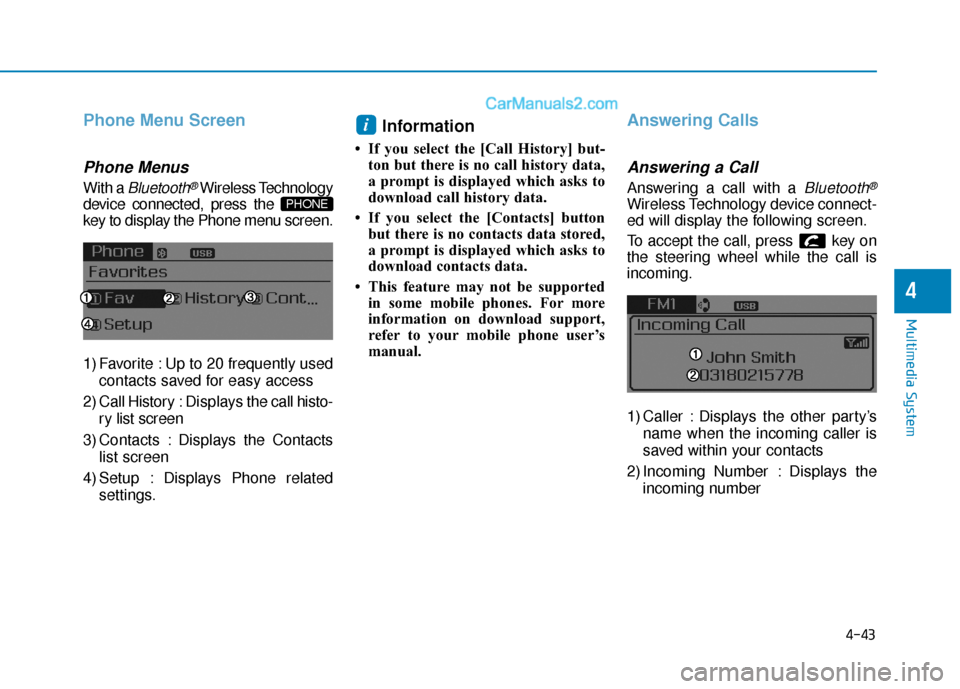
With a Bluetooth®Wireless Technology
device connected, press the
key to display the Phone menu screen.
1) Favorite : Up to 20 frequently used
contacts saved for easy access
2) Call History : Displaysthe call histo-
ry list screen
3) Contacts : Displays the Contacts list screen
4) Setup : Displays Phone related settings.
Information
• If you select the [Call History] but-ton but there is no call history data,
a prompt is displayed which asks to
download call history data.
• If you select the [Contacts] button but there is no contacts data stored,
a prompt is displayed which asks to
download contacts data.
• This feature may not be supported in some mobile phones. For more
information on download support,
refer to your mobile phone user’s
manual.
Answering Calls
Answering a Call
Answering a call with a Bluetooth®
Wireless Technology device connect-
ed will display the following screen.
To accept the call, press key on
the steering wheel while the call is
incoming.
1) Caller : Displays the other party’s
name when the incoming caller is
saved within your contacts
2) Incoming Number : Displays the incoming number
i
PHONE
Page 294 of 563
4-46
Multimedia System
V
VO
O I
IC
C E
E
R
R E
EC
CO
O G
GN
N I
IT
T I
IO
O N
N
Using Voice Recognition
Starting Voice Recognition
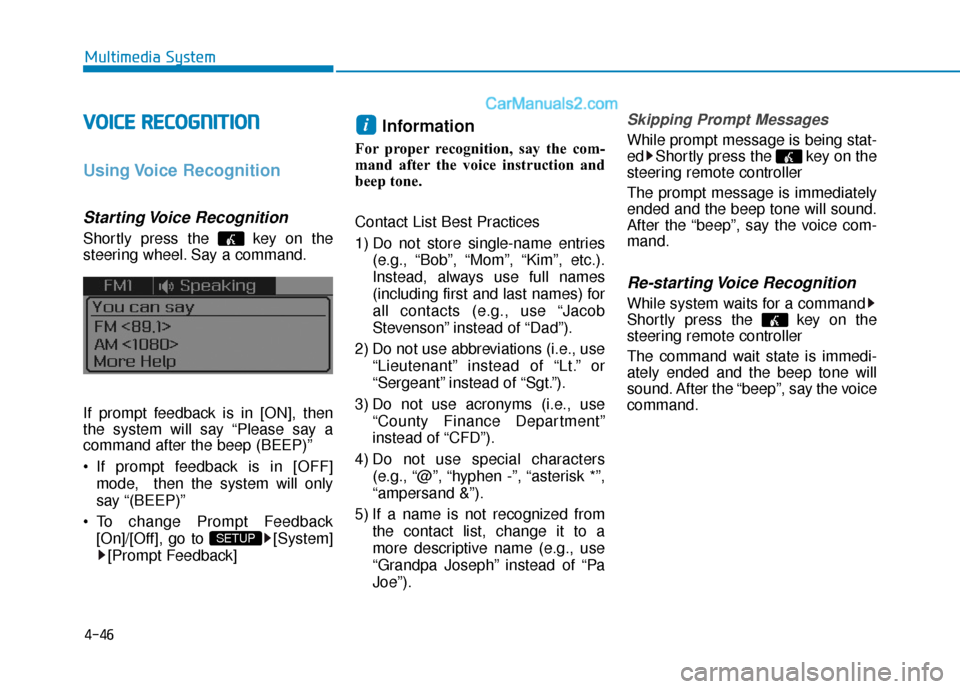
Shortly press the key on the
steering wheel. Say a command.
If prompt feedback is in [ON], then
the system will say “Please say a
command after the beep (BEEP)”
If prompt feedback is in [OFF]
mode, then the system will only
say “(BEEP)”
To change Prompt Feedback [On]/[Off], go to [System][Prompt Feedback]
Information
For proper recognition, say the com-
mand after the voice instruction and
beep tone.
Contact List Best Practices
1) Do not store single-name entries (e.g., “Bob”, “Mom”, “Kim”, etc.).
Instead, always use full names
(including first and last names) for
all contacts (e.g., use “Jacob
Stevenson” instead of “Dad”).
2) Do not use abbreviations (i.e., use “Lieutenant” instead of “Lt.” or
“Sergeant” instead of “Sgt.”).
3) Do not use acronyms (i.e., use “County Finance Department”
instead of “CFD”).
4) Do not use special characters (e.g., “@”, “hyphen -”, “asterisk *”,
“ampersand &”).
5) If a name is not recognized from the contact list, change it to a
more descriptive name (e.g., use
“Grandpa Joseph” instead of “Pa
Joe”).
Skipping Prompt Messages
While prompt message is being stat-
ed Shortly press the key on the
steering remote controller
The prompt message is immediately
ended and the beep tone will sound.
After the “beep”, say the voice com-
mand.
Re-starting Voice Recognition
While system waits for a command
Shortly press the key on the
steering remote controller
The command wait state is immedi-
ately ended and the beep tone will
sound. After the “beep”, say the voice
command.
i
SETUP