Page 280 of 614
4183
Features of your vehicle
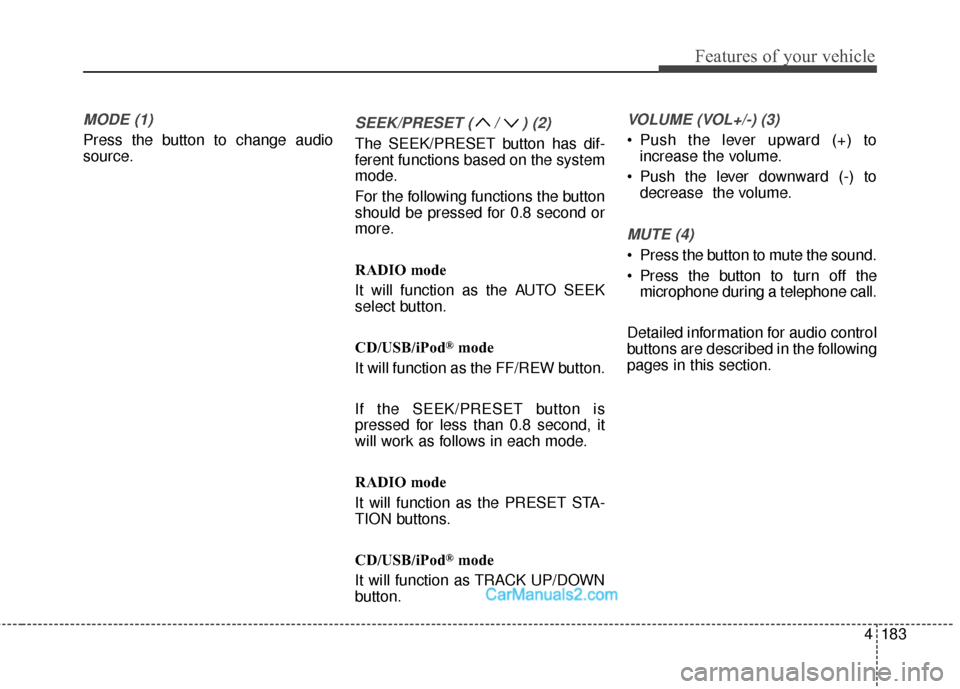
MODE (1)
Press the button to change audio
source.
SEEK/PRESET ( / ) (2)
The SEEK/PRESET button has dif-
ferent functions based on the system
mode.
For the following functions the button
should be pressed for 0.8 second or
more.
RADIO mode
It will function as the AUTO SEEK
select button.
CD/USB/iPod
®mode
It will function as the FF/REW button.
If the SEEK/PRESET button is
pressed for less than 0.8 second, it
will work as follows in each mode.
RADIO mode
It will function as the PRESET STA-
TION buttons.
CD/USB/iPod
®mode
It will function as TRACK UP/DOWN
button.
VOLUME (VOL+/-) (3)
• Push the lever upward (+) to increase the volume.
Push the lever downward (-) to decrease the volume.
MUTE (4)
Press the button to mute the sound.
Press the button to turn off themicrophone during a telephone call.
Detailed information for audio control
buttons are described in the following
pages in this section.
Page 281 of 614
Features of your vehicle
184
4
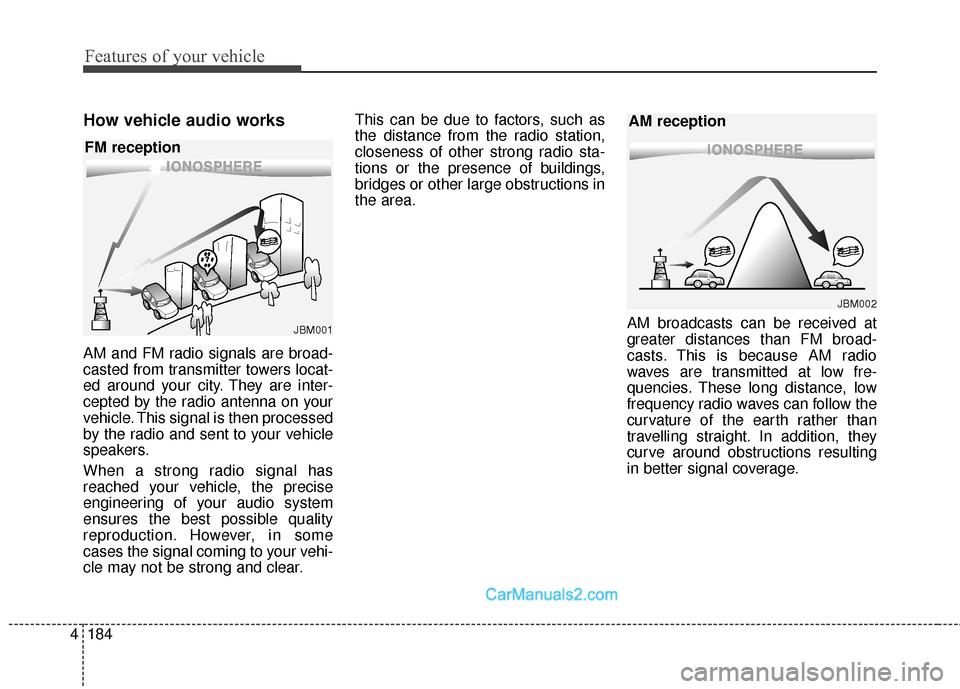
How vehicle audio works
AM and FM radio signals are broad-
casted from transmitter towers locat-
ed around your city. They are inter-
cepted by the radio antenna on your
vehicle. This signal is then processed
by the radio and sent to your vehicle
speakers.
When a strong radio signal has
reached your vehicle, the precise
engineering of your audio system
ensures the best possible quality
reproduction. However, in some
cases the signal coming to your vehi-
cle may not be strong and clear. This can be due to factors, such as
the distance from the radio station,
closeness of other strong radio sta-
tions or the presence of buildings,
bridges or other large obstructions in
the area.
AM broadcasts can be received at
greater distances than FM broad-
casts. This is because AM radio
waves are transmitted at low fre-
quencies. These long distance, low
frequency radio waves can follow the
curvature of the earth rather than
travelling straight. In addition, they
curve around obstructions resulting
in better signal coverage.
JBM001
FM reception
JBM002
AM reception
Page 282 of 614
4185
Features of your vehicle
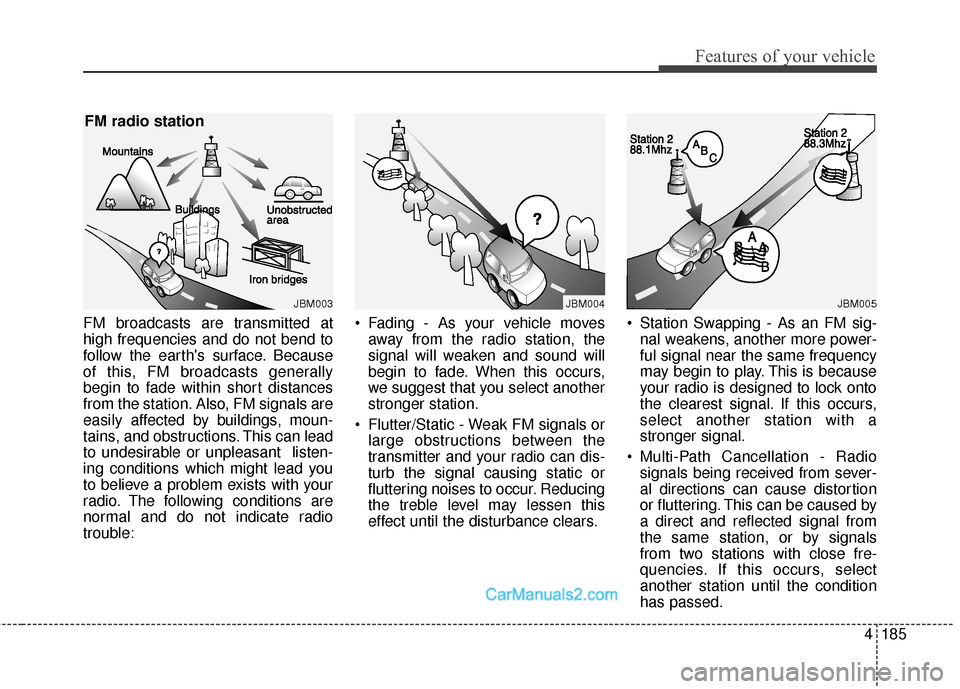
FM broadcasts are transmitted at
high frequencies and do not bend to
follow the earth's surface. Because
of this, FM broadcasts generally
begin to fade within short distances
from the station. Also, FM signals are
easily affected by buildings, moun-
tains, and obstructions. This can lead
to undesirable or unpleasant listen-
ing conditions which might lead you
to believe a problem exists with your
radio. The following conditions are
normal and do not indicate radio
trouble: Fading - As your vehicle moves
away from the radio station, the
signal will weaken and sound will
begin to fade. When this occurs,
we suggest that you select another
stronger station.
Flutter/Static - Weak FM signals or large obstructions between the
transmitter and your radio can dis-
turb the signal causing static or
fluttering noises to occur. Reducing
the treble level may lessen this
effect until the disturbance clears. Station Swapping - As an FM sig-
nal weakens, another more power-
ful signal near the same frequency
may begin to play. This is because
your radio is designed to lock onto
the clearest signal. If this occurs,
select another station with a
stronger signal.
Multi-Path Cancellation - Radio signals being received from sever-
al directions can cause distortion
or fluttering. This can be caused by
a direct and reflected signal from
the same station, or by signals
from two stations with close fre-
quencies. If this occurs, select
another station until the condition
has passed.
JBM003
FM radio station
JBM004JBM005
Page 283 of 614
Features of your vehicle
186
4
Using a cellular phone or a two-
way radio
When a cellular phone is used inside
the vehicle, noise may be produced
from the audio system. This does not
mean that something is wrong with
the audio equipment. In such a case,
try to operate mobile devices as far
from the audio equipment as possible.
CAUTION
When using a communicationsystem such as a cellular phoneor a radio set inside the vehicle,a separate external antennamust be fitted. When a cellularphone or a radio set is usedwith an internal antenna alone,it may interfere with the vehi-cle's electrical system andadversely affect safe operationof the vehicle.
WARNING
Do not use a cellular phone
while driving. Stop at a safe
location to use a cellular phone.
Page 285 of 614
Features of your vehicle
188
4
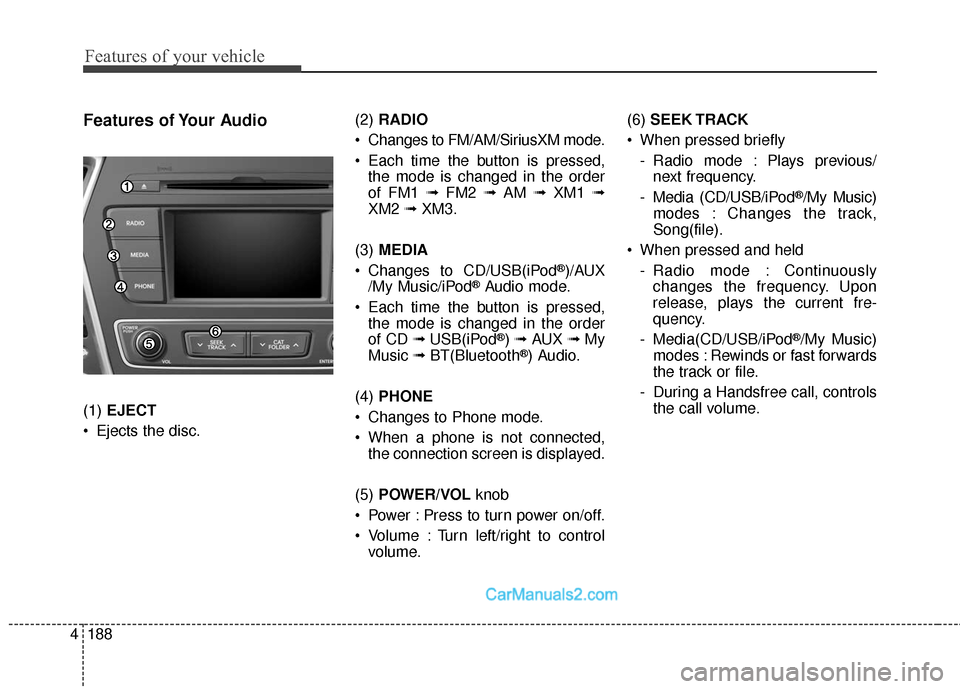
Features of Your Audio
(1) EJECT
Ejects the disc. (2)
RADIO
Changes to FM/AM/SiriusXM mode.
Each time the button is pressed, the mode is changed in the order
of FM1 ➟ FM2 ➟AM ➟XM1 ➟
XM2 ➟XM3.
(3) MEDIA
Changes to CD/USB(iPod
®)/AUX
/My Music/iPod®Audio mode.
Each time the button is pressed, the mode is changed in the order
of CD ➟ USB(iPod
®) ➟ AUX ➟My
Music ➟BT(Bluetooth®) Audio.
(4) PHONE
Changes to Phone mode.
When a phone is not connected, the connection screen is displayed.
(5) POWER/VOL knob
Power : Press to turn power on/off.
Volume : Turn left/right to control volume. (6)
SEEK TRACK
When pressed briefly - Radio mode : Plays previous/next frequency.
- Media (CD/USB/iPod
®/My Music)
modes : Changes the track,
Song(file).
When pressed and held - Radio mode : Continuouslychanges the frequency. Upon
release, plays the current fre-
quency.
- Media(CD/USB/iPod
®/My Music)
modes : Rewinds or fast forwards
the track or file.
- During a Handsfree call, controls the call volume.
Page 286 of 614
4189
Features of your vehicle
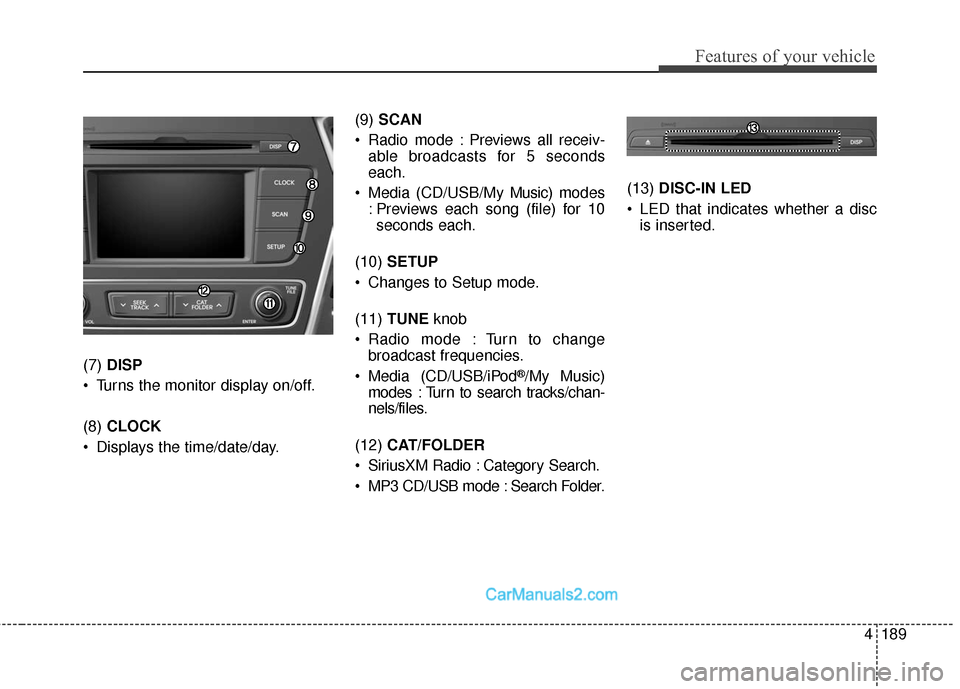
(7) DISP
Turns the monitor display on/off.
(8) CLOCK
Displays the time/date/day. (9)
SCAN
Radio mode : Previews all receiv- able broadcasts for 5 seconds
each.
Media (CD/USB/My Music) m odes
: Previews each song (file) for 10 seconds each.
(10) SETUP
Changes to Setup mode.
(11) TUNE knob
Radio mode : Turn to change broadcast frequencies.
Media (CD/USB/iPod®/My Music)
modes : Turn to search tracks/chan-
nels/files.
(12) CAT/FOLDER
SiriusXM Radio : Category Search.
MP3 CD/USB mode : Search Folder. (13)
DISC-IN LED
LED that indicates whether a disc is inserted.
Page 296 of 614
4199
Features of your vehicle
Radio Mode
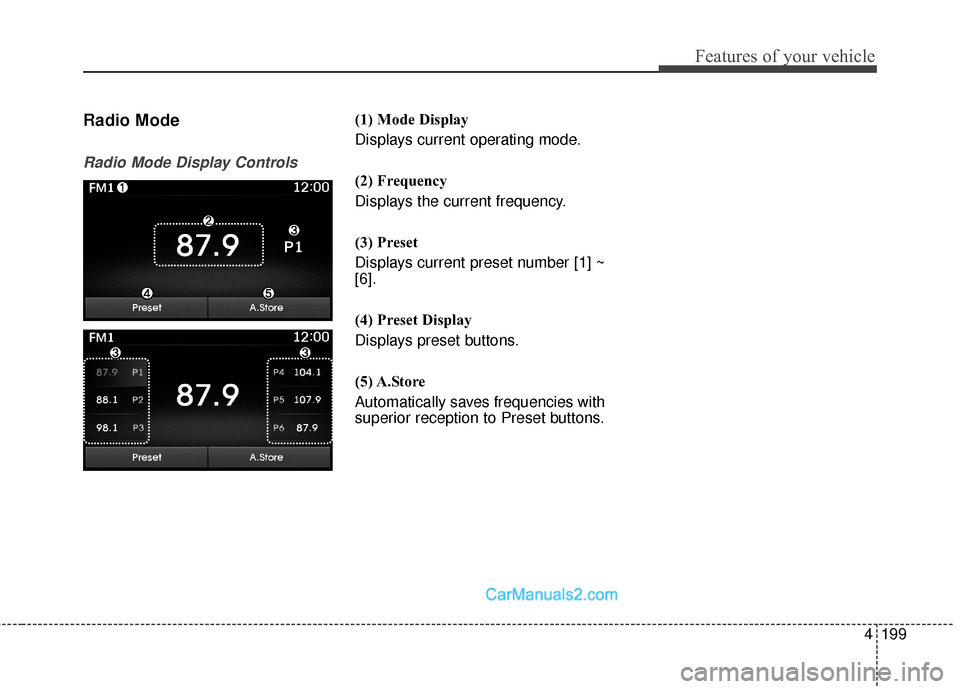
Radio Mode Display Controls
(1) Mode Display
Displays current operating mode.
(2) Frequency
Displays the current frequency.
(3) Preset
Displays current preset number [1] ~
[6].
(4) Preset Display
Displays preset buttons.
(5) A.Store
Automatically saves frequencies with
superior reception to Preset buttons.
Page 297 of 614
![Hyundai Santa Fe Sport 2017 Owners Manual Features of your vehicle
200
4
With the Radio Mode Button
Pressing the [RADIO] button will
change the operating mode in the
order of FM1 ➟FM2 ➟AM ➟XM1 ➟
XM2 ➟XM3.
If [Mode Pop up] is tu](/manual-img/35/16751/w960_16751-296.png "Hyundai Santa Fe Sport 2017 Owners Manual Features of your vehicle
200
4
With the Radio Mode Button
Pressing the [RADIO] button will
change the operating mode in the
order of FM1 ➟FM2 ➟AM ➟XM1 ➟
XM2 ➟XM3.
If [Mode Pop up] is tu")
Features of your vehicle
200
4
With the Radio Mode Button
Pressing the [RADIO] button will
change the operating mode in the
order of FM1 ➟FM2 ➟AM ➟XM1 ➟
XM2 ➟XM3.
If [Mode Pop up] is turned on within
[SETUP] �[Display], then pressing
the [RADIO] button will display the
Radio Pop-up Mode screen.
Turn the TUNE knob to move the
focus. Press the knob to select.
Seek
Press the [SEEK TRACK] button to
play the previous/next frequency.
Tu n e
Turn the TUNE knob to select the
desired frequency. Selecting Presets/Saving Presets
Press the [Preset] button to display
the broadcast information for the fre-
quency saved to each button.
Press the [1] ~ [6] buttons to play the
desired preset.
While listening to a frequency you
want to save as a preset, press and
hold one of the [1] ~ [6] preset but-
tons to save the current frequency to
the selected preset.
A.Store (Auto Store)
Press the [A.Store] button to auto-
matically save receivable frequen-
cies to Preset buttons.
Scan
Press the [SCAN]
button to preview
frequencies with superior reception
for 5 seconds each.
Press and hold the [SCAN] button to
preview presets for 5 seconds each.
Once scan is complete, the previous
frequency will be restored.
While Scan is operating, pressing
the [SCAN] button will cancel scan-
ing.