Page 189 of 308
Setup I 9-7
Bluetooth System Information
Press t\fe key ▶
Select ▶
Select
.
Features Description
\be\ficle
Name You can c\fange t\fe
Bluetoot\f device name of
t\fe ve\ficle.
Passkey
You can c\fange t\fe pass
-
key used for Bluetoot\f
device aut\fentication. t\fe
initial passkey is 0000.
Default Factory
Settings You can delete all paired
devices and restore t\fe
Default Bluetoot\f Settings.
For Default Factory Settings,
all paired devices are
deleted, and t\fe system is
reset to factory settings.
i
Information
•
T\fe \be\ficle Name above is an example.
C\feck t\fe actual information on t\fe produ\Pct.
•
Press t\fe key ▶
Select
icon.
•
Press t\fe
key ▶
Select
icon.
Features Description
Service
Activation Reactivates t\fe Blue
Link.
Modem
Information S\fows MEID modem
information.
Page 190 of 308
9-8 I Setup
Service Activation
Press t\fe key ▶
Select
▶
Select
Activation may take up to five minutes.
Do not turn t\fe engine off w\file activation
is in progress.
If activation fails, contact t\fe Blue Link
Center at (855) 2-\PBlueLink.
During service activation, t\fe keys in t\fe
\fead unit do not fu\Pnction.
Modem Information
Press t\fe key ▶
Select
▶
Select
Features Description
USIM
USIM Identity number
IMEI
Equipment Identity\P number
Configure \fow to make a call wit\f
\boice Recognition G\Puidance and \boice
Recognition.
Features Description
Guidance Select an option from
Beginner, Normal, or
Expert.
Page 192 of 308
9-10 I Setup
Language Settings
You can configure t\fe displayed system
language.
W\fen t\fe language i\Ps c\fanged, t\fe
system language is\P automatically
c\fanged.
Unique data including MP3 file name is
not c\fanged and some languages don’t
support voice recognition.
Keyboard Settings
You can configure t\fe keyboard layout for
eac\f language.
You can configure ABCD or QWERTY
keyboards for t\fe system.
i Information
• Configured keyboard layouts are applied to all
input modes.
Downloaded Apps Settings
Displays t\fe applications t\fat were down-
loaded t\froug\f t\fe D\Pownload Center. \biew
t\fe memory status of installed applications
or delete t\fem.
You can delete downloaded applications in
t\fe Download Center. To recover a deleted
application, you can re-install t\fe applica -
tion wit\f t\fe re-download function in t\fe
Download Center.
Page 200 of 308

10-6 I Appendix
Problem Possible Cause Countermeasure
T\fe USB
does not
work
• USB memory is
damaged
•USB memory \fas
been contaminated
•A separately pur -
c\fased USB HUB is
being used
• A USB extension
cable is being used
•A USB w\fic\f is not
a Metal Cover Type
USB Memory is
being used
•An HDD type, CF,
SD Memory is being
used
•T\fere are no music
files w\fic\f can be
played
•Please use t\fe USB after
formatting it.
•Remove any foreign sub -
stances on t\fe contact sur -
face of t\fe USB memory and
multimedia terminal
• Directly connect t\fe USB
memory wit\f t\fe multimedia
terminal on t\fe ve\ficle
• Directly connect t\fe USB
memory wit\f t\fe multimedia
terminal on t\fe ve\ficle
•Use standard USB Me\smory
•Use standard USB Me\smory
•Only MP3, WMA file formats
are supported. Please use
only t\fe supported music file
formats
T\fe iPod is
not recog-
nized even
t\foug\f it \fas
been con-
nected
• T\fere are no titles
w\fic\f can be played
•T\fe iPod firmware
version \fas not
been properly
updated
•T\fe iPod device
does not recognize
downloads
• Use iTunes to download and
save MP3 files into t\f\se iPod
•Use iTunes to update t\fe firm-
ware version and reconnect
t\fe iPod wit\f t\fe device
•Reset t\fe iPod and reconnect
wit\f t\fe device
Problem Possible Cause Countermeasure
Bluetoot\f
does not
work or its
limited func-
tions are
available
• Bluetoot\f on your
mobile p\fone is set
to OFF
•T\fe Bluetoot\f con -
nection is not made\s
• Android Auto is
active
•Set it to ON
•Make t\fe connection ac\stive
•Deactivate t\fe mode
Android Auto
does not
work wit\f
proper
connection
• Android Auto block -
ing is made in your
p\fone
• T\fe status of t\fe
application \fas an
error
•OS system version
not supported
•Android Auto App
not installed
•Android Auto is OFF
in connectivity set -
ting
• Non acceptance of
request of approval
•Release t\fe blocking.
•Clear t\fe error.
•End t\fe application process
and try again
•OS system of t\fe p\fone
s\fould be 5.x or more and
can be used by installing
t\froug\f Google play
•C\feck Android Auto is ON in
connectivity settin\sg.
SETUP ▶
Connectivity
(Select)
• Accept request of approval
Android Auto is connected
first time
i Information
• W\file operating t\fe device, if an abnormality occurs t\fat cannot be
corrected wit\f t\fe above described measures, press t\fe
RESET
key to
reset t\fe system.
• Press and \fold t\fe RESET key (over 1 second). T\fe device power will turn
off and t\fe system w\sill reset.
Page 201 of 308

Appendix I 10-7
About \bairing \fobile \bhones
Q I cannot pair my mobile p\fone. W\fat is t\fe cause?
A C\feck to see t\fat t\fe mobile p\fone supports Bluetoot\f® func -
tion. Verify if Bluetoot\f on t\fe cell p\fone is set to OFF. If so, set
it to ON. If t\fe cell p\fone still can’t be registered, try again after
turning Bluetoot\f off and on, or delete t\fe device registration on
t\fe Multimedia System and cell p\fone and t\fen register t\fe cell
p\fone again.
Q W\fat is t\fe difference between pairing a mobile p\fone and con-
necting a mobile p\s\fone?
A Pairing occurs t\froug\f aut\fenticating t\fe \fead unit and mobile
p\fone. Mobile p\fones paired to t\fe \fead unit can be connected
and disconnected until t\fe paired mobile p\fone is deleted from
t\fe system. Bluetoot\f
® Handsfree features, suc\f as making/
answering calls or managing contacts, are supported only in
mobile p\fones conne\scted wit\f t\fe \fead u\snit. Q
W\fat is a Passkey?
A A passkey is t\fe password used to aut\fenticate t\fe connection
between t\fe \fead unit and mobile p\fone. T\fe passkey only
needs to be entered once w\fen pairing t\fe mobile p\fone for t\fe
first time.
T\fe initial passke y is 0000. You can c\fange it wi\st\f
▶
▶ ▶
menu
options.
Page 202 of 308

10-8 I Appendix
About \faking/Answering \bhone Calls
Q How can I answer a call?
A W\fen t\fere is an incoming call, a notification pop-up will
become displayed. To answer t\fe incoming call, select t\fe
button on t\fe screen\s or t\fe key on t\fe steering
remote controller.
To reject t\fe call, select t\fe button on t\fe screen or
press t\fe
key on t\fe steering w\feel control.
Q W\fat s\fould I do if I am talking on t\fe Handsfree but want to
switc\f t\fe call to t\s\fe mobile p\fone?
A W\file on a call, press and \fold (more t\fan 0.8 seconds) t\fe
key on t\fe steering remote controller or select t\fe
button at t\fe bottom of t\fe P\fone screen to switc\f
t\fe call to your mobile p\fone.
About Bluetooth® Wireless Technology/
Head Unit Use Environment
Q W\fat is t\fe range of my wireless connecti\son?
A T\fe wireless connect\sion can be used wit\s\fin 15 yards.
Q How many mobile p\fones can\s be paired?
A It is possible to pair up to f\sive mobile p\fones.
Q W\fy is call quality s\sometimes poor?
A
C\feck t\fe reception sensitivity of t\fe mobile p\fone w\fen call
quality becomes worsened. T\fe call quality may deteriorate w\fen
t\fe signal strengt\f is low. Call quality may also worsen if metal
objects, suc\f as beverage cans, are placed near t\fe mobile
p\fone. C\feck to see if t\fere a\sre metal objects in\s t\fe vicinity of t\f\se
mobile p\fone. T\fe call sound and quality may differ depending on
t\fe type of mobile \sp\fone.
Page 204 of 308

10-10 I Index
D
Deleting Bluetooth\v Devi\fes ……………3-\b
Dial
……………………………………3-7
Dire\ft Tune
……………………………2-8
Dis\f CD
………………………………2-16
Dis\f/Content Format Compatibility
… …2-12
Dis\fonne\fting Bluet\vooth Devi\fes
……3-\b
Dis\f MP3
………………………………2-19
Display
…………………………………\b-3\b
Display Route Information
……………\b-31
Display Settings
………………………9-4
Download Center
……………………7-8
Downloaded Apps Sett\vings
…………9-10
Driving Info
……………………………4-6
E
Editing Route …………………………\b-33
Emergen\fy
……………………………\b-20
Ending Voi\fe Re\fognition
……………6-3
Extending the List\vening Time
…………6-4
F
FAQ ……………………………………10-7
Favorite Pla\fes
………………………\b-24
Favorites
………………………………3-11
“Find the Nearest \v” List
…6-1\b
FM/AM
…………………………………2-2
FM/AM Mode Display Controls
………2-2
Freeway Exit / Entran\fe
………………\b-22
G
Gas Stations …………………………\b-19
General
………………………………\b-3\b
Getting Started with Blue Link\v …………4-4
Guidan\fe
………………………………\b-36
H
HD Radio™ Mode Di\vsplay Controls …2-\b
HD Radio™ Te\fhnology
………………2-4
Head Unit
………………………………1-\b
Help Display
……………………………6-6
Home S\freen
…………………………1-11
How to Conne\ft to a N\vetwork
…………9-9
How to start Siri ………………………6-21
How to use Siri
…………………………6-21
I
Instru\ftions for Using Voi\fe
Re\fognition
……………………………6-7
Interse\ftion
……………………………\b-23
iPod
……………………………………2-30
iPod Mode Display Controls
…………2-34
K
Key Produ\ft Features …………………1-4
Keyboard Settings
……………………9-10
L
Language Settings ……………………9-10
Lo\fal Sear\fh
…………………………\b-17
M
Map Display ……………………………\b-\b
Map S\fale
……………………………\b-4
Page 219 of 308
3
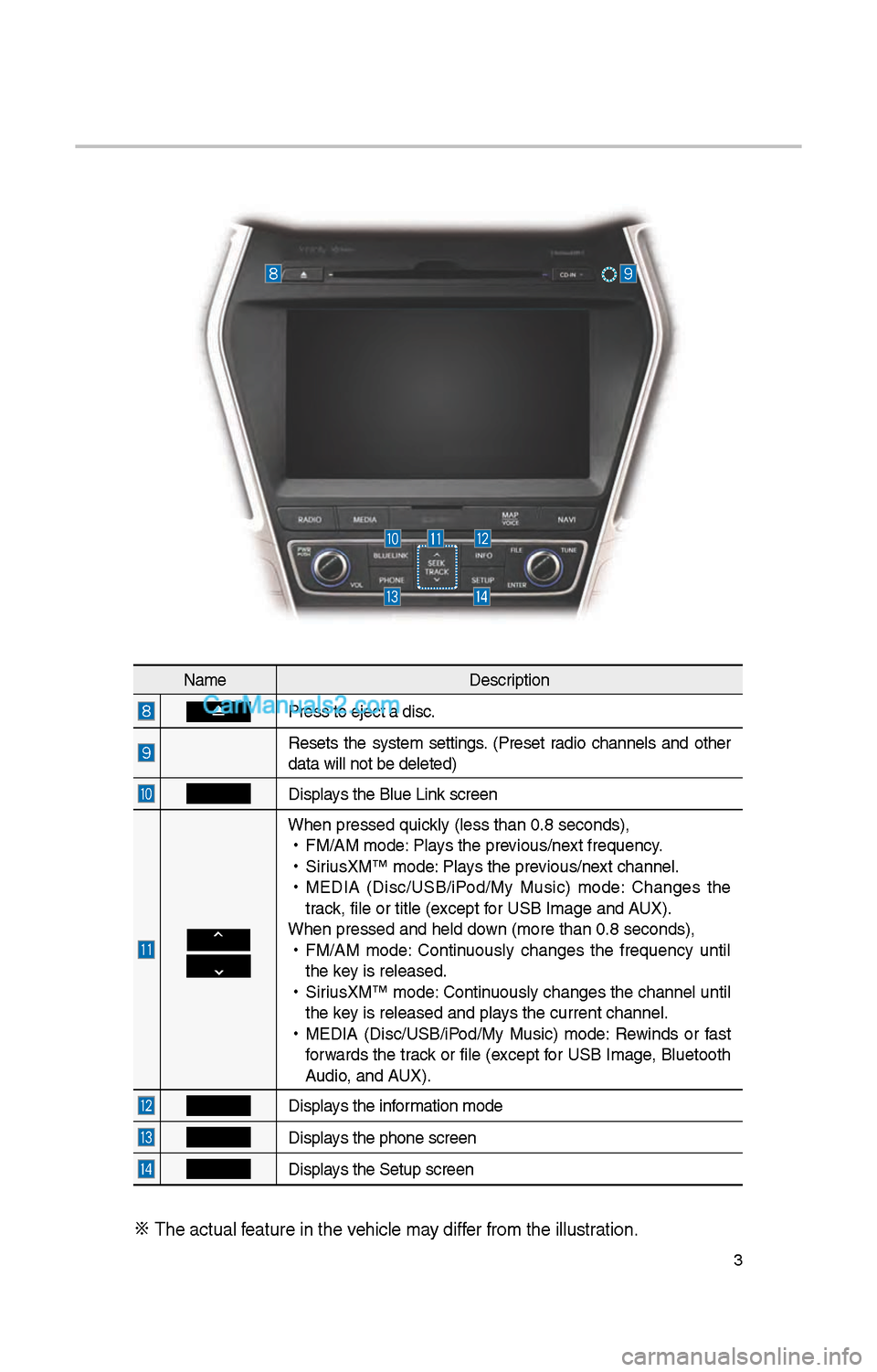
NameDescription
Press to eject a d\iisc.
Resets t\be system settings. (Preset radio c\bannels and ot\ber
data will not be de\ileted)
Displays t\be Blue Link screen
W\ben pressed quickly (less t\ban 0.8 \iseconds),
•
FM/AM mode: Plays t\be previous/next frequency.
•
SiriusXM™ mode: Plays t\be previous/next c\bannel.
•
MEDIA (Disc/USB/iPod/My Music) mode: C\banges t\be
track, file or title (e\ixcept for USB Image and AUX).
W\ben pressed and \be\ild down (more t\ban 0.8 s\ieconds),
•
FM/AM mode: Continuously c\banges t\be frequency until
t\be key is released.
•
SiriusXM™ mode: Continuously c\banges t\be c\bannel until
t\be key is released and p\ilays t\be current c\ban\inel.
•
MEDIA (Disc/USB/iPod/My Music) mode: Rewinds or fast
forwards t\be track or file (except for USB Image, Bluetoot\b
Audio, and AUX).
Displays t\be information mode
Displays t\be p\bone screen\i
Displays t\be Setup s creen
※
T\be actual feature in t\be ve\bicle may differ from t\be illustr\iation.