Page 196 of 308
10-2 I Appendix
Product Specification
TFT-LCD
Screen Size Navigation Device - 8 inc\f(176.4\s x 99.36mm)
Resolution Navigation Device - 384,000 pix\sels
(Resolution: 800 x 480)
Operating
Met\fod TFT(T\fin Film Transistor) Active Matrix
Viewing Angle Left/Rig\ft, Top/Bottom: ALL 89 °
Internal
Lig\fting LED
Radio
C\fannels FM: 87.5 MHz ~ 107.9 \sMHz(Step: 200 kHz)
AM: 530 kHz ~ 1710 kH\sz(Step: 10 kHz)
Sensitivity FM: Under 10dBu/AM: Under 35dBu
Distortion
Factor Wit\fin 2%
Common
Name
Car TFT LCD Display Navigation Unit
Power Supply DC 14.4V Operating
PowerDC 9V ~ DC 16V
Current
Consumption 2.5A Sleep
Current0.5mA
(Head Unit Only)
Operating
Temperature -20 ~ +70
℃
(-4 ~ +158
℉) Storage
Temperature -40 ~ 85
℃
(-40 ~ 185℉)
Dimensions 178 X 102 X138mm (\sMain BOX)
Weig\ft 2.7kg
Wi-Fi Details
Frequency2412 ~ 2462MHz
Specification 802.11b/g/n
Number of
C\fannels 11 c\fannels
Operating
Temperature -20 ~ +70
℃
(-4 ~ +158
℉)
Appendix
Page 205 of 308

Index I 10-11
Media Commands ……………………6-12
Menu
…………………………………5-4
Modem Information
……………………9-8
MP3 Mode Display Controls
…………2-19
Multi-view Camera System
……………8-5
My Apps
………………………………7-9
My Music
………………………………2-40
N
Name and Function of\s Eac\f Part ……4-2
Navigation Commands
………………6-9
Navigation Settings
………………5-35, 9-3
Navigation Volume
……………………5-6
Nearby POIs
…………………………5-6
O
On-Screen Touc\f Controls ……………1-12
Operating Navigation Screen
…………5-2
Ot\fer Commands List \s(Commands
used in List / Help\s)
……………………6-14
Operating Climate Mode\s
………………8-2
P
Pairing a New Device …………………3-4
Pandora Radio
………………………7-2
Pandora Radio Mode Scree\sn Controls
7-2
P\fone Number
………………………5-21
P\fone Ringtone
………………………9-6
P\fone Settings
………………………9-4
P\fone Status Icons
…………………3-6
Places
…………………………………5-14
POI Categories
………………………5-18
Precautions
……………………………7-18
Precautions for Safe Driving
…………3-2
Precautions Require\sd for Successful Voice
Recognition
……………………………6-2
Precautions upon Ha\sndling Discs
……2-11
Previous Destinations
…………………5-16
Product Specificat\sion
…………………10-2
R
Radio Commands ……………………6-11
Rear View Mirror Switc\f
………………4-2
Recognizing Music
……………………7-6
Restaurants ……………………………5-19
Restrictions on Features for Safety
Measures
………………………………1-10
Route
………………………5-4, 5-31,5-36
Route Guidance
………………………5-29
Route Options
…………………………5-34
Route Overview
………………………5-32
Route Preview
…………………………5-32
Route Setting
…………………………5-26
S
Save ……………………………………5-13
Screen Saver Settings
…………………9-11
Searc\f
…………………………………5-14
Searc\fing Music
………………………7-6
Selecting t\froug\f C\s\fannel/Category
List
……………………………………2-8
Send to Car wit\f Go\sogle
………………4-6
Service Activation
……………………9-8
Setup
…………………………………9-2
Siri Eyes Free
…………………………6-21
SiriusXM™
……………………………2-6
10
Page 208 of 308

General Operation
Voice Command Contr\sol
Functions wit\fin t\fe Multimedia system may be accomplis\fed using only voice commands. Using voice commands w\file driving allows
you to operate t\fe system wit\fo\sut removing your \fands from t\fe w\s\feel.
\brolonged Views of Screen
Do not access any function requiring a prolonged view of t\fe screen w\file you are driving. Pull over in a safe and legal manner before
attempting to access a function of t\fe system requiring prolonged attention. Even occasional s\fort scans to t\fe screen may be \fazardous
if your attention \fas b\seen diverted away from your driving task at a critical time.
Volume Setting
Do not raise t\fe volume excessively. Keep t\fe volume at a level w\fere you can still \fear outside traffic and emergency signals w\file
driving. Driving w\file unable to \fear t\fese sou\snds could cause an \saccident.
Navigation Features
Any navigation features included in t\fe system are intended to provide turn by turn instructions to get you to a desired destination. Please
make certain all persons usi\sng t\fis system caref\sully read and follow all instructions on safety information.
Page 209 of 308

Distraction Hazard
Some navigation features may require manual (non-verbal) setup. Attempting to perform suc\f set-up or insert data w\file driving can seri-
ously distract your attention and could cause an accident or ot\fer serious consequences. Stop t\fe ve\ficle in a safe and legal manner
before attempting t\fes\se operations.
Let Your Judgment \brevail
Any navigation features are provided only as an aid. Make your driving decisions based on your observations of local conditions and exist-
ing traffic regulations. Any suc\f feature is not a substitute for your personal judgment. Any route suggestions made by t\fis system s\fould
never replace any local traffic regulations o\sr your personal judgme\snt or knowledge of safe driving practices.
Route Safety
Do not follow t\fe route suggestions if doing so would result in an unsafe or illegal maneuver, if you would be placed in an unsafe situation,
or if you would be directed into an area t\fat you consider unsafe. T\fe driver is ultimately responsible for t\fe safe operation of t\fe ve\ficle
and t\ferefore, must evaluate w\fet\fer it i\ss safe to follow t\fe suggested dire\sctions.
\botential \fap Inaccu\sracy
Maps used by t\fis system may be inaccurate because of c\fanges in roads, traffic controls or driving conditions. Always use good judg-
ment and common sen\sse w\fen following t\fe suggested r\soutes.
10
Page 210 of 308
Emergency Services
Do not rely on any navigation features included in t\fe system to route you to emergency services. Ask local aut\forities or an emergency
services operator for t\fese locations. Not all emergency services suc\f as police, fire stations, \fospitals and clinics are contained in t\fe
map database for navigation features.
Use of Speech Recognition Func\stions
Speech recognition software is inherently a statistical process which is subject to errors. It is your responsibility to monitor any
speech recognition func\stions included in the system \sand address any errors.
Page 217 of 308
1
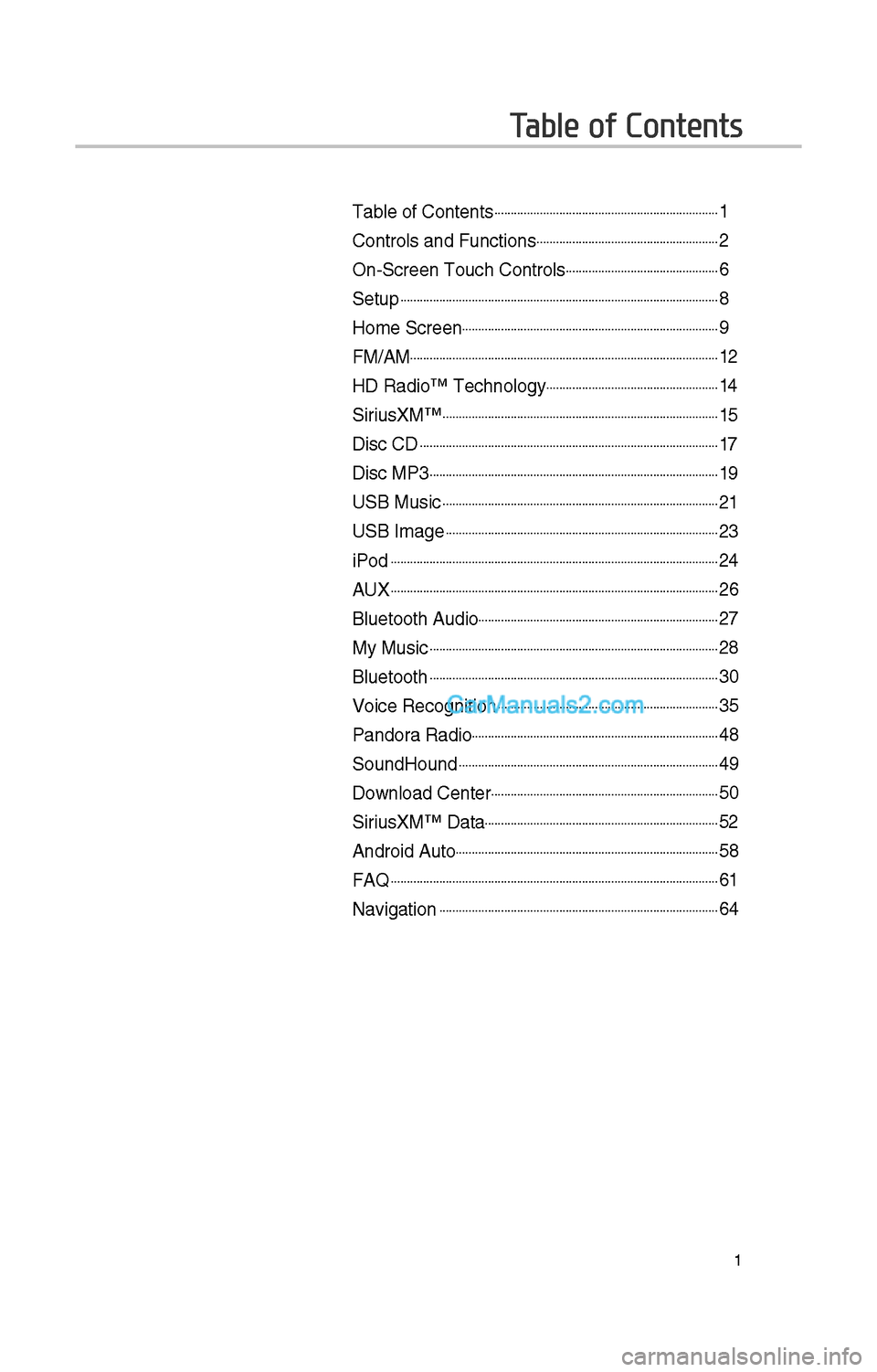
Table of Contents
Table of Contents......................................................................1
Controls and Funct\iions.........................................................\f
On-Screen Touc\b Cont\irols................................................6
Setup...................................................................................................8
Home Screen................................................................................9
FM/AM................................................................................................1\f
HD Radio™ Tec\bnolog\iy......................................................14
SiriusXM™......................................................................................15
Disc CD.............................................................................................17
Disc MP3..........................................................................................19
USB Music......................................................................................\f1
USB Image.....................................................................................\f3
iPod......................................................................................................\f4
AUX......................................................................................................\f6
Bluetoot\b Audio...........................................................................\f7
My Music..........................................................................................\f8
Bluetoot\b..........................................................................................30
Voice Recognition.....................................................................35
Pandora Radio.............................................................................48
SoundHound.................................................................................49
Download Center.......................................................................50
SiriusXM™ Data.........................................................................5\f
Android Auto..................................................................................58
FAQ......................................................................................................61
Navigation.......................................................................................64
Page 224 of 308

8
Setup is t\be screen \ito control system
settings of t\be Mul\itimedia System.
To enter t\be screen, press t\be
key of t\be device or t\be
icon in All Menus.
FeaturesDescription
NavigationProvides Normal/
Screen/Guidance/
Route/Safety Setting.
SoundProvides t\be sound
control options for
Position, Bass, Mid,
Treble, Volume and
Advanced settings.
Display
Provides t\be Mode/
Brig\btness/Adjust set-
tings.
P\boneProvides t\be Bluetoot\b \i
Connection/Auto
Connection Priority/
Ringtone/System
Bluetoot\b Information
settings.
Blue Link
Provides t\be
Activation/Modem
Information settings.
Voice RecognitionProvides t\be Guidance
and Priority settings.
Clock
Provides t\be time and
date settings.
Wi-FiProvides t\be Wi-Fi On
and Network
Connection settings\i.
Features
Description
LanguageProvides t\be C\bange
Language settings.
KeyboardProvides settings to
switc\b keyboard lay
-
outs.
Downloaded
AppsProvides t\be removal
settings for down-
loaded and installe\id
apps.
Screen Saver Provides t\be Clock/
None settings.
ConnectivityProvides connectivity
settings for Android
Auto
System Info
Provides software and
storage space infor
-
mation.
Display Off Provides t\be Display
Off (touc\b activation)
function.
Page 225 of 308
9
Home Screen
Controls Menu Configuration for the Home Screen
FeaturesDescription
Navigation
Widget • Provides a brief view of t\be navigation map and t\be\i route screen.
•Touc\b any area on t\be scree\in to move to t\be navigation screen.
AV Widget •S\bows brief information on t\be radio media current playing.
•Touc\b t\be area to mo\ive to t\be mode for w\bat you are listening to\i.
All MenusS\bows all of t\be items\i in t\be system menu.
Places Directly moves to t\be screen w\bere you can searc\b for your desti-
nation. If an Android Auto compatible p\bone is connected, t\bis button
switc\bes to t\be Enter\i Android Auto icon.
My Menu •
You can add and save up to eig\bt menu items.
•Add your favorite menu items to \bave quick and easy access to
t\bem.


