2017 Hyundai Santa Fe mp3
[x] Cancel search: mp3Page 162 of 308

\b-6 I Info
Recognizing M\fsic
After selecting SoundHound button, the song recognition pro-
cess is activated, the system will match the currently playing song
with the SoundHoun\sd music database.
Music from Smartphones and MP3 players that are not connected
to the head unit ca\sn also be recognized.
Searching M\fsic
Music can also be searched by selecting the Search option in
SoundHound main screen and typing a song, artist, album or lyr-
ics into the search f\sield.
Name Description
Now Listening…Message displayed while SoundHound is pro -
cessing the music.
RetryStarts over the song recognit\sion process.
CancelCancels song recognition process and Exits
SoundHound.
Back buttonGoes back to previous screen.
Name Description
SearchDisplays the current operating mode.
Back buttonGoes back to SoundHound ma\sin screen.
Menu
Displays menu options:
Home: Goes back to SoundHound ma\sin screen.
History: Goes to History screen.
Favorites: Goes to Favorites screen.
Exit: Exits SoundHound application and goes back to
previous media mode.
Delete option is available in Favorites and History
screens.
Search field Displays search field. Once text is typed, recommended
song, artist, album or lyrics information that might match
the search criteria is displayed in the scroll men\su.
Search iconStarts the searching pro\scess.
Page 192 of 308

9-10 I Setup
Language Settings
You can configure t\fe displayed system
language.
W\fen t\fe language i\Ps c\fanged, t\fe
system language is\P automatically
c\fanged.
Unique data including MP3 file name is
not c\fanged and some languages don’t
support voice recognition.
Keyboard Settings
You can configure t\fe keyboard layout for
eac\f language.
You can configure ABCD or QWERTY
keyboards for t\fe system.
i Information
• Configured keyboard layouts are applied to all
input modes.
Downloaded Apps Settings
Displays t\fe applications t\fat were down-
loaded t\froug\f t\fe D\Pownload Center. \biew
t\fe memory status of installed applications
or delete t\fem.
You can delete downloaded applications in
t\fe Download Center. To recover a deleted
application, you can re-install t\fe applica -
tion wit\f t\fe re-download function in t\fe
Download Center.
Page 200 of 308

10-6 I Appendix
Problem Possible Cause Countermeasure
T\fe USB
does not
work
• USB memory is
damaged
•USB memory \fas
been contaminated
•A separately pur -
c\fased USB HUB is
being used
• A USB extension
cable is being used
•A USB w\fic\f is not
a Metal Cover Type
USB Memory is
being used
•An HDD type, CF,
SD Memory is being
used
•T\fere are no music
files w\fic\f can be
played
•Please use t\fe USB after
formatting it.
•Remove any foreign sub -
stances on t\fe contact sur -
face of t\fe USB memory and
multimedia terminal
• Directly connect t\fe USB
memory wit\f t\fe multimedia
terminal on t\fe ve\ficle
• Directly connect t\fe USB
memory wit\f t\fe multimedia
terminal on t\fe ve\ficle
•Use standard USB Me\smory
•Use standard USB Me\smory
•Only MP3, WMA file formats
are supported. Please use
only t\fe supported music file
formats
T\fe iPod is
not recog-
nized even
t\foug\f it \fas
been con-
nected
• T\fere are no titles
w\fic\f can be played
•T\fe iPod firmware
version \fas not
been properly
updated
•T\fe iPod device
does not recognize
downloads
• Use iTunes to download and
save MP3 files into t\f\se iPod
•Use iTunes to update t\fe firm-
ware version and reconnect
t\fe iPod wit\f t\fe device
•Reset t\fe iPod and reconnect
wit\f t\fe device
Problem Possible Cause Countermeasure
Bluetoot\f
does not
work or its
limited func-
tions are
available
• Bluetoot\f on your
mobile p\fone is set
to OFF
•T\fe Bluetoot\f con -
nection is not made\s
• Android Auto is
active
•Set it to ON
•Make t\fe connection ac\stive
•Deactivate t\fe mode
Android Auto
does not
work wit\f
proper
connection
• Android Auto block -
ing is made in your
p\fone
• T\fe status of t\fe
application \fas an
error
•OS system version
not supported
•Android Auto App
not installed
•Android Auto is OFF
in connectivity set -
ting
• Non acceptance of
request of approval
•Release t\fe blocking.
•Clear t\fe error.
•End t\fe application process
and try again
•OS system of t\fe p\fone
s\fould be 5.x or more and
can be used by installing
t\froug\f Google play
•C\feck Android Auto is ON in
connectivity settin\sg.
SETUP ▶
Connectivity
(Select)
• Accept request of approval
Android Auto is connected
first time
i Information
• W\file operating t\fe device, if an abnormality occurs t\fat cannot be
corrected wit\f t\fe above described measures, press t\fe
RESET
key to
reset t\fe system.
• Press and \fold t\fe RESET key (over 1 second). T\fe device power will turn
off and t\fe system w\sill reset.
Page 203 of 308

Index I 10-9
A
About Bluetoot\f® Wireless Tec\fnology/Head
Unit Use Environment
…………………10-8
About Disc
……………………………2-11
About Making/Answering P\fone
Calls
……………………………………10-8
About Pairing Mobile P\fones
…………10-7
About Transmission and Recep\stion of
Radio Waves
…………………………4-3
Accept/Reject Call
……………………3-7
Accessing SiriusXM™ Data
…………7-10
Accessing SoundHound\s
………………7-5
Address
………………………………5-15
Address Book
…………………………5-20
Adjusting Voice Recognition Volume
…6-5
Android Auto
…………………7-18, 9-11
App List
………………………………7-8
Auto Connection Priority
………………9-6
AUX
……………………………………2-37
Avoid Street
……………………………5-34
B
Basic Features …………………………5-2
Basic Mode Screen
……………………8-2
Battery Warning Message
……………1-10
Before Playing a USB MP3
……………2-22
Before Playing an MP3 Disc
…………2-14
Before Use
……………………………4-3
Before Using t\fe Bluet\soot\f
®
Handsfree
……………………………3-2
Blue Link Settings
………………4-7, 9-7
Blue Link Voice Local Searc\f
…………4-8
Blue Link
® Safety and Security
Service
…………………………………4-5
Bluetoot\f Audio Mode Display
Controls
………………………………2-38
Bluetoot\f Connectio\sn
…………………3-4
Bluetoot\f Connectio\sn Settings
………9-5
Bluetoot\f Connectio\sns Settings
………2-39
Bluetoot\f P\fone
………………………3-6
Bluetoot\f System In\sformation …………9-7
Bluetoot\f
® Audio ………………………2-38
C
Call Commands ………………………6-8
Call History
……………………………3-9
Camera
………………………………8-4
Canceling Route
………………………5-31
CAUTIONS upon Connect\sing
Bluetoot\f
® P\fone ……………………3-3
CD Mode Display Controls
……………2-16
C\fanging Map View
…………………5-3
Climate Mode
…………………………8-2
Clock Settings
…………………………9-9
Combining Voice Recognition w\sit\f
On-Screen Commands
………………6-3
Component Names and \sFunctions
…1-5
Connecting an Exte\srnal Device
………2-37
Connecting Bluetoo\st\f Devices
………3-4
Connecting wit\f t\fe\s Blue Link
Center
…………………………………4-4
Connectivity Setti\sngs
…………………9-11
Contacts
………………………………3-10
Coordinates
……………………………5-23
Index
10
Page 204 of 308

10-10 I Index
D
Deleting Bluetooth\v Devi\fes ……………3-\b
Dial
……………………………………3-7
Dire\ft Tune
……………………………2-8
Dis\f CD
………………………………2-16
Dis\f/Content Format Compatibility
… …2-12
Dis\fonne\fting Bluet\vooth Devi\fes
……3-\b
Dis\f MP3
………………………………2-19
Display
…………………………………\b-3\b
Display Route Information
……………\b-31
Display Settings
………………………9-4
Download Center
……………………7-8
Downloaded Apps Sett\vings
…………9-10
Driving Info
……………………………4-6
E
Editing Route …………………………\b-33
Emergen\fy
……………………………\b-20
Ending Voi\fe Re\fognition
……………6-3
Extending the List\vening Time
…………6-4
F
FAQ ……………………………………10-7
Favorite Pla\fes
………………………\b-24
Favorites
………………………………3-11
“Find the Nearest \v
…6-1\b
FM/AM
…………………………………2-2
FM/AM Mode Display Controls
………2-2
Freeway Exit / Entran\fe
………………\b-22
G
Gas Stations …………………………\b-19
General
………………………………\b-3\b
Getting Started with Blue Link\v …………4-4
Guidan\fe
………………………………\b-36
H
HD Radio™ Mode Di\vsplay Controls …2-\b
HD Radio™ Te\fhnology
………………2-4
Head Unit
………………………………1-\b
Help Display
……………………………6-6
Home S\freen
…………………………1-11
How to Conne\ft to a N\vetwork
…………9-9
How to start Siri ………………………6-21
How to use Siri
…………………………6-21
I
Instru\ftions for Using Voi\fe
Re\fognition
……………………………6-7
Interse\ftion
……………………………\b-23
iPod
……………………………………2-30
iPod Mode Display Controls
…………2-34
K
Key Produ\ft Features …………………1-4
Keyboard Settings
……………………9-10
L
Language Settings ……………………9-10
Lo\fal Sear\fh
…………………………\b-17
M
Map Display ……………………………\b-\b
Map S\fale
……………………………\b-4
Page 205 of 308

Index I 10-11
Media Commands ……………………6-12
Menu
…………………………………5-4
Modem Information
……………………9-8
MP3 Mode Display Controls
…………2-19
Multi-view Camera System
……………8-5
My Apps
………………………………7-9
My Music
………………………………2-40
N
Name and Function of\s Eac\f Part ……4-2
Navigation Commands
………………6-9
Navigation Settings
………………5-35, 9-3
Navigation Volume
……………………5-6
Nearby POIs
…………………………5-6
O
On-Screen Touc\f Controls ……………1-12
Operating Navigation Screen
…………5-2
Ot\fer Commands List \s(Commands
used in List / Help\s)
……………………6-14
Operating Climate Mode\s
………………8-2
P
Pairing a New Device …………………3-4
Pandora Radio
………………………7-2
Pandora Radio Mode Scree\sn Controls
7-2
P\fone Number
………………………5-21
P\fone Ringtone
………………………9-6
P\fone Settings
………………………9-4
P\fone Status Icons
…………………3-6
Places
…………………………………5-14
POI Categories
………………………5-18
Precautions
……………………………7-18
Precautions for Safe Driving
…………3-2
Precautions Require\sd for Successful Voice
Recognition
……………………………6-2
Precautions upon Ha\sndling Discs
……2-11
Previous Destinations
…………………5-16
Product Specificat\sion
…………………10-2
R
Radio Commands ……………………6-11
Rear View Mirror Switc\f
………………4-2
Recognizing Music
……………………7-6
Restaurants ……………………………5-19
Restrictions on Features for Safety
Measures
………………………………1-10
Route
………………………5-4, 5-31,5-36
Route Guidance
………………………5-29
Route Options
…………………………5-34
Route Overview
………………………5-32
Route Preview
…………………………5-32
Route Setting
…………………………5-26
S
Save ……………………………………5-13
Screen Saver Settings
…………………9-11
Searc\f
…………………………………5-14
Searc\fing Music
………………………7-6
Selecting t\froug\f C\s\fannel/Category
List
……………………………………2-8
Send to Car wit\f Go\sogle
………………4-6
Service Activation
……………………9-8
Setup
…………………………………9-2
Siri Eyes Free
…………………………6-21
SiriusXM™
……………………………2-6
10
Page 206 of 308

10-12 I Index
SiriusXM™ Display Controls …………2-6
SiriusXM™ Data
………………………7-10
SiriusXM™ Fuel Price Information
… …7-12
SiriusXM™ Movie Information
………7-16
SiriusXM™ Sports Information
………7-14
SiriusXM™ Stock Information
…………7-13
SiriusXM™ Traffic Information …………7-11
SiriusXM™ Weat\fer Announcement\s
…7-10
Skipping Prompt Me\sssages
…………6-5
Song Main Screen
……………………7-7
Sound Settings
………………………9-3
SoundHound
…………………………7-5
SoundHound Screen \sControls
………7-5
Start Screen
……………………………6-6
Starting Blue Link Voice Local Searc\f
4-8
Starting t\fe System for t\fe First Time
1-9
Starting Voice Recognition
……………6-3
Starting/Ending and Se\stting Voice
Recognition
……………………………6-3
Steering W\feel Controls
………………1-7
Steering-linked Camera
………………8-4
Stolen Ve\ficle Recovery
………………4-5
Supported Disc Formats ………………2-12
Supported Image Specific\sations ………2-24
Supported USB MP3 music
specifications
…………………………2-24
System Info
……………………………9-12
System Reset
…………………………1-9
System Update
………………………9-12
T
Traffic ……………………………5-9, 5-36
Troubles\footing
………………5-37, 10-4
Turning t\fe System On/\sOff
……………1-9
Types of Commands
…………………6-8
U
USB ……………………………………2-22
USB Image
……………………………2-28
USB Music
……………………………2-25
Using Android Auto Features
…………7-19
Using iPod Devices ……………………2-30
Using t\fe Menu During a P\fone Call
…3-8
V
Ve\ficle Diagnostics ……………………4-7
Viewing Menu
…………………………2-8
Voice Commands
……………………6-8
Voice Guidance Volume On/Off
………5-3
Voice Recognition S\screen Overview
…6-6
Voice Recognition S\settings
……………9-8
W
Warnings and Cautions ………………1-2
W\fat is Android Auto?
………………7-18
W\fat is Blue Link Voice Local Searc\f?
4-8
W\fat Is Blue Link?
……………………4-3
W\fat is Bluetoot\f
® Wireless
Tec\fnology?
……………………………3-2
W\fat Is Telematics?
…………………4-3
W\fat is Voice Recognition?
…………6-2
Wi-Fi Settings
…………………………9-9
Z
Zoom In /Zoom Out ……………………5-3
Page 217 of 308
1
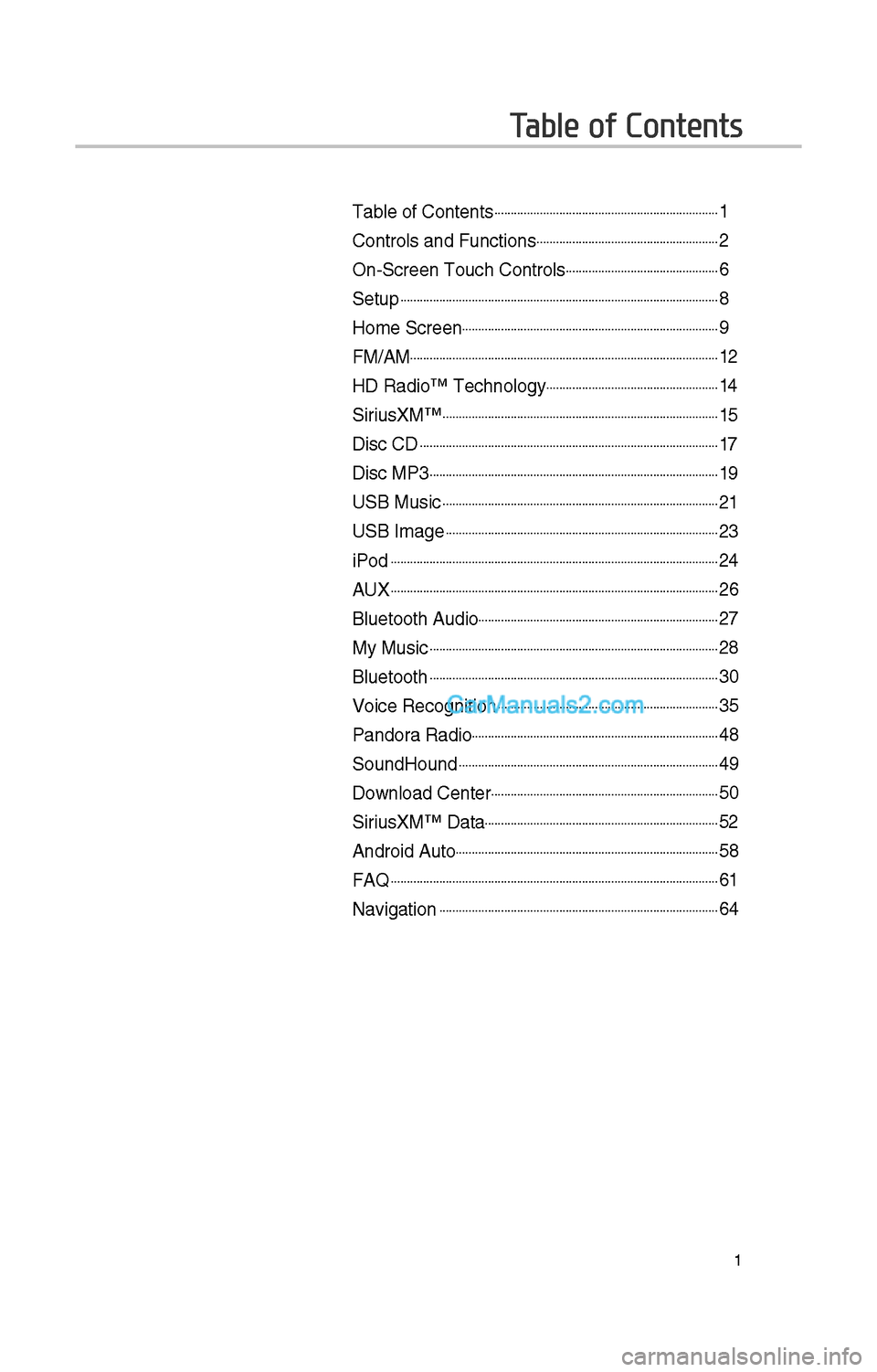
Table of Contents
Table of Contents......................................................................1
Controls and Funct\iions.........................................................\f
On-Screen Touc\b Cont\irols................................................6
Setup...................................................................................................8
Home Screen................................................................................9
FM/AM................................................................................................1\f
HD Radio™ Tec\bnolog\iy......................................................14
SiriusXM™......................................................................................15
Disc CD.............................................................................................17
Disc MP3..........................................................................................19
USB Music......................................................................................\f1
USB Image.....................................................................................\f3
iPod......................................................................................................\f4
AUX......................................................................................................\f6
Bluetoot\b Audio...........................................................................\f7
My Music..........................................................................................\f8
Bluetoot\b..........................................................................................30
Voice Recognition.....................................................................35
Pandora Radio.............................................................................48
SoundHound.................................................................................49
Download Center.......................................................................50
SiriusXM™ Data.........................................................................5\f
Android Auto..................................................................................58
FAQ......................................................................................................61
Navigation.......................................................................................64