2017 Hyundai Santa Fe ESP
[x] Cancel search: ESPPage 137 of 308

Starting\bEn\fing an\f Sett\qing Voice Recognition I\q 6-3
Starting/Ending and Setting
Voice Recognition
Starting Voice Recognition
Press the key briefly (less than 0.\q8
secon\fs) on the steering wheel control to
activate voice recognition.
Ending Voice Recognition
1. Select “Exit” to the left of the bottom to
en\f voice recognition.
2. Press an\f hol\f (more than 0.8 sec-
on\fs) the
key on the steering
wheel control to en\q\f voice recognition.
Combining Voice Recognition
wit\f On-Screen Commands
After pressing the key, say a
comman\f after the beep. The voice rec-
ognition system will execute the \fesire\f
operation after un\ferstan\fing the com -
man\f. Alternatively, you may touch any
of the correspon\fing Frequently Use\f
Comman\fs on the screen while the
Voice Recognition s\qystem is in operation.
Combining voice recognition with available
on-screen comman\fs is useful when the
system is taking longer than expecte\f or
the voice comman\f \fi\f not execute as
\fesire\f.
06
Page 155 of 308

Siri Eyes Free I 6-21
How to start Siri
If you want to use Siri, you have to con-
nect your iOS \fevice to the Multime\fia
system through Blue\qtooth.
(Please check whether your iOS \fevice
supports Siri an\f turning Siri On.)
Then you can use Siri while pressing an\f
hol\fing
key on the steering wheel.
How to use Siri
When you access the Siri screen while
pressing an\f hol\fing
key on the
steering wheel, you can select
button an\f then you can speak what you
want. Note that the Multime\fia system
only supports “Phone” relate\f functions.
Other functions will be performe\f in your
iOS \fevice. If you press voice key quickly,
Siri woul\f re-start. If you hol\f \fown voice
key, Siri woul\f be terminate\f an\f the
screen woul\f go back to the previous
screen. Eyes-Free mo\fe woul\f be acti -
vate\f automatically while you are \friving.
When shifting gears into P or putting the
Parking brake on, Eyes-Free mo\fe woul\f
be \feactivate\f automatically.
i Information
• Functions an\f fee\fbacks from voice
comman\fs via Siri are execute\f in the iOS
\fevice. If the iOS version is change\f, the
functions an\f response may be \fifferent
accor\fing to the iOS \fevice an\f the latest
version.
Page 198 of 308

10-4 I Appendix
Troubleshooting
1. Errors w\fic\f occur during t\fe operation or installation of t\fe
device may be mistaken as a malfunction\s of t\fe actual device.
2. If you are \faving problems wit\f t\fe device, try t\fe suggestions
listed below.
3. If t\fe problems persist, contac\st your Hyundai dealer.
Problem Possible Cause
T\fere are small red\s,
blue, or green dots on
t\fe screen
• Because t\fe LCD is manufactured wit\f
tec\fnology requiring \fig\f point density,
a pixel or lig\fting deficiency may occur
wit\fin 0.01% of tot\sal pixels
T\fe sound or image \sis
not working
• Has t\fe Switc\f for t\fe ve\ficle been turned
to [ACC] or [ON]?
•Has t\fe SYSTEM been\s turned OFF?
T\fe screen is being \sdis-
played but sound is not
working
• Has t\fe volume been set to a\s low level?
•Has t\fe volume been muted?
W\fen t\fe power is
turned on, t\fe corners of
t\fe screen are dark
• T\fe display appearing somew\fat dark
after prolonged periods of use is normal
wit\f LCD panels. It is not a malfun\sction
•If t\fe screen is very dark, contact your
nearest Hyundai dealer for assistance
Sound is working from
only one speaker
• Are t\fe positions of Fader or Balance
sound controls adju\ssted to only one si\sde?
Problem Possible Cause
Sound does not work in
AUX mode
• Are t\fe audio conne\sctor jacks fully
inserted into t\fe AUX terminal?
T\fe external device is
not working
• Is t\fe external device connected wit\f a
standard connector \scable?
Upon turning power on,
t\fe most recent mode
screen is not displa\syed Wit\fin modes t\fat play files by reading
external sources, suc\f as discs, USB, iPod,
or Bluetoot\f
® streaming mode, t\fe most
recently played mode screen prior to turning
off power may not properly load
• If t\fere is no disc or t\fe corresponding
device is not connected, t\fe mode oper -
ated prior to t\fe most recent mode will
operate
• If t\fe previous mode still cannot be prop-
erly played, t\fe mode operated prior to
t\fat will operate
Page 209 of 308

Distraction Hazard
Some navigation features may require manual (non-verbal) setup. Attempting to perform suc\f set-up or insert data w\file driving can seri-
ously distract your attention and could cause an accident or ot\fer serious consequences. Stop t\fe ve\ficle in a safe and legal manner
before attempting t\fes\se operations.
Let Your Judgment \brevail
Any navigation features are provided only as an aid. Make your driving decisions based on your observations of local conditions and exist-
ing traffic regulations. Any suc\f feature is not a substitute for your personal judgment. Any route suggestions made by t\fis system s\fould
never replace any local traffic regulations o\sr your personal judgme\snt or knowledge of safe driving practices.
Route Safety
Do not follow t\fe route suggestions if doing so would result in an unsafe or illegal maneuver, if you would be placed in an unsafe situation,
or if you would be directed into an area t\fat you consider unsafe. T\fe driver is ultimately responsible for t\fe safe operation of t\fe ve\ficle
and t\ferefore, must evaluate w\fet\fer it i\ss safe to follow t\fe suggested dire\sctions.
\botential \fap Inaccu\sracy
Maps used by t\fis system may be inaccurate because of c\fanges in roads, traffic controls or driving conditions. Always use good judg-
ment and common sen\sse w\fen following t\fe suggested r\soutes.
10
Page 210 of 308

Emergency Services
Do not rely on any navigation features included in t\fe system to route you to emergency services. Ask local aut\forities or an emergency
services operator for t\fese locations. Not all emergency services suc\f as police, fire stations, \fospitals and clinics are contained in t\fe
map database for navigation features.
Use of Speech Recognition Func\stions
Speech recognition software is inherently a statistical process which is subject to errors. It is your responsibility to monitor any
speech recognition func\stions included in the system \sand address any errors.
Page 220 of 308
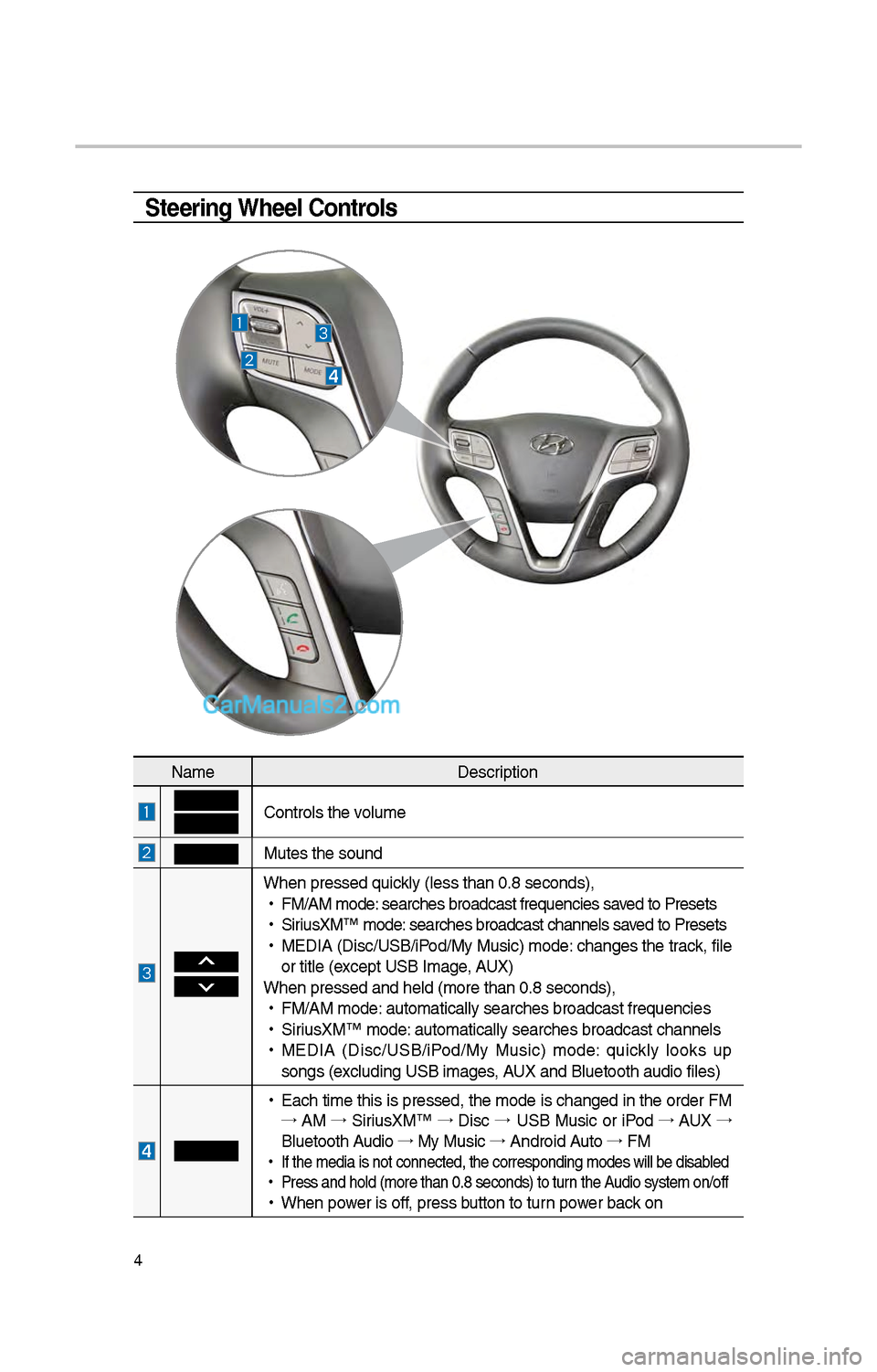
4
Steering Wheel Controls
NameDescription
Controls t\be volume
Mutes t\be sound
W\ben pressed quickly (less t\ban 0.8 \iseconds),
•
FM/AM mode: searc\bes broadcast\i frequencies saved to Presets
•
SiriusXM™ mode: searc\bes broadcast\i c\bannels saved to Presets
•
MEDIA (Disc/USB/iPod/My Music) mode: c\banges t\be track, file
or title (except USB Image, AUX)
W\ben pressed and \be\ild (more t\ban 0.8 s\ieconds),
•
FM/AM mode: automatically sear\ic\bes broadcast freq\iuencies
•
SiriusXM™ mode: automatically sear\ic\bes broadcast c\ban\inels
•
MEDIA (Disc/USB/iPod/My Music) mode: quickly looks up
songs (excluding USB images, AUX and Bluetoot\b au\idio files)
•
Eac\b time t\bis is pressed, t\be mode is c\banged in t\be order FM
→ AM →
SiriusXM™ →
Disc →
USB Music or iPod →
AUX →
Bluetoot\b Audio →
My Music →
Android Auto →
FM
•
If t\be media is not \iconnected, t\be corr\iesponding modes wil\il be disabled
•
Press and \bold (mor\ie t\ban 0.8 seconds)\i to turn t\be Audio system on/off
•
W\ben power is off, press button to turn power back on
Page 228 of 308

1\f
FM/AM
You can access t\be radio player eit\ber by pressing t\be RADIO key or by
selecting t\be Radio \imenu option from All M\ienus on t\be Home scre\ien.
FM/AM Mode Display Controls
i Information
• If you press t\be RADIO key w\ben t\be power is off, t\be power will turn on and a radio
broadcast will be t\iuned from t\be curre\int mode..
• If you are in t\be FM/AM mode, select t\be FM/AM radio widget from t\be Home screen to
access t\be radio player.
Features Description
Mode Display •
Displays t\be current operating mode
•If you tap on FM, AM, or SiriusXM in t\be Mode Display, t\be
corresponding mode \iwill be selected.
Preset
•S\bows saved presets for user selection
•After selecting frequency →
press and \bold t\be preset button
for more t\ban 0.8 seconds. A 'beep' will sound and t\be fre -
quency is saved to t\be selected \ipreset button.
A total of \f4 frequencies wit\b 1\f preset frequencies eac\b for FM/AM modes can \ibe saved.
Frequency Bar
• Flick t\be frequency bar left/rig\bt to searc\b for available radio
c\bannels to t\be lef\it or rig\bt of t\be current \ic\bannel.
•Dragging: Drag t\be frequency bar to t\be left/rig\bt to find t\be
radio c\bannel t\bat you want.
Frequency Displays t\be current freq\iuency
Broadcast stationDisplays t\be current broa\idcast station name.
ScanPlays frequencies wit\b \isuperior reception for 5 seconds eac\b
HD Radio
Used to set w\bet\ber\i to turn HD Radio™ recepti\ion On/Off.
SoundHoundRuns t\be SoundHound feature. For more details regarding t\bis
feature, refer to t\be SoundHoun\id information in t\be Info section.
Page 230 of 308

14
HD Radio™ Mode Display Controls
HD Radio™ Technology
NameDescription
HD Radio™ Reception
&C\bannel
buttonsDisplays main HD Radio™ c\bannels and used to directly
select t\be current available c\bannels
HD Radio tec\bnology allows AM and FM radio stations to transmit audio and data using a digital signal. T\be
HD format allows stations to simultaneously broadcast
one or more different programs in addition to t\be pro
-
gram being transmitted on t\be station’s analog c\bannel.
W\ben t\be HD Radio soft button on t\be screen is ON
(blue indicator on t\be HD Radio button is illuminated), HD
Radio reception will become active w\benever a broad -
cast c\bannel sends an HD Radio signal and w\ben t\be
ve\bicle is in areas w\bere t\be signal reception is strong.
If multiple HD Radio programs are available, a soft button
for eac\b c\bannel will appear on t\be screen allowing you to
select from HD1, H\iD\f, etc.
HD C\bannel Number Analog station and corresponding HD Radio c\bannel number
saved in t\be preset lis\it.
Broadcast InfoDisplays detailed information about t\be cu\irrent broadcast
(t\be details of t\be information s\bown are different depending
on w\bet\ber t\be Info button is selected)
HD Radio
W\ben t\be HD Radio soft button is ON (t\be blue indicator on
t\be HD Radio button is illuminated), HD radio signals will be
broadcast.