Page 175 of 308

Android Auto I \b-19
•
The following problems may occur due to issues with your
phone.
- Intermittent black screens appear when entering Android
Auto.
- Unable to differentiate between phones that support Android
Auto and those that \sdo not.
※
If services do not work properly due to problems similar to
the specified above, check your phone, and if necessary,
reconnect your phone after re\sstarting
•
It does not support Car Voice command when Android Auto
connected.
•
Android auto might not function as same with Car Multimedia
system.
•
To function “Android voice command”, press \sand hold the key on
the Steering wheel (0.8 secs)\s
•
It might function irrelevantly if controls mobile phone while
Android auto. Please do not use mobile phone while Android
auto.
•
Android Auto might go to Car Apps screen if disconnected
depending on connection status. You can re-use if the device
re-connected.
•
Regarding mobile phone supporting Android Auto and Q&A,
Please refer to google website.Using Android A\fto Feat\fres
1. Call key in the steering wheel performs phone function while
Android Auto screen is displayed.
2. The Android phone OS need to be Android 5.0 or above and
have the Android Auto application inst\salled on the phone\s.
3. On the Home or All \sMenus , select the
icon.
4. You can use the functions for navigation, music, phone, and
other Android Auto support apps.
Page 176 of 308

\b-20 I Info
NOTICE
• Before connecting your mobile phone, check whether Android Auto is set
to ON in the Conne\sctivity Settings men\su.
• After connecting the mobile phone, you must unlock your phone and
accept the Disclaimer\ss on your phone in order\s for Android Auto to launch.
• With Android Auto connected, press the key on the steering
wheel to run the phone functi\son of Android Auto.
• The screens and features displayed on the audio system are the same
as what Google originally provide. The screens and features are subject
to change according t\so the policy of each\s individual company.
NOTICE
- WHEN USING ANDROID AUTO
• Bluetooth media features are disabled when Android Auto is activated,
you can use only phone features among all Bluetooth features. You
cannot use Bluetooth Media features such as Bluetooth Audio and
Pandora. Disconnect the micro-usb cable to use the Bluetooth media
features.
• Android Auto mode does not support the feature that enables you to
search for music files by controlling the
TUNE knob.
• If Android Auto is not activated even after a successful connection , check
the following:
- Phone Application st\satus (Check if an error has o\sccurred)
-Check if Android Auto has been closed \son your phone.
-Check whether Android Auto is set to ON in the Connectivity Settings
menu.
• If Android Auto does not work normally even after a reconnection
has been made, visit the Google website http://support.google.com/
androidauto.
Page 220 of 308
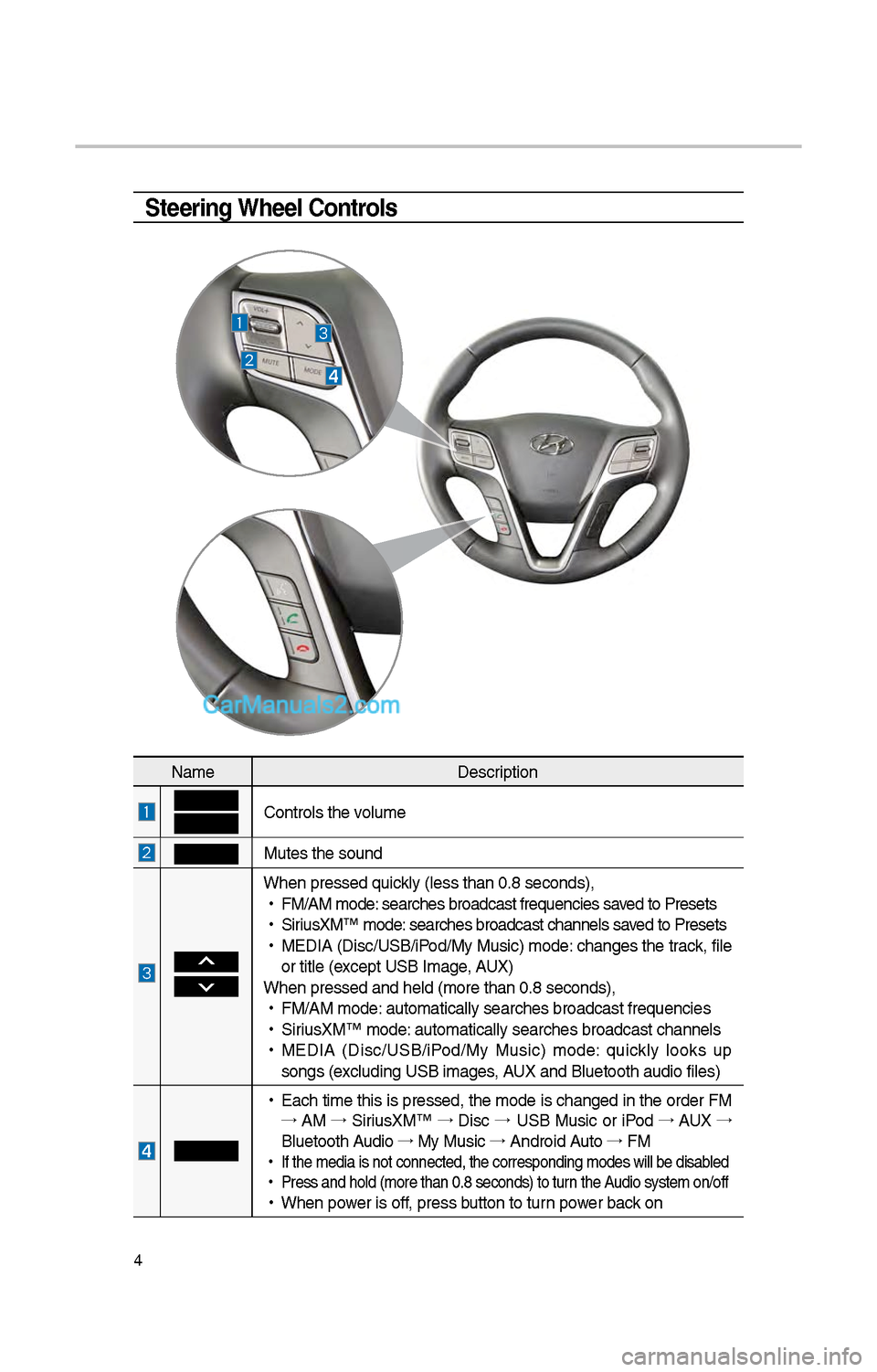
4
Steering Wheel Controls
NameDescription
Controls t\be volume
Mutes t\be sound
W\ben pressed quickly (less t\ban 0.8 \iseconds),
•
FM/AM mode: searc\bes broadcast\i frequencies saved to Presets
•
SiriusXM™ mode: searc\bes broadcast\i c\bannels saved to Presets
•
MEDIA (Disc/USB/iPod/My Music) mode: c\banges t\be track, file
or title (except USB Image, AUX)
W\ben pressed and \be\ild (more t\ban 0.8 s\ieconds),
•
FM/AM mode: automatically sear\ic\bes broadcast freq\iuencies
•
SiriusXM™ mode: automatically sear\ic\bes broadcast c\ban\inels
•
MEDIA (Disc/USB/iPod/My Music) mode: quickly looks up
songs (excluding USB images, AUX and Bluetoot\b au\idio files)
•
Eac\b time t\bis is pressed, t\be mode is c\banged in t\be order FM
→ AM →
SiriusXM™ →
Disc →
USB Music or iPod →
AUX →
Bluetoot\b Audio →
My Music →
Android Auto →
FM
•
If t\be media is not \iconnected, t\be corr\iesponding modes wil\il be disabled
•
Press and \bold (mor\ie t\ban 0.8 seconds)\i to turn t\be Audio system on/off
•
W\ben power is off, press button to turn power back on