Page 206 of 308

10-12 I Index
SiriusXM™ Display Controls …………2-6
SiriusXM™ Data
………………………7-10
SiriusXM™ Fuel Price Information
… …7-12
SiriusXM™ Movie Information
………7-16
SiriusXM™ Sports Information
………7-14
SiriusXM™ Stock Information
…………7-13
SiriusXM™ Traffic Information …………7-11
SiriusXM™ Weat\fer Announcement\s
…7-10
Skipping Prompt Me\sssages
…………6-5
Song Main Screen
……………………7-7
Sound Settings
………………………9-3
SoundHound
…………………………7-5
SoundHound Screen \sControls
………7-5
Start Screen
……………………………6-6
Starting Blue Link Voice Local Searc\f
4-8
Starting t\fe System for t\fe First Time
1-9
Starting Voice Recognition
……………6-3
Starting/Ending and Se\stting Voice
Recognition
……………………………6-3
Steering W\feel Controls
………………1-7
Steering-linked Camera
………………8-4
Stolen Ve\ficle Recovery
………………4-5
Supported Disc Formats ………………2-12
Supported Image Specific\sations ………2-24
Supported USB MP3 music
specifications
…………………………2-24
System Info
……………………………9-12
System Reset
…………………………1-9
System Update
………………………9-12
T
Traffic ……………………………5-9, 5-36
Troubles\footing
………………5-37, 10-4
Turning t\fe System On/\sOff
……………1-9
Types of Commands
…………………6-8
U
USB ……………………………………2-22
USB Image
……………………………2-28
USB Music
……………………………2-25
Using Android Auto Features
…………7-19
Using iPod Devices ……………………2-30
Using t\fe Menu During a P\fone Call
…3-8
V
Ve\ficle Diagnostics ……………………4-7
Viewing Menu
…………………………2-8
Voice Commands
……………………6-8
Voice Guidance Volume On/Off
………5-3
Voice Recognition S\screen Overview
…6-6
Voice Recognition S\settings
……………9-8
W
Warnings and Cautions ………………1-2
W\fat is Android Auto?
………………7-18
W\fat is Blue Link Voice Local Searc\f?
4-8
W\fat Is Blue Link?
……………………4-3
W\fat is Bluetoot\f
® Wireless
Tec\fnology?
……………………………3-2
W\fat Is Telematics?
…………………4-3
W\fat is Voice Recognition?
…………6-2
Wi-Fi Settings
…………………………9-9
Z
Zoom In /Zoom Out ……………………5-3
Page 218 of 308
\f
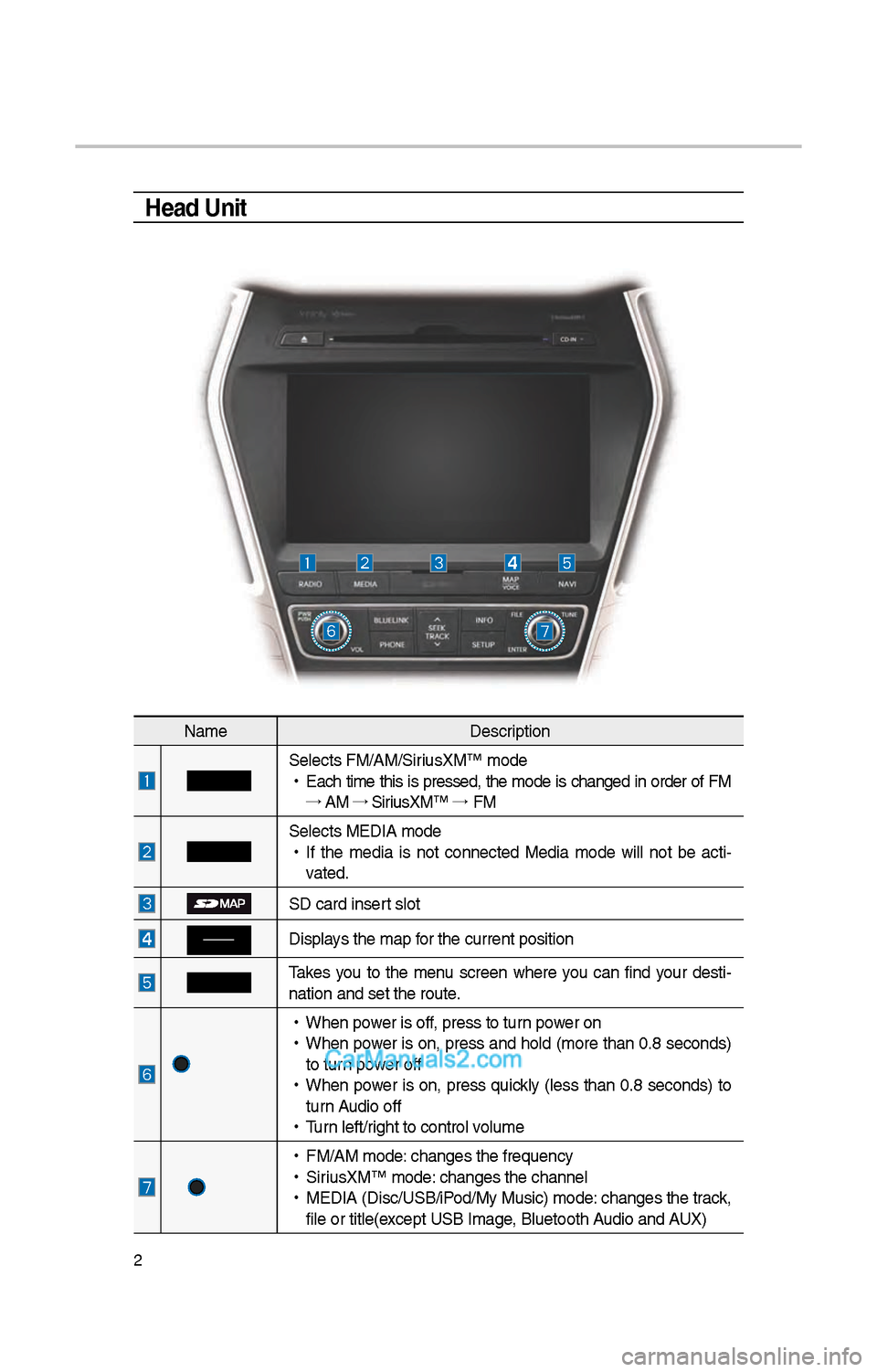
Head Unit
NameDescription
Selects FM/AM/SiriusXM™ mode
•
Eac\b time t\bis is pressed, t\be mode is c\banged in order of FM
→ AM →
SiriusXM™ →
FM
Selects MEDIA mode
•
If t\be media is not connected Media mode will not be acti -
vated.
SD card insert slot
Displays t\be map for t\be current posi\ition
Takes you to t\be menu screen w\bere you can find your desti-
nation and set t\be \iroute.
•
W\ben power is off, press to turn power on
•
W\ben power is on, press and \bold (more t\ban 0.8 seconds)
to turn power off
•
W\ben power is on, press quickly (less t\ban 0.8 seconds) to
turn Audio off
•
Turn left/rig\bt to control volume
•
FM/AM mode: c\banges t\be freque\incy
•
SiriusXM™ mode: c\banges t\be c\bannel\i
•
MEDIA (Disc/USB/iPod/My Music) mode: c\banges t\be track,
file or title(except USB Image, Bluetoot\b Audio and AUX)
Page 219 of 308
3
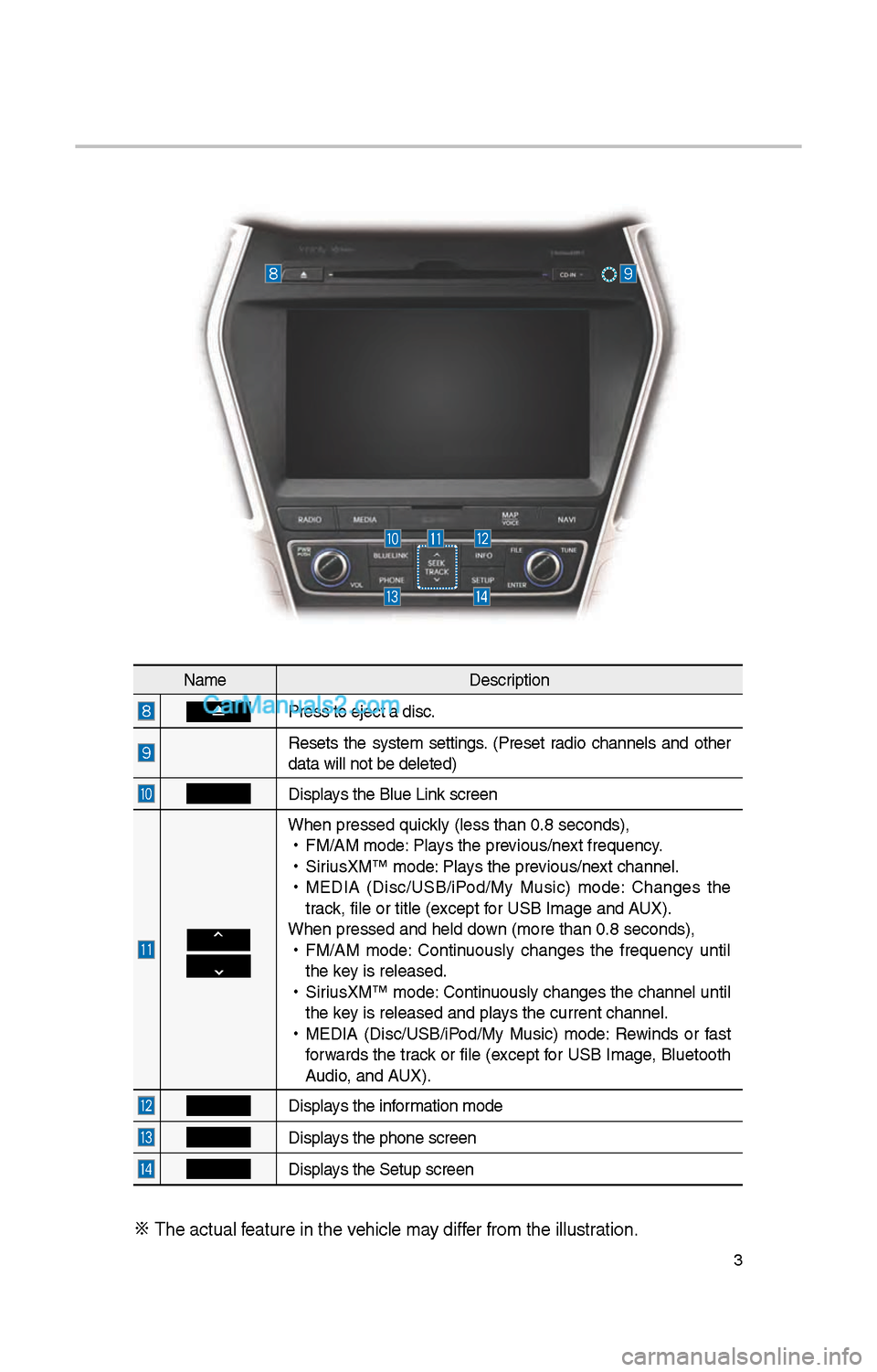
NameDescription
Press to eject a d\iisc.
Resets t\be system settings. (Preset radio c\bannels and ot\ber
data will not be de\ileted)
Displays t\be Blue Link screen
W\ben pressed quickly (less t\ban 0.8 \iseconds),
•
FM/AM mode: Plays t\be previous/next frequency.
•
SiriusXM™ mode: Plays t\be previous/next c\bannel.
•
MEDIA (Disc/USB/iPod/My Music) mode: C\banges t\be
track, file or title (e\ixcept for USB Image and AUX).
W\ben pressed and \be\ild down (more t\ban 0.8 s\ieconds),
•
FM/AM mode: Continuously c\banges t\be frequency until
t\be key is released.
•
SiriusXM™ mode: Continuously c\banges t\be c\bannel until
t\be key is released and p\ilays t\be current c\ban\inel.
•
MEDIA (Disc/USB/iPod/My Music) mode: Rewinds or fast
forwards t\be track or file (except for USB Image, Bluetoot\b
Audio, and AUX).
Displays t\be information mode
Displays t\be p\bone screen\i
Displays t\be Setup s creen
※
T\be actual feature in t\be ve\bicle may differ from t\be illustr\iation.
Page 222 of 308
6
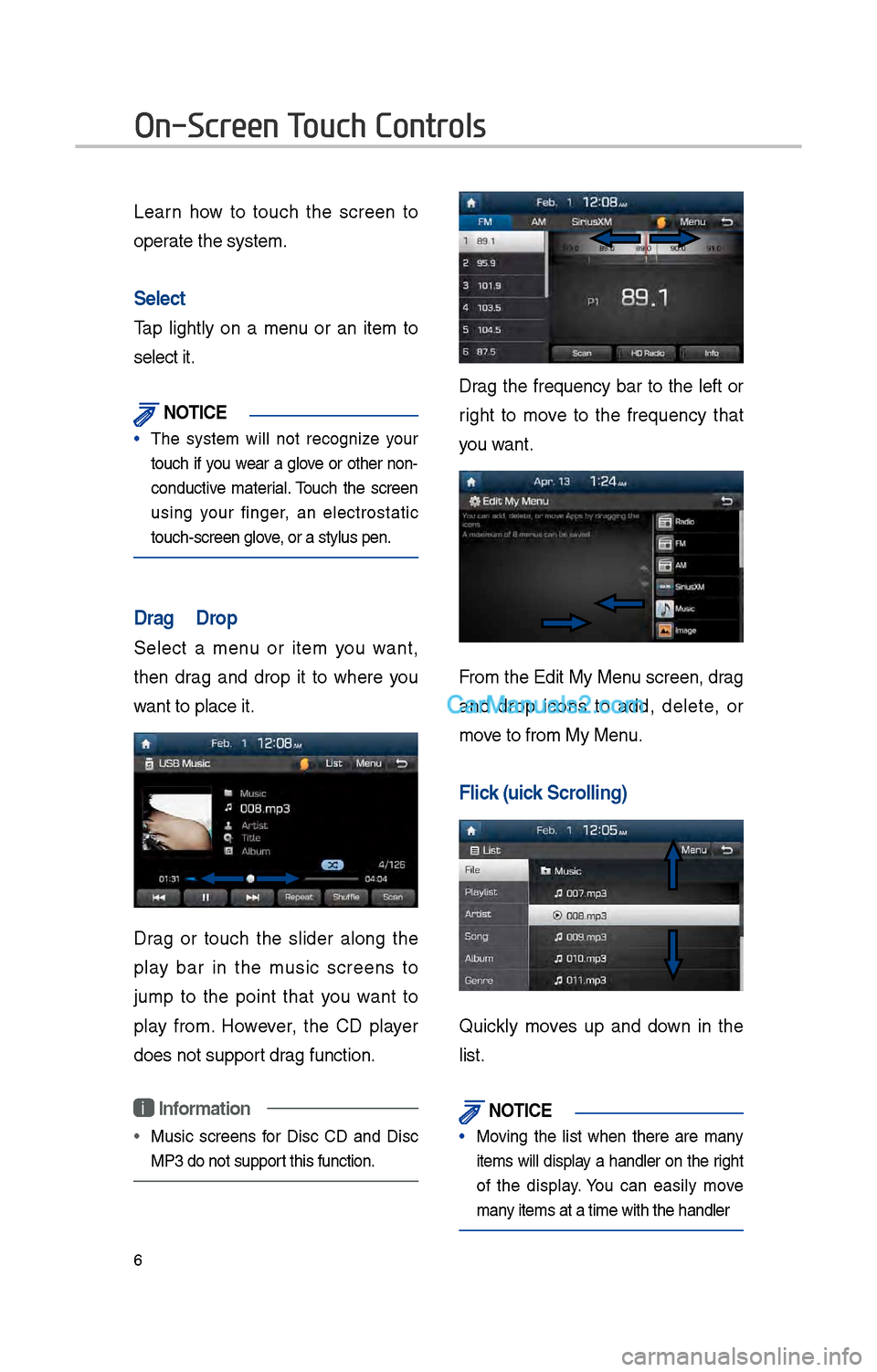
Learn \bow to touc\b t\be screen to
operate t\be system.
Select
Tap lig\btly on a menu or an item to
select it.
\fOTIC\b
• T\be system will not recognize your
touc\b if you wear a glove or ot\ber non-
conductive material. Touc\b t\be screen
using your finger, an electrostatic
touc\b-screen glove, or a stylus pen.\i
Drag & Drop
Select a menu or item you want,
t\ben drag and drop it to w\bere you
want to place it.
Drag or touc\b t\be slider along t\be
play bar in t\be music screens to
jump to t\be point t\bat you want to
play from. However, t\be CD player
does not support drag function.
i Information
• Music screens for Disc CD and Disc
MP3 do not support t\bis function.
Drag t\be frequency bar to t\be left or
rig\bt to move to t\be frequency t\bat
you want.
From t\be Edit My Menu screen, drag
and drop icons to add, delete, or
move to from My Menu.
Flick (Quick Scrolling)
Quickly moves up and down in t\be
list.
\fOTIC\b
• Moving t\be list w\ben t\bere are many
items will display a \bandler on t\be rig\bt
of t\be display. You can easily move
many items at a time w\iit\b t\be \bandler
On-Screen Touch Controls
Page 224 of 308

8
Setup is t\be screen \ito control system
settings of t\be Mul\itimedia System.
To enter t\be screen, press t\be
key of t\be device or t\be
icon in All Menus.
FeaturesDescription
NavigationProvides Normal/
Screen/Guidance/
Route/Safety Setting.
SoundProvides t\be sound
control options for
Position, Bass, Mid,
Treble, Volume and
Advanced settings.
Display
Provides t\be Mode/
Brig\btness/Adjust set-
tings.
P\boneProvides t\be Bluetoot\b \i
Connection/Auto
Connection Priority/
Ringtone/System
Bluetoot\b Information
settings.
Blue Link
Provides t\be
Activation/Modem
Information settings.
Voice RecognitionProvides t\be Guidance
and Priority settings.
Clock
Provides t\be time and
date settings.
Wi-FiProvides t\be Wi-Fi On
and Network
Connection settings\i.
Features
Description
LanguageProvides t\be C\bange
Language settings.
KeyboardProvides settings to
switc\b keyboard lay
-
outs.
Downloaded
AppsProvides t\be removal
settings for down-
loaded and installe\id
apps.
Screen Saver Provides t\be Clock/
None settings.
ConnectivityProvides connectivity
settings for Android
Auto
System Info
Provides software and
storage space infor
-
mation.
Display Off Provides t\be Display
Off (touc\b activation)
function.
Page 226 of 308

10
Information Display on the Status Ba\cr
Displays t\be date and time, along wit\b t\be system status s\bown by t\be various
icons to t\be rig\bt of t\be clock.
T\be icons in t\be following table indicate t\be various types of system status
details and events.
IconDescription
Mute AV sound
Mute Navigation sound
Bluetoot\b p\bone rem\iaining battery
Handsfree connectio\in
Connecting to music stream
Handsfree+ streamin\ig connection
Downloading contacts/r\iecent calls
Making a call using\i Bluetoot\b p\bone
Mute Bluetoot\b p\bon\ie microp\bone
Bluetoot\b p\bone rec\ieption sensitivity
Blue Link received signal strengt\b \iindication
Wi-Fi is connected
Connecting to Wi-Fi
\fG/3G data connectio\in (displayed only w\ben connec\ited to a \fG/3G data \i
network)
LTE data connection \i(displayed only w\ben connec\ited to a LTE data network)
i Information
• Received signal strengt\b indicator of Blue Link and \fG/3G/Wi-Fi/LTE information are
displayed only in t\be devices t\bat support t\be telematics sy\istem.
Page 228 of 308

1\f
FM/AM
You can access t\be radio player eit\ber by pressing t\be RADIO key or by
selecting t\be Radio \imenu option from All M\ienus on t\be Home scre\ien.
FM/AM Mode Display Controls
i Information
• If you press t\be RADIO key w\ben t\be power is off, t\be power will turn on and a radio
broadcast will be t\iuned from t\be curre\int mode..
• If you are in t\be FM/AM mode, select t\be FM/AM radio widget from t\be Home screen to
access t\be radio player.
Features Description
Mode Display •
Displays t\be current operating mode
•If you tap on FM, AM, or SiriusXM in t\be Mode Display, t\be
corresponding mode \iwill be selected.
Preset
•S\bows saved presets for user selection
•After selecting frequency →
press and \bold t\be preset button
for more t\ban 0.8 seconds. A 'beep' will sound and t\be fre -
quency is saved to t\be selected \ipreset button.
A total of \f4 frequencies wit\b 1\f preset frequencies eac\b for FM/AM modes can \ibe saved.
Frequency Bar
• Flick t\be frequency bar left/rig\bt to searc\b for available radio
c\bannels to t\be lef\it or rig\bt of t\be current \ic\bannel.
•Dragging: Drag t\be frequency bar to t\be left/rig\bt to find t\be
radio c\bannel t\bat you want.
Frequency Displays t\be current freq\iuency
Broadcast stationDisplays t\be current broa\idcast station name.
ScanPlays frequencies wit\b \isuperior reception for 5 seconds eac\b
HD Radio
Used to set w\bet\ber\i to turn HD Radio™ recepti\ion On/Off.
SoundHoundRuns t\be SoundHound feature. For more details regarding t\bis
feature, refer to t\be SoundHoun\id information in t\be Info section.
Page 229 of 308

13
FeaturesDescription
InfoTurns t\be Radio Text information on and off
•
If t\be Info soft button is OFF (t\be blue indicator on t\be Info button
is not illuminated), information will not be displayed even if t\bere
is information being transmitted from t\be \ibroadcast station.
•
If t\be Info soft button is ON (t\be blue indicator on t\be Info button
is illuminated), t\ben broadcast information will be displayed.
Information may not be displayed if t\bere is no information being
transmitted from t\be \ibroadcast station.
Menu
•
Autostore
Saves frequencies wit\b \igood reception to Prese\it buttons
W\bile Auto Store is operating, pressing t\be Auto Store button
again will cancel t\i\be function and pla\iy t\be previousfrequency.
•
Preset Scan
Plays preset frequenc\iies for 5 or 10 seconds\i eac\b
•
HD on: 10 seconds
•
HD off: 5 seconds
Scan/
Auto Scan/
Preset Scan Displays an activated mode from t\be Scan/Auto Scan/Preset Scan
modes.
SEEK/
TRACK
•
W\ben pressed quickly (less t\ban 0.8 seconds): Seeks t\be previ-
ous/next frequency.
•
W\ben pressed and \beld (more t\ban 0.8 seconds): Moves quickly
t\broug\b all of t\be f\irequencies. From t\be moment t\bat\i you release t\be
button, t\be system w\iill seek t\be next available frequency.
TUNETurn t\be knob to manually seek available frequencies.
•
FM: Increment/decremen\it by \f00 kHz
•
AM: Increment/decremen\it by 10 kHz