Page 265 of 586
(Continued)
• Avoid use of USB mem-ory products that can
also be used as key
chains or mobile phone
accessories. Use of such products
may cause damage to the USB jack.
• Connecting an MP3 device or phone through various channels, such as
AUX/BT or Audio/ USB mode may
result in pop noises or abnormal
operation.Information - Using theiPod®device
• iPod
®is a registered trademark of
Apple Inc.
• In order to use the iPod
®while oper-
ating the keys, you must use a dedi-
cated iPod
®cable. (the cable that is
supplied when purchasing iPod®
/iPhone®products)
• If the iPod
®is connected to the vehi-
cle while it is playing, a high pitch
sound could occur for approximate-
ly 1-2 seconds immediately after
connecting. If possible, connect the
iPod to the vehicle with the iPod
®
stopped/ paused.
• During ACC ON state, connecting the iPod
®through the iPod®cable
will charge the iPod®through the
car audio system.
• When connecting with the iPod
®
cable, make sure to fully insert the
jack to prevent communication
interference. (Continued)(Continued)
• When the EQ features of an exter-
nal device, such as the iPod
®, and
the audio system are both active, EQ
effects could overlap and cause
sound deterioration and distortion.
Whenever possible, turn off the EQ
feature within the external device
upon use by connecting with the
audio system.
• Noise may occur when an iPod
®or
AUX device is connected. When
such devices are not being used, dis-
connect the device for storage.
• When the iPod
®or AUX device
power is connected to the power
jack, playing the external device
may result in noise. In such cases,
disconnect the power connection
before use.
• Skipping or improper operation may occur depending on the charac-
teristics of your iPod
® /Phone®
device.
(Continued)
i
4-13
Multimedia System
4
Page 266 of 586
(Continued)
• If your iPhone
®is connected to both
the Bluetooth®Wireless Technology
and USB, the sound may not be
properly played. In your iPhone
®,
select the Dock c onnector or
Bluetooth
®Wireless Technology to
change the sound output (source).
• iPod mode cannot be operated when the iPod
®cannot be recognized due
to versions that do not support com-
munication protocols.
• For fifth generation iPod
®Nano
devices, the iPod®may not be recog-
nized when the battery level is low.
Please charge the iPod
®for use.
• Search/play orders shown within the iPod
®device may differ with the
orders shown within the audio sys-
tem.
• If the iPod
®malfunctions due to an
iPod®device defect, reset the iPod®
and try again. (To learn more, refer to
your iPod®manual)
(Continued) (Continued)
• Some iPod
®s may not sync with the
System depending on its version. If
the Media is removed before the
Media is recognized, then the sys-
tem may not properly restore the
previously operated mode. (iPad
®
charging is not supported.)
Information - Using the AUX
device
• If an external device connector is connected with the AUX terminal,
then AUX mode will automatically
operate. Once the connector is dis-
connected, the previous mode will
be restored.
• AUX mode can be used only when an external audio player (cam-
corder, in-car DVD player, etc.) has
been connected.
• The AUX volume can be controlled separately from other audio modes.
• Connecting a connector jack to the AUX terminal without an external
device will convert the system to
AUX mode, but only output noise.
When an external device is not
being used, also remove the connec-
tor jack.
• When the external device power is connected to the power jack, play-
ing the external device may output
noise. In such cases, disconnect the
power connection before use.
• Fully insert the AUX cable to the AUX jack upon use.i
4-14
Multimedia System
Page 270 of 586
4-18
Multimedia System
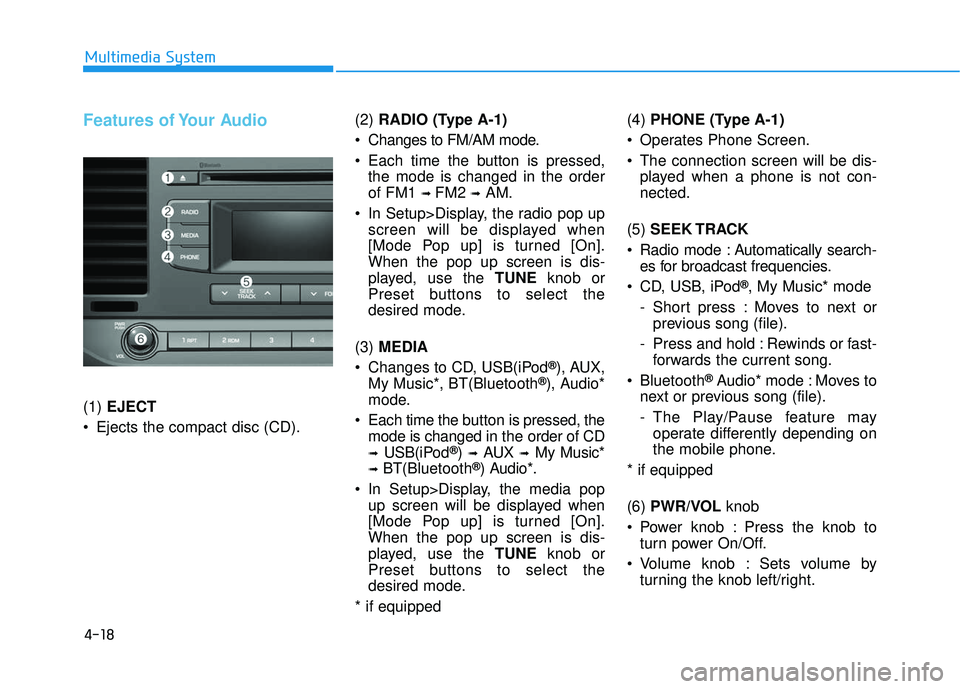
Features of Your Audio
(1) EJECT
Ejects the compact disc (CD). (2)
RADIO (Type A-1)
Changes to FM/AM mode.
Each time the button is pressed, the mode is changed in the order
of FM1
➟ FM2 ➟AM.
In Setup>Display, the radio pop up screen will be displayed when
[Mode Pop up] is turned [On].
When the pop up screen is dis-
played, use the TUNE knob or
Preset buttons to select the
desired mode.
(3) MEDIA
Changes to CD, USB(iPod
®), AUX,
My Music*, BT(Bluetooth®), Audio*
mode.
Each time the b utton is pressed, the
mode is changed in the order of CD
➟USB(iPod®)➟AUX➟My Music*
➟BT(Bluetooth®) Audio*.
In Setup>Display, the media pop up screen will be displayed when
[Mode Pop up] is turned [On].
When the pop up screen is dis-
played, use the TUNE knob or
Preset buttons to select the
desired mode.
* if equipped (4)
PHONE (Type A-1)
Operates Phone Screen.
The connection screen will be dis- played when a phone is not con-
nected.
(5) SEEK TRACK
Radio mode : Automatically search- es for broadcast frequencies.
CD, USB, iPod
®, My Music* mode
- Short press : Moves to next or previous song (file).
- Press and hold : Rewinds or fast- forwards the current song.
Bluetooth
®Audio* mode : Moves to
next or previous song (file).
- The Play/Pause feature may operate differently depending on
the mobile phone.
* if equipped
(6) PWR/VOL knob
Power knob : Press the knob to turn power On/Off.
Volume knob : Sets volume by turning the knob left/right.
Page 271 of 586
![HYUNDAI ELANTRA SE 2017 Owners Manual 4-19
Multimedia System
4
(7) [1] ~ [6] (Preset)
Radio mode : Saves frequencies (channels) or receives saved fre-
quencies (channels).
CD, USB, iPod
®, My Music* mode
- [RPT] : Repeat
- [RDM] : Rand](/manual-img/35/56090/w960_56090-270.png "HYUNDAI ELANTRA SE 2017 Owners Manual 4-19
Multimedia System
4
(7) [1] ~ [6] (Preset)
Radio mode : Saves frequencies (channels) or receives saved fre-
quencies (channels).
CD, USB, iPod
®, My Music* mode
- [RPT] : Repeat
- [RDM] : Rand")
4-19
Multimedia System
4
(7) [1] ~ [6] (Preset)
Radio mode : Saves frequencies (channels) or receives saved fre-
quencies (channels).
CD, USB, iPod
®, My Music* mode
- [RPT] : Repeat
- [RDM] : Random
In the Radio, Media, Setup, and
Menu pop up screen, the number
menu is selected.
* if equipped (8)
DISP
Each short press toggles through the following modes : Screen Off
➟
Screen On ➟Screen Off.
Audio operation is maintained and only the Screen will be turned Off.
In the Screen Off state, press any button to turn the Screen On again. (9)
SCAN
Radio mode - Short press : Previews eachbroadcast for 5 seconds each.
- Press and hold : Previews the broadcasts saved in Preset [1] ~
[6] for 5 seconds each.
- Press the [SCAN] button again
to continue listening to the cur-
rent frequency.
CD, USB, My Music* mode - Short press : Previews eachsong (file) for 10 seconds each.
- Press the [SCAN] button again
to continue listening to the cur-
rent song (file).
* if equipped
(10) SETUP/CLOCK
Moves to the Display, Sound, Clock, Phone, System setting
menu.
Page 272 of 586
4-20
Multimedia System
(11) MENU
Displays menus for the current mode.
®List : Move to parent catego-
ry.
(12) FOLDER
MP3 CD/USB mode - Folder Search
(13) TUNE knob
Radio mode : Changes frequency by turning the knob left/right.
CD, USB, iPod
®, My Music* mode :
Searches songs (files) by turning
the knob left/right. When the
desired song is displayed, press
the knob to play the song.
Moves focus in all selection menus and selects menus.
* if equipped (14)
FM (Type A-2)
Changes to FM mode.
Each time the button is pressed, the mode is changed in the order
of FM1
➟ FM2.
(15) AM (Type A-2)
Changes to AM mode.
Page 274 of 586
4-22
Multimedia System
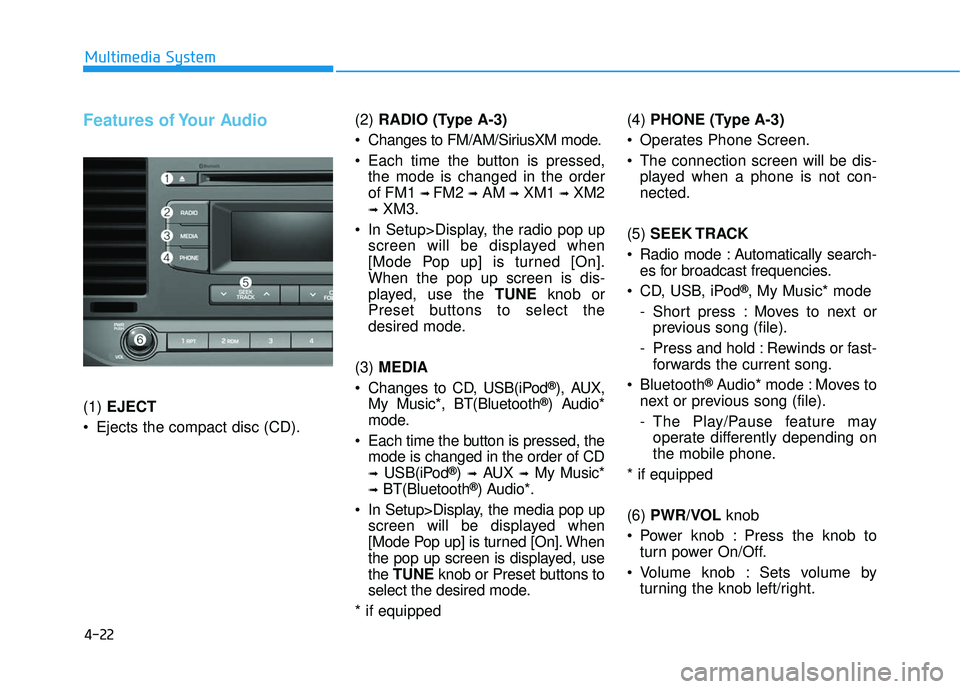
Features of Your Audio
(1) EJECT
Ejects the compact disc (CD). (2)
RADIO (Type A-3)
Changes to FM/AM/SiriusXM mode.
Each time the button is pressed, the mode is changed in the order
of FM1
➟ FM2 ➟AM ➟XM1 ➟XM2
➟XM3.
In Setup>Display, the radio pop up screen will be displayed when
[Mode Pop up] is turned [On].
When the pop up screen is dis-
played, use the TUNE knob or
Preset buttons to select the
desired mode.
(3) MEDIA
Changes to CD, USB(iPod
®), AUX,
My Music*, BT(Bluetooth®) Audio*
mode.
Each time the button is pressed, the mode is changed in the order of CD
➟USB(iPod®)➟AUX➟My Music*
➟BT(Bluetooth®) Audio*.
In Setup>Display, the media pop up screen will be displayed when
[Mode Pop up] is turned [On]. When
the pop up screen is displayed, use
the TUNE knob or Preset buttons to
select the desired mode.
* if equipped (4)
PHONE (Type A-3)
Operates Phone Screen.
The connection screen will be dis- played when a phone is not con-
nected.
(5) SEEK TRACK
Radio mode : Automatically search- es for broadcast frequencies.
CD, USB, iPod
®, My Music* mode
- Short press : Moves to next or previous song (file).
- Press and hold : Rewinds or fast- forwards the current song.
Bluetooth
®Audio* mode : Moves to
next or previous song (file).
- The Play/Pause feature may operate differently depending on
the mobile phone.
* if equipped
(6) PWR/VOL knob
Power knob : Press the knob to turn power On/Off.
Volume knob : Sets volume by turning the knob left/right.
Page 275 of 586
![HYUNDAI ELANTRA SE 2017 Owners Manual 4-23
Multimedia System
4
(7) [1] ~ [6] (Preset)
Radio mode : Saves frequencies (channels) or receives saved fre-
quencies (channels).
CD, USB, iPod
®, My Music* mode
- [RPT] : Repeat
- [RDM] : Rand](/manual-img/35/56090/w960_56090-274.png "HYUNDAI ELANTRA SE 2017 Owners Manual 4-23
Multimedia System
4
(7) [1] ~ [6] (Preset)
Radio mode : Saves frequencies (channels) or receives saved fre-
quencies (channels).
CD, USB, iPod
®, My Music* mode
- [RPT] : Repeat
- [RDM] : Rand")
4-23
Multimedia System
4
(7) [1] ~ [6] (Preset)
Radio mode : Saves frequencies (channels) or receives saved fre-
quencies (channels).
CD, USB, iPod
®, My Music* mode
- [RPT] : Repeat
- [RDM] : Random
In the Radio, Media, Setup, and
Menu pop up screen, the number
menu is selected.
* if equipped (8)
DISP
Each short press toggles through the following modes : Screen Off
➟
Screen On ➟Screen Off.
Audio operation is maintained and only the Screen will be turned Off.
In the Screen Off state, press any button to turn the Screen On again. (9)
SCAN
Radio mode - Short press : Previews eachbroadcast for 5 seconds each.
- Press and hold : Previews the broadcasts saved in Preset [1] ~
[6] for 5 seconds each.
- Press the [SCAN] button again
to continue listening to the cur-
rent frequency.
- XM Radio does not support the Preset scan feature.
CD, USB, My Music* mode - Short press : Previews eachsong (file) for 10 seconds each.
- Press the [SCAN] button again
to continue listening to the cur-
rent song (file).
* if equipped
(10) SETUP/CLOCK
Moves to the Display, Sound, Clock, Phone, System setting
menu.
Page 276 of 586
4-24
Multimedia System
(11) MENU
Displays menus for the current mode.
®List : Move to parent catego-
ry.
(12) CAT/FOLDER
Radio mode - SiriusXM Radio : Category Search.
MP3 CD/USB mode - Folder Search
(13) TUNE knob
Radio mode : Changes frequency by turning the knob left/right.
CD, USB, iPod
®, My Music* mode :
Searches songs (files) by turning
the knob left/right. When the
desired song is displayed, press
the knob to play the song.
Moves focus in all selection menus and selects menus.
* if equipped (14)
FM/AM (Type A-4)
Changes to FM/AM mode.
Each time the button is pressed, the mode is changed in the order
of FM1
➟ FM2 ➟ AM.
(15) XM (Type A-4)
Changes to XM mode.
Each time the button is pressed, the mode is changed in the order
of XM1
➟ XM2 ➟ XM3.