Page 249 of 606

uuAudio System Basic Operation uPlaying AM/FM Radio
248
Features
To store a station:
1. Tune to the selected station.
2. Select and hold the preset number for the station you want to store.
You can also store a preset station by the following procedure.
1. Tune to the selected station.
2. Select the open/close ic on to display a list.
3. Select the Preset tab.
4. Select and hold the preset number for the station you want to store.
Lists the strongest stations on the selected band.
1. Select the open/close ic on to display a list.
2. Select the Station List tab.
3. Select the station.
■Manual update
Updates your available station list at any time.
1. Select the open/close ic on to display a list.
2. Select the Station List tab.
3. Select Refresh.
■Preset Memory
■Station List
1Preset Memory
The ST indicator appears on the display indicating
stereo FM broadcasts.
Stereo reproduction in AM is not available.
Switching the Audio Mode
Press the SOURCE button on the steering wheel or
select SOURCE on the screen.
2 Audio Remote Controls P. 202
You can store 6 AM stations and 12 FM stations into
preset memory.
HD Radio Technology manufactured under license
from iBiquity Digital Cor poration. U.S. and Foreign
Patents. HD Radio
TM and the HD, HD Radio, and
“Arc” logos are proprietary trademarks of iBiquity
Digital Corp.
Models with HD RadioTM
Page 253 of 606

uuAudio System Basic Operation uPlaying SiriusXM ® Radio*
252
Features
1. Select .
2. Select Tune Mode .
3. Select Channel Mode or Category Mode .
■To Change the Tune Mode1Playing SiriusXM ® Radio*
In the channel mode, all available channels are
selectable. In the categor y mode, you can select a
channel within a ca tegory (Jazz, Rock, Classical, etc.).
There may be instances when SiriusXM ® Radio does
not broadcast all the data fi elds (artist name, title).
This does not indicate a problem with your audio
system.
SiriusXM ® Radio stations load in ascending order,
which can take about a minute. Once they have
loaded you will be able to scroll up or down to make
your selections.
Switching the Audio Mode
Press the SOURCE button on the steering wheel or
select SOURCE on the screen.
2 Audio Remote Controls P. 202
Tune Start:
When you change to a preset channel, a song being
played on that channel restarts from the beginning
with this function. This can be turned on or off from
the Audio settings screen.
2 Customized Features P. 309
* Not available on all models
Page 267 of 606
uuAudio System Basic Operation uSong By VoiceTM (SBV)
266
Features
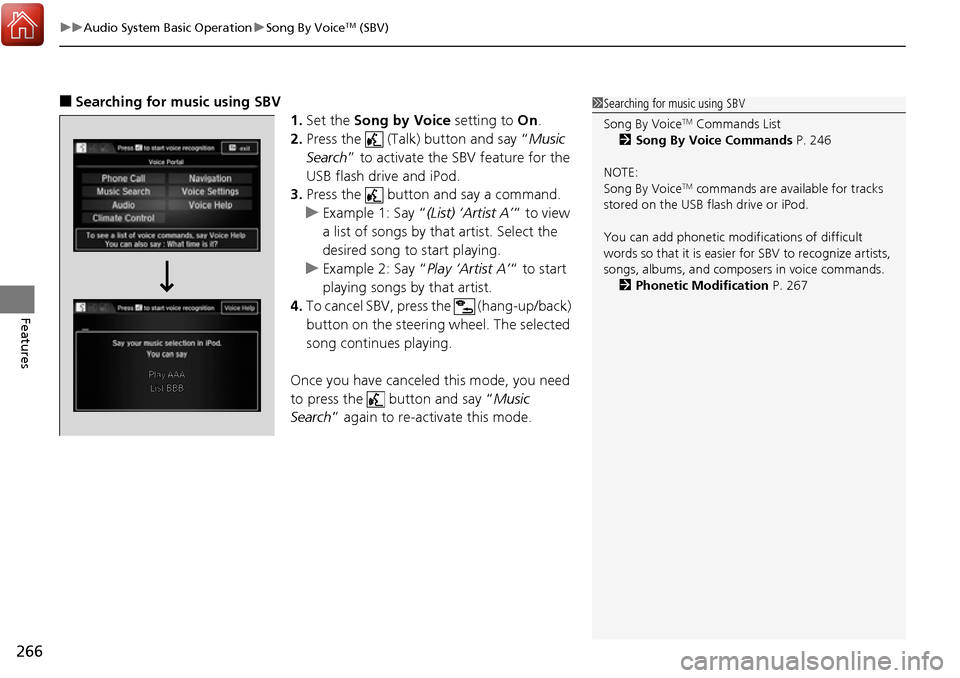
■Searching for music using SBV
1.Set the Song by Voice setting to On.
2. Press the (Talk) button and say “ Music
Search ” to activate the SBV feature for the
USB flash drive and iPod.
3. Press the button and say a command.
u Example 1: Say “ (List) ‘Artist A’“ to view
a list of songs by that artist. Select the
desired song to start playing.
u Example 2: Say “ Play ‘Artist A’“ to start
playing songs by that artist.
4. To cancel SBV, press the (hang-up/back)
button on the steering wheel. The selected
song continues playing.
Once you have canceled this mode, you need
to press the button and say “ Music
Search ” again to re-activate this mode.1Searching for music using SBV
Song By Voice
TM Commands List
2 Song By Voice Commands P. 246
NOTE:
Song By Voice
TM commands are available for tracks
stored on the USB flash drive or iPod.
You can add phonetic modi fications of difficult
words so that it is easier for SBV to recognize artists,
songs, albums, and composers in voice commands. 2 Phonetic Modification P. 267
Page 284 of 606
283
uuAudio System Basic Operation uSiri Eyes Free
Features
Siri Eyes Free
You can talk to Siri using the (Talk) button on the steering wheel when your
iPhone is paired to the Bluetooth® HandsFreeLink ® (HFL) system.
2Phone Setup P. 370
■Using Siri Eyes Free
1Siri Eyes Free
Siri is a trademark of Apple Inc.
Check Apple Inc. website for features available for
Siri.
While driving we recomme nd only using Siri through
the button on the steering wheel (Siri Eyes Free).
1 Using Siri Eyes Free
Some commands work only on specific phone
features or apps.
(Talk) Button
Press and hold until the display
changes as shown.
(Hang-up/back) Button
Press to deactivate Siri.
While in Siri Eyes Free:
The display remains the same.
No feedback or commands
appears. Appears when Siri is
activated in Siri Eyes Free
Page 297 of 606

296
Features
General Information on the Audio System
SiriusXM® Radio Service*
1. You need your radio ID ready before registering for subscription. To see the ID in
the screen, select Channel to 0.
2. Have your radio ID ready, and either call or visit the SiriusXM ® website to
subscribe.
Switch to the SiriusXM ® mode by using the SOURCE button on the steering wheel,
or through the audio/information screen, and stay in this mode for about 30
minutes until the service is activated. Make sure your vehicle is in an open area with
good reception.
Channel Not Subscribed:
You are not subscribed to the channel selected.
Subscription Update:
SiriusXM ® radio is receiving information update from the network.
Channel Not Available:
No such channel exits, or the artist or title information is unavailable.
No Signal:
The signal is too weak in the current location.
Antenna Disconnected:
The SiriusXM ® antenna is disconnected. Contact a dealer.
■Subscribing to SiriusXM ® Radio
■Receiving SiriusXM® Radio
■SiriusXM® Radio Display Messages
1 Subscribing to SiriusXM ® Radio
Contact Information for SiriusXM ® Radio:
•US: SiriusXM ® Radio at www.siriusxm.com or 1-
800-852-9696
•Canada: SiriusXM ® Canada at www.siriusxm.ca, or
1-877-209-0079
1 Receiving SiriusXM ® Radio
The SiriusXM ® satellites are in orbit over the equator;
therefore, objects south of the vehicle may cause
satellite reception interruptions. Sa tellite signals are
more likely to be blocked by tall buildings and
mountains the farther north you travel from the
equator.
You may experience rece ption problems under the
following circumstances:
•In a location with an obstruction to the south of
your vehicle.
•In tunnels
•On the lower level of a multi-tiered road•Large items carried on the roof rack
* Not available on all models
Page 338 of 606
337Continued
Features
Bluetooth® HandsFreeLink ®
Bluetooth® HandsFreeLink ® (HFL) allows you to place and receive phone calls using
your vehicle’s audio system, without handling your cell phone.
Using HFL
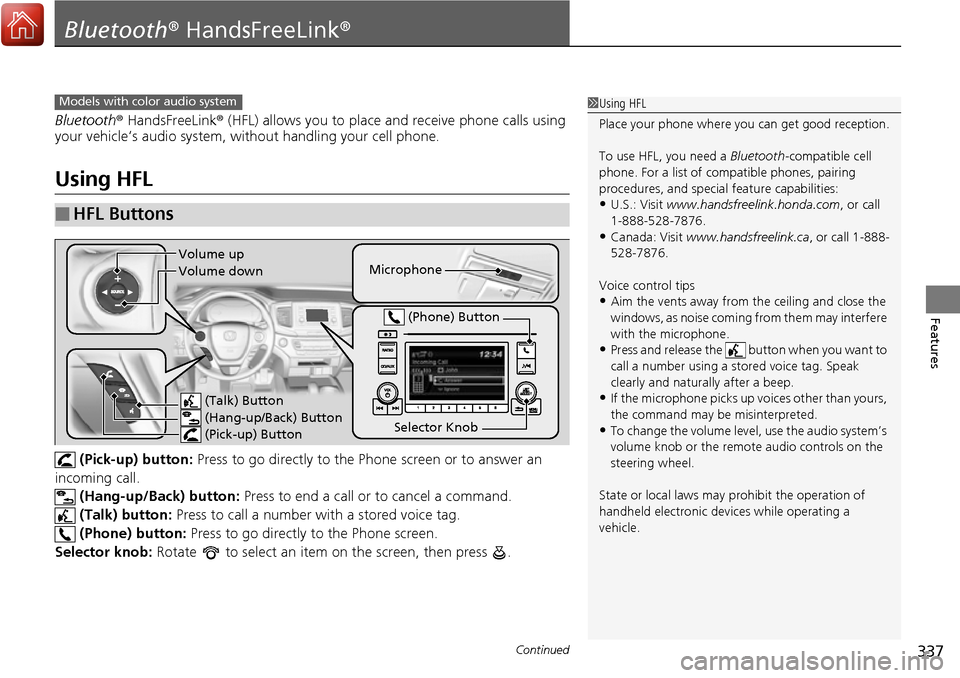
(Pick-up) button: Press to go directly to the Phone screen or to answer an
incoming call. (Hang-up/Back) button: Press to end a call or to cancel a command.
(Talk) button: Press to call a number with a stored voice tag.
(Phone) button: Press to go directly to the Phone screen.
Selector knob: Rotate to select an item on the screen, then press .
■HFL Buttons
1Using HFL
Place your phone where y ou can get good reception.
To use HFL, you need a Bluetooth-compatible cell
phone. For a list of compatible phones, pairing
procedures, and special feature capabilities:
•U.S.: Visit www.handsfreelink.honda.com , or call
1-888-528-7876.
•Canada: Visit www.handsfreelink.ca , or call 1-888-
528-7876.
Voice control tips
•Aim the vents away from the ceiling and close the
windows, as noise coming fr om them may interfere
with the microphone.
•Press and release the button when you want to
call a number using a st ored voice tag. Speak
clearly and naturally after a beep.
•If the microphone picks up vo ices other than yours,
the command may be misinterpreted.
•To change the volume level, use the audio system’s
volume knob or the remote audio controls on the
steering wheel.
State or local laws may pr ohibit the operation of
handheld electronic devi ces while operating a
vehicle.
Models with color audio system
Microphone
(Talk) Button
(Hang-up/Back) Button
(Pick-up) Button
Selector Knob (Phone) Button
Volume up
Volume down
Page 363 of 606

362
Features
Bluetooth® HandsFreeLink ®
Bluetooth® HandsFreeLink ® (HFL) allows you to place and receive phone calls using
your vehicle’s audio system, without handling your cell phone.
Using HFL
■HFL Buttons
1 Bluetooth ® HandsFreeLink ®
Place your phone where y ou can get good reception.
To use HFL, you need a Bluetooth-compatible cell
phone. For a list of compatible phones, pairing
procedures, and special fe ature capabilities, ask a
dealer or your Honda dealer.
To use the system, the Bluetooth On/Off Status
setting must be On.
2 How to customize P. 309
Voice control tips
•Aim the vents away from the ceiling and close the
windows, as noise coming fr om them may interfere
with the microphones.
•Press the button when you want to call a
number using a stored voic e tag. Speak clearly and
naturally after a beep.
•If the microphones pick up vo ices other than yours,
the command may be misinterpreted.
•To change the volume level, select the audio
system’s VOL (Volume) or use the remote audio
controls on the steering wheel.
Up to five speed dial entries can be displayed among
a total of 20 that can be en tered. If there is no entry
in the system, Speed Dial is disabled.
2 Speed Dial P. 376
Up to five call historie s can be displayed among a
total of 20 that can be entered. If there is no call
history, Call History is disabled.
Models with Display Audio
(Talk) Button
Volume up
Microphone
(Hang-up/Back) Button
(Pick-up) Button
Volume down
SOURCE Button
(Menu) Button
Button
Page 398 of 606

Continued397
uuBefore Driving uDriving Preparation
Driving
• Store or secure all items on board properly.
u Carrying too much cargo, or improperly storing it, can affect your vehicle’s
handling, stability, sto pping distance, and tires, and make it unsafe.
2Maximum Load Limit P. 399
•Do not pile items higher than the seat height.
u They can block your view and may be thrown forward in the event of sudden
braking.
• Do not place anything in the front seat footwells. Make sure to secure the floor
mat.
u An object or unsecured floor mat can in terfere with your brake and accelerator
pedal operation while driving.
• If you have any animals on board, do no t let them move around in the vehicle.
u They may interfere with driv ing and a crash could occur.
• Securely close and lock all doors.
2Locking/Unlocking the Doors from the Inside P. 119
•Adjust your seating position properly.
u Adjust the head restraint, too.
2Adjusting the Seats P. 161
2 Adjusting the front head restraint positions P. 166
•Adjust the mirrors and steering wh eel properly for your driving.
u Adjust them while sitting in the proper driving position.
2 Adjusting the Steering Wheel P. 158
2 Adjusting the Mirrors P. 159
■Interior Checks1Interior Checks
The headlight aim is set by the factory, and does not
need to be adjusted. Howeve r, if you regularly carry
heavy items in the cargo area or tow a trailer, have
the aiming readjusted at a dealer or by a qualified
technician.
