Page 290 of 606

Continued289
uuAudio System Basic Operation uAndroid Auto
Features
d Music and audio
Play Google Play Music an d music apps that are compatible with Android Auto.
To switch between music apps, press this icon.
e Go back to the Home Screen.
f Voice
Operate Android Auto with your voice.
When you connect an Android phone to the unit via USB, Android Auto is
automatically initiated.
■Enabling Android Auto
Cancel: Does not allow this consent.
Enable once: Allows only once. (Prompt
shows again next time.)
Always enable: Allows anytime. (Prompt
does not show again.)
You may change the consent settings under
the Smartphone settings menu.
■Auto Pairing Connection
1Enabling Android Auto
Only initialize Android Auto when you safely parked.
When Android Auto first de tects your phone, you will
need to set up your phone so that auto pairing is
possible. Refer to the inst ruction manual that came
with your phone.
You can use the method below to change Android
Auto settings after you have completed the initial
setup:
Select HOME Settings Smartphone Android
Auto
Use of user and vehicle information
The use and handling of user and vehicle information
transmitted to/from your phone by Android Auto is
governed by the Google’s Privacy Policy.
Page 295 of 606

294
uuAudio Error Messages uPandora®*
Features
Pandora ®*
If an error occurs while playing Pandora ®, you may see the following error messages.
If you cannot clear the error message, contact a dealer.
Error MessageSolution
To begin listening, create a new genre station.Appears when there is no station lis t on the device. Use the device
to create a station.
Unable to rate track. Please try again.
Skip limit reached.Appears when you try to skip a song or select Like/Dislike over
the predetermined number of times in an hour.
Unable to play Pandora. Please try again later.
Unable to retrieve a track explan ation. Please try again later.
Unable to create bookmark. Please try again later.
Appears when the commanded operation is failed. Try again later.
No Device ConnectedAppears when no data is available with Pandora® activated.
Reboot the app and reconnect the device.
Pandora App version is not supportedAppears when Pandora ® version is not supported. Update
Pandora® to the latest version.
Unable to complete the operat ion. Please try again later.Appears when the Pandora® server is in maintenance. Try again
later.
Unable to connect Pandora. When stopped, check your
mobile phone.
Appears when Pandora ® is unable to play music. Check your
device.
Appears when Pandora ® app is not installed on your device. Install
Pandora® app to the your device.
* Not available on all models
Page 300 of 606

299
uuGeneral Information on the Audio System uCompatible iPod, iPhone, and USB Flash Drives
Features
Compatible iPod, iPhone , and USB Flash Drives
•Use a recommended USB flash drive of 256 MB or higher.
• Some digital audio players may not be compatible.
• Some USB flash drives (e.g., a device with security lockout) may not work.
• Some software files may not allow for audio play or text data display.
• Some versions of MP3, WMA, or AAC formats may be unsupported.
*1: Models with Display Audio
■iPod and iPhone Model Compatibility
Model
iPod (5th generation)
iPod classic 80GB/160GB (launch in 2007)
iPod classic 120GB (launch in 2008)
iPod classic 160GB (launch in 2009)
iPod nano (1st to 7th generation*) launch in 2012
iPod touch (1st to 5th generation*) launch in 2012
iPhone 3G/iPhone 3GS/iPhone 4/iPhone 4s/iPhone 5*1/iPhone 5c*1/iPhone 5s*1/
iPhone6*1
■USB Flash Drives
1 iPod and iPhone Model Compatibility
This system may not work with all software versions
of these devices.
1USB Flash Drives
Files on the USB flash drive are played in their stored
order. This order may be different from the order
displayed on your PC or device.
* Not available on all models
Page 301 of 606

300
uuGeneral Information on the Audio System uLegal Information on Apple CarPlay/Android Auto
Features
Models with Display Audio
Legal Information on Ap ple CarPlay/Android Auto
USE OF APPLE CARPLAY IS SUBJECT TO YOUR AGREEMENT TO THE CARPLAY TERMS OF USE, WHICH ARE INCLUDED AS PART OF THE
APPLE iOS TERMS OF USE. IN SUMMARY, THE CARPLAY TERMS OF USE DISCLAIM APPLE AND I TS SERVICE PROVIDERS’ LIABILITY IF THE
SERVICES FAIL TO PERFORM CORRECTLY OR ARE DISCONTINUED, STRICTLY LIMIT APPLE AND ITS SERVICE PROVIDERS’ OTHER
LIABILITIES, DESCRIBE THE KINDS OF USER INFORMATION (INCLUDING, FOR EXAMPLE, VE HICLE LOCATION, VEHICLE SPEED, AND
VEHICLE STATUS) BEING GATHERED AND STORED BY APPLE AND I TS SERVICE PROVIDERS, AND DISCLOSE CERTAIN POSSIBLE RISKS
ASSOCIATED WITH THE USE OF CARPLAY, INCLUDING THE POTENTI AL FOR DRIVER DISTRACTION. SEE APPLE’S PRIVACY POLICY FOR
DETAILS REGARDING APPLE'S USE AND HANDLING OF DATA UPLOADED BY CARPLAY.
USE OF ANDROID AUTO IS SUBJECT TO YOUR AGREEMENT TO THE ANDROID AUTO TERMS OF USE WHICH MUST BE AGREED TO WHEN
THE ANDROID AUTO APPLICATION IS DOWNLOADED TO YOUR ANDROI D PHONE. IN SUMMARY, THE ANDROID AUTO TERMS OF USE
DISCLAIM GOOGLE AND ITS SERVICE PROVIDERS’ LIABILITY IF THE SERVICES FAIL TO PERFORM CORRECTLY OR ARE DISCONTINUED,
STRICTLY LIMIT GOOGLE AND ITS SERVICE PROVIDERS’ OTHER LIABILIT IES, DESCRIBE THE KINDS OF USER INFORMATION (INCLUDING,
FOR EXAMPLE, VEHICLE LOCATION, VEHICLE SPEED, AND VEHI CLE STATUS) BEING GATHERED AND STORED BY GOOGLE AND ITS
SERVICE PROVIDERS, AND DISCLOSE CERT AIN POSSIBLE RISKS ASSOCIATED WITH TH E USE OF ANDROID AUTO, INCLUDING THE
POTENTIAL FOR DRIVER DISTRACTION. SEE GOOGLE’S PRIVACY POLICY FOR DETAIL S REGARDING GOOGLE’S USE AND HANDLING OF
DATA UPLOADED BY ANDROID AUTO.
■OWNER’S MANUAL LICENSE/LIABILITY STATEMENTS
Page 304 of 606
303Continued
Features
Customized Features
Use the audio/information screen to customize certain features.
■How to customize
While the vehicle is at a complete stop with the power ON, press the MENU/CLOCK
button, then select Settings. To customize the phone se ttings, press the button,
then select Phone Setup .
1Customized Features
When you customize settings, make sure that the
vehicle is at a complete stop and shift to
(P.Models with color audio system
1 How to customize
These indications are used to show how to operate
the selector knob.
Rotate to select.
Press to enter.
To customize other features, select Settings, rotate
, then press .
2 List of customizable options P. 306
Audio/Information Screen
MENU/CLOCK Button
Selector Knob
(Phone) Button
Page 306 of 606
305
uuCustomized Features u
Continued
Features
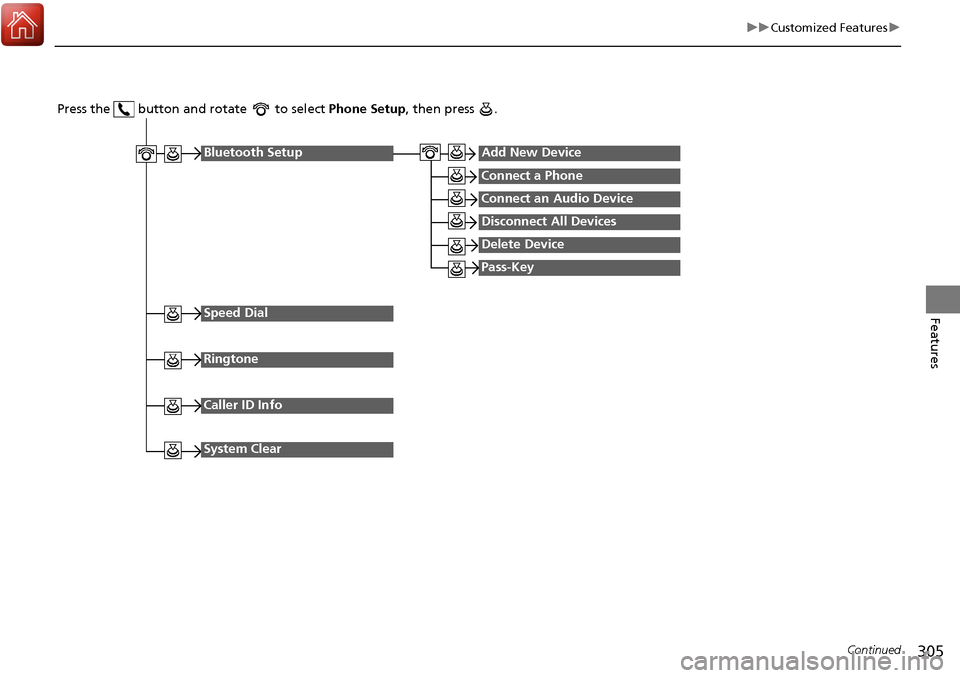
Press the button and rotate to select Phone Setup, then press .
Ringtone
Bluetooth SetupAdd New Device
Connect a Phone
Connect an Audio Device
Disconnect All Devices
Delete Device
Pass-Key
Speed Dial
Caller ID Info
System Clear
Page 309 of 606
308
uuCustomized Features u
Features
*1:Default Setting
Setup
GroupCustomizable FeaturesDescriptionSelectable Settings
Phone
Setup
Bluetooth
Setup
Add New DevicePairs a new phone to HFL.
2 Phone Setup P. 343—
Connect a Phone
Pairs a new phone or connects a paired phone
to HFL.
2Phone Setup P. 343
—
Connect an Audio
DeviceConnects a Bluetooth® Audio device to HFL.—
Disconnect All DevicesDisconnects a paired phone from HFL.—
Delete DeviceDeletes a paired phone.—
Pass-KeyChanges a pairing code.—
Speed DialEdits, adds or deletes a speed dial entry.
2Speed Dial P. 352—
RingtoneSelects the ring tone.Mobile Phone*1/Fixed
Caller ID InfoPrioritizes the caller’s name or phone number
as the caller ID.Name Priority*1/Number
Priority
System ClearCancels/Resets all customized items in the
Phone Setup group as default.—
Page 311 of 606
310
uuCustomized Features u
Features
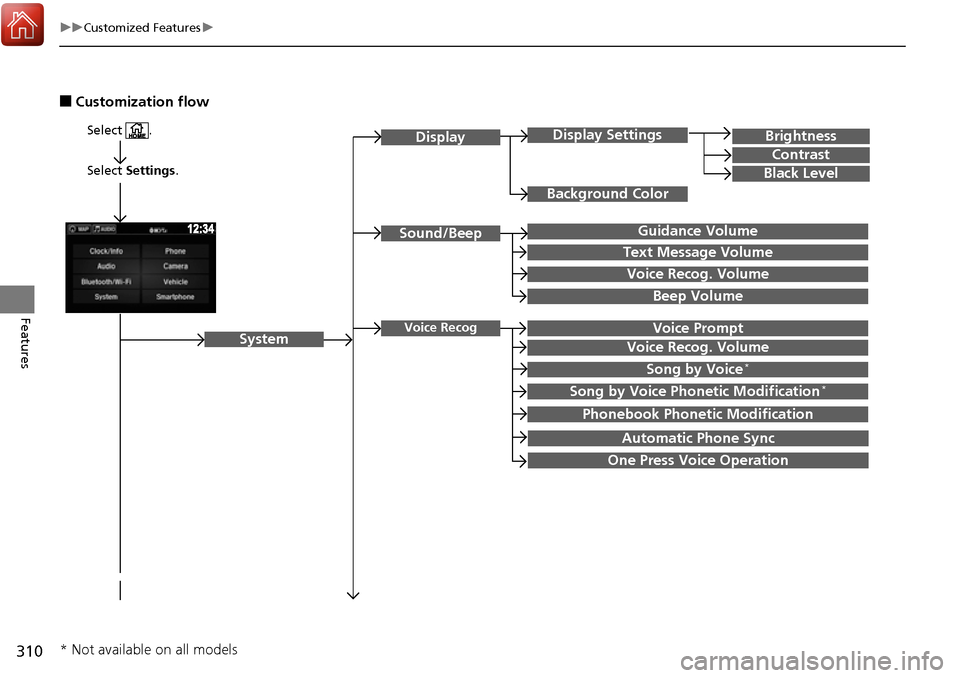
■Customization flow
Select Settings.
Brightness
Contrast
Black Level
Sound/Beep
System
DisplayDisplay Settings
Background Color
Guidance Volume
Text Message Volume
Select .
Voice RecogVoice Prompt
Voice Recog. Volume
Beep Volume
Voice Recog. Volume
Song by Voice*
Song by Voice Phonetic Modification*
Phonebook Phonetic Modification
Automatic Phone Sync
One Press Voice Operation
* Not available on all models