2017 HONDA RIDGELINE change time
[x] Cancel search: change timePage 372 of 606
Continued371
uuBluetooth ® HandsFreeLink ®u HFL Menus
Features
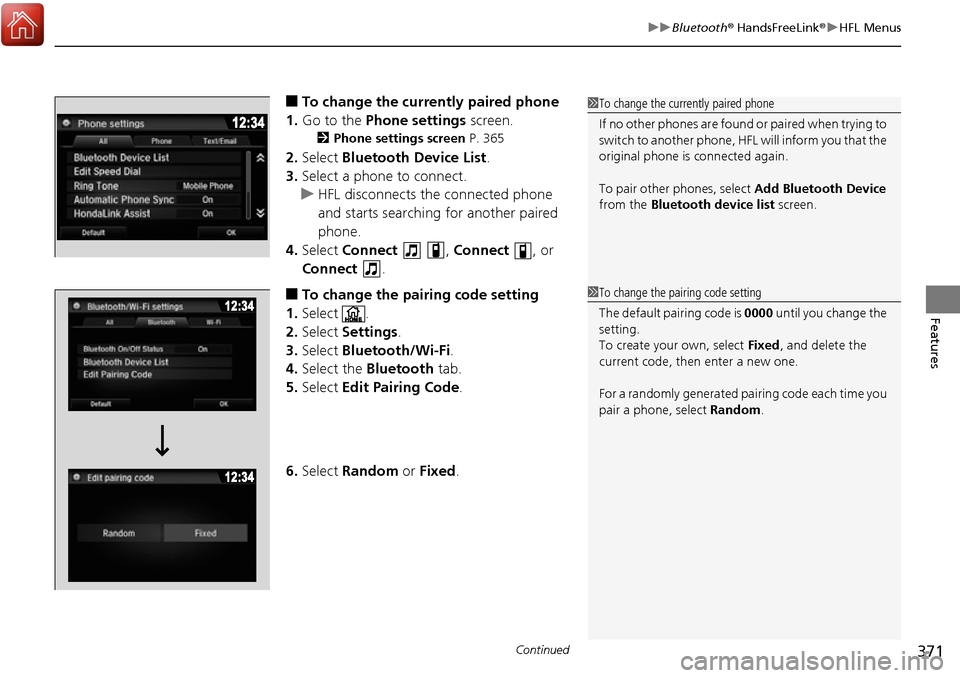
■To change the currently paired phone
1. Go to the Phone settings screen.
2Phone settings screen P. 365
2.Select Bluetooth Device List .
3. Select a phone to connect.
u HFL disconnects the connected phone
and starts searching for another paired
phone.
4. Select Connect , Connect , or
Connect .
■To change the pairing code setting
1. Select .
2. Select Settings .
3. Select Bluetooth/Wi-Fi .
4. Select the Bluetooth tab.
5. Select Edit Pairing Code .
6. Select Random or Fixed .
1To change the currently paired phone
If no other phones are found or paired when trying to
switch to another phone, HFL will inform you that the
original phone is connected again.
To pair other phones, select Add Bluetooth Device
from the Bluetooth device list screen.
1To change the pairing code setting
The default pair ing code is 0000 until you change the
setting.
To create your own, select Fixed, and delete the
current code, then enter a new one.
For a randomly generated pa iring code each time you
pair a phone, select Random .
Page 394 of 606

Continued393
uuBluetooth ® HandsFreeLink ®u HFL Menus
Features
■Automatic collis ion notification
If your vehicle’s airbags deploy or if the unit
detects that the vehicle is severely impacted,
your vehicle automatically will attempt to
connect to the HondaLink ® operator. If
connected, information about your vehicle, its
location, and its condition will be sent to the
operator; you also can speak to the operator
when connected.
IMPORTANT: For vehicles equipped with HondaLink ® Assist, owner activation
constitutes authorization for Honda to collect information from your vehicle needed
to provide the service, and agreement to the Terms of Use at www.hondalink.com/
TermsAndConditions . In a crash, HondaLink ® Assist will attempt to notify emergency
services but NEITHER HONDA NOR I TS SERVICE PROVIDERS GUARANTEE THAT
SUCH NOTIFICATION WILL OCCUR.
Honda reserves the right to terminate HondaLink® Assist services at any time or for
any reason, and in the future may not be ab le to provide services due to changes in,
or obsolescence of, technology integral to the service or changes in governmental
regulation.
■In Case of Emergency1 In Case of Emergency
Your vehicle may not be able to connect to the
operator if the battery level is low, the line is
disconnected, or you do not have adequate cellular
coverage.
You cannot use this emergency services when:
•You travel outside the HondaLink ® service coverage
areas.
•There is a problem with the connecting devices,
such as the microphones, speakers, or the unit
itself.
You cannot operate othe r phone-related functions
using the screen while talking to the operator.
Select Hang Up to terminate the connection to your
vehicle.
1 Automatic collision notification
If the unit fails to connect to the operator, it
repeatedly tries until it succeeds.
Page 450 of 606
449
uuWhen Driving uAdaptive Cruise Control (ACC)*
Continued
Driving
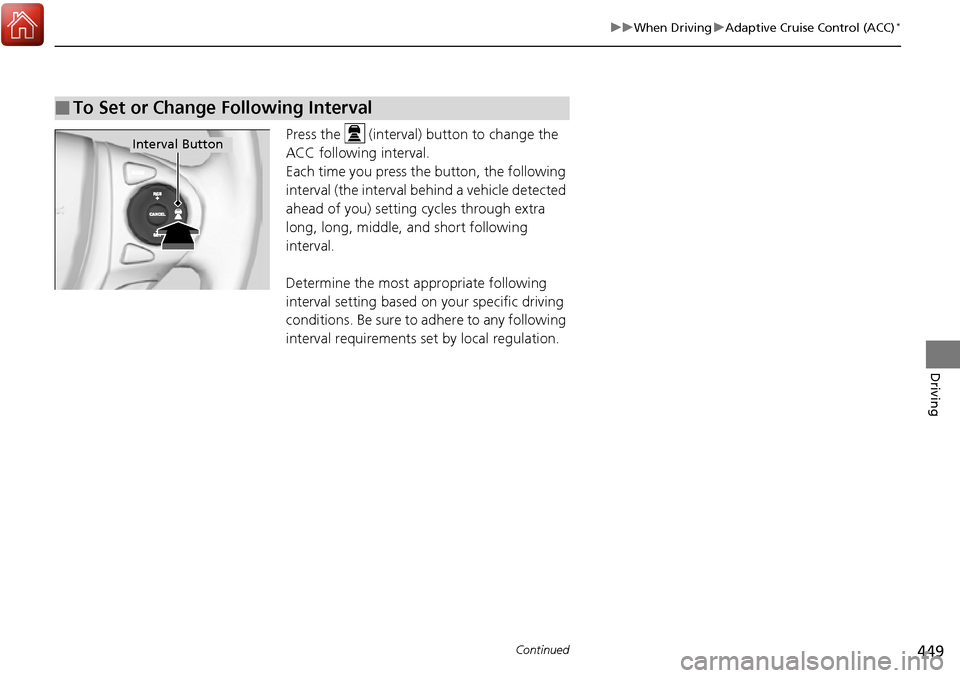
Press the (interval) button to change the
ACC following interval.
Each time you press th e button, the following
interval (the interval behind a vehicle detected
ahead of you) setting cycles through extra
long, long, middle, and short following
interval.
Determine the most appropriate following
interval setting based on your specific driving
conditions. Be sure to adhere to any following
interval requirements set by local regulation.
■To Set or Change Following Interval
Interval Button
Page 458 of 606

Continued457
uuWhen Driving uLane Keeping Assist System (LKAS)*
Driving
3. Keep your vehicle near the center of the
lane while driving.
u The dotted outer lines change to solid
ones once the system starts operating
after detecting the left and right lane
markings.
To cancel the LKAS:
Press the MAIN or LKAS button.
The LKAS is turned off every time you stop the
engine, even if you turned it on the last time
you drove the vehicle.
Models with ACC is shown.
■To cancel
1 When the System can be Used
The LKAS temporarily deactivates when it fails to
detect lane lines. When the system detects the lines
again, it comes back on automatically.
1To cancel
Pressing the MAIN button also turns ACC on and off.
MAIN Button
LKAS Button
Page 464 of 606

463
uuWhen Driving uVehicle Stability Assist (VSA ®), aka Electronic Stability Control (ESC), System
Driving
This button is on the driver side control panel.
To partially disable VSA ® functionality/
features, press and hold it until you hear a
beep.
The traction control stop s fully functioning,
allowing the wheels to spin more freely at low
speed. The VSA ® OFF indicator will also come
on and a message on the multi-information
display informs you that the mode is changed.
Traction control mode can not be changed
during Mud
* or Sand* modes. If you are
driving on mud or sand, Mud* or Sand*
Intelligent Traction Management modes can
also be used to free a stuck vehicle. On other
road surfaces, change to Normal or Snow
mode, then press and hold the (VSA ® OFF)
button.
To restore VSA ® functionality/features, press
the (VSA ® OFF) button until you hear a
beep.
VSA ® is turned on every time you start the
engine, even if you turned it off the last time
you drove the vehicle.
■VSA ® On and Off1 Vehicle Stability Assist (VSA ®), aka Electronic Stability Control
(ESC), System
With the button pressed, your vehicle will have
normal braking and corn ering ability, but VSA®
traction and stability enhancement becomes less
effective.
In certain unusual conditions when your vehicle gets
stuck in shallow mud or fr esh snow, it may be easier
to free it with the VSA ® temporarily switched off.
When the button is pressed, the traction control
function becomes less effective. This allows for the
wheels to spin more freely at low speed. You should
only attempt to free your vehicle with the VSA ® off if
you are not able to free it when the VSA ® is on.
Immediately after freeing your vehicle, be sure to
switch VSA ® on again. We do not recommend driving
your vehicle with the VSA ® system switched off.
You may hear a motor sound coming from the
engine compartment while system checks are being
performed immediately after starting the engine or
while driving. This is normal.
VSA ® OFF Indicator
When the button is pressed
* Not available on all models
Page 472 of 606

471
uuWhen Driving uBlind spot information (BSI) System*
Driving
■When the system detects a vehicle1Blind spot inform ation (BSI) System*
You can change the setting for BSI.
2 Customized Features P. 303
Turn the system off when towing a trailer.
The system may not work properly for the following
reasons:
•The added mass tilts the vehicle and changes the
radar coverage.
•The trailer itself can be detected by the radar
sensors, causing the BSI al ert indicators to come on.
BSI may be adversel y affected when:
•Objects (guard rails, poles, trees, etc,.) are
detected.
•An object that does not re flect radio waves well,
such as a motorcycle, is in the alert zone.
•Driving on a curved road.
•A vehicle is moving from a far lane to the adjacent
lane.
•The system picks up external electrical interference.•The rear bumper or the sens ors have been improperly
repaired or the rear bu mper has been deformed.
•The orientation of the sensors has been changed.•In bad weather (Heavy rain, snow, and fog).
For proper BSI use:
•Always keep the rear bumper corner area clean.
•Do not cover the rear bumper corner area with
labels or sticke rs of any kind.
•Take your vehicle to a dealer if you need the rear
bumper corner area or the radar sensors to be repaired,
or the rear bumper corner area is strongly impacted.
■Comes on when●A vehicle enters the ale rt zone from behind
to overtake you with a speed difference of
no more than 31 mph (50 km/h) from your
vehicle.
●You pass a vehicle with a speed difference
of no more than 12 mph (20 km/h).
BSI Alert Indicator: Located near the outside
rearview mirror on both sides.
■Blinks and the beeper sounds when
You move the turn signal lever in the direction
of the detected vehicle. The beeper sounds
three times. Comes On
Blinks
* Not available on all models
Page 474 of 606

473
uuWhen Driving uLaneWatchTM*
Driving
■Customizing the LaneWatch settings
You can customize the following items using the audio/information screen.
• Show with Turn Signal : Selects whether LaneWatch monitor comes on when
you operate the turn signal light lever.
• Display Time after Turn Signal Off: Changes the remaining LaneWatch display
time after you pull the turn signal lever back.
• Reference Line : Selects whether the reference lines appear on the LaneWatch
monitor.
• Display : Adjusts display settings.
2Customized Features P. 303
■Reference Lines
Three lines that appear on the screen can give
an idea of how far the vehicles or objects on
the screen are from your vehicle, respectively.
If an object is near line 1 (in red), it indicates
that it is close to your vehicle whereas an
object near line 3 farther away.
1LaneWatchTM*
The LaneWatch camera view is restricted. Its unique
lens makes objects on the screen look slightly
different from what they are.
LaneWatch display does not come on when the shift
lever is in
( R.
For proper LaneWatch operation:
•The camera is located in the passenger side door
mirror. Always keep this area clean. If the camera
lens is covered with dirt or moisture, use a soft,
moist cloth to keep the lens clean and free of debris.
•Do not cover the camera lens with labels or stickers
of any kind.
•Do not touch the camera lens.
1Reference Lines
The area around the reference lin e 1 (red) is very close to
your vehicle. As always, m ake sure to visually confirm
the safety of a lane chan ge before changing lanes.
The distance betwee n your vehicle and lines 1, 2 and
3 on the screen vary depending on road conditions
and vehicle loading. For ex ample, the reference lines
on the screen may seem to appear closer than the
actual distances when the rear of your vehicle is more
heavily loaded.
Consult a dealer if:
•The passenger side door mirr or, or area around it is
severely impacted, resulting in changing the
camera angle.
•The LaneWatch display doe s not come on at all.
23
1
* Not available on all models
Page 565 of 606

564
uuEngine Does Not Start uEmergency Engine Stop
Handling the Unexpected
Emergency Engine Stop
The ENGINE START/STOP button may be used to stop the engine due to an
emergency situation even while driving. If you must stop the engine, do either of the
following operations:
• Press and hold the ENGINE START/STOP button for about two seconds.
• Firmly press the ENGINE START/STOP button three times.
The steering wheel will not lock. However, because turning off the engine disables
the power assist the engine provides to the steering and braking systems, it will
require significantly more physical effort an d time to steer and slow the vehicle. Use
both feet on the brake pedal to slow down the vehicle and stop immediately in a
safe place.
The power mode is in ACCESSORY when the engine is stopped.
To change the mode to VEHICLE OFF, move the shift lever to
(P after the vehicle
comes to a complete stop.
Then press the ENGINE START/STOP button twice without depressing the brake
pedal.
1 Emergency Engine Stop
Do not press the button while driving unless it is
absolutely necessary for th e engine to be switched
off.
Canadian models