Page 480 of 606

Continued479
uuBraking uCollision Mitigation Braking SystemTM (CMBSTM)*
Driving
■When the system activates
At system’s earliest collision alert st age, you can change the distance (Long/
Normal /Short ) between vehicles at which alerts will come on through the audio/
information screen’s customized features.
■Vibration alert on the steering wheel
When a potential coll ision to an oncoming detected vehicle is determined, the
system alerts you with rapid vibration on th e steering wheel, in addition to visual and
audible alerts. u Take appropriate action to prevent a col lision (apply the brakes, operate the
steering wheel, etc.).
1 When the system activates
The camera in the CMBS
TM is also designed to detect
pedestrians.
However, this pedestrian detection feature may not
activate or may not detect a pedestrian in front of
your vehicle under certain conditions.
Refer to the ones indicating the pedestrian detection
limitations from the list. 2 CMBS
TM Conditions and Limitations P. 482
The system provides visual, audible and Tac tile alerts of a possible collision, and
stops if the collision is avoided.
u Take appropriate action to prevent a collision (apply the brakes, change
lanes, etc.)
Beep Visual Alerts
Audible Alert
Tactile Alert
Page 489 of 606

488
uuParking Your Vehicle uParking Sensor System*
Driving
Parking Sensor System*
The corner and center sensors monitor obst acles near your vehicle. The beeper and
audio/information screen let you know the approximate distance between your
vehicle and the obstacle.
■The sensor location and range
1 Parking Sensor System*
Even when the system is on, always confirm if there is
no obstacle near your ve hicle before parking.
The system may not work properly when:
•The sensors are covered with snow, ice, mud or
dirt, etc.
•The vehicle is on uneven su rface, such as grass,
bumpy road, or a hill.
•The vehicle has been out in hot or cold weather.•The system is affected by devices that emit
ultrasonic waves.
•Driving in bad weather.
The system may not sense:
•Thin or low objects.•Sonic-absorptive materials, such as snow, cotton,
or sponge.
•Objects directly under the bumper.
Do not put any accessories on or around the sensors.Within about 24 in (60 cm) or less
Front Corner Sensors
Rear Corner Sensors Rear Center Sensors
Within about 32 in (80 cm) or less
* Not available on all models
Page 491 of 606
490
uuParking Your Vehicle uParking Sensor System*
Driving
■When the distance between your vehicle and obstacles behind becomes shorter
*1: At this stage, only the center sensors detect obstacles.
Length of the
intermittent beepDistance between the Bumper and ObstacleIndicatorAudio/information screenCorner SensorsCenter Sensors
Moderate—Rear: About 43-32 in (110-80 cm) Blinks in Yellow*1
Short
Front: About 24-18 in (60-45 cm)
Rear: About 32-22 in (80-55 cm)
Rear: About 32-22 in
(80-55 cm)
Blinks in Amber
Very short
Front: About 18-14 in (45-35 cm)
Rear: About 22-18 in (55-45 cm)
Rear: About 22-18 in
(55-45 cm)
Continuous
Front: About 14 in (35 cm) or less
Rear: About 18 in (45 cm) or less
Rear: About 18 in
(45 cm) or lessBlinks in Red
Indicators light where the
sensor detects an obstacle
Page 495 of 606
uuParking Your Vehicle uCross Traffic Monitor*
494
Driving
An arrow icon appears on the side a vehicle is approaching on the audio/information
screen.
■When the System Detects a Vehicle1When the System Detects a Vehicle
If the on the lower right changes to when the
shift lever is in
(R, mud snow or ice may have
accumulated in the vicinity of the sensor. Check the
bumper corners for any obs tructions, and thoroughly
clean the area if necessary.
If the comes on when the transmission is in
( R,
there may be a problem with the Cross Traffic
Monitor system. Do not use the system and have your
vehicle checked by a dealer.
Wide View Normal View
Arrow IconTop Down View
Page 496 of 606
495
uuParking Your Vehicle uCross Traffic Monitor*
Driving
You can switch on and off the system using the audio/information screen.
1. Select .
2. Select Settings .
3. Select Camera .
4. Select Cross Traffic Monitor .
5. Select On or Off , then select OK.
The system can also be turned on and off on
the audio/information sc reen by pressing the
CTM icon.
■Cross Traffic Monitor On and Off
CTM icon
Page 497 of 606
496
Driving
Multi-View Rear Camera
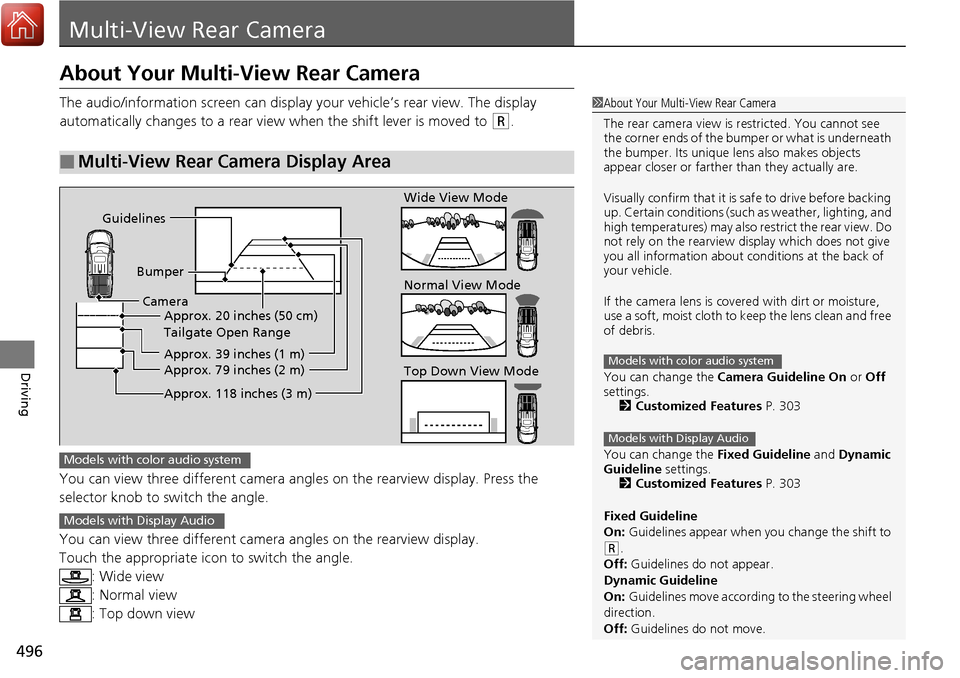
About Your Multi-View Rear Camera
The audio/information screen can display your vehicle’s rear view. The display
automatically changes to a rear view when the shift lever is moved to
(R.
You can view three different camera angl es on the rearview display. Press the
selector knob to switch the angle.
You can view three different camera angles on the rearview display.
Touch the appropriate icon to switch the angle. : Wide view
: Normal view
: Top down view
■Multi-View Rear Camera Display Area
1About Your Multi-View Rear Camera
The rear camera view is restricted. You cannot see
the corner ends of the bum per or what is underneath
the bumper. Its unique le ns also makes objects
appear closer or farther than they actually are.
Visually confirm that it is safe to drive before backing
up. Certain conditions (such as weather, lighting, and
high temperatures) may also restrict the rear view. Do
not rely on the rearview display which does not give
you all information about conditions at the back of
your vehicle.
If the camera lens is cove red with dirt or moisture,
use a soft, moist cloth to keep the lens clean and free
of debris.
You can change the Camera Guideline On or Off
settings. 2 Customized Features P. 303
You can change the Fixed Guideline and Dynamic
Guideline settings. 2 Customized Features P. 303
Fixed Guideline
On: Guidelines appear when you change the shift to
(R.
Off: Guidelines do not appear.
Dynamic Guideline
On: Guidelines move according to the steering wheel
direction.
Off: Guidelines do not move.
Models with color audio system
Models with Display Audio
Guidelines
BumperCamera Approx. 20 inches (50 cm)
Tailgate Open Range
Approx. 39 inches (1 m)
Approx. 79 inches (2 m)
Approx. 118 inches (3 m)
Wide View Mode
Normal View Mode
Top Down View Mode
Models with color audio system
Models with Display Audio
Page 511 of 606

uuMaintenance MinderTMuTo Use Maintenance MinderTM
510
Maintenance
Reset the engine oil life display if you have performed the maintenance service.
1. Set the power mode to ON.
2. Go to the Maintenance Info. group.
2Customized Features P. 303
3.Press and hold the RESET button
u The oil life reset mode is displayed on the multi-information display.
4. Select Reset with the (Information) button, then push the RESET
button.
u The displayed maintenance items disappear, and the engine oil life display
returns to 100%.
u To cancel the oil life reset mode, select Cancel, then push the RESET button.
■Resetting the Display1Resetting the Display
NOTICE
Failure to reset the engine oil life after a maintenance
service results in the sy stem showing incorrect
maintenance intervals, which can lead to serious
mechanical problems.
The dealer will reset the en gine oil life display after
completing the required ma intenance service. If
someone other than a deal er performs maintenance
service, reset the engine oil life display yourself.
You can reset the engine oi l life display using the
audio/information screen. 2 Customized Features P. 303
Models with Display Audio
Models with color audio system
Press the
(Information)
button
RESET button
Page 541 of 606

540
Maintenance
Battery
Checking the Battery
The condition of the battery is monitored by a sensor located on the negative
terminal of the battery. If there is a prob lem with this sensor, the multi-information
display will display a warning message. If this happens, have you vehicle inspected
by a dealer.
Check the battery termin als for corrosion monthly.
If your vehicle’s battery is disconnected or goes dead:
• The audio system is disabled.
2 Audio System Theft Protection P. 201
•The clock resets.
2 Clock P. 108
Charging the Battery
Disconnect both battery cables to prevent da maging your vehicle’s electrical system.
Always disconnect the negative (–) cable first, and reconnect it last.
1 Battery
WARNING: Battery post, terminals,
and related accessories contain lead
and lead compounds.
Wash your hands after handling.
If you find corrosion, clea n the battery terminals by
applying a baking powder a nd water solution. Clean
the terminals with a damp towel. Cloth/towel dry the
battery. Coat the terminals with grease to help
prevent future corrosion.
3WARNING
The battery gives off explosive hydrogen
gas during normal operation.
A spark or flame can cause the battery to
explode with enough force to kill or
seriously hurt you.
When conducting any battery
maintenance, wear prot ective clothing and
a face shield, or have a skilled technician do
it.
Models without navigation system


