Page 285 of 673
284
uuAudio System Basic Operation uSong By VoiceTM (SBV)
Features
Song By VoiceTM (SBV)
Use SBV to search for and play music from your USB flash drive or iPod using voice
commands.
■To enable SBV 1.Select .
2. Select Settings .
3. Select System .
4. Select the Voice Recog tab.
5. Select Song by Voice .
6. Select On or Off .
Models with navigation system
1Song By VoiceTM (SBV)
Setting options:
•On (factory default): Song By VoiceTM commands
are available.
•Off : Disable the feature.
17 PILOT-31TG76100.book 284 ページ 2016年9月20日 火曜日 午後4時9分
Page 286 of 673
Continued285
uuAudio System Basic Operation uSong By VoiceTM (SBV)
Features
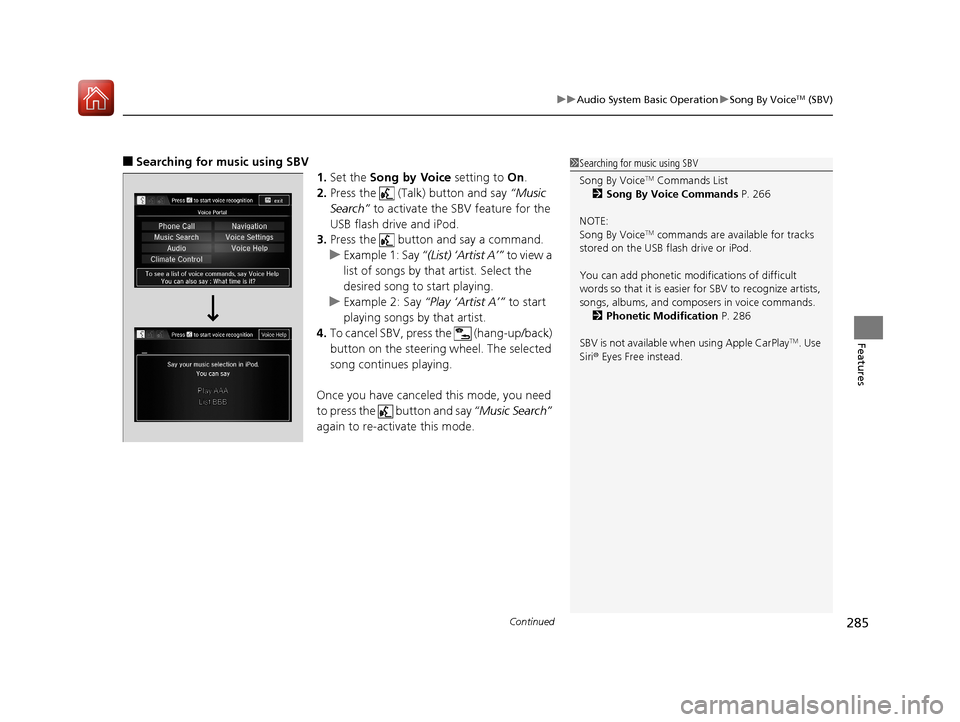
■Searching for music using SBV
1.Set the Song by Voice setting to On.
2. Press the (Talk) button and say “Music
Search” to activate the SBV feature for the
USB flash drive and iPod.
3. Press the button and say a command.
u Example 1: Say “(List) ‘Artist A’” to view a
list of songs by that artist. Select the
desired song to start playing.
u Example 2: Say “Play ‘Artist A’” to start
playing songs by that artist.
4. To cancel SBV, pres s the (hang-up/back)
button on the steering wheel. The selected
song continues playing.
Once you have canceled this mode, you need
to press the button and say “Music Search”
again to re-activate this mode.1 Searching for music using SBV
Song By Voice
TM Commands List
2 Song By Voice Commands P. 266
NOTE:
Song By Voice
TM commands are available for tracks
stored on the USB flash drive or iPod.
You can add phonetic modi fications of difficult
words so that it is easier for SBV to recognize artists,
songs, albums, and composers in voice commands. 2 Phonetic Modification P. 286
SBV is not available wh en using Apple CarPlay
TM. Use
Siri ® Eyes Free instead.
17 PILOT-31TG76100.book 285 ページ 2016年9月20日 火曜日 午後4時9分
Page 287 of 673
uuAudio System Basic Operation uSong By VoiceTM (SBV)
286
Features
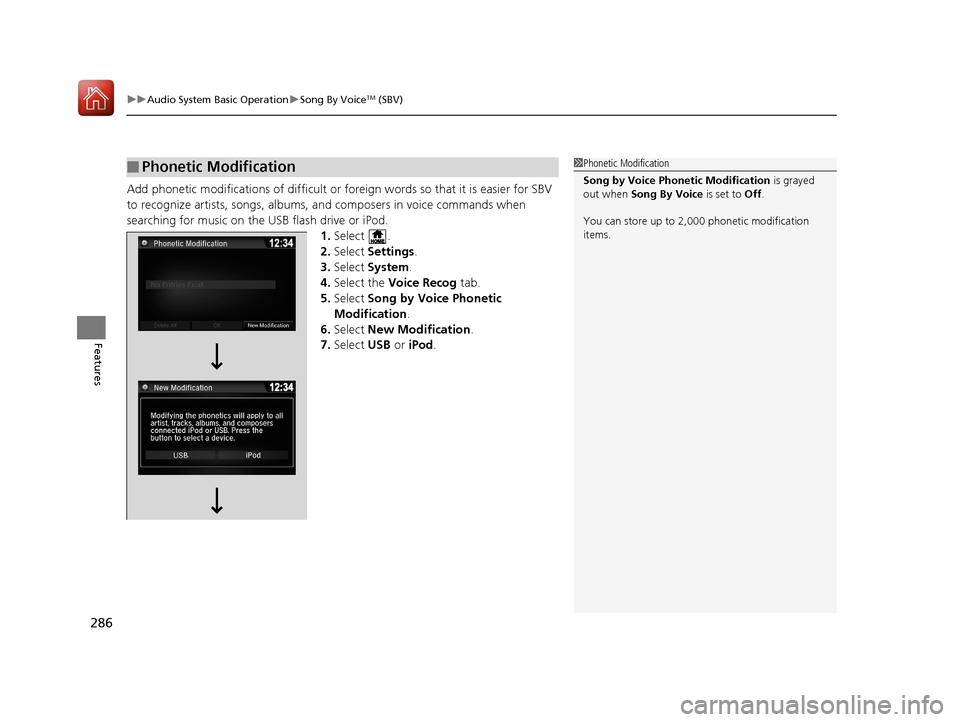
Add phonetic modifications of difficult or foreign words so that it is easier for SBV
to recognize artists, songs, albums, and composers in voice commands when
searching for music on the USB flash drive or iPod. 1.Select .
2. Select Settings .
3. Select System .
4. Select the Voice Recog tab.
5. Select Song by Voice Phonetic
Modification .
6. Select New Modification .
7. Select USB or iPod .
■Phonetic Modification1Phonetic Modification
Song by Voice Phonetic Modification is grayed
out when Song By Voice is set to Off .
You can store up to 2, 000 phonetic modification
items.
17 PILOT-31TG76100.book 286 ページ 2016年9月20日 火曜日 午後4時9分
Page 289 of 673

288
uuAudio System Basic Operation uPlaying Pandora ®*
Features
Playing Pandora ®*
Your audio system allows you to listen to music from the Pandora ® app on a
compatible smartphone.
This function is available when the phone is paired and connected to the vehicle’s
Bluetooth ® HandsFreeLink ® (HFL) system, or with an iPhone, you can connect using
your USB cable to the USB port.
2 Phone Setup P. 423
2 USB Port(s) P. 219
*1:Some or all of the lists may not be displayed.
1Playing Pandora ®*
Pandora®, the Pandora logo, and the Pandora trade
dress are trademarks or registered trademarks of
Pandora Media, Inc., used with permission. Pandora
is only available in certai n countries. Visit the Pandora
website for more information.
To find out if your phone is compatible with this
feature, visit www.handsfreelink.honda.com , or call
1-888-528-7876.
To use this service in your vehicle, the Pandora ® app
must first be installed on your phone. Visit
www.pandora.com . for more information.
Pandora ® is free, personalized radio that plays music
and comedy you’ll love. Just start with the name of
one of your favorite arti sts, tracks, comedians or
composers and Pandora ® will create a custom station
that plays similar tracks. Pandora® also features
hundreds of genre stations ranging from Dubstep to
Smooth Jazz to Power Workout.
If you cannot operate Pandora ® through the audio
system, it may be streaming through Bluetooth®
Audio. Make sure Pandora ® mode on your audio
system is selected.
If your phone is connected to Android Auto
TM,
Pandora ® is only available through the Android
Auto
TM interface. Visit the Android AutoTM website to
check compatibility.
Audio/Information Screen Cover Art
VOL (Volume) Icons
Select to adjust the
volume. (Back) Icon
Select to go back to the
previous display.
/AUDIO (Power/
Audio) Icon
Select to turn the audio
system on and off.
(Menu) Icon
Select to display
the menu items.
Play/Pause Icon
Select to resume or play a track.
Station Up/Down Icons
Select to change a station. Skip Icon
Select to skip a track.Like/Dislike Icons
Select to evaluate a track.
Multi-Information Display
* Not available on all models
17 PILOT-31TG76100.book 288 ページ 2016年9月20日 火曜日 午後4時9分
Page 291 of 673
290
uuAudio System Basic Operation uPlaying a USB Flash Drive
Features
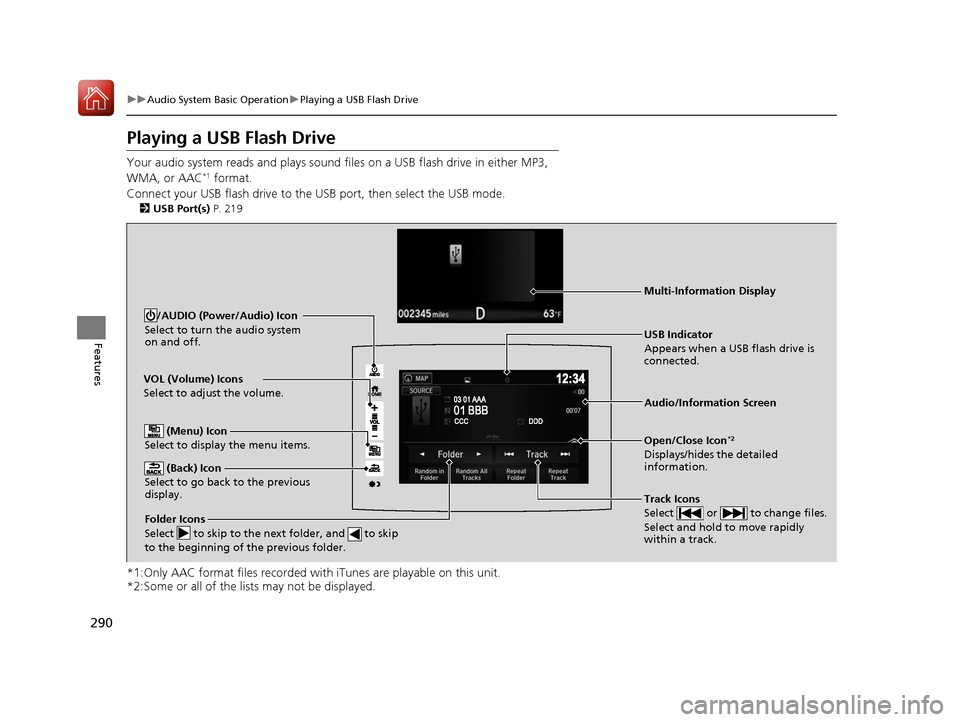
Playing a USB Flash Drive
Your audio system reads and plays sound fi les on a USB flash drive in either MP3,
WMA, or AAC*1 format.
Connect your USB flash drive to the USB port, then select the USB mode.
2USB Port(s) P. 219
*1:Only AAC format files recorded with iTunes are playable on this unit.
*2:Some or all of the lists may not be displayed.
VOL (Volume) Icons
Select to adjust the volume.
(Back) Icon
Select to go back to the previous
display.
Track Icons
Select or to change files.
Select and hold to move rapidly
within a track.
/AUDIO (Power/Audio) Icon
Select to turn the audio system
on and off.
Open/Close Icon*2
Displays/hides the detailed
information.
(Menu) Icon
Select to display the menu items.
Folder Icons
Select to skip to the next folder, and to skip
to the beginning of the previous folder.
Audio/Information Screen
USB Indicator
Appears when a USB flash drive is
connected.
Multi-Information Display
17 PILOT-31TG76100.book 290 ページ 2016年9月20日 火曜日 午後4時9分
Page 292 of 673
Continued291
uuAudio System Basic Operation uPlaying a USB Flash Drive
Features
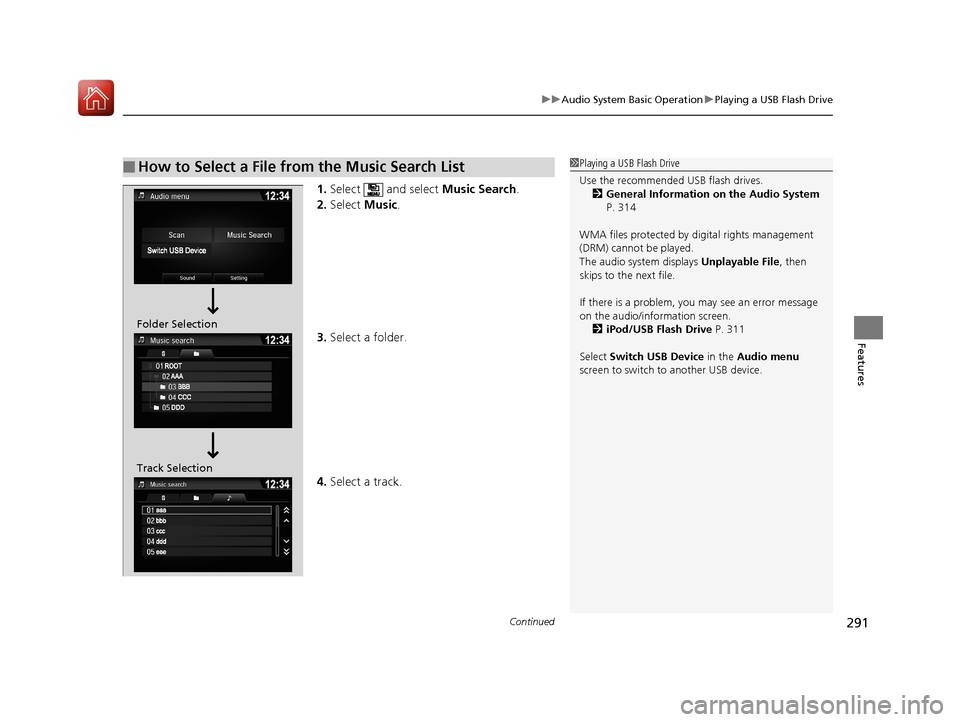
1. Select and select Music Search.
2. Select Music.
3. Select a folder.
4. Select a track.
■How to Select a File from the Music Search List1Playing a USB Flash Drive
Use the recommended USB flash drives.
2 General Information on the Audio System
P. 314
WMA files protected by di gital rights management
(DRM) cannot be played.
The audio system displays Unplayable File, then
skips to the next file.
If there is a problem, you may see an error message
on the audio/information screen.
2 iPod/USB Flash Drive P. 311
Select Switch USB Device in the Audio menu
screen to switch to another USB device.
Folder Selection
Track Selection
17 PILOT-31TG76100.book 291 ページ 2016年9月20日 火曜日 午後4時9分
Page 293 of 673
uuAudio System Basic Operation uPlaying a USB Flash Drive
292
Features
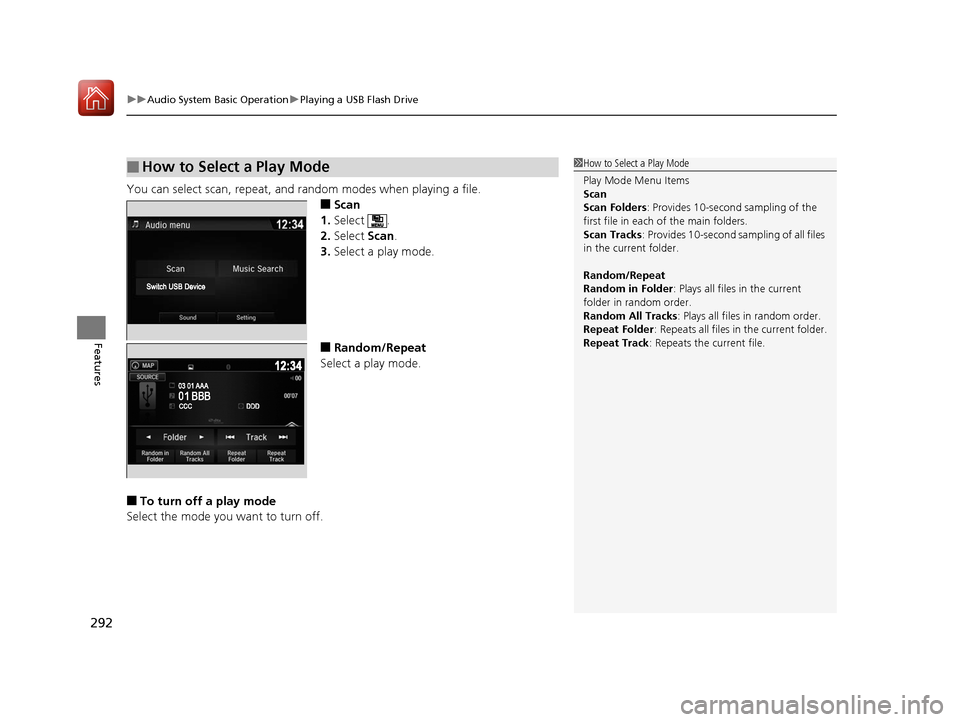
You can select scan, repeat, and random modes when playing a file.
■Scan
1. Select .
2. Select Scan.
3. Select a play mode.
■Random/Repeat
Select a play mode.
■To turn off a play mode
Select the mode you want to turn off.
■How to Select a Play Mode1 How to Select a Play Mode
Play Mode Menu Items
Scan
Scan Folders : Provides 10-second sampling of the
first file in each of the main folders.
Scan Tracks: Provides 10-second sa mpling of all files
in the current folder.
Random/Repeat
Random in Folder : Plays all files in the current
folder in random order.
Random All Tracks : Plays all files in random order.
Repeat Folder : Repeats all files in the current folder.
Repeat Track: Repeats the current file.
17 PILOT-31TG76100.book 292 ページ 2016年9月20日 火曜日 午後4時9分
Page 304 of 673

303
uuAudio System Basic Operation uApple CarPlayTM
Continued
Features
Apple CarPlayTM
If you connect an Apple CarPlayTM-compatible iPhone to the system via the 1.5A USB
port, you can use the audio/information scr een, instead of the iPhone display, to
make a phone call, listen to music, view maps (navigation), and access messages.
2USB Port(s) P. 219
■Phone
Access the contact list, make phone ca lls, or listen to voice mail.
■Messages
Check and reply to text messages, or have messages read to you.
■Music
Play music stored on your iPhone.
■Apple CarPlayTM Menu
1 Apple CarPlayTM
Only iPhone 5 or newer versions with iOS 8.4 or later
are compatible with Apple CarPlayTM.
Park in a safe place before connecting your iPhone to
Apple CarPlay
TM and when launching any compatible
apps.
To use Apple CarPlay
TM, connect the USB cable to the
1.5A USB port. The USB port located on the back of
the console compartment will not enable Apple
CarPlay
TM operation.
2 USB Port(s) P. 219
To directly access the Apple CarPlay
TM phone
function, select Phone on the home screen. While
connected to Apple CarPlay
TM, calls are only made
through Apple CarPlayTM. If you want to make a call
with Bluetooth ® HandsFreeLink ®, turn Apple
CarPlay
TM OFF or detach the USB cable from your
iPhone.
2 Setting Up Apple CarPlay
TM P. 304
When your iPhone is connected to Apple CarPlay
TM, it
is not possible to use the Bluetooth® Audio or
Bluetooth ® HandsFreeLink ®. However, other
previously paired phones can stream audio via
Bluetooth ® while Apple CarPlay
TM is connected.
2 Phone Setup P. 423
For details on c ountries and regions where Apple
CarPlay
TM is available, as well as information
pertaining to function, refer to the Apple homepage.
: Go back to the
home screen
Home screen
Apple CarPlay
TM iconApple CarPlay
TM menu screen
Go back to the Apple
CarPlay
TM menu screen
17 PILOT-31TG76100.book 303 ページ 2016年9月20日 火曜日 午後4時9分