Page 192 of 465

191
uuAudio System Basic Operation uPlaying Bluetooth ® Audio
Continued
Features
Playing Bluetooth ® Audio
Your audio system allows you to listen to music from your Bluetooth-compatible
phone.
This function is available when the phone is paired and connected to the vehicle’s
Bluetooth ® HandsFreeLink ® (HFL) system.
2Phone Setup P. 257
1Playing Bluetooth ® Audio
Not all Bluetooth -enabled phones with streaming
audio capabilities are compatible with the system.
For a list of compatible phones:
•U.S.: Visit www.handsfreelink.honda.com , or call
1-888-528-7876.
•Canada: Visit www.handsfreelink.ca , or call 1-888-
528-7876.
In some states, it may be illegal to perform some data
device functions while driving.
Only one phone can be used with HFL at a time.
When there are more than two paired phones in the
vehicle, the first paired phone the system finds is
automatically connected.
If more than one phone is paired to the HFL system,
there will be a delay before the system begins to play.
In some cases, the name of the artist, album, or track
may not appear correctly.
Some functions may not be available on some
devices.
CD/AUX Button
Press to select
Bluetooth ® Audio.
VOL/
(Volume/
Power) Knob
Press to turn
the audio
system on
and off.
Turn to adjust
the volume.
MENU/CLOCK
Button
Press to
display the
menu items.
Audio/Information Screen
Bluetooth Indicator
Appears when your phone is connected to HFL.
/ (Seek/Skip) Buttons
Press or to change files.
Play Button (Preset 1)
Press to resume playing a file. Pause Button (Preset 2)
Press to pause playing a file.
17 FIT -31T5A6200.book 191 ページ 2016年5月27日 金曜日 午後6時33分
Page 193 of 465
uuAudio System Basic Operation uPlaying Bluetooth ® Audio
192
Features
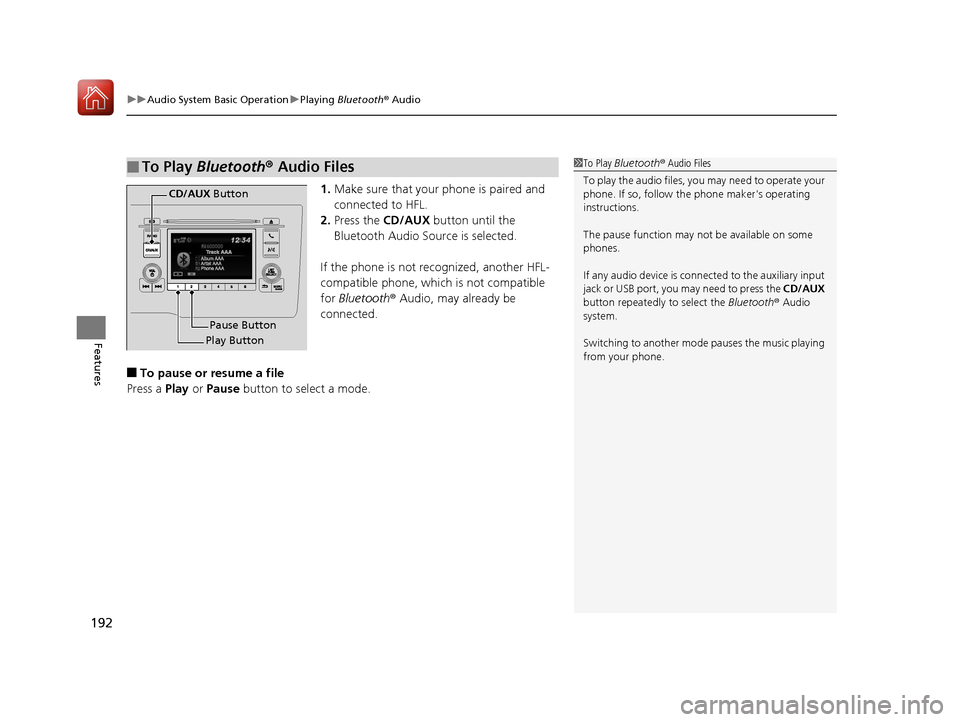
1. Make sure that your phone is paired and
connected to HFL.
2. Press the CD/AUX button until the
Bluetooth Audio Source is selected.
If the phone is not recognized, another HFL-
compatible phone, which is not compatible
for Bluetooth ® Audio, may already be
connected.
■To pause or resume a file
Press a Play or Pause button to select a mode.
■To Play Bluetooth® Audio Files1To Play Bluetooth ® Audio Files
To play the audio files, y ou may need to operate your
phone. If so, follow the phone maker's operating
instructions.
The pause function may no t be available on some
phones.
If any audio device is conne cted to the auxiliary input
jack or USB port, you may need to press the CD/AUX
button repeatedly to select the Bluetooth® Audio
system.
Switching to another mode pauses the music playing
from your phone.
Play Button Pause Button
CD/AUX
Button
17 FIT -31T5A6200.book 192 ページ 2016年5月27日 金曜日 午後6時33分
Page 194 of 465
193
uuAudio System Basic Operation uPlaying Bluetooth ® Audio
Features
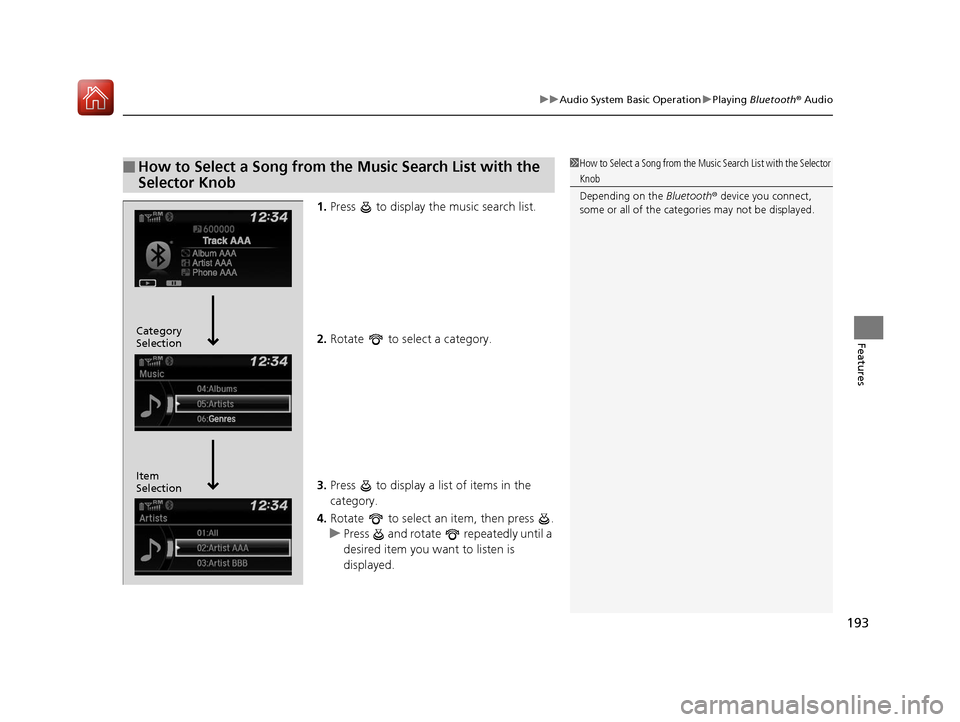
1. Press to display the music search list.
2. Rotate to select a category.
3. Press to display a list of items in the
category.
4. Rotate to select an item, then press .
u Press and rotate repeatedly until a
desired item you want to listen is
displayed.
■How to Select a Song from the Music Search List with the
Selector Knob1How to Select a Song from the Music Search List with the Selector
Knob
Depending on the Bluetooth® device you connect,
some or all of the catego ries may not be displayed.
Item
Selection Category
Selection
17 FIT -31T5A6200.book 193 ページ 2016年5月27日 金曜日 午後6時33分
Page 197 of 465
196
uuAudio System Basic Operation uAudio/Information Screen
Features
Select HOME to go to the HOME screen.
Select Phone , Info , Audio , Settings , or HondaLink .
■Phone
Shows the HFL information.
2 Bluetooth® HandsFreeLink ® P. 251
■Info
Shows the Trip Computer , Clock/Wallpaper , Voice Info, or System/Device
Information .
Using the HOME screen
HOME screen
17 FIT -31T5A6200.book 196 ページ 2016年5月27日 金曜日 午後6時33分
Page 212 of 465
211
uuAudio System Basic Operation uPlaying Internet Radio
Continued
Features
Playing Internet Radio
Connect a compatible phone through Bluetooth®.
2Phone Setup P. 284
You can also connect the phone using your USB connector to the USB port. Select
Source to select Pandora mode.
*1 : Some or all of the lists may not be displayed.
U.S. models
Compatible phones only
1Playing Internet Radio
Pandora ®, the Pandora logo, and the Pandora trade
dress are trademarks or registered trademarks of
Pandora Media, Inc., used with permission. Pandora
is currently available exclusively in the United States.
To find out if your phone is compatible with this
feature, visit www.handsfreelink.honda.com , or call
1-888-528-7876
To use this service in your vehicle, the Pandora ® app
must first be installed on your phone. Visit
www.pandora.com . for more information.
Pandora ® on the iPhone will only play through the
USB cable or Bluetooth® Audio, you cannot play
Pandora ® through the HondaLink ® Cable.
iPhone only
VOL
HOME
MENU
BACK
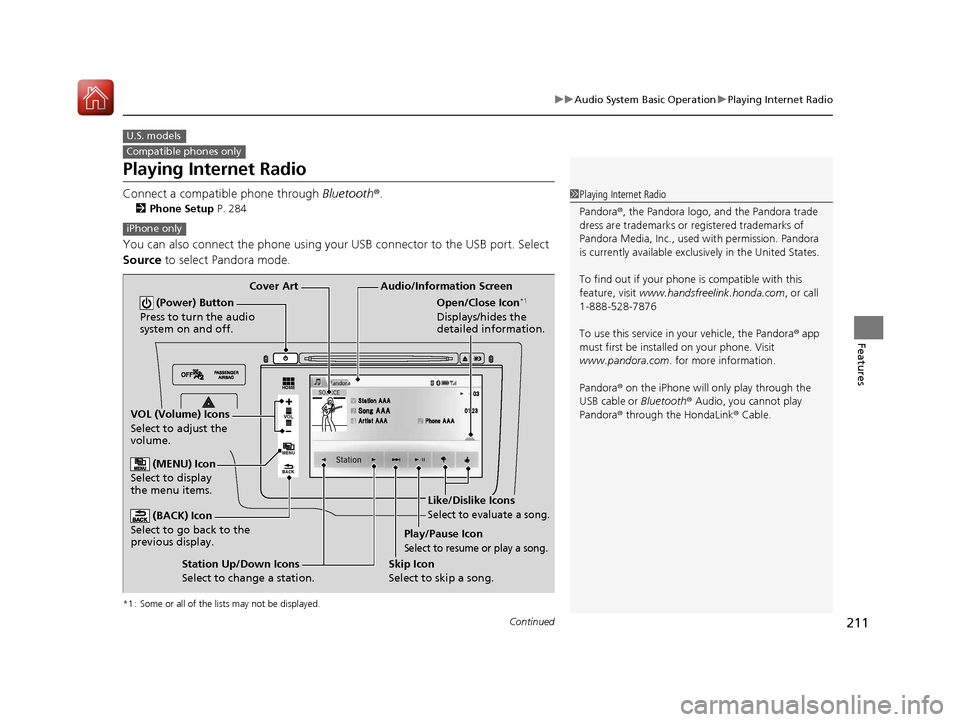
Audio/Information Screen
Cover Art
VOL (Volume) Icons
Select to adjust the
volume.
(BACK) Icon
Select to go back to the
previous display.
(Power) Button
Press to turn the audio
system on and off.
(MENU) Icon
Select to display
the menu items.
Play/Pause Icon
Select to resume or play a song.
Open/Close Icon*1
Displays/hides the
detailed information.
Station Up/Down Icons
Select to change a station. Skip Icon
Select to skip a song.
Like/Dislike Icons
Select to evaluate a song.
17 FIT -31T5A6200.book 211 ページ 2016年5月27日 金曜日 午後6時33分
Page 213 of 465
uuAudio System Basic Operation uPlaying Internet Radio
212
Features
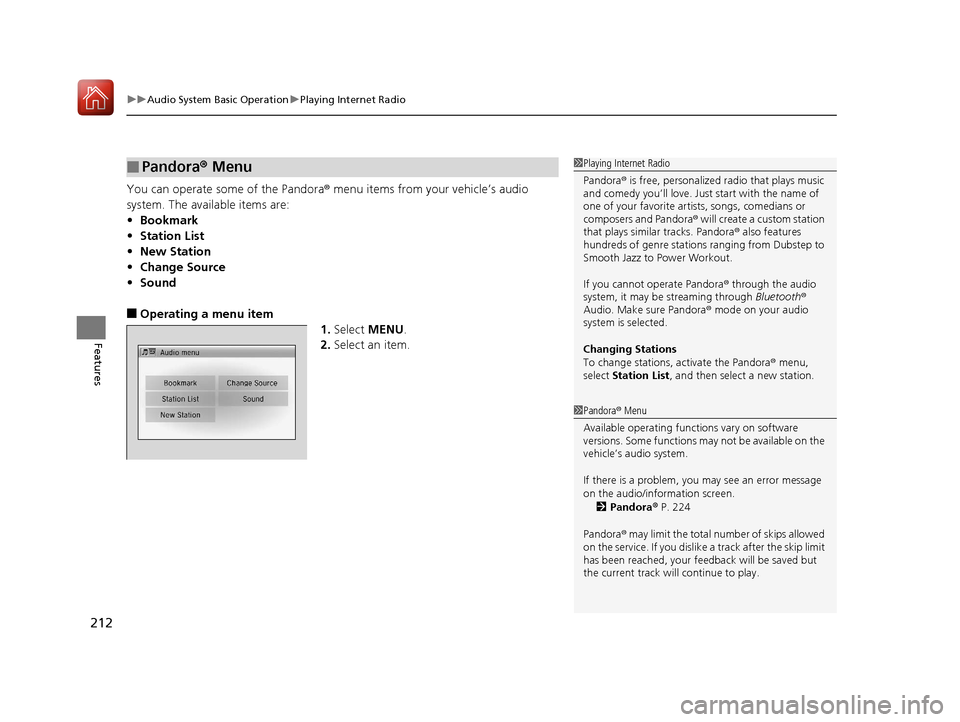
You can operate some of the Pandora® menu items from your vehicle’s audio
system. The available items are:
• Bookmark
• Station List
• New Station
• Change Source
• Sound
■Operating a menu item
1.Select MENU .
2. Select an item.
■Pandora® Menu1Playing Internet Radio
Pandora ® is free, personalized radio that plays music
and comedy you’ll love. Just start with the name of
one of your favorite arti sts, songs, comedians or
composers and Pandora ® will create a custom station
that plays similar tracks. Pandora ® also features
hundreds of genre stations ranging from Dubstep to
Smooth Jazz to Power Workout.
If you cannot operate Pandora ® through the audio
system, it may be streaming through Bluetooth®
Audio. Make sure Pandora ® mode on your audio
system is selected.
Changing Stations
To change stations, activate the Pandora ® menu,
select Station List , and then select a new station.
1Pandora ® Menu
Available operating functi ons vary on software
versions. Some functions ma y not be available on the
vehicle’s audio system.
If there is a problem, you may see an error message
on the audio/information screen.
2 Pandora ® P. 224
Pandora ® may limit the total number of skips allowed
on the service. If you dislike a track after the skip limit
has been reached, your fe edback will be saved but
the current track will continue to play.
17 FIT -31T5A6200.book 212 ページ 2016年5月27日 金曜日 午後6時33分
Page 217 of 465
216
uuAudio System Basic Operation uPlaying Bluetooth ® Audio
Features
Playing Bluetooth® Audio
Your audio system allows you to listen to music from your Bluetooth-compatible
phone.
This function is available when the phone is paired and connected to the vehicle’s
Bluetooth ® HandsFreeLink ® (HFL) system.
2 Phone Setup P. 284
*1 : Depending on the Bluetooth device you connect, some or all of the lists may not be displayed.
1Playing Bluetooth ® Audio
Not all Bluetooth -enabled phones with streaming
audio capabilities are compatible with the system.
For a list of compatible phones:
•U.S.: Visit www.handsfreelink.honda.com , or call
1-888-528-7876.
•Canada: Visit www.handsfreelink.ca , or call 1-888-
528-7876.
In some states, it may be illegal to perform some data
device functions while driving.
Only one phone can be used with HFL at a time.
When there are more than two paired phones in the
vehicle, the first paired phone the system finds is
automatically linked.
If more than one phone is paired to the HFL system,
there may be a delay before the system begins to play.
In some cases, the name of the artist, album, or track
may not appear correctly.
A NO CONNECT message may be displayed if:
•The phone is not linked to HFL.
•The phone is not turned on.
•The phone is not in the vehicle.•An incompatible phone is connected.
The following functions may not be available on
some devices:
•Pause function
•Group selection
VOL
HOME
MENU
BACK
�_� �_�Š�€�“�‹�>�_�_�_�N�O�>�d�‡�Š�ƒ�>�_�_�_�n�†�
�Û�Û
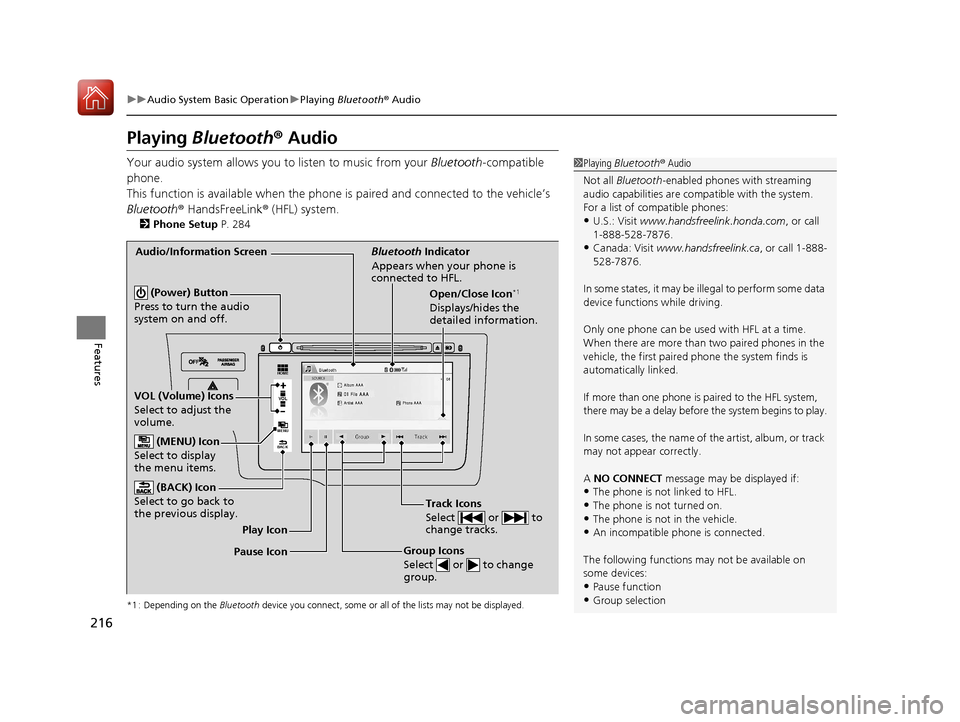
Audio/Information Screen Bluetooth Indicator
Appears when your phone is
connected to HFL.
Track Icons
Select or to
change tracks.
VOL (Volume) Icons
Select to adjust the
volume. (BACK) Icon
Select to go back to
the previous display.
(Power) Button
Press to turn the audio
system on and off.Open/Close Icon*1
Displays/hides the
detailed information.
(MENU) Icon
Select to display
the menu items.
Group Icons
Select or to change
group.Pause Icon Play Icon
17 FIT -31T5A6200.book 216 ページ 2016年5月27日 金曜日 午後6時33分
Page 218 of 465
217
uuAudio System Basic Operation uPlaying Bluetooth ® Audio
Features
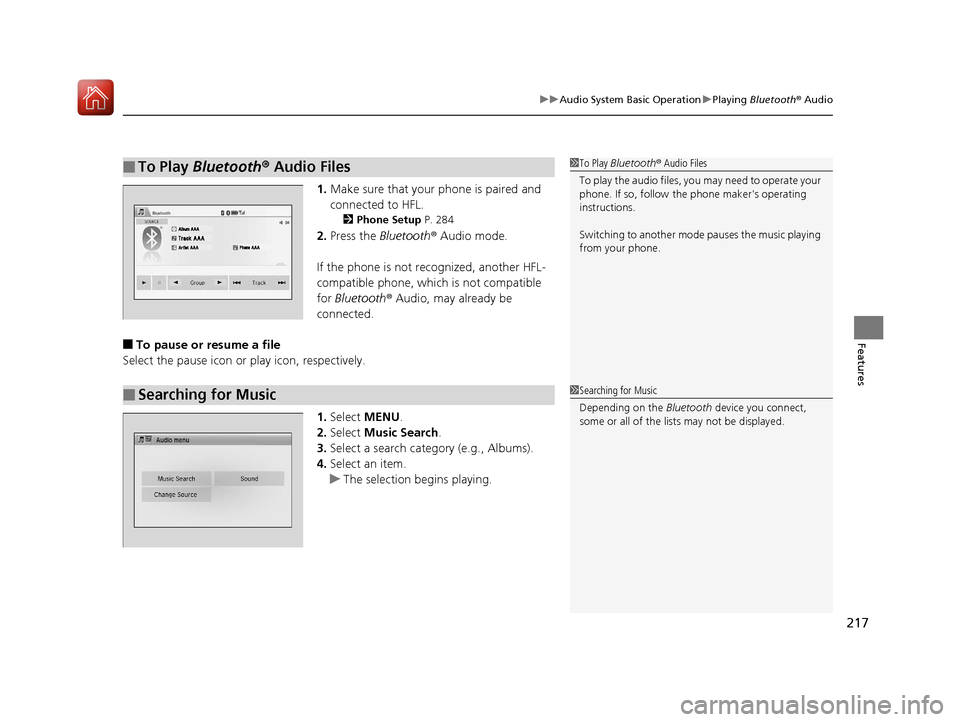
1. Make sure that your phone is paired and
connected to HFL.
2 Phone Setup P. 284
2.Press the Bluetooth ® Audio mode.
If the phone is not recognized, another HFL-
compatible phone, which is not compatible
for Bluetooth ® Audio, may already be
connected.
■To pause or resume a file
Select the pause icon or play icon, respectively.
1.Select MENU .
2. Select Music Search.
3. Select a search catego ry (e.g., Albums).
4. Select an item.
u The selection begins playing.
■To Play Bluetooth ® Audio Files1 To Play Bluetooth ® Audio Files
To play the audio files, y ou may need to operate your
phone. If so, follow the phone maker's operating
instructions.
Switching to another mode pauses the music playing
from your phone.
�Û�Û
■Searching for Music1 Searching for Music
Depending on the Bluetooth device you connect,
some or all of the list s may not be displayed.
17 FIT -31T5A6200.book 217 ページ 2016年5月27日 金曜日 午後6時33分