2017 HONDA CR-V change time
[x] Cancel search: change timePage 183 of 657

182
uuOperating the Switches Around the Steering Wheel uWipers and Washers
Controls
Wipers and Washers
The windshield wipers and washers can be
used when the ignition switch is in ON
(w*1.
■MIST
The wipers run at high speed until you release
the lever.
■Wiper switch (OFF, INT*2/AUTO*3, LO,
HI)
Move the lever up or down to change the
wiper settings.
■Adjusting wiper operation*
Turn the adjustment ring to adjust the wiper
operation.
■Washer
Sprays while you pull the lever toward you.
When you release the lever for more than one
second, the spray stops, the wipers sweep two
or three more times to clear the windshield,
then stop.
*1: Models with the smart entry system have an ENGINE START/STOP button
instead of an ignition switch.
*2: Models with manual intermittent operation
*3: Models with automati c intermittent operation
■Windshield Wipers/Washers1Wipers and Washers
NOTICE
Do not use the wipers when the windshield is dry.
The windshield will get sc ratched, or the rubber
blades will get damaged.
NOTICE
In cold weather, the blades may freeze to the
windshield.
Operating the wipers in th is condition may damage
the wipers. Use the defogger to warm the
windshield, then turn the wipers on.
Turn the washers off if no washer fluid comes out.
The pump may get damaged.
If the vehicle speeds up while the wipers are
operating intermittently, the length of the wipe
interval shortens. When the vehicle starts moving, the
wipers make a single sweep.
When the vehicle speeds up, the wiper operation’s
shortest delay setting ( ) and the LO setting become
the same.
If the wiper stops operating due to an obstacle such
as the build-up of snow, pa rk the vehicle in a safe
place. Rotate the wiper switch to OFF, and turn the
ignition switch to ACCESSORY
( q or LOCK ( 0*1,
then remove the obstacle.
Models with intermittent time adjustment ring
Intermittent Time
Adjustment Ring*
MIST
INT
*2/AUTO*3
OFF
LO : Low speed wipe Pull to
use
washer.
HI: High speed wipe
Lower speed, fewer sweeps
Higher speed, more sweeps
* Not available on all models
17 CR-V-31TLA6000.book 182 ページ 2016年10月11日 火曜日 午後6時37分
Page 204 of 657

203Continued
Controls
Interior Lights/Interior Convenience Items
Interior Lights
■ON
The interior lights come on regardless of
whether the doors are open or closed.
■Door activated
The interior lights come on in the following
situations:
• When any doors are opened.
• You unlock the driver's door.
• You remove the key from the ignition
switch.
• When the power mode is set to VEHICLE
OFF (LOCK).
■OFF
The interior lights remain off regardless of
whether the doors are open or closed.
■Interior Light Switches1 Interior Light Switches
In the door activated position, the interior lights fade out
and go off about 30 seconds after the doors are closed.
The lights go off after 30 seconds in the following
situations:
•When you unlock the driver's door but do not open it.
•When you remove the key from the ignition switch
but do not open a door.
•When you set the power mode to VEHICLE OFF
(LOCK) but do not open a door.
You can change the interi or lights dimming time.
2 Customized Features P. 335
The interior lights go off i mmediately in the following
situations:
•When you lock the driver's door.
•When you close the driver's door with the key in
the ignition switch.
•When you close the driver’s door in ACCESSORY
mode.
•When you turn the ignition switch to ON ( w*1.
If you leave any doors open in VEHICLE OFF (LOCK)
mode, or without the key in the ignition switch, the
interior lights go off after about 15 minutes.
*1: Models with the smart entry system have an
ENGINE START/STOP button instead of an ignition
switch.
Models without smart entry system
Models with smart entry system
Models without smart entry system
Models with smart entry system
Door
Activated
Position
Off
Front
Front
Models with moonroof
Models with panoramic roof
Door Activated Position
Off
On
Models without smart entry system
Models with smart entry system
17 CR-V-31TLA6000.book 203 ページ 2016年10月11日 火曜日 午後6時37分
Page 236 of 657

235
Features
Audio System Basic Operation
To use the audio system, the ignition switch must be in ACCESSORY (q or ON (w.
Use the selector knob or MENU/CLOCK
button to access some audio functions.
Press to switch between the normal and
extended display fo r some functions.
Selector knob: Rotate left or right to scroll
through the available ch oices. Press to set
your selection.
MENU/CLOCK button: Press to select any
mode.
The available mode in cludes the wallpaper,
display, clock, language setup, and play
modes. Play modes can be also selected from
scan, random, repeat, and so on.
(Back) button: Press to go back to the previous display.
(Sound) button: Press to select the sound setting mode.
(Day/Night) button: Press to change the audio/information screen
brightness.
Press the button, then adjust the brightness using . u Each time you press the button, the mode switches between the daytime
mode, nighttime mode and off mode.
Models with color audio system1 Audio System Basic Operation
These indications are used to show how to operate
the selector knob.
Rotate to select.
Press to enter.
Menu Items 2 Adjust Clock P. 132
2 Wallpaper Setup P. 238
2 Display Setup P. 241
2 Scan P. 243, 251
2 Play Mode P. 246, 251
2 RDS Settings P. 243
2 Bluetooth P. 252
Press the SOURCE , , , or button on the
steering wheel to cha nge any audio setting.
2 Audio Remote Controls P. 231
(Back)
Button
Selector Knob MENU/
CLOCK
Button
(Day/Night) Button
(Sound) Button
Menu Display
17 CR-V-31TLA6000.book 235 ページ 2016年10月11日 火曜日 午後6時37分
Page 239 of 657

uuAudio System Basic Operation uAudio/Information Screen
238
Features
You can change, store, and delete the wa llpaper on the audio/information screen.
■Import wallpaper
You can import up to three images, one at a time, for wallpaper from a USB flash
drive.
1.Connect the USB flash drive to the USB
port.
2 USB Port(s) P. 229
2.Press the MENU/CLOCK button.
3. Rotate to select Settings, then press
.
4. Rotate to select Wallpaper, then press
.
5. Rotate to select Import, then press .
u The picture name is displayed on the list.
6. Rotate to select a desired picture, then
press .
u The selected picture is displayed.
7. Press to save the picture.
8. Press to select OK.
9. Rotate to select a location to save the
picture, then press .
u The display will return to the wallpaper
setting screen.
■Wallpaper Setup1Wallpaper Setup
•When importing wallpaper files, the image must be
in the USB flash drive’s root directory. Images in a
folder cannot be imported.
•The file name must be fewer than 64 characters.•The file format of the im age that can be imported
is BMP (bmp) or JPEG (jpg).
•The individual file size limit is 2 MB.•The maximum image size is 1,920 x 936 pixels. If
the image size is less than 480 × 234 pixels, the
image is displayed in the middle of the screen with
the extra area appearing in black.
•Up to 255 files can be selected.
•If the USB flash drive doe s not have any pictures,
the error message appears.
•The wallpaper setup is limited while driving.
17 CR-V-31TLA6000.book 238 ページ 2016年10月11日 火曜日 午後6時37分
Page 244 of 657
243
uuAudio System Basic Operation uPlaying AM/FM Radio
Features
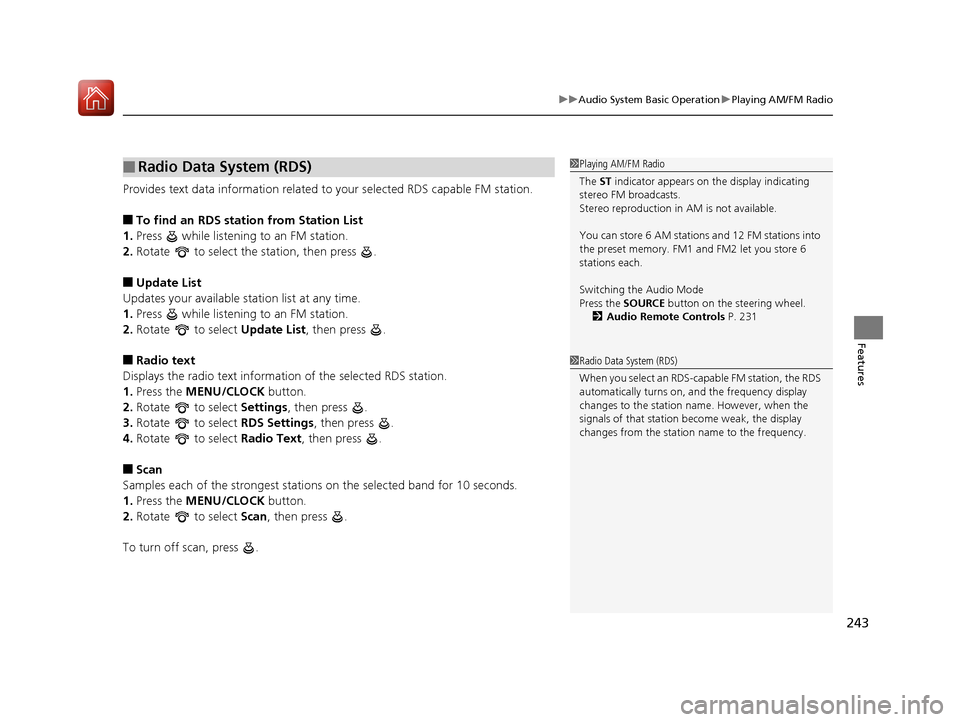
Provides text data information related to your selected RDS capable FM station.
■To find an RDS station from Station List
1. Press while listening to an FM station.
2. Rotate to select the station, then press .
■Update List
Updates your available st ation list at any time.
1. Press while listening to an FM station.
2. Rotate to select Update List, then press .
■Radio text
Displays the radio text informat ion of the selected RDS station.
1. Press the MENU/CLOCK button.
2. Rotate to select Settings, then press .
3. Rotate to select RDS Settings, then press .
4. Rotate to select Radio Text, then press .
■Scan
Samples each of the strongest stations on the selected band for 10 seconds.
1. Press the MENU/CLOCK button.
2. Rotate to select Scan, then press .
To turn off scan, press .
■Radio Data System (RDS)1 Playing AM/FM Radio
The ST indicator appears on the display indicating
stereo FM broadcasts.
Stereo reproduction in AM is not available.
You can store 6 AM stations and 12 FM stations into
the preset memory. FM1 and FM2 let you store 6
stations each.
Switching the Audio Mode
Press the SOURCE button on the steering wheel.
2 Audio Remote Controls P. 231
1Radio Data System (RDS)
When you select an RDS-capable FM station, the RDS
automatically turns on, and the frequency display
changes to the station name. However, when the
signals of that station become weak, the display
changes from the statio n name to the frequency.
17 CR-V-31TLA6000.book 243 ページ 2016年10月11日 火曜日 午後6時37分
Page 253 of 657

252
uuAudio System Basic Operation uPlaying Bluetooth ® Audio
Features
Playing Bluetooth® Audio
Your audio system allows you to listen to music from your Bluetooth-compatible
phone.
This function is available when the phone is paired and connected to the vehicle’s
Bluetooth ® HandsFreeLink ® (HFL) system.
2 Phone Setup P. 377
1Playing Bluetooth ® Audio
Not all Bluetooth -enabled phones with streaming
audio capabilities are compatible with the system.
For a list of compatible phones:
•U.S.: Visit www.handsfreelink.honda.com , or call
1-888-528-7876.
•Canada: Visit www.handsfreelink.ca , or call 1-888-
528-7876.
In some states, it may be il legal to perform some data
device functions while driving.
Only one phone can be used with HFL at a time.
When there are more than two paired phones in the
vehicle, the first paired phone the system finds is
automatically connected.
If more than one phone is paired to the HFL system,
there will be a delay before the system begins to play.
In some cases, the name of the artist, album, or track
may not appear correctly.
Some functions may not be available on some
devices.
MEDIA Button
Press to select
Bluetooth Audio mode
(if connected)
VOL/
(Volume/
Power) Knob
Press to turn
the audio
system on and
off.
Turn to adjust
the volume.
MENU/
CLOCK
Button
Press to
display the
menu items.
Audio/Information Screen
Bluetooth Indicator
Appears when your phone is connected to HFL.
/ (Seek/Skip)
Buttons
Press or to
change files.
Play Button (Preset 1)
Press to resume a file. Pause Button (Preset 2)
Press to pause a file.
Selector Knob
Turn to change groups.
Press, and then turn to select
an item. After that, press again
to make your selection.
(Back) Button
Press to go back to the previous display.
17 CR-V-31TLA6000.book 252 ページ 2016年10月11日 火曜日 午後6時37分
Page 257 of 657

256
Features
Audio System Basic Operation
To use the audio system function, the power mode must be in ACCESSORY or ON.
(Home): Select to go to the home screen.
2 Switching the Display P. 257
(Map)*: Select to display the map screen.
(Audio): Select to di splay the audio screen.
(Phone): Select to display the phone
screen. (Back): Select to go back to the previous
screen when the icon is illuminated.
(Day/Night): Select to change the audio/
information screen brightness.
Select once and select
(- or (+ to make
an adjustment.
u Each time you select , the mode
switches among the daytime mode,
nighttime mode and off mode.
1Audio System Basic Operation
Audio Menu Items
2 Station List P. 286, 287
2 Music Search List P. 297, 306
2 Scan P. 287, 288, 295, 307
2 Play Mode P. 298, 307Models with Display Audio
(Map) Icon*
(Phone) Icon
(Back) Icon
(Day/Night) Icon
(Home) Icon
(Audio) Icon
* Not available on all models
17 CR-V-31TLA6000.book 256 ページ 2016年10月11日 火曜日 午後6時37分
Page 267 of 657

uuAudio System Basic Operation uAudio/Information Screen
266
Features
You can change, store, and delete the wa llpaper on the audio/information screen.
■Import wallpaper
You can import up to five images, one at a time, for wallpaper from a USB flash
drive.
1.Connect the USB flash drive to the USB
port.
2 USB Port(s) P. 229
2.Select Settings .
3. Select Clock.
4. Select Clock/Wallpaper Type , select
Next, then open the Wallpaper tab.
5. Select Add New .
u The picture name is displayed on the list.
6. Select a desired picture.
u The preview is displayed on the left side
on the screen.
7. Select Start Import to save the data.
u The display will return to the wallpaper
list.
■Wallpaper Setup1Wallpaper Setup
The wallpaper you set up on Clock/Wallpaper Type
cannot be displayed on th e driver information
interface.
•When importing wallpaper files, the image must be
in the USB flash drive’s root directory.
Images in a folder cannot be imported.
•The file name must be fewer than 64 characters.•The file format of the im age that can be imported
is BMP (bmp) or JPEG (jpg).
•The individual file size limit is 5 MB.•The maximum image size is 4,096 × 4,096 pixels. If
the image size is less than 800 × 480 pixels, the
image is displayed in the middle of the screen with
the extra area appearing in black.
•If the USB flash drive doe s not have any pictures,
the No files detected message appears.
After changing the screen interface design, you can
change the wallpaper by following procedure.
1. Select .
2. Select .
3. Select and hold empty space on the home screen. The pop-up menu appears on the screen.
4. Select Change wallpaper .
5. Select Gallery, Live wallpapers , or Wallpapers.
17 CR-V-31TLA6000.book 266 ページ 2016年10月11日 火曜日 午後6時37分