2017 HONDA CIVIC USB port
[x] Cancel search: USB portPage 7 of 601

Visual Index
6
Quick Reference Guide
❙Door Mirror Controls (P172)
❙Passenger’s Front Airbag
(P49)
❙Glove Box (P183)
❙Rearview Mirror (P171)
❙Accessory Power Socket
(P187)
❙Hood Release Handle (P497)
❙Trunk Opener (P147)
❙Power Door Lock Master Switch (P142)
❙Power Window Switches (P153)
❙Interior Fuse Box (P568)
❙Driver’s Front Airbag (P49)
❙USB Port (P205)
❙Shift Lever
Continuously Variable
Transmission
(P411)
Manual Transmission (P413)
❙ECON Button (P416)
❙Electric Parking Brake Switch (P457)
❙Automatic Brake Hold Button (P460)
❙USB Port* (P205)
❙Wireless Charger* (P188)
17 CIVIC 4D HCM (KA KC KL)-31TBA6100.book 6 ページ 2016年8月31日 水曜日 午後6時5分
Page 204 of 601
203
Features
This chapter describes how to operate technology features.
Audio SystemAbout Your Audio System ................ 204
USB Port(s) ....................................... 205
Audio System Theft Protection ......... 206
Audio Remote Controls .................... 207
Audio System Basic Operation ........ 211
Audio/Information Screen ................ 212
Adjusting the Sound ........................ 216
Display Setup ................................... 217
Playing the AM/FM Radio ................. 218
Playing an iPod ................................ 220
Models with color audio system
Playing a USB Flash Drive ................. 223
Playing Bluetooth ® Audio................. 226
Audio System Basic Operation ........ 229
Audio/Information Screen ................ 230
Adjusting the Sound ........................ 251
Display Setup ................................... 252
Voice Control Operation .................. 254
Playing AM/FM Radio ....................... 258
Playing SiriusXM ® Radio
*................. 262
Playing an iPod ................................ 270
Song By Voice
TM (SBV) ...................... 273
Playing Pandora ®*............................ 277
Models with Display Audio
Playing a USB Flash Drive ................. 279
Playing Bluetooth ® Audio ................ 282
HondaLink ®..................................... 284
Wi-Fi Connection ............................. 289
Siri Eyes Free .................................... 291
Apple CarPlay .................................. 292
Android Auto .................................. 295
Audio Error Messages ...................... 299
General Information on the Audio System ............................................. 302
Customized Features ........................ 308
Bluetooth® HandsFreeLink®
*... 339, 362
* Not available on all models
17 CIVIC 4D HCM (KA KC KL)-31TBA6100.book 203 ページ 2016年8月31日 水曜日 午後6時5分
Page 206 of 601

205
uuAudio System uUSB Port(s)
Features
USB Port(s)
Install the iPod USB connector or the USB flash
drive to the front USB port.
u The USB port (1.0A) is for playing audio
files on a USB flash drive and connecting
a cellular phone and charging device.
u The USB port (1.5A) is for charging
devices, playing audio files and
connecting compatib le phones with
Apple CarPlay or Android Auto.
■In the consol e compartment*
The USB port (1.0A) is for playing audio files
on the USB flash drive and connecting a
cellular phone and charging device.
u Move the removable beverage holder
tray rearward.
*1: Models with the smart entry system have an ENGINE START/STOP button instead of an
ignition switch.
1 USB Port(s)
•Do not leave the iPod or USB flash drive in the
vehicle. Direct sunlight and high temperatures may
damage it.
•We recommend using an ex tension cable with the
USB port.
•Do not connect the iPod or USB flash drive using a
hub.
•Do not use a device such as a card reader or hard
disk drive, as the device or your files may be
damaged.
•We recommend k eeping your data backed up
before using the device in your vehicle.
•Displayed messages may vary depending on the
device model and software version.
If the audio system does not recognize the iPod, try
reconnecting it a few times or reboot the device. To
reboot, follow the manufac turer’s instructions
provided with the iPod or visit www.apple.com/ipod.
The front USB port can suppl y up to 1.5A of power.
It does not output 1.5A unless requested by the
device.
For amperage details, read the operating manual of
the device that ne eds to be charged.
Turn the ignition switch to ACCESSORY
( q or ON (w*1 first.
Under certain condi tions, a device connected to the
port may generate noise in the radio you are listening
to.
USB charge (1.5A)
Models with
color audio
systemModels with
Display Audio
Models with color audio system
Models with Display Audio
In the console compartment
* Not available on all models
17 CIVIC 4D HCM (KA KC KL)-31TBA6100.book 205 ページ 2016年8月31日 水曜日 午後6時5分
Page 215 of 601

uuAudio System Basic Operation uAudio/Information Screen
214
Features
You can change, store, and delete the wallpaper on the audio/information screen.
■Import wallpaper
You can import up to three images, one at a time, for wallpaper from a USB flash
drive.
1.Connect the USB flash drive to the USB
port.
2 USB Port(s) P. 205
2.Press the MENU/CLOCK button.
3. Rotate to select Settings, then press
.
4. Rotate to select Wallpaper , then press
.
5. Rotate to select Import, then press .
u The picture name is displayed on the list.
6. Rotate to select a desired picture, then
press .
u The selected picture is displayed.
7. Press to save the picture.
8. Press to select OK.
9. Rotate to select a location to save the
picture, then press .
u The display will return to the wallpaper
setting screen.
■Wallpaper Setup1Wallpaper Setup
•When importing wallpaper files, the image must be
in the USB flash drive’s root directory. Images in a
folder cannot be imported.
•The file name must be fewer than 64 characters.•The file format of the im age that can be imported
is BMP (bmp) or JPEG (jpg).
•The individual file size limit is 2 MB.•The maximum image size is 1,920 x 936 pixels. If
the image size is less than 480 × 234 pixels, the
image is displayed in the middle of the screen with
the extra area appearing in black.
•Up to 255 files can be selected.
•If the USB flash drive doe s not have any pictures,
the No files detected message appears.
17 CIVIC 4D HCM (KA KC KL)-31TBA6100.book 214 ページ 2016年8月31日 水曜日 午後6時5分
Page 221 of 601
220
uuAudio System Basic Operation uPlaying an iPod
Features
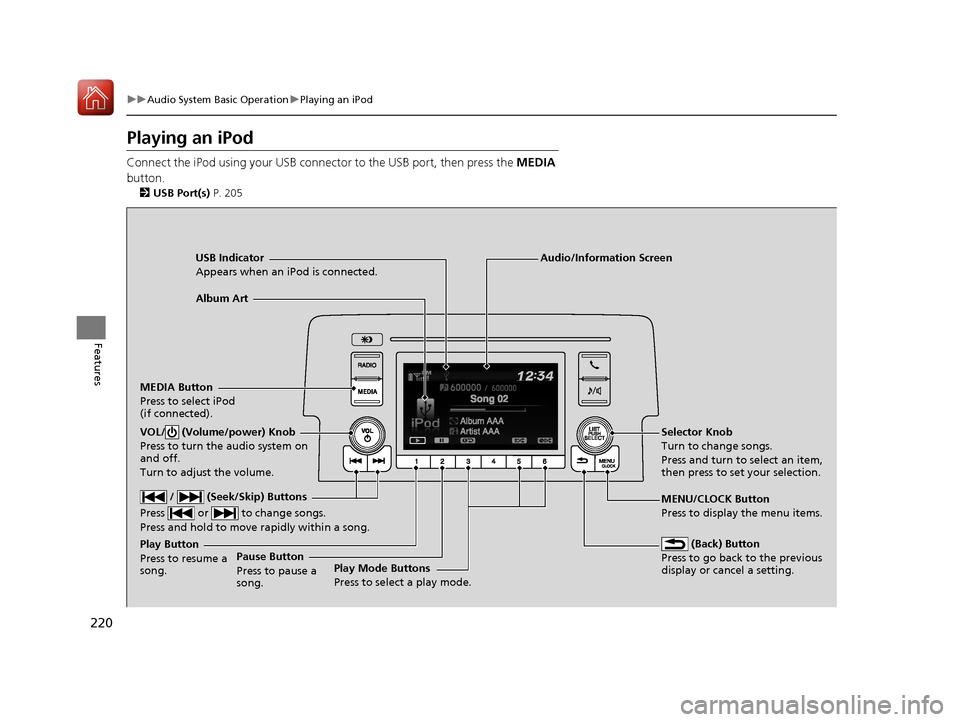
Playing an iPod
Connect the iPod using your USB connector to the USB port, then press the MEDIA
button.
2 USB Port(s) P. 205
USB Indicator
Appears when an iPod is connected.
MEDIA Button
Press to select iPod
(if connected).
(Back) Button
Press to go back to the previous
display or cancel a setting.
/ (Seek/Skip) Buttons
Press or to change songs.
Press and hold to move rapidly within a song.
VOL/ (Volume/power) Knob
Press to turn the audio system on
and off.
Turn to adjust the volume.Selector Knob
Turn to change songs.
Press and turn to select an item,
then press to set your selection.
MENU/CLOCK Button
Press to display the menu items.
Audio/Information Screen
Album Art
Play Mode Buttons
Press to select a play mode.
Play Button
Press to resume a
song.Pause Button
Press to pause a
song.
17 CIVIC 4D HCM (KA KC KL)-31TBA6100.book 220 ページ 2016年8月31日 水曜日 午後6時5分
Page 224 of 601
223
uuAudio System Basic Operation uPlaying a USB Flash Drive
Continued
Features
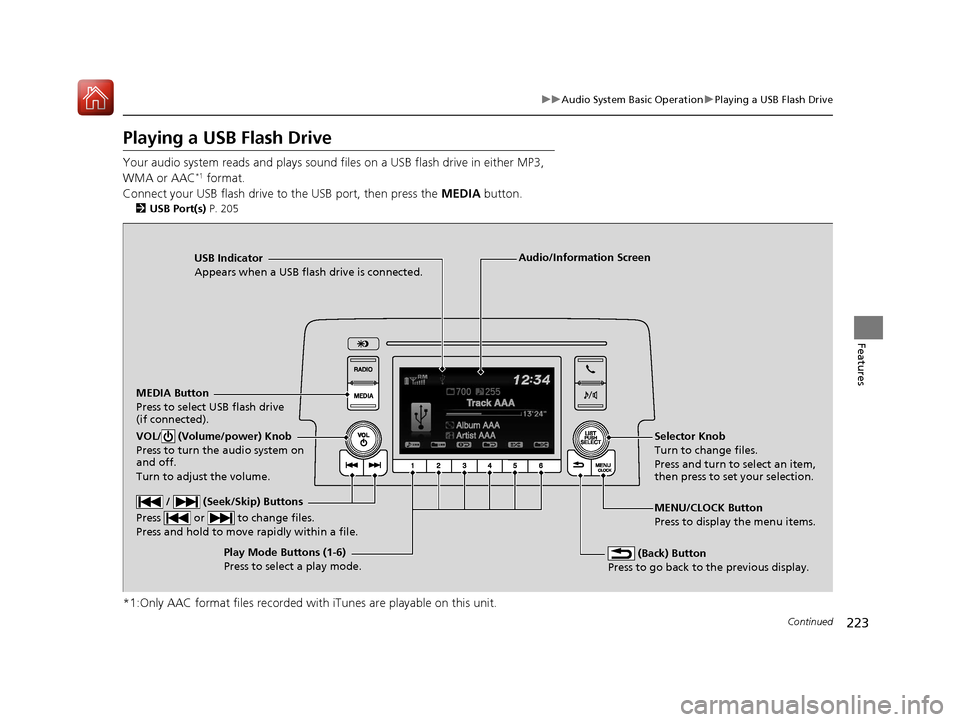
Playing a USB Flash Drive
Your audio system reads and plays sound files on a USB flash drive in either MP3,
WMA or AAC*1 format.
Connect your USB flash drive to the USB port, then press the MEDIA button.
2USB Port(s) P. 205
*1:Only AAC format files recorded with iTunes are playable on this unit.
USB Indicator
Appears when a USB flash drive is connected.
MEDIA Button
Press to select USB flash drive
(if connected).
(Back) Button
Press to go back to the previous display.
/ (Seek/Skip) Buttons
Press or to change files.
Press and hold to move rapidly within a file.
VOL/ (Volume/power) Knob
Press to turn the audio system on
and off.
Turn to adjust the volume.Selector Knob
Turn to change files.
Press and turn to select an item,
then press to set your selection.
MENU/CLOCK Button
Press to display the menu items.
Audio/Information Screen
Play Mode Buttons (1-6)
Press to select a play mode.
17 CIVIC 4D HCM (KA KC KL)-31TBA6100.book 223 ページ 2016年8月31日 水曜日 午後6時5分
Page 228 of 601

Continued227
uuAudio System Basic Operation uPlaying Bluetooth ® Audio
Features
1. Make sure that your phone is paired and
connected to HFL.
2. Press the MEDIA button until the
Bluetooth ® Audio Source is selected.
If the phone is not recognized, another HFL-
compatible phone, which is not compatible
for Bluetooth ® Audio, may already be
connected.
■To pause or resume a file
Press the Play or Pause button to select a mode.
■To Play Bluetooth ® Audio Files1 To Play Bluetooth ® Audio Files
To play the audio files, y ou may need to operate your
phone. If so, follow the phone maker's operating
instructions.
The pause function may no t be available on some
phones.
If any audio device is conne cted to the auxiliary input
jack or USB port, you may need to press the MEDIA
button repeatedly to select the Bluetooth® Audio
system.
Switching to another mode pauses the music playing
from your phone.
Play Button Pause Button
MEDIA
Button
17 CIVIC 4D HCM (KA KC KL)-31TBA6100.book 227 ページ 2016年8月31日 水曜日 午後6時5分
Page 240 of 601
Continued239
uuAudio System Basic Operation uAudio/Information Screen
Features
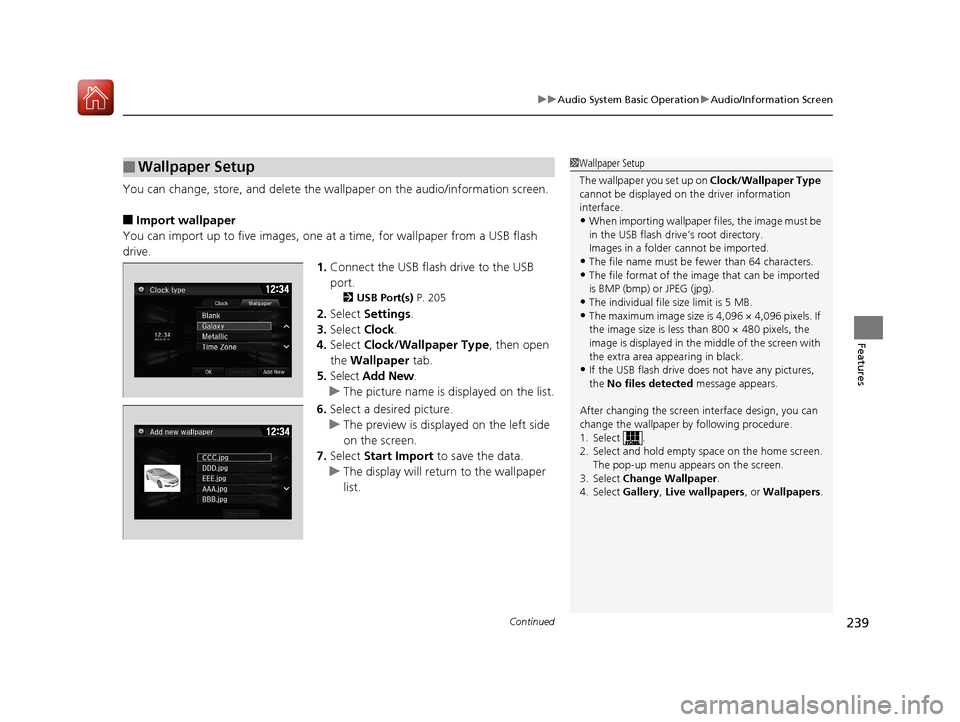
You can change, store, and delete the wallpaper on the audio/ information screen.
■Import wallpaper
You can import up to five images, one at a time, for wallpaper from a USB flash
drive. 1.Connect the USB flash drive to the USB
port.
2 USB Port(s) P. 205
2.Select Settings .
3. Select Clock.
4. Select Clock/Wallpaper Type , then open
the Wallpaper tab.
5. Select Add New .
u The picture name is displayed on the list.
6. Select a desired picture.
u The preview is displayed on the left side
on the screen.
7. Select Start Import to save the data.
u The display will return to the wallpaper
list.
■Wallpaper Setup1Wallpaper Setup
The wallpaper you set up on Clock/Wallpaper Type
cannot be displayed on th e driver information
interface.
•When importing wallpaper files, the image must be
in the USB flash driv e’s root directory.
Images in a folder cannot be imported.
•The file name must be fewer than 64 characters.•The file format of the im age that can be imported
is BMP (bmp) or JPEG (jpg).
•The individual file size limit is 5 MB.•The maximum image size is 4,096 × 4,096 pixels. If
the image size is less than 800 × 480 pixels, the
image is displayed in the middle of the screen with
the extra area appearing in black.
•If the USB flash drive doe s not have any pictures,
the No files detected message appears.
After changing the screen interface design, you can
change the wallpaper by following procedure.
1. Select .
2. Select and hold empty space on the home screen. The pop-up menu appears on the screen.
3. Select Change Wallpaper .
4. Select Gallery , Live wallpapers , or Wallpapers .
17 CIVIC 4D HCM (KA KC KL)-31TBA6100.book 239 ページ 2016年8月31日 水曜日 午後6時5分