Page 310 of 641

309
uuAudio System Basic Operation uAndroid Auto
Continued
Features
Android Auto
When you connect an Android phone to the Display Audio system via USB, Android
Auto is automatically initiated. When connected via Android Auto, you can use the
audio/information screen to access the Phone, Google Maps (Navigation), Google
Play Music, and Google Now functions. When you first use Android Auto, a tutorial
will appear on the screen.
We recommend that you comple te this tutorial while safely parked before using
Android Auto.
2 USB Port(s) P. 219
2 Auto Pairing Connection P. 311
1Android Auto
To use Android Auto, you need to download the
Android Auto app from Google Play to your
smartphone.
Only Android 5.0 (Lollipop) or later versions are
compatible with Android Auto.
Bluetooth A2DP cannot be used with Android Auto
phone.
Park in a safe place befo re connecting your Android
phone to Android Auto and when launching any
compatible apps.
To use Android Auto, connect the USB cable to the
front USB port. The USB port in the center console
storage will not enable Android Auto operation.
2 USB Port(s) P. 219
When your Android phone is connected to Android
Auto, it is not possible to use the Bluetooth® Audio.
However, other previously paired phones can stream
audio via Bluetooth ® while Android Auto is
connected.
2 Phone Setup P. 390
17 CIVIC 5D (KA KC KL)-31TGG6000.book 309 ページ 2016年6月8日 水曜日 午 後2時8分
Page 312 of 641
Continued311
uuAudio System Basic Operation uAndroid Auto
Features
d Music and audio
Play Google Play Music an d music apps that are compatible with Android Auto.
To switch between music apps, press this icon.
e Go back to the Home Screen.
f Voice
Operate Android Auto with your voice.
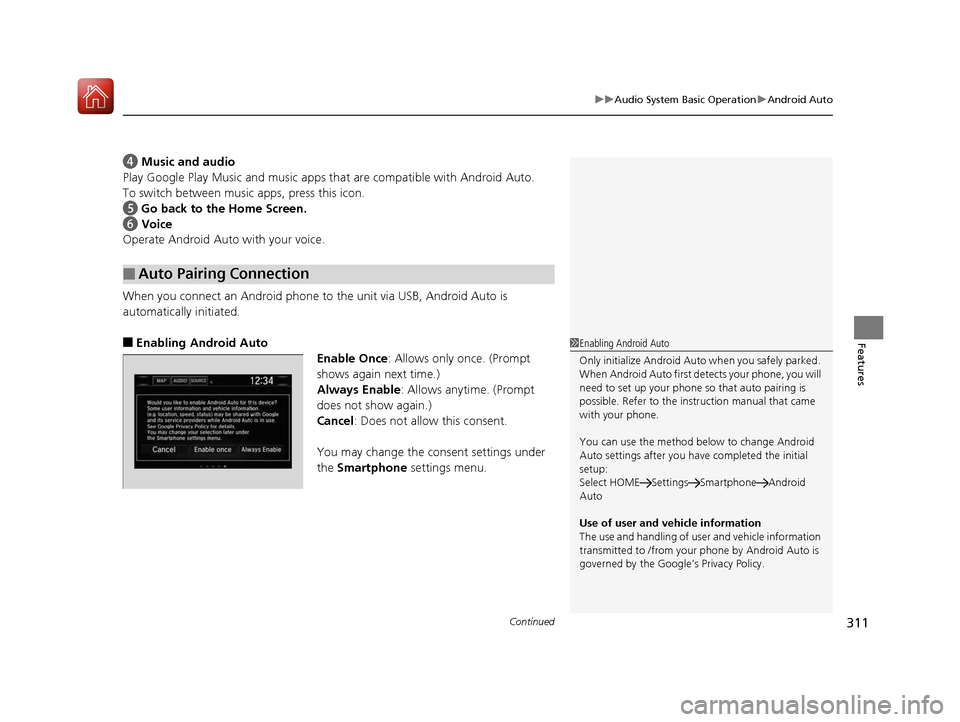
When you connect an Android phone to the unit via USB, Android Auto is
automatically initiated.
■Enabling Android Auto
Enable Once: Allows only once. (Prompt
shows again next time.)
Always Enable: Allows anytime. (Prompt
does not show again.)
Cancel: Does not allow this consent.
You may change the consent settings under
the Smartphone settings menu.
■Auto Pairing Connection
1Enabling Android Auto
Only initialize Android Auto when you safely parked.
When Android Auto first detects your phone, you will
need to set up your phone so that auto pairing is
possible. Refer to the inst ruction manual that came
with your phone.
You can use the method below to change Android
Auto settings after you have completed the initial
setup:
Select HOME Settings Smartphone Android
Auto
Use of user and vehicle information
The use and handling of user and vehicle information
transmitted to /from your phone by Android Auto is
governed by the Google’s Privacy Policy.
17 CIVIC 5D (KA KC KL)-31TGG6000.book 311 ページ 2016年6月8日 水曜日 午 後2時8分
Page 334 of 641
333
uuCustomized Features u
Continued
Features
Bluetooth On/Off Status
Bluetooth Device List
Edit Pairing Code
Wi-Fi On/Off Status
Wi-Fi Device List
Wi-Fi
BluetoothBluetooth/Wi-Fi
Wi-Fi Information
Text/Email
Bluetooth Device List
Edit Speed Dial
Ring Tone
Phone
Automatic Phone Sync
HondaLink Assist
Enable Text/Email
Select Account
New Message Notification
Phone
LaneWatch*
Fixed Guideline
Dynamic Guideline
Show with Turn Signal
Rear CameraCamera
Display Time after Turn Signal Off
Reference Line
HD Radio Mode (FM)*
RDS INFO
AudioFM/AM
HD Radio Mode (AM)*
Apple CarPlay
Android Auto
Smartphone
* Not available on all models
17 CIVIC 5D (KA KC KL)-31TGG6000.book 333 ページ 2016年6月8日 水曜日 午 後2時8分
Page 343 of 641
342
uuCustomized Features u
Features
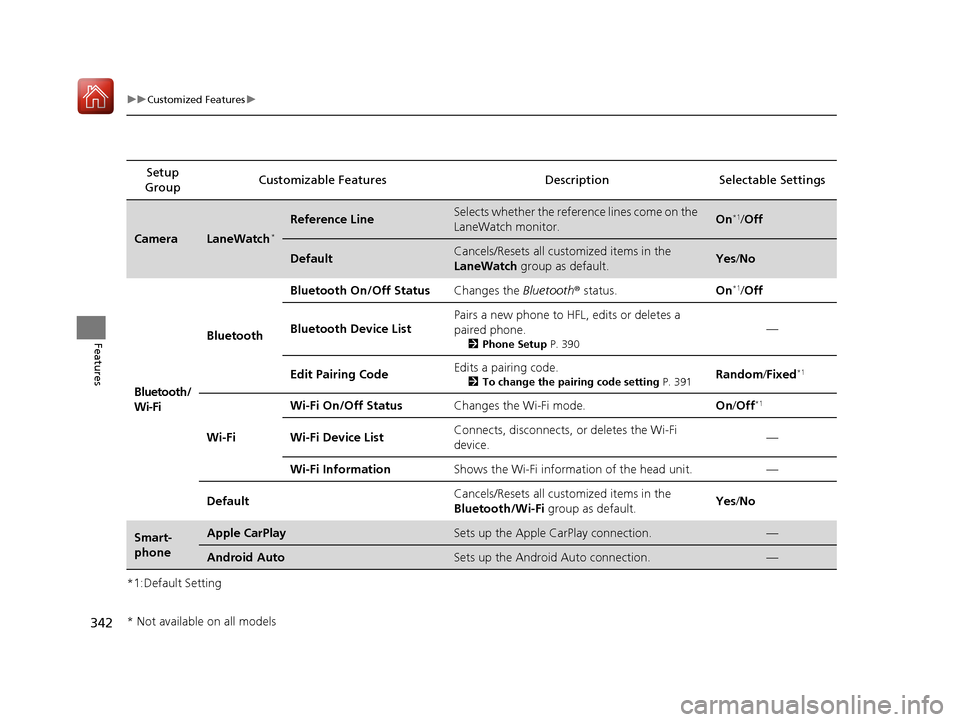
*1:Default SettingSetup
Group Customizable Featur
es Description Selectable Settings
CameraLaneWatch*
Reference LineSelects whether the reference lines come on the
LaneWatch monitor.On*1/Off
DefaultCancels/Resets all customized items in the
LaneWatch group as default.Yes/No
Bluetooth/
Wi-Fi Bluetooth
Bluetooth On/Off Status
Changes the Bluetooth® status. On
*1/Off
Bluetooth Device List Pairs a new phone to HFL, edits or deletes a
paired phone.
2
Phone Setup P. 390
—
Edit Pairing Code Edits a pairing code.
2
To change the pairing code setting P. 391Random/Fixed*1
Wi-Fi Wi-Fi On/Off Status
Changes the Wi-Fi mode. On/Off
*1
Wi-Fi Device List Connects, disconnects, or deletes the Wi-Fi
device.
—
Wi-Fi Information Shows the Wi-Fi information of the head unit. —
Default Cancels/Resets all customized items in the
Bluetooth/Wi-Fi
group as default. Yes
/No
Smart-
phoneApple CarPlaySets up the Apple CarPlay connection.—
Android AutoSets up the Android Auto connection.—
* Not available on all models
17 CIVIC 5D (KA KC KL)-31TGG6000.book 342 ページ 2016年6月8日 水曜日 午 後2時8分
Page 357 of 641

356
Features
Bluetooth® HandsFreeLink ®*
Bluetooth® HandsFreeLink ® (HFL) allows you to place and receive phone calls using
your vehicle's audio system, without handling your cell phone.
Using HFL
*1 : Models with driver information interface
*2 : Models with information display
■HFL Buttons
1 Bluetooth ® HandsFreeLink ®*
Place your phone where y ou can get good reception.
To use HFL, you need a Bluetooth-compatible cell
phone. For a list of compatible phones, pairing
procedures, and special fe ature capabilities. Visit
www.handsfreelink.honda.com , or call 1-888-528 -
7876.
Voice control tips
•Aim the vents away from the ceiling and close the
windows, as noise coming fr om them may interfere
with the microphone.
•Press and release the button when you want to
call a number using a st ored voice tag. Speak
clearly and naturally after a beep.
•If the microphone picks up vo ices other than yours,
the command may be misinterpreted.
•To change the volume level, use the audio system’s
volume knob or the remote audio controls on the
steering wheel.
State or local laws may pr ohibit the operation of
handheld electronic devices while operating a vehicle.
If you receive a call while using the audio system, the
system resumes its operati on after ending the call.
Up to 20 speed dial entries can be stored. If there is
no entry in the system, Speed Dial is disabled. 2 Speed Dial P. 372
Up to 20 call histories can be stored. If there is no call
history, Call History is disabled.
Models with color audio system
Microphone
Pick-up Button
Phone Button
Volume up
Volume down
Talk Button
Hang-up/Back Button
Pick-up Button Volume up
Volume down
Talk Button
Hang-up/Back Button
*1
*2
Selector Knob
* Not available on all models
17 CIVIC 5D (KA KC KL)-31TGG6000.book 356 ページ 2016年6月8日 水曜日 午 後2時8分
Page 364 of 641

Continued363
uuBluetooth ® HandsFreeLink ®*uHFL Menus
Features
■To pair a cell phone (No phone has
been paired to the system)
1. Press the button or the button.
2. Rotate to select Yes, then press .
3. Make sure your phone is in search or
discoverable mode, then press .
u HFL automatically searches for a
Bluetooth ® device.
4. When your phone appears on the list, select
it by pressing .
u If your phone doesn’t appear, select
Phone Not Found? and search for
Bluetooth ® devices using your phone.
From your phone, select
HandsFreeLink .
5. The system gives you a pairing code on the
audio/information screen.
u Confirm if the pairing code on the screen
and your phone match.
This may vary by phone.
6. A notification appears on the screen if
pairing is successful.
■Phone Setup1Phone Setup
Your Bluetooth -compatible phone must be paired to
HFL before you can make and receive hands-free
calls.
Phone Pairing Tips:
•You cannot pair your phone while the vehicle is
moving.
•Up to six phones can be paired.
•Your phone’s battery may dr ain faster when it is
connected to HFL.
•If your phone is not ready for pairing or not found
by the system within three minutes, the system will
time out and return to idle.
Once you have paired a phone, you can see it
displayed on the screen with one or two icons on the
right side.
These icons indicate the following: : The phone can be used with HFL.
: The phone is compatible with Bluetooth® Audio.
17 CIVIC 5D (KA KC KL)-31TGG6000.book 363 ページ 2016年6月8日 水曜日 午 後2時8分
Page 366 of 641
365
uuBluetooth ® HandsFreeLink ®*uHFL Menus
Continued
Features
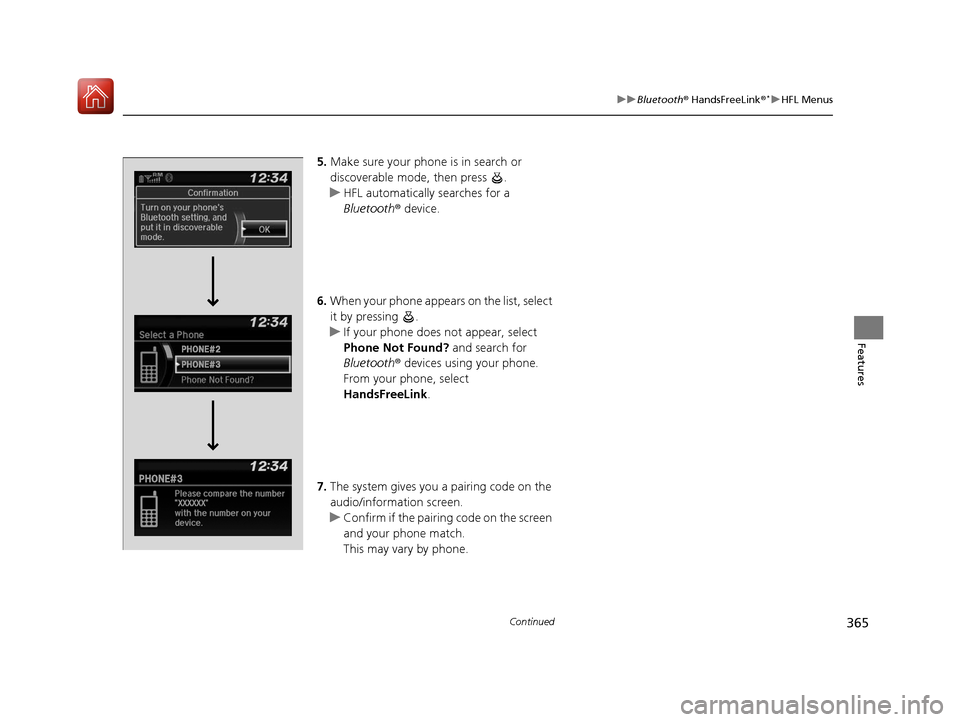
5. Make sure your phone is in search or
discoverable mode, then press .
u HFL automatically searches for a
Bluetooth ® device.
6. When your phone appears on the list, select
it by pressing .
u If your phone does not appear, select
Phone Not Found? and search for
Bluetooth ® devices using your phone.
From your phone, select
HandsFreeLink .
7. The system gives you a pairing code on the
audio/information screen.
u Confirm if the pairing code on the screen
and your phone match.
This may vary by phone.
17 CIVIC 5D (KA KC KL)-31TGG6000.book 365 ページ 2016年6月8日 水曜日 午 後2時8分
Page 368 of 641
367
uuBluetooth ® HandsFreeLink ®*uHFL Menus
Continued
Features
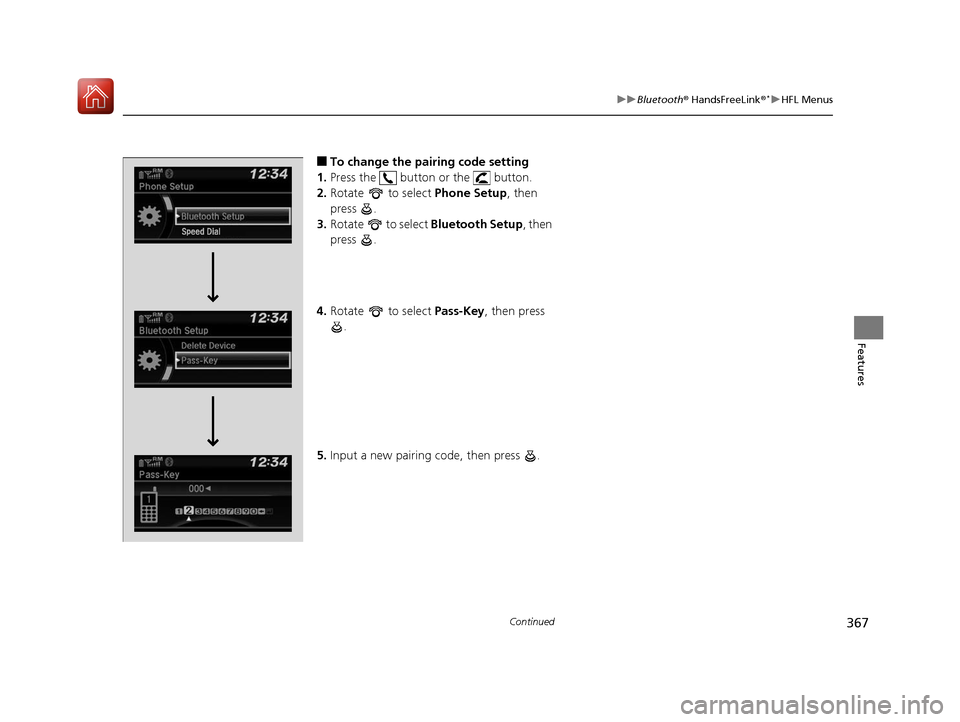
■To change the pairing code setting
1. Press the button or the button.
2. Rotate to select Phone Setup, then
press .
3. Rotate to select Bluetooth Setup, then
press .
4. Rotate to select Pass-Key, then press
.
5. Input a new pairing code, then press .
17 CIVIC 5D (KA KC KL)-31TGG6000.book 367 ページ 2016年6月8日 水曜日 午 後2時8分